'/%3e%3cpath%20id='cross_2'%20data-name='cross%202'%20class='cls-2'%20d='M20.612,30.43h0a5.361,5.361,0,1,0-10.723,0H0A33.709,33.709,0,0,1,30.569,0V9.75a5.361,5.361,0,1,1,0,10.723V30.43Z'%20transform='translate(67.193%200.007)%20rotate(90)'/%3e%3cpath%20id='cross_3'%20data-name='cross%203'%20class='cls-3'%20d='M20.612,30.43h0a5.361,5.361,0,1,0-10.723,0H0A33.709,33.709,0,0,1,30.569,0V9.75a5.361,5.361,0,1,1,0,10.723V30.43Z'%20transform='translate(67.186%2067.041)%20rotate(180)'/%3e%3cpath%20id='cross_4'%20data-name='cross%204'%20class='cls-4'%20d='M20.6,30.5h0a5.361,5.361,0,1,0-10.723,0H0A33.71,33.71,0,0,1,30.56,0V9.818a5.361,5.361,0,1,1,0,10.723V30.5Z'%20transform='translate(0%2067.041)%20rotate(-90)'/%3e%3c/svg%3e)
Viewing and Editing Text Files
You can view and edit text-based files — Markdown, HTML, JSON, SQL, TXT, and more — directly, without downloading them.
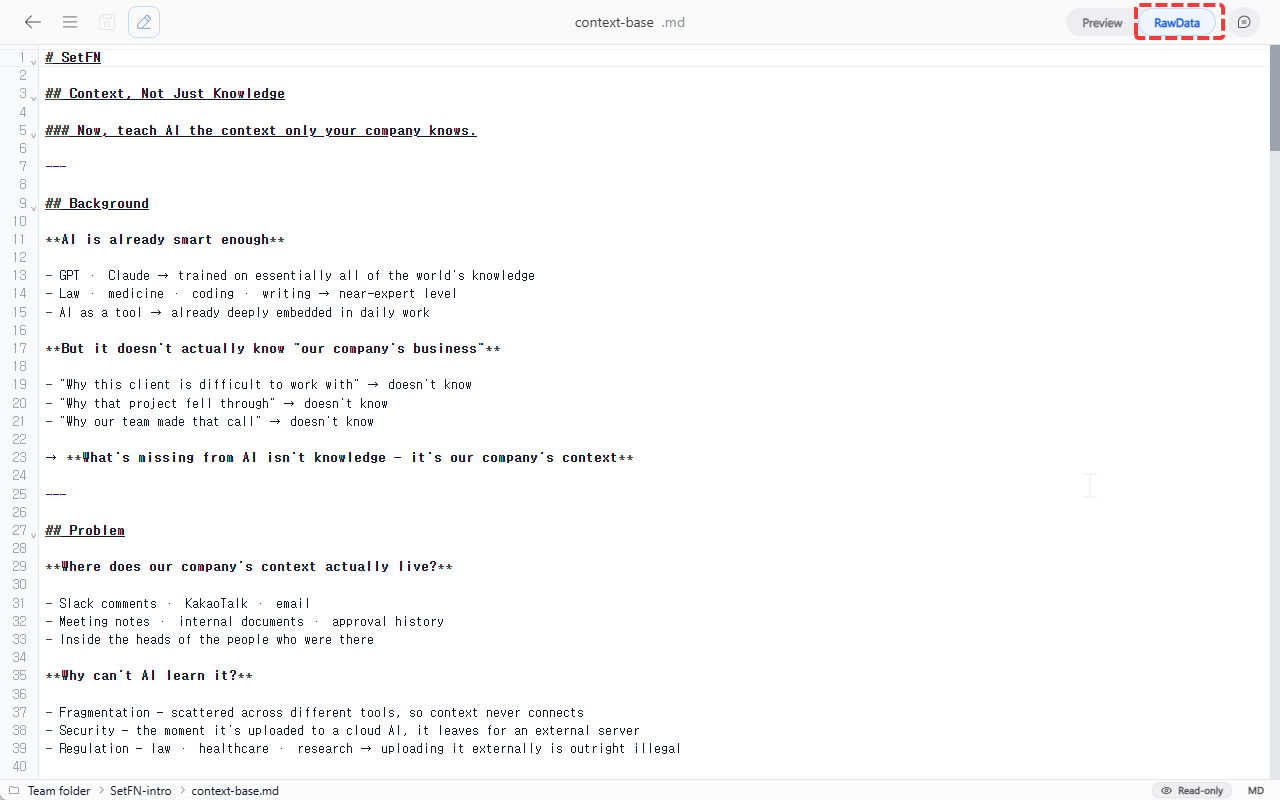
Preview
A viewer suited to the file format is provided.
| Format | Preview |
|---|---|
| Markdown (.md) | Displayed as a formatted document |
| HTML (.html) | Rendered as a web page |
| JSON (.json) | Collapsible/expandable tree structure |
| Email (.eml) | Sender/recipient info, body, attachments |
| Other text | Displayed as raw text |
For HTML files, some scripts may be blocked for security reasons. If you need the file to run exactly as-is, download it and open it locally.
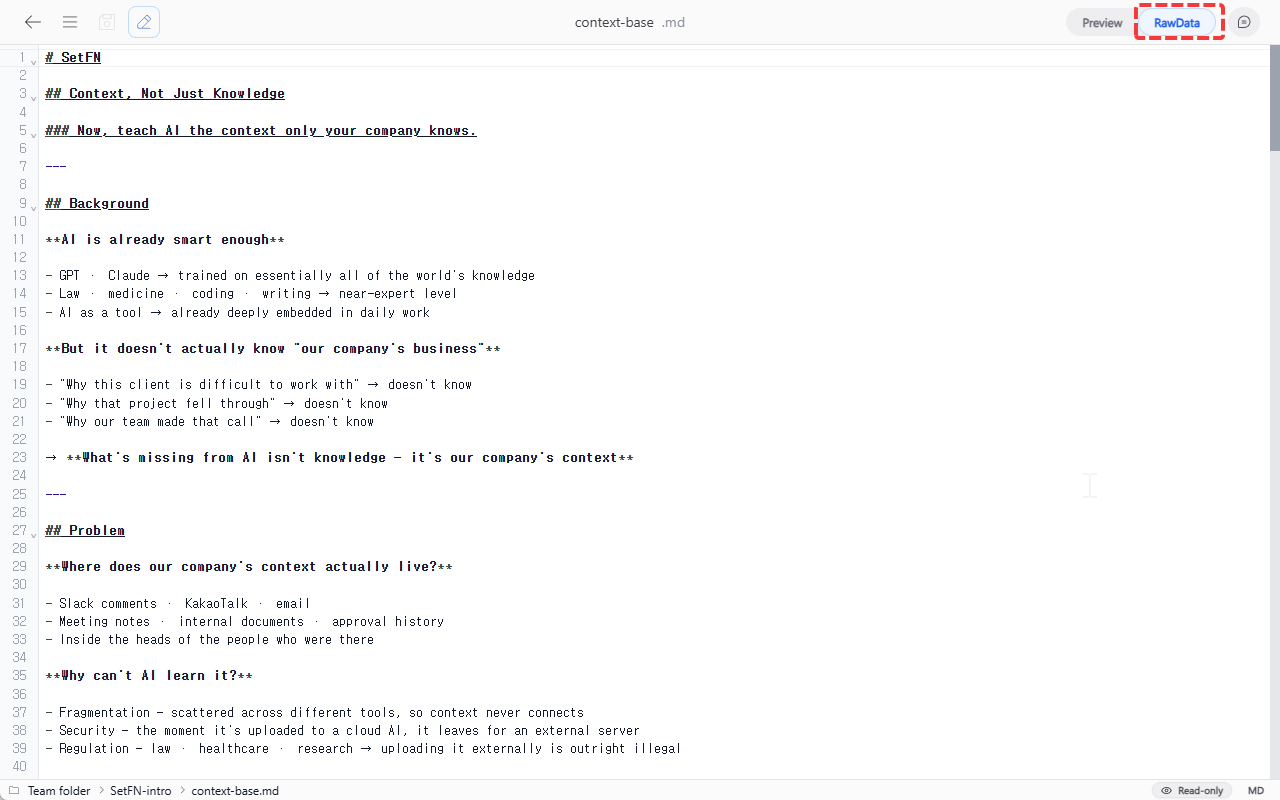
Viewing Raw Data
Click the Raw Data button in the top right to view the data before rendering.
Editing
Switching to Edit Mode
- Double-click the body text, whether in Preview or Raw Data mode, to switch to edit mode.
- For Markdown, a basic text editor is provided, and you can insert images. You can specify not only relative paths like
./image.pngbut also absolute paths.
Pasting Images into Markdown
- Use Ctrl+V (Mac: Cmd+V) to paste an image from the clipboard directly.
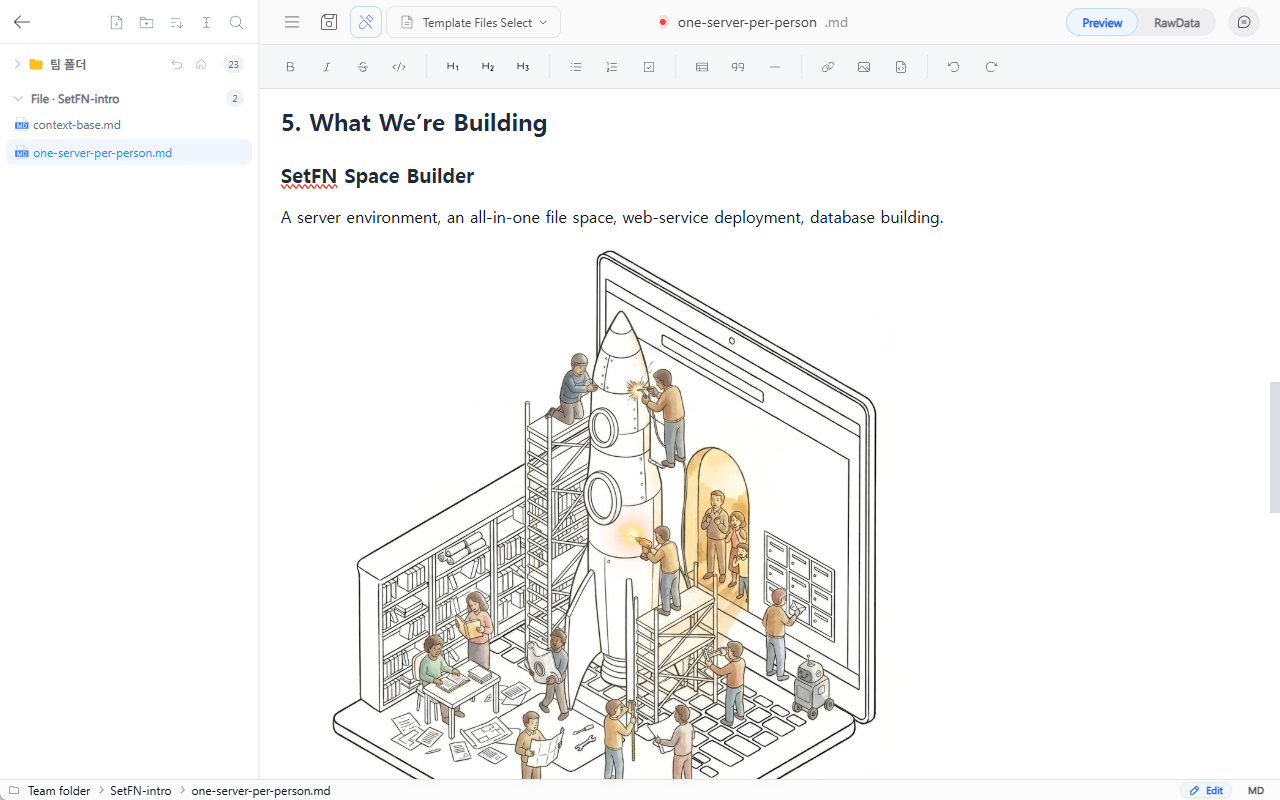
When you paste a clipboard image, it's saved directly inside the document in base64 format. This is convenient for sharing as a single document without needing to manage image files separately, but be aware that if there are many images or they are large, the document's own size will grow accordingly.

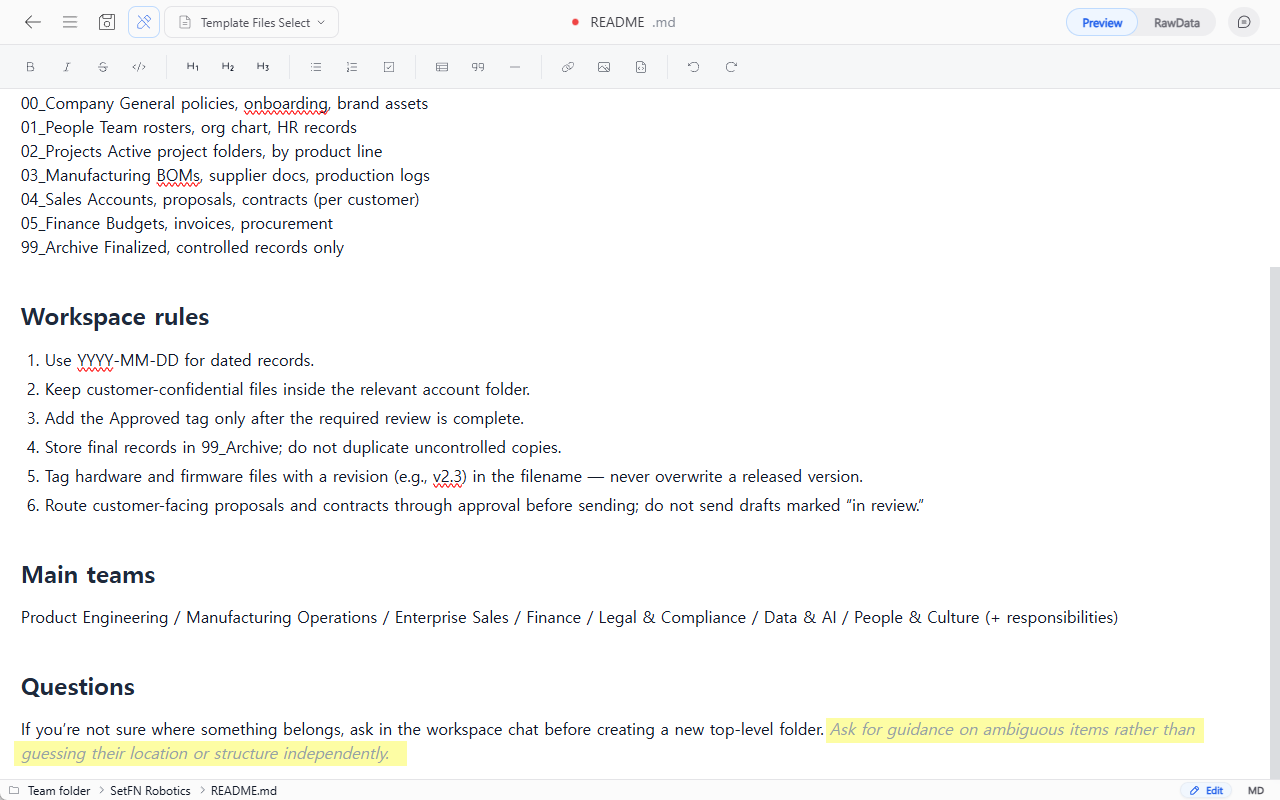
AI Autocomplete
When the cursor pauses and blinks for a moment, AI suggests content to continue writing. This feature requires an administrator to enable editor AI autocomplete and configure the model selection method in AI Integration and Policy.
Saving
- Click the floppy disk icon at the top, or save with Ctrl+S (Mac: Cmd+S).
- In
Raw Datamode, you can use Ctrl+F for text search and bulk replace.