'/%3e%3cpath%20id='cross_2'%20data-name='cross%202'%20class='cls-2'%20d='M20.612,30.43h0a5.361,5.361,0,1,0-10.723,0H0A33.709,33.709,0,0,1,30.569,0V9.75a5.361,5.361,0,1,1,0,10.723V30.43Z'%20transform='translate(67.193%200.007)%20rotate(90)'/%3e%3cpath%20id='cross_3'%20data-name='cross%203'%20class='cls-3'%20d='M20.612,30.43h0a5.361,5.361,0,1,0-10.723,0H0A33.709,33.709,0,0,1,30.569,0V9.75a5.361,5.361,0,1,1,0,10.723V30.43Z'%20transform='translate(67.186%2067.041)%20rotate(180)'/%3e%3cpath%20id='cross_4'%20data-name='cross%204'%20class='cls-4'%20d='M20.6,30.5h0a5.361,5.361,0,1,0-10.723,0H0A33.71,33.71,0,0,1,30.56,0V9.818a5.361,5.361,0,1,1,0,10.723V30.5Z'%20transform='translate(0%2067.041)%20rotate(-90)'/%3e%3c/svg%3e)
To-Do List
This format lets you manage tasks simply with checkboxes while seeing progress at a glance. It can be used broadly, from personal tasks to tracking team-level work.
Creating a File
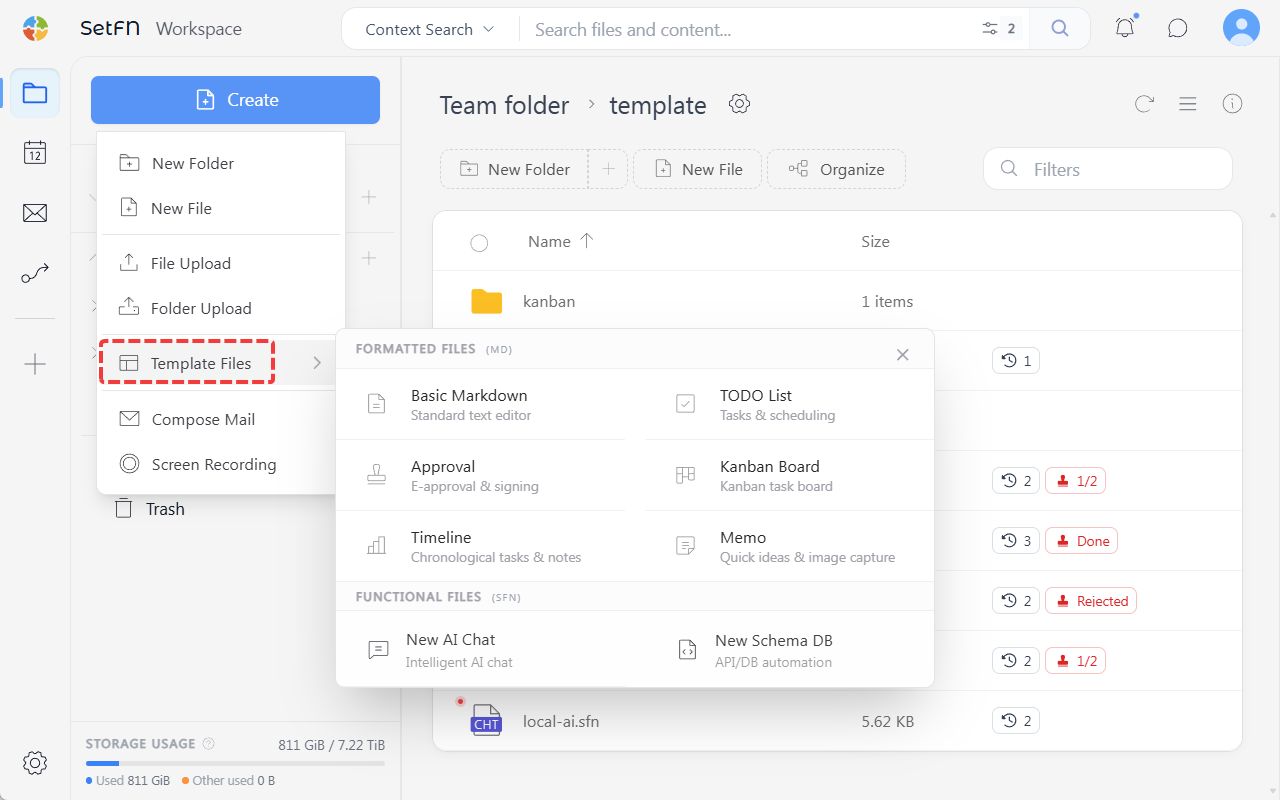
Create → Template File → To-Do List → enter a file name
How to Use
1. Writing and Checking Off Tasks
- Type a task on each line and press Enter to add a new item.
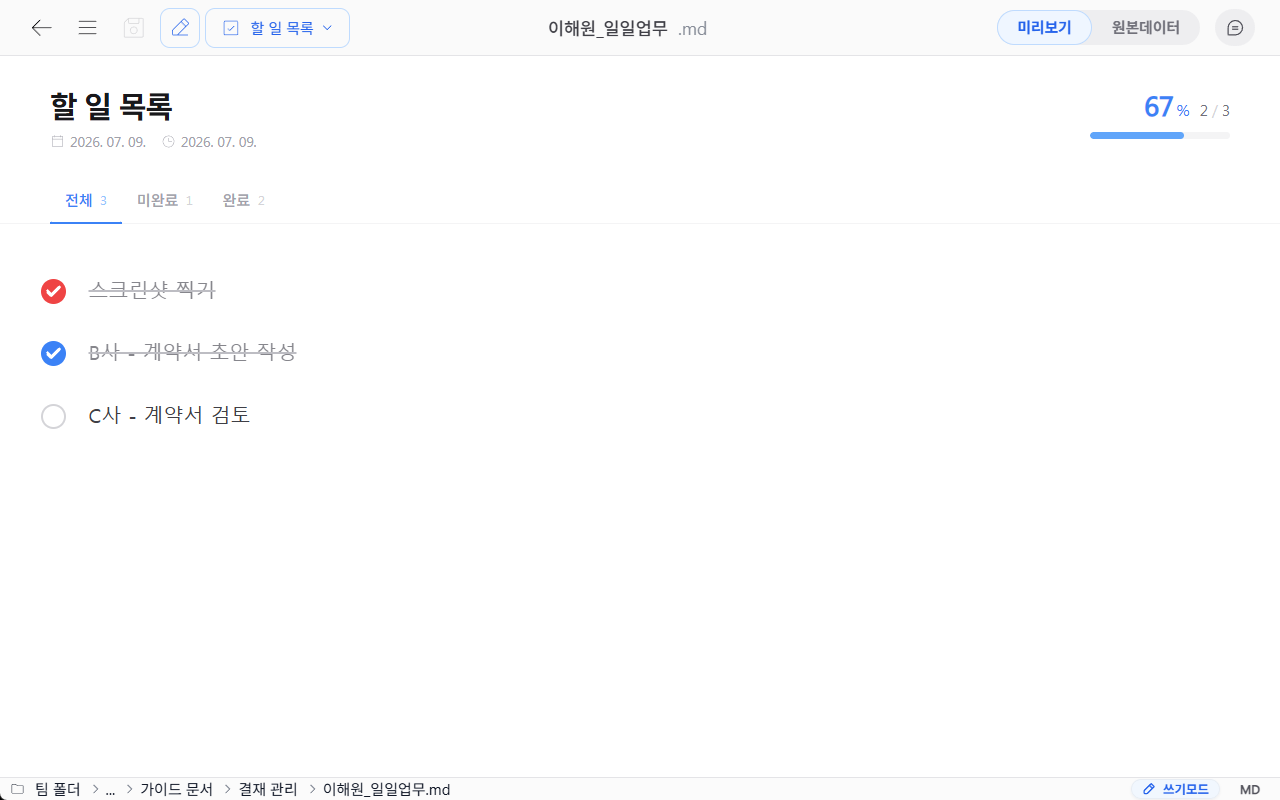
- When you open the file, it's in preview state. Double-click to switch to edit mode.
- Click the checkbox on the left of each line to mark it complete.
- Overall progress is shown live in the top right, in the format
3/4 (75%). - When you're done writing, save with the save icon in the top left, or
Ctrl+S(Mac:Cmd+S).
2. Checking Progress from the Folder
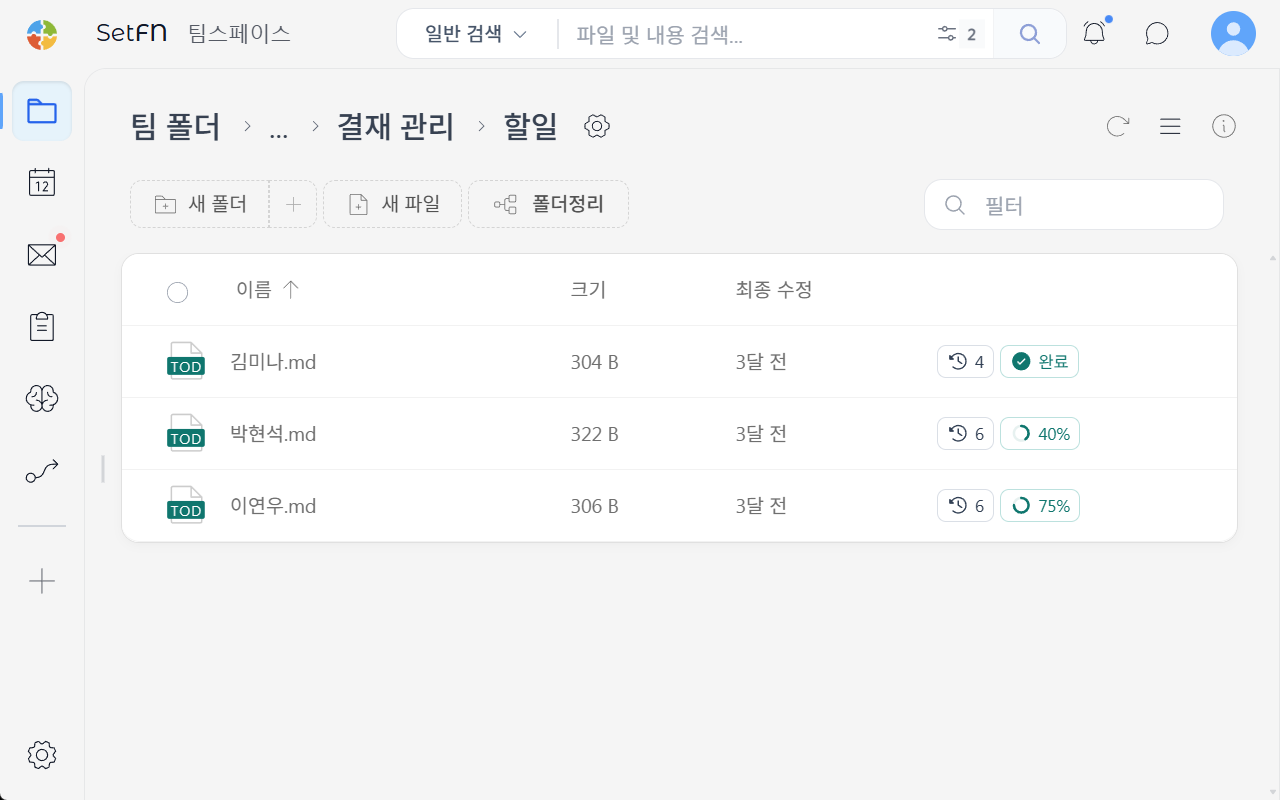
In a folder containing to-do files, each file shows its progress on the right side. This lets you compare the progress of multiple files on one screen.
Usage Examples
- Organizing today's or this week's tasks
- Sharing each team member's task progress
- A first-week onboarding checklist for new hires