'/%3e%3cpath%20id='cross_2'%20data-name='cross%202'%20class='cls-2'%20d='M20.612,30.43h0a5.361,5.361,0,1,0-10.723,0H0A33.709,33.709,0,0,1,30.569,0V9.75a5.361,5.361,0,1,1,0,10.723V30.43Z'%20transform='translate(67.193%200.007)%20rotate(90)'/%3e%3cpath%20id='cross_3'%20data-name='cross%203'%20class='cls-3'%20d='M20.612,30.43h0a5.361,5.361,0,1,0-10.723,0H0A33.709,33.709,0,0,1,30.569,0V9.75a5.361,5.361,0,1,1,0,10.723V30.43Z'%20transform='translate(67.186%2067.041)%20rotate(180)'/%3e%3cpath%20id='cross_4'%20data-name='cross%204'%20class='cls-4'%20d='M20.6,30.5h0a5.361,5.361,0,1,0-10.723,0H0A33.71,33.71,0,0,1,30.56,0V9.818a5.361,5.361,0,1,1,0,10.723V30.5Z'%20transform='translate(0%2067.041)%20rotate(-90)'/%3e%3c/svg%3e)
Pasting Screenshots
After capturing a screenshot, simply pressing Ctrl+V in the workspace saves it directly as an image file.
Capturing the Screen (Copying to Clipboard)
- Capture the screen using a basic capture tool such as Print Screen, then press Ctrl+C.
- You can also right-click an image in a browser and copy it.
Pasting into the Workspace
In the workspace, go into the folder where you want to save the image and press Ctrl+V (Mac: Cmd+V).
Enter the file name you want and save.
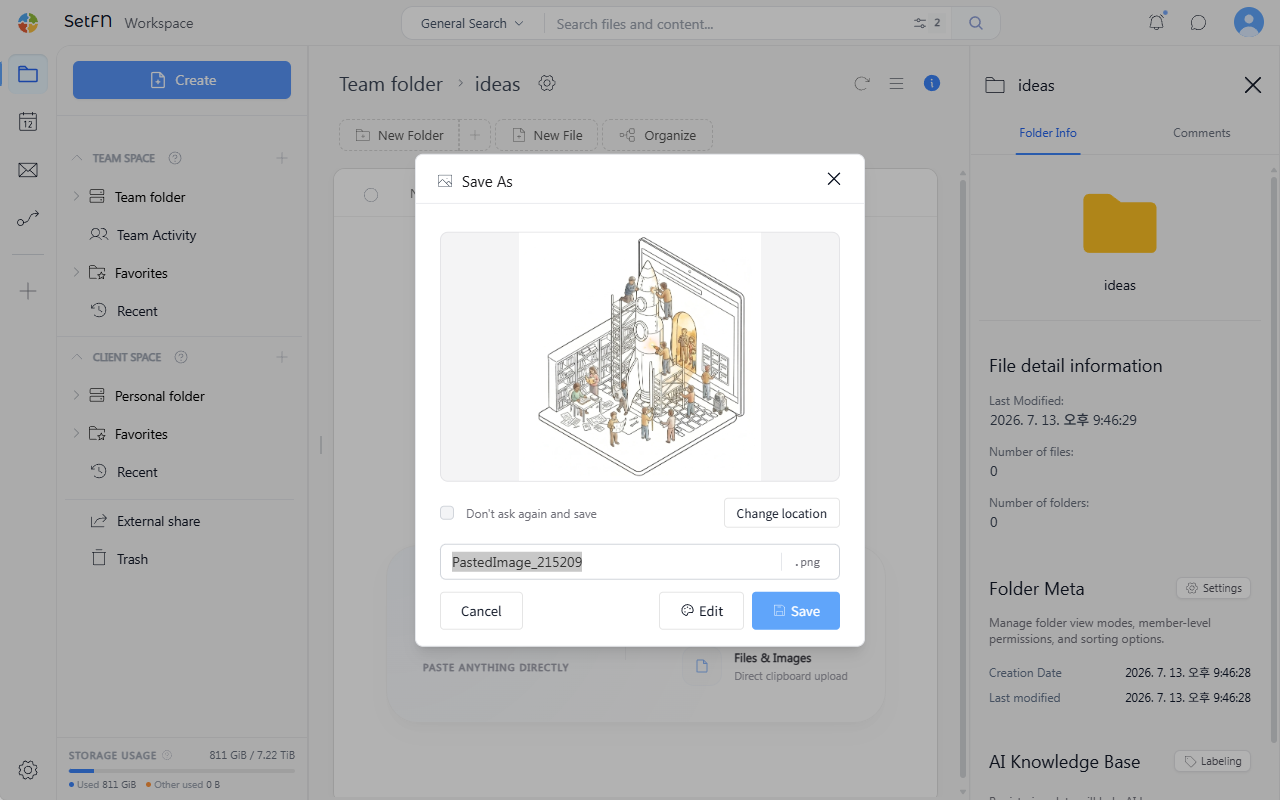
If you check
Save without asking again, files are automatically named and saved without the rename popup appearing.
Editing Images
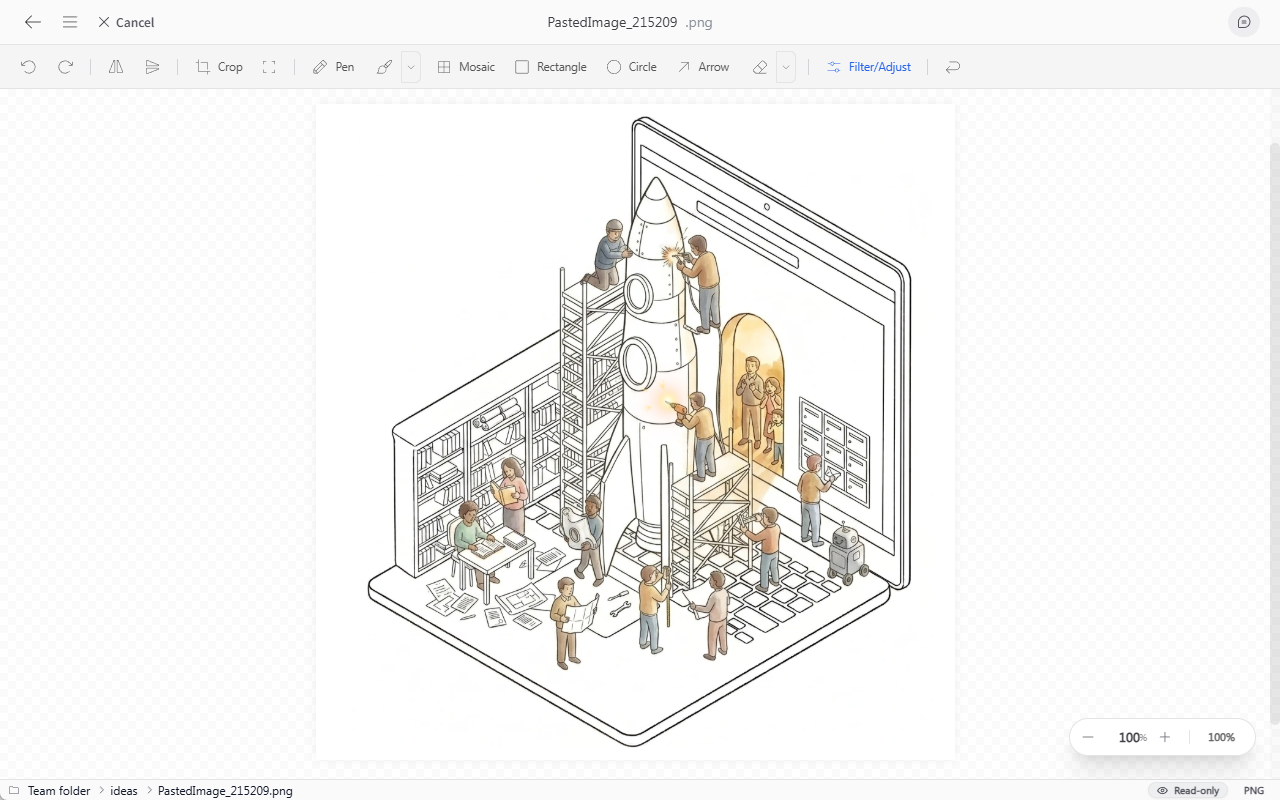
Before saving, you can click the Edit button to make simple edits — such as cropping and highlighting — before saving.
Changing the Save Location
Before saving, click the Change Location button to specify a different destination folder.