'/%3e%3cpath%20id='cross_2'%20data-name='cross%202'%20class='cls-2'%20d='M20.612,30.43h0a5.361,5.361,0,1,0-10.723,0H0A33.709,33.709,0,0,1,30.569,0V9.75a5.361,5.361,0,1,1,0,10.723V30.43Z'%20transform='translate(67.193%200.007)%20rotate(90)'/%3e%3cpath%20id='cross_3'%20data-name='cross%203'%20class='cls-3'%20d='M20.612,30.43h0a5.361,5.361,0,1,0-10.723,0H0A33.709,33.709,0,0,1,30.569,0V9.75a5.361,5.361,0,1,1,0,10.723V30.43Z'%20transform='translate(67.186%2067.041)%20rotate(180)'/%3e%3cpath%20id='cross_4'%20data-name='cross%204'%20class='cls-4'%20d='M20.6,30.5h0a5.361,5.361,0,1,0-10.723,0H0A33.71,33.71,0,0,1,30.56,0V9.818a5.361,5.361,0,1,1,0,10.723V30.5Z'%20transform='translate(0%2067.041)%20rotate(-90)'/%3e%3c/svg%3e)
Bulk Renaming Files
You can rename multiple files in the same folder all at once.
Selecting Multiple Files
Select all the files in the folder, then click Rename.
Entering Bulk Rename Mode
Press the F2 key or click the "Rename" button.
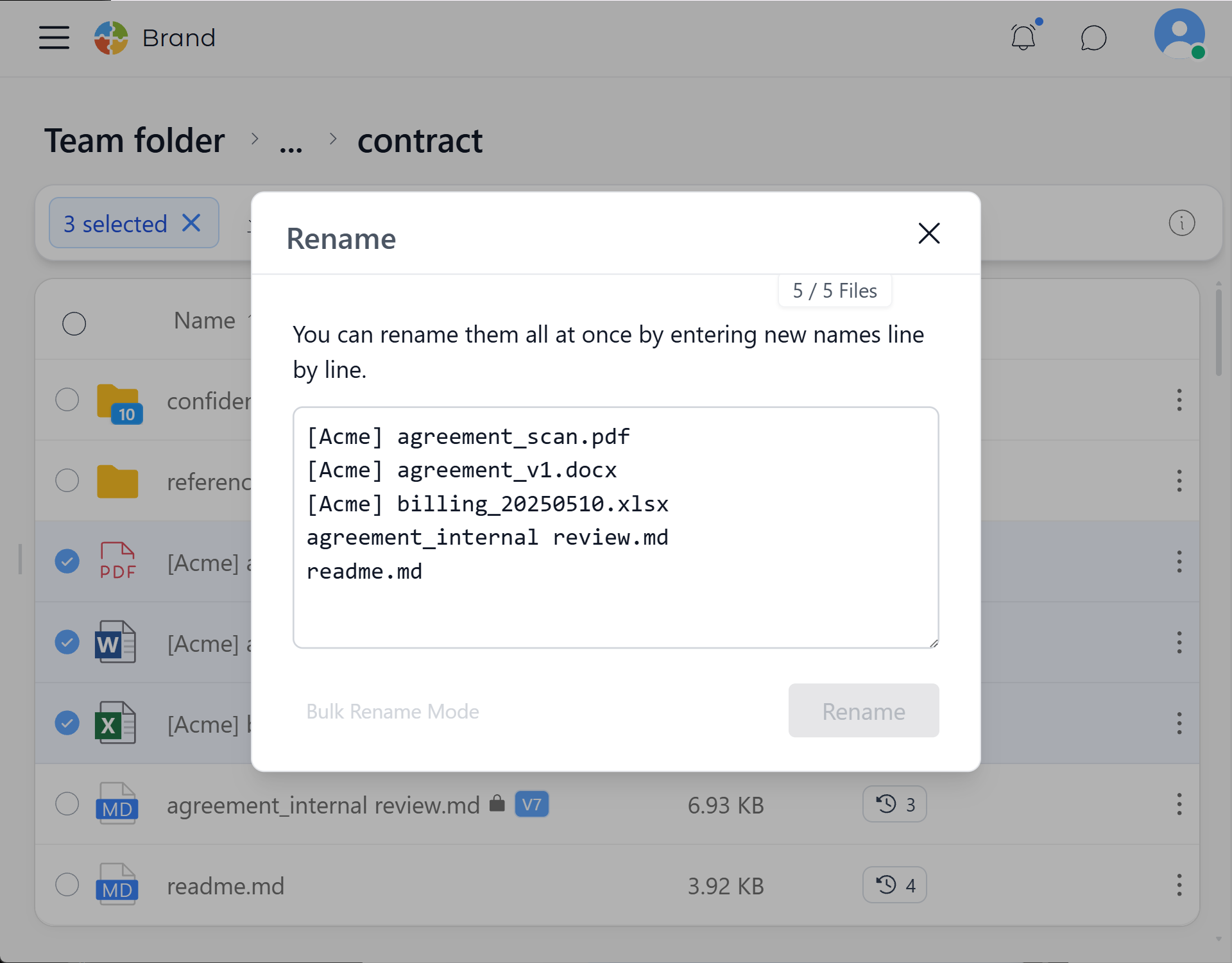
Editing Names
The names of the selected files are shown as a list. After editing the names of multiple files, click the rename button to finish.
Good to Know
- If a file name would become a duplicate, that rename is not applied.
- Be careful not to change file extensions
- Renaming more than 1,000 files may take some time.
Copying and pasting a list of new names from Excel lets you rename without missing any entries.