'/%3e%3cpath%20id='cross_2'%20data-name='cross%202'%20class='cls-2'%20d='M20.612,30.43h0a5.361,5.361,0,1,0-10.723,0H0A33.709,33.709,0,0,1,30.569,0V9.75a5.361,5.361,0,1,1,0,10.723V30.43Z'%20transform='translate(67.193%200.007)%20rotate(90)'/%3e%3cpath%20id='cross_3'%20data-name='cross%203'%20class='cls-3'%20d='M20.612,30.43h0a5.361,5.361,0,1,0-10.723,0H0A33.709,33.709,0,0,1,30.569,0V9.75a5.361,5.361,0,1,1,0,10.723V30.43Z'%20transform='translate(67.186%2067.041)%20rotate(180)'/%3e%3cpath%20id='cross_4'%20data-name='cross%204'%20class='cls-4'%20d='M20.6,30.5h0a5.361,5.361,0,1,0-10.723,0H0A33.71,33.71,0,0,1,30.56,0V9.818a5.361,5.361,0,1,1,0,10.723V30.5Z'%20transform='translate(0%2067.041)%20rotate(-90)'/%3e%3c/svg%3e)
Pasting Markdown (MD)
After copying Markdown-formatted text — an AI response, a technical document, notes, and so on — simply pressing Ctrl+V saves it as a .md file. The Space automatically detects the Markdown format.
Copying Markdown
- From AI tools like ChatGPT or Claude: copy in Markdown format with Ctrl+Shift+C
- From a plain Markdown document: Ctrl+A then Ctrl+C
- From Notion, Obsidian, and similar tools: export or copy as Markdown
Pasting into the Workspace
Press Ctrl+V in the folder where you want to save it. The workspace automatically recognizes the Markdown format.
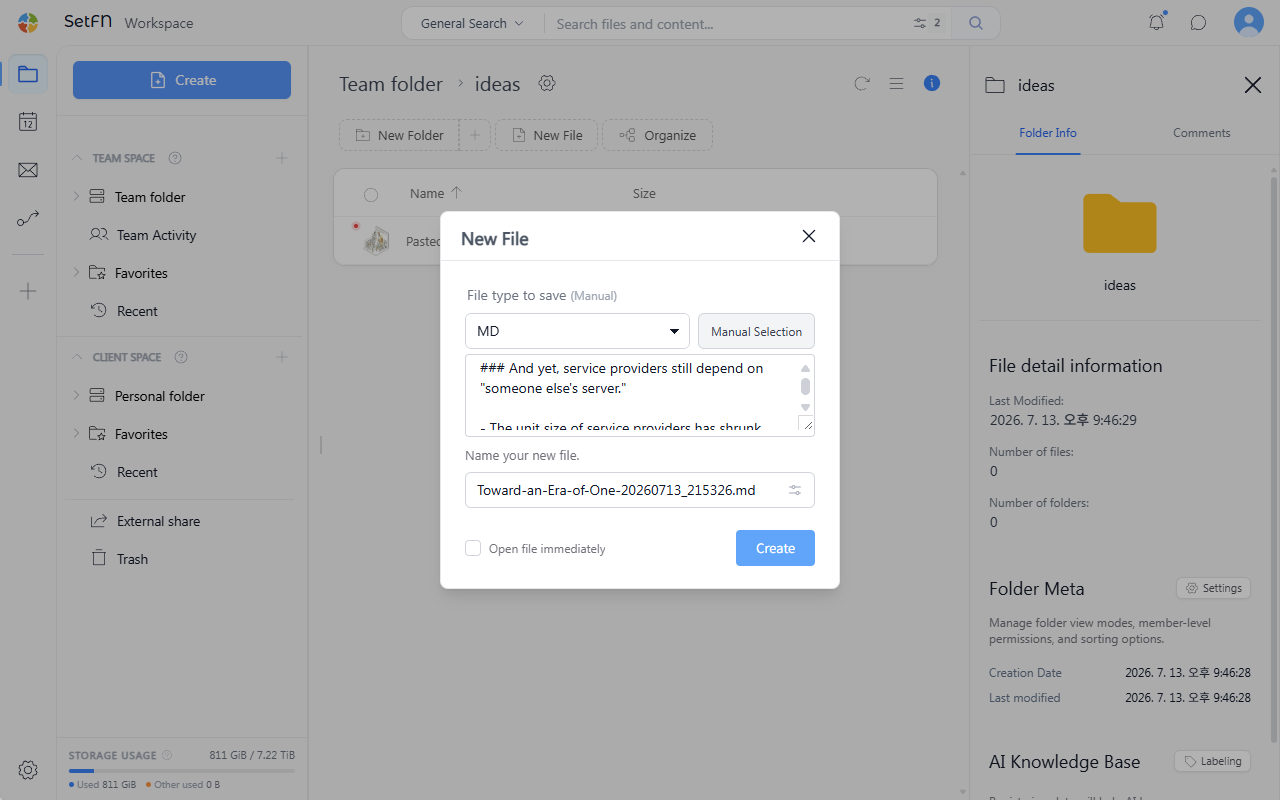
Enter a file name and "Create."
Depending on the situation, the content may be detected as another format, such as HTML, instead of Markdown. In that case, select the file format manually.
Checking the Result
Opening the saved .md file renders the Markdown formatting — headers, lists, code blocks, and more — as-is.
Good to Know
- Saved in a universal format that can be opened in any editor.
- Useful for documenting AI responses as-is, or for saving meeting notes directly into a team folder during a meeting.
- Also useful when moving content written in external tools like Notion or Obsidian into the team space.