'/%3e%3cpath%20id='cross_2'%20data-name='cross%202'%20class='cls-2'%20d='M20.612,30.43h0a5.361,5.361,0,1,0-10.723,0H0A33.709,33.709,0,0,1,30.569,0V9.75a5.361,5.361,0,1,1,0,10.723V30.43Z'%20transform='translate(67.193%200.007)%20rotate(90)'/%3e%3cpath%20id='cross_3'%20data-name='cross%203'%20class='cls-3'%20d='M20.612,30.43h0a5.361,5.361,0,1,0-10.723,0H0A33.709,33.709,0,0,1,30.569,0V9.75a5.361,5.361,0,1,1,0,10.723V30.43Z'%20transform='translate(67.186%2067.041)%20rotate(180)'/%3e%3cpath%20id='cross_4'%20data-name='cross%204'%20class='cls-4'%20d='M20.6,30.5h0a5.361,5.361,0,1,0-10.723,0H0A33.71,33.71,0,0,1,30.56,0V9.818a5.361,5.361,0,1,1,0,10.723V30.5Z'%20transform='translate(0%2067.041)%20rotate(-90)'/%3e%3c/svg%3e)
Screen Recording
You can record your computer screen directly from SetFN Workspace. The recorded file is automatically saved in the current folder.
Before You Start
- System requirements: Chrome or Edge browser recommended
Starting a Recording
- Click the
Createbutton at the top of the left sidebar, then selectScreen Recording.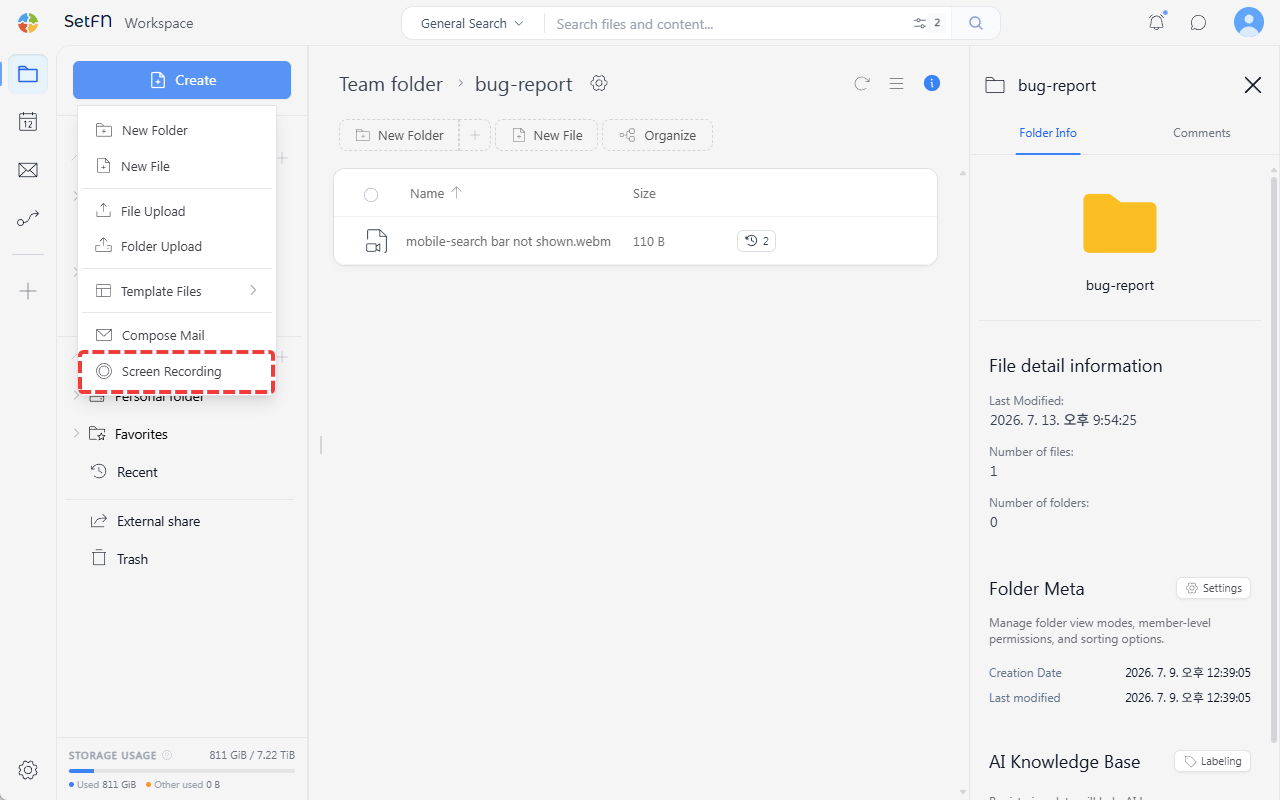
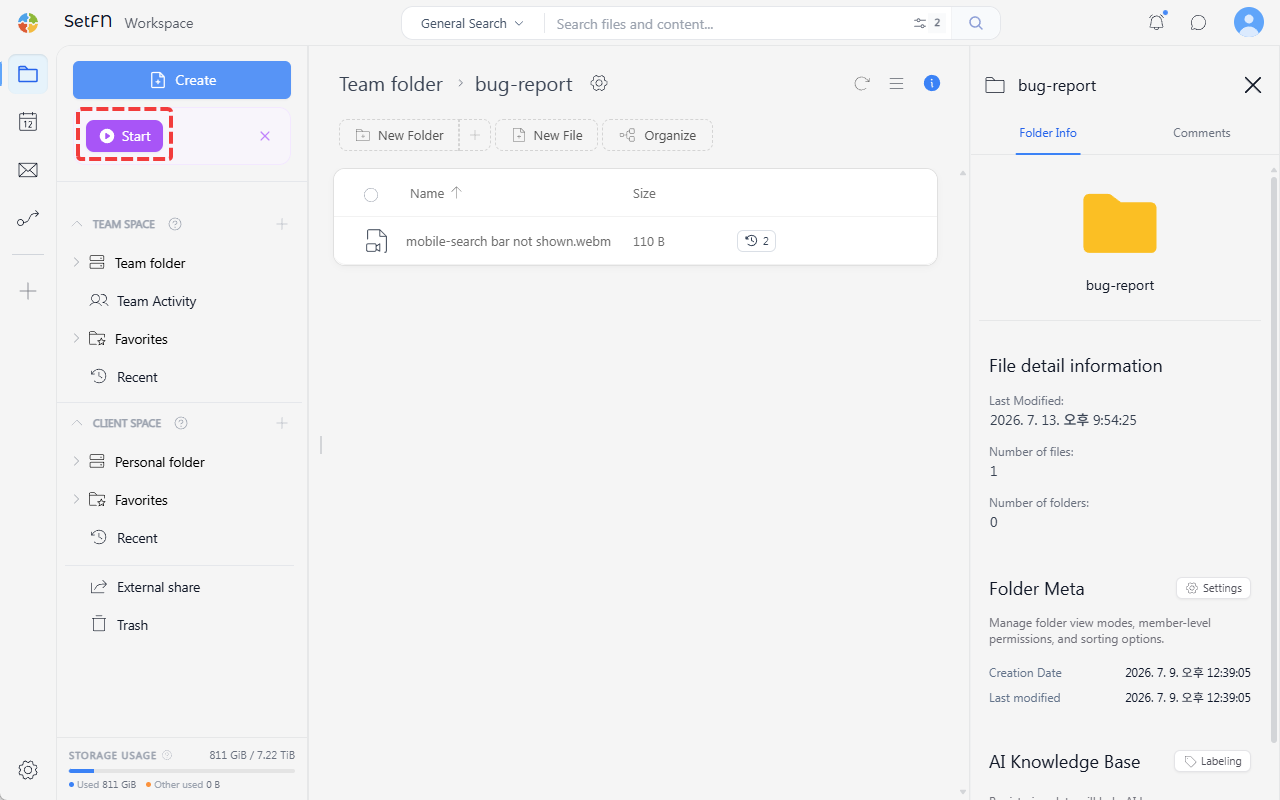
- Click the Start button to begin recording.
Selecting the Recording Scope
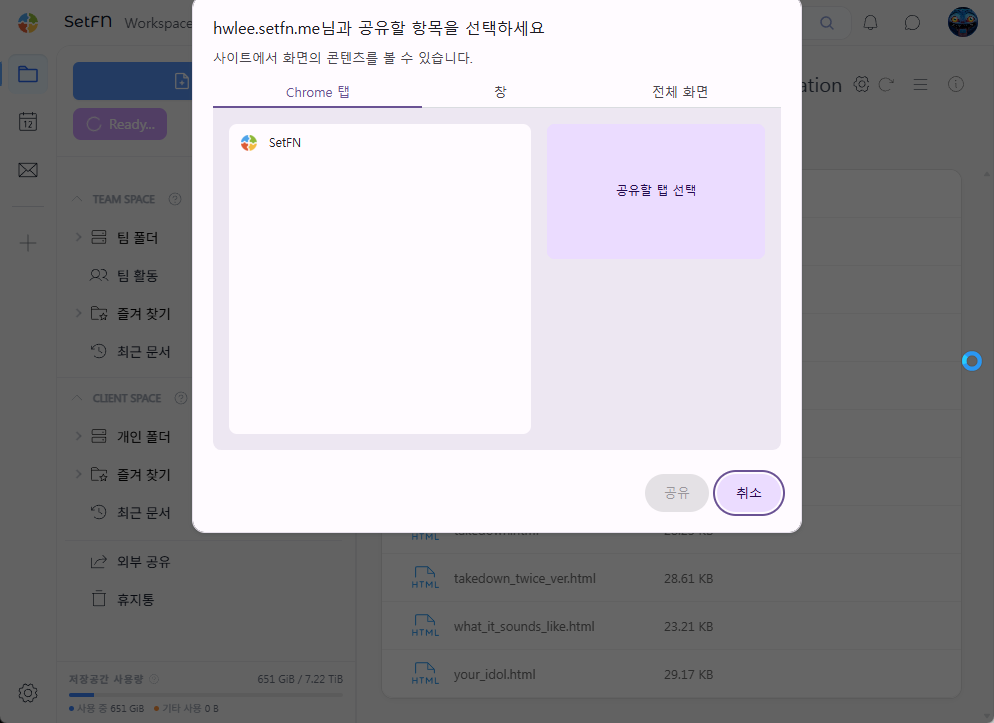
The browser asks which screen you want to record. You can choose from a tab, an entire window, or the entire screen.
You cannot record the tab that is currently performing the recording itself.
Ending and Saving the Recording
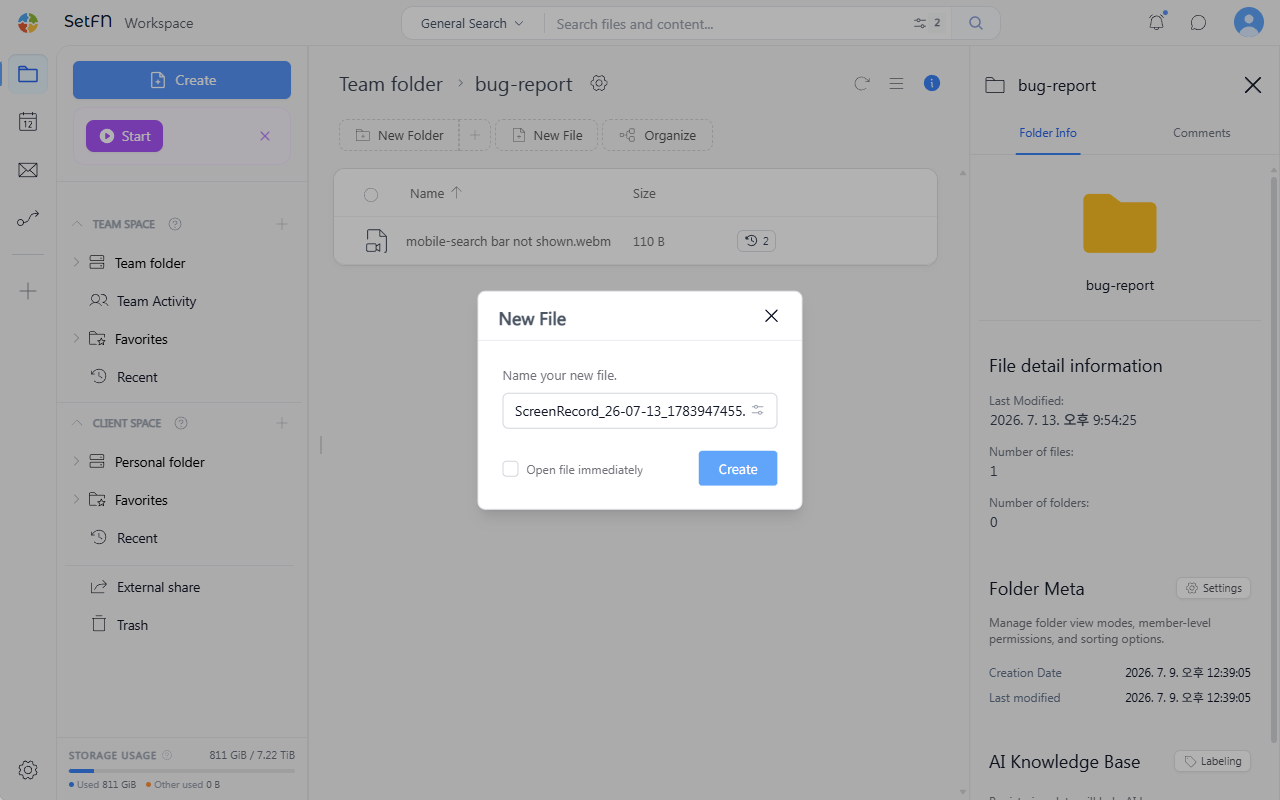
Click Stop or the X button to end the recording.
Enter a file name and save.
It is saved in the current folder in .webm format.
Good to Know
- You can reproduce a bug or error and share it with the development team, or keep it as an issue record.
- Recording the steps of a repetitive task can be used as a manual or onboarding material.
- You can capture and archive screens that need long-term monitoring, such as dashboards or logs.