'/%3e%3cpath%20id='cross_2'%20data-name='cross%202'%20class='cls-2'%20d='M20.612,30.43h0a5.361,5.361,0,1,0-10.723,0H0A33.709,33.709,0,0,1,30.569,0V9.75a5.361,5.361,0,1,1,0,10.723V30.43Z'%20transform='translate(67.193%200.007)%20rotate(90)'/%3e%3cpath%20id='cross_3'%20data-name='cross%203'%20class='cls-3'%20d='M20.612,30.43h0a5.361,5.361,0,1,0-10.723,0H0A33.709,33.709,0,0,1,30.569,0V9.75a5.361,5.361,0,1,1,0,10.723V30.43Z'%20transform='translate(67.186%2067.041)%20rotate(180)'/%3e%3cpath%20id='cross_4'%20data-name='cross%204'%20class='cls-4'%20d='M20.6,30.5h0a5.361,5.361,0,1,0-10.723,0H0A33.71,33.71,0,0,1,30.56,0V9.818a5.361,5.361,0,1,1,0,10.723V30.5Z'%20transform='translate(0%2067.041)%20rotate(-90)'/%3e%3c/svg%3e)
Checking the List While Viewing a File
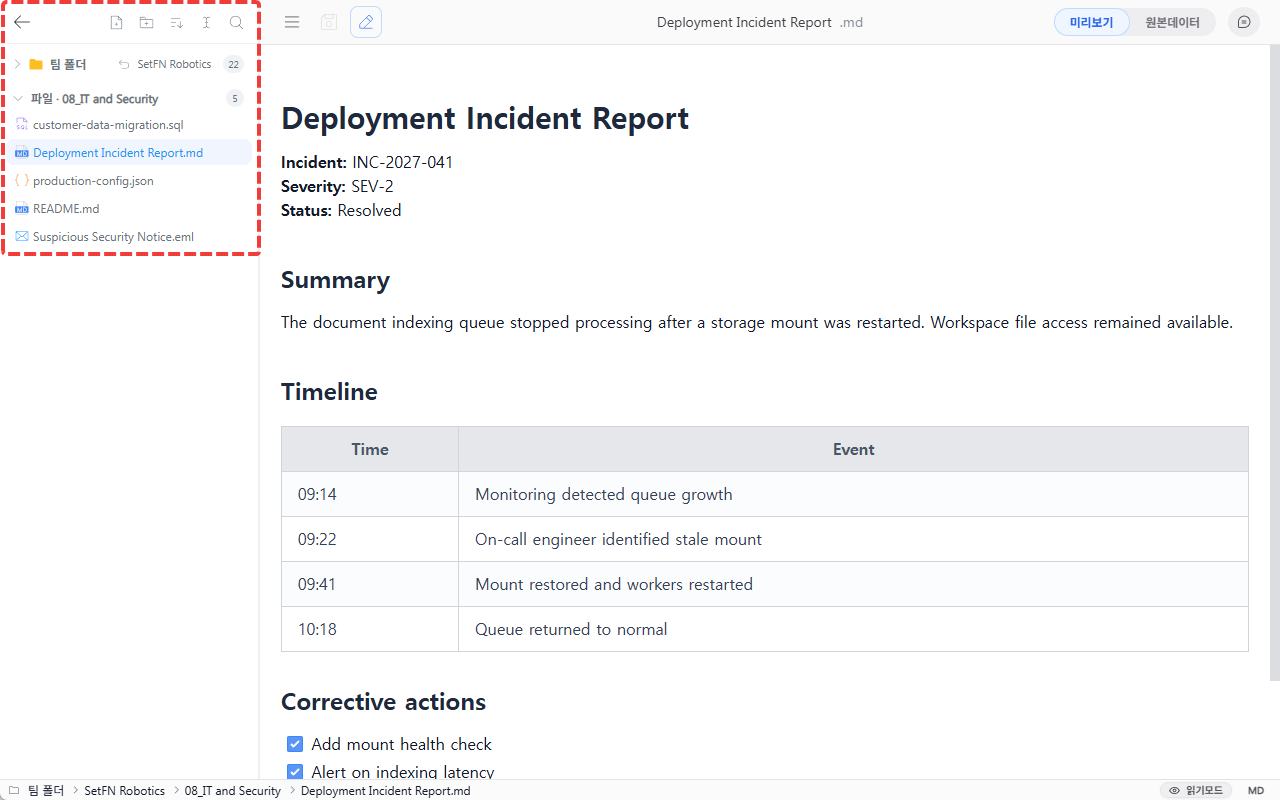
While viewing a file, you can also see the overall folder structure and the file list of the current folder together. You can jump straight to another file without going back to the list.
Actions You Can Do Directly from the List
Without leaving the folder, you can handle the following directly from the file list panel.
- Create a new file/new folder
- Sort: Sort the list by criteria such as name or modified date
- Bulk rename files
- Search: Search files within the current list
- Drag and drop: Drag a file to move it to another folder
Moving Between Files with the Keyboard
Pressing the ↑ / ↓ keys moves directly to the previous or next file in the list so you can check its content. When browsing through several files in order, you can move quickly without needing to reopen the list.
Great Use Cases
- When browsing through several files in order, such as scanned contracts, screenshots, or approval documents
- When navigating between files within a deep folder structure without losing your current position
- When you want to rename or sort files right where you are, while checking their content, to find the one you want