'/%3e%3cpath%20id='cross_2'%20data-name='cross%202'%20class='cls-2'%20d='M20.612,30.43h0a5.361,5.361,0,1,0-10.723,0H0A33.709,33.709,0,0,1,30.569,0V9.75a5.361,5.361,0,1,1,0,10.723V30.43Z'%20transform='translate(67.193%200.007)%20rotate(90)'/%3e%3cpath%20id='cross_3'%20data-name='cross%203'%20class='cls-3'%20d='M20.612,30.43h0a5.361,5.361,0,1,0-10.723,0H0A33.709,33.709,0,0,1,30.569,0V9.75a5.361,5.361,0,1,1,0,10.723V30.43Z'%20transform='translate(67.186%2067.041)%20rotate(180)'/%3e%3cpath%20id='cross_4'%20data-name='cross%204'%20class='cls-4'%20d='M20.6,30.5h0a5.361,5.361,0,1,0-10.723,0H0A33.71,33.71,0,0,1,30.56,0V9.818a5.361,5.361,0,1,1,0,10.723V30.5Z'%20transform='translate(0%2067.041)%20rotate(-90)'/%3e%3c/svg%3e)
File Version Control
You can enable version control to check a file's versions.
Version Control Settings
Right-click a file and select Edit and Version > Version Control Settings.
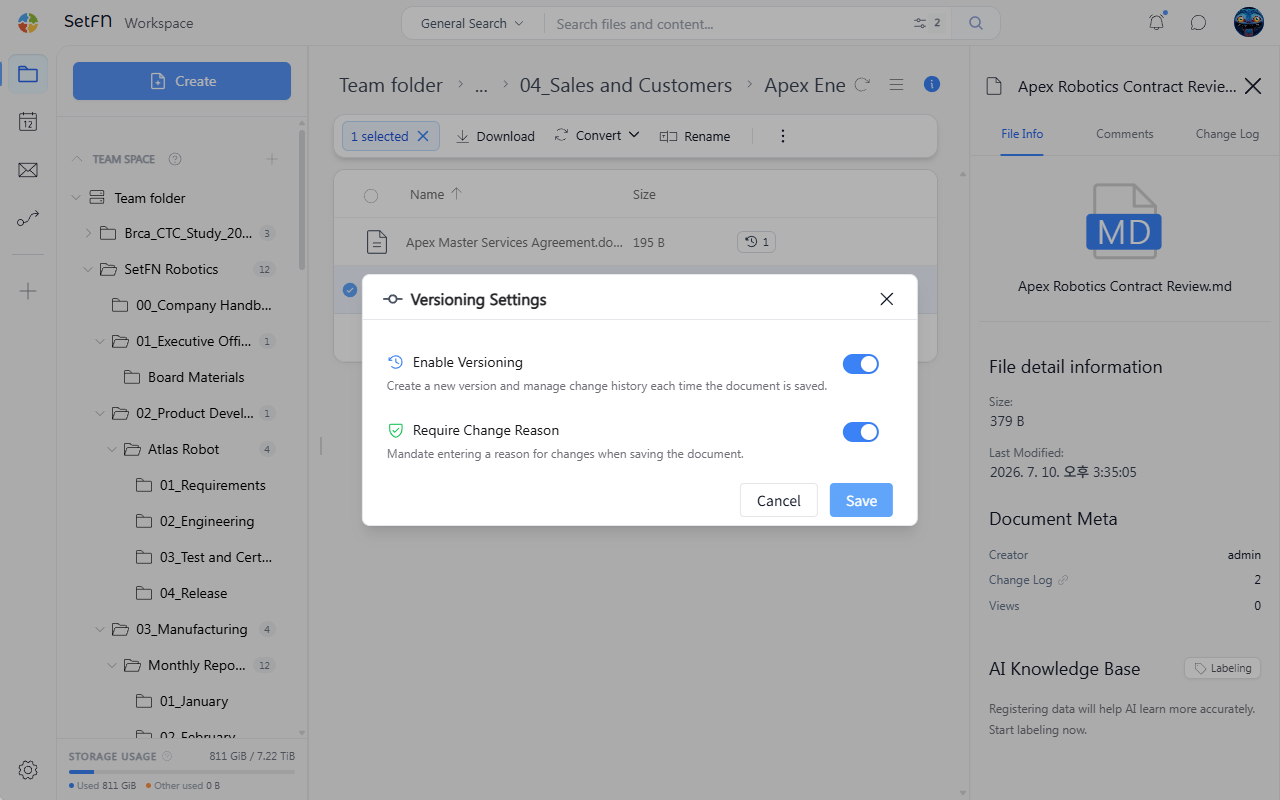
| Item | Description |
|---|---|
| Enable version control | Turns version control on or off for this file. |
| Require save reason | When enabled, you must enter a reason for the change every time you save. |
Enabling Require save reason lets you clearly record who changed what and why in a jointly edited team file. This is useful for files where change tracking matters, such as contracts and policy documents.
Checking Versions
Files that have versions show a version number next to the file name. The number increases as V1, V2, V3, and so on.
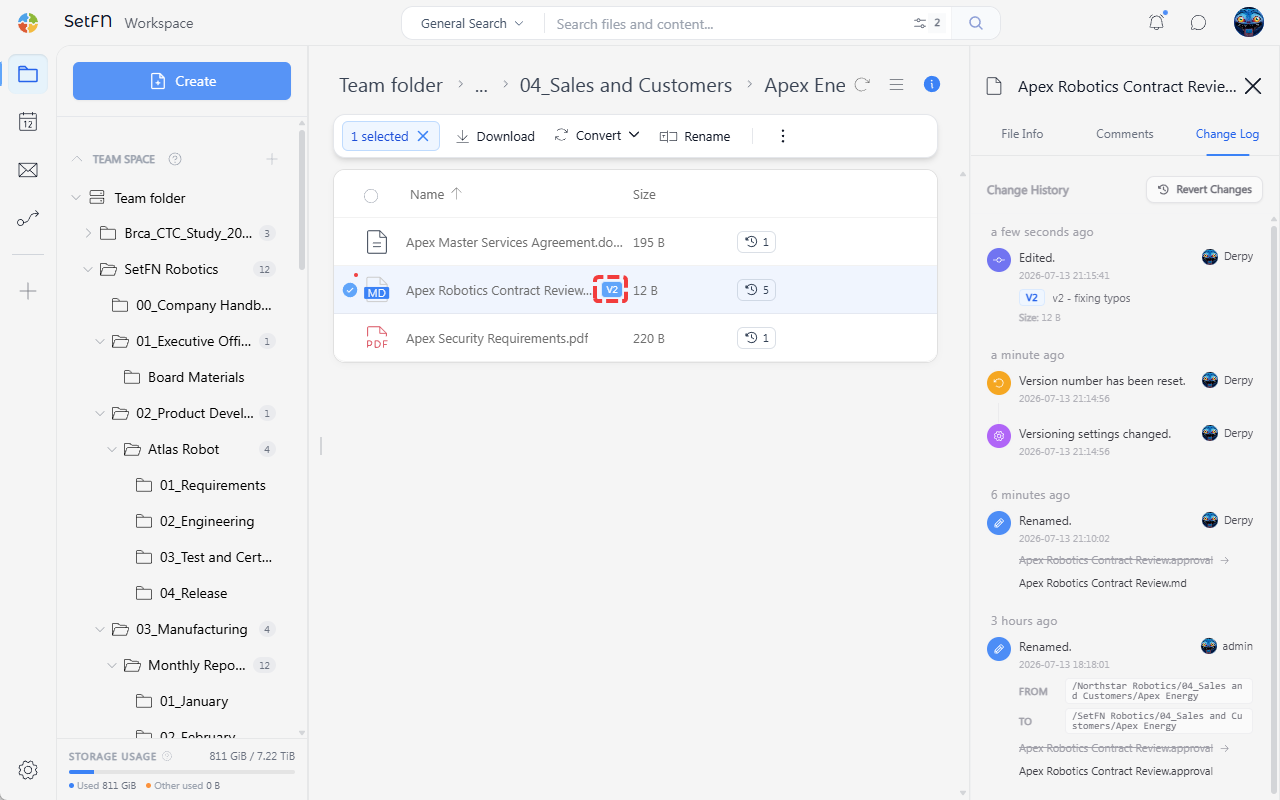
You can check the version list in the Change History tab of the right panel of the file. Selecting a version shows the content at that point in time.
Reverting Changes
In the right panel, click "Revert Changes" and then click a version.
The older version appears on the left, and the most recent version appears on the right.
Click the Restore to Selected Version button in the top right to revert.
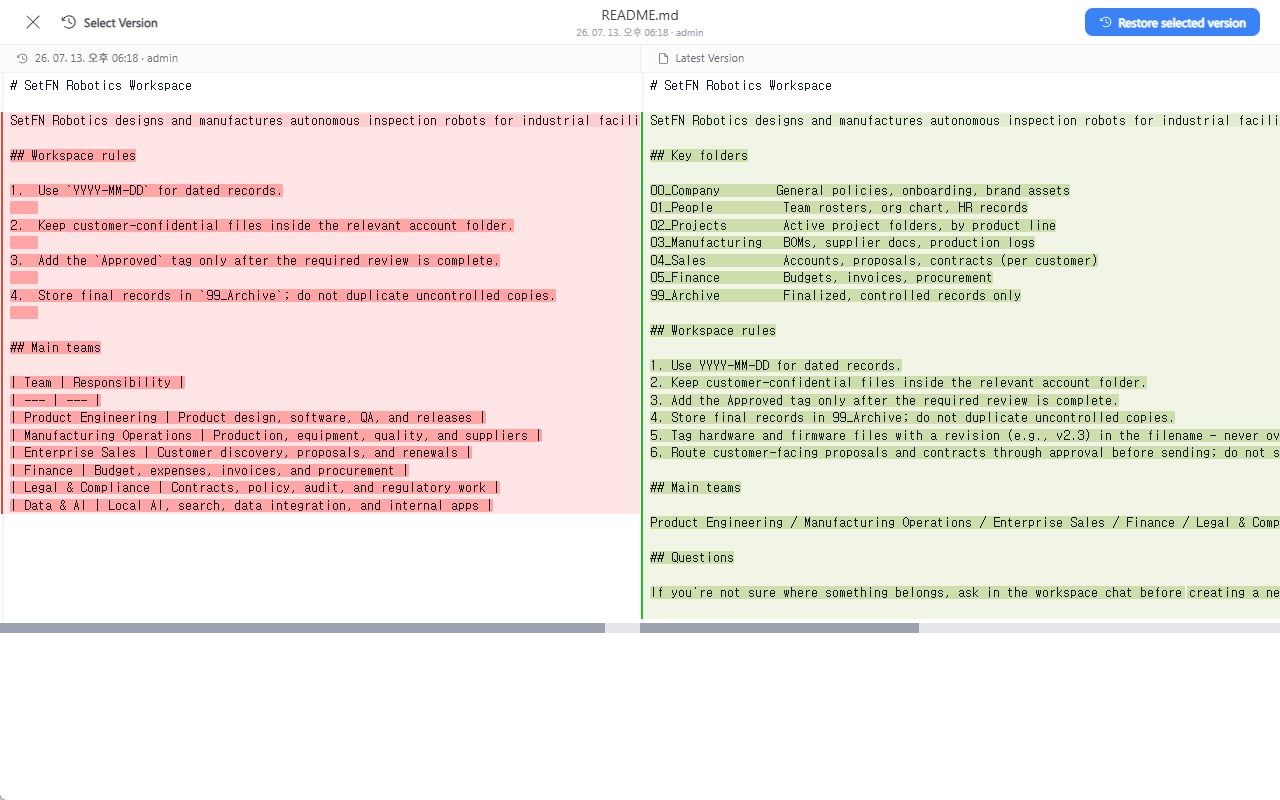
After restoring, the record of previous versions is kept as-is.
Great Use Cases
- Company rules/policy documents: Suited to documents where the revision history (V1, V2, …) matters, and you need to reliably restore a previous version if something is edited incorrectly.
- Contract templates: Useful in documents edited jointly by several people, when you need to revert an accidentally incorrect edit to a clear point in time.
- Jointly edited documents that need a save reason: With "Require save reason" turned on, you can use this for regulation/policy documents where you need to keep evidence of who made a change and why.