'/%3e%3cpath%20id='cross_2'%20data-name='cross%202'%20class='cls-2'%20d='M20.612,30.43h0a5.361,5.361,0,1,0-10.723,0H0A33.709,33.709,0,0,1,30.569,0V9.75a5.361,5.361,0,1,1,0,10.723V30.43Z'%20transform='translate(67.193%200.007)%20rotate(90)'/%3e%3cpath%20id='cross_3'%20data-name='cross%203'%20class='cls-3'%20d='M20.612,30.43h0a5.361,5.361,0,1,0-10.723,0H0A33.709,33.709,0,0,1,30.569,0V9.75a5.361,5.361,0,1,1,0,10.723V30.43Z'%20transform='translate(67.186%2067.041)%20rotate(180)'/%3e%3cpath%20id='cross_4'%20data-name='cross%204'%20class='cls-4'%20d='M20.6,30.5h0a5.361,5.361,0,1,0-10.723,0H0A33.71,33.71,0,0,1,30.56,0V9.818a5.361,5.361,0,1,1,0,10.723V30.5Z'%20transform='translate(0%2067.041)%20rotate(-90)'/%3e%3c/svg%3e)
Folder Basics
Managing folders in SetFN Workspace is similar to Windows Explorer or macOS Finder. You can use familiar methods such as drag-and-drop, right-click menus, and keyboard shortcuts.
Creating a Folder
You can create a folder in 3 ways.
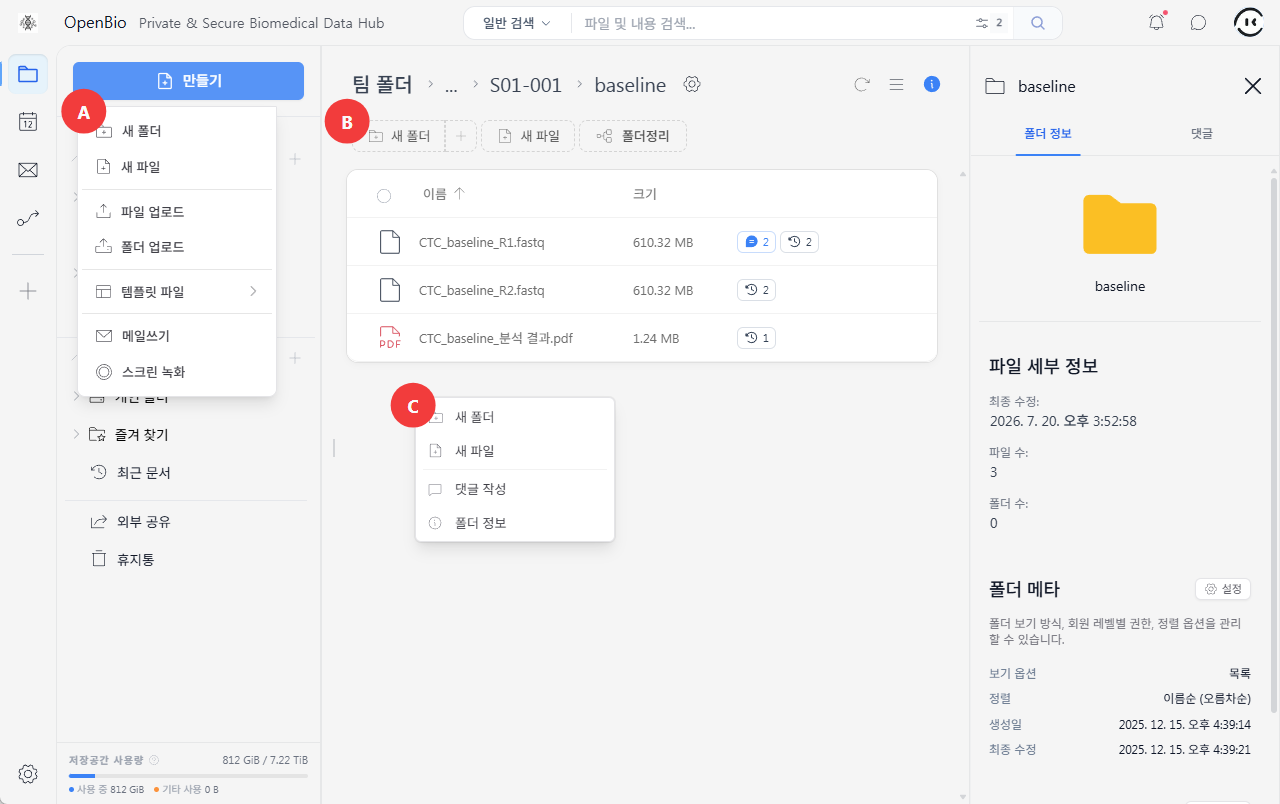
- A. Click the
Createbutton on the left sidebar and selectNew Folder. - B. Click the
New Folderbutton at the top of the main screen. - C. Right-click the main screen and select
New Folder.
Selecting Folders
- Multiple selection: Click while holding Ctrl (Mac: Cmd)
- Range selection: Click while holding Shift
- Select all: Ctrl+A (Mac: Cmd+A)
Renaming a Folder
Right-click a folder and select Rename, or press the F2 key.
Moving a Folder
Drag a folder and drop it onto the destination folder to move it.
Copying a Folder
- Cut: Ctrl+X (Mac: Cmd+X)
- Copy: Ctrl+C (Mac: Cmd+C)
- Paste: Ctrl+V (Mac: Cmd+V)
Deleting a Folder
Select a folder and press the Delete key, or right-click and select Delete.
- Deleted folders move to Trash
- Emptying Trash permanently deletes them, and they cannot be recovered
Navigating Folders
Use the path bar at the top to quickly move to parent or child folders.