'/%3e%3cpath%20id='cross_2'%20data-name='cross%202'%20class='cls-2'%20d='M20.612,30.43h0a5.361,5.361,0,1,0-10.723,0H0A33.709,33.709,0,0,1,30.569,0V9.75a5.361,5.361,0,1,1,0,10.723V30.43Z'%20transform='translate(67.193%200.007)%20rotate(90)'/%3e%3cpath%20id='cross_3'%20data-name='cross%203'%20class='cls-3'%20d='M20.612,30.43h0a5.361,5.361,0,1,0-10.723,0H0A33.709,33.709,0,0,1,30.569,0V9.75a5.361,5.361,0,1,1,0,10.723V30.43Z'%20transform='translate(67.186%2067.041)%20rotate(180)'/%3e%3cpath%20id='cross_4'%20data-name='cross%204'%20class='cls-4'%20d='M20.6,30.5h0a5.361,5.361,0,1,0-10.723,0H0A33.71,33.71,0,0,1,30.56,0V9.818a5.361,5.361,0,1,1,0,10.723V30.5Z'%20transform='translate(0%2067.041)%20rotate(-90)'/%3e%3c/svg%3e)
Folder Notice (README)
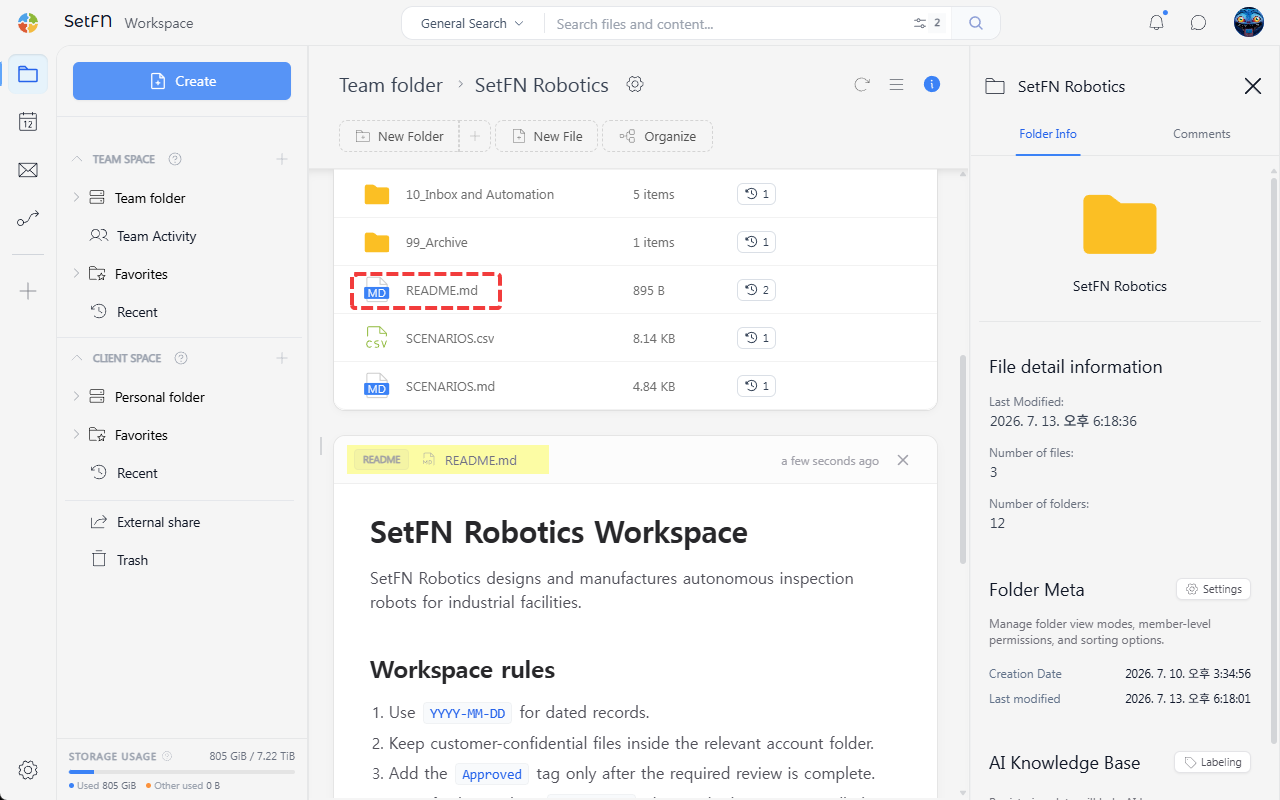
If you create a README.md file in a folder, its content is automatically displayed below the file list every time the folder is opened. You can use it to communicate folder usage rules or project guidance to team members. Attaching a notice to each folder lets every folder serve as its own guidance page, without a separate internal wiki.
Before You Start
- Administrator setting:
README.md instant displaymust be turned on underService Configuration>File Areafor the README to be shown automatically when a folder is opened.
Uploading a README.md File
Create or upload a README.md file inside the folder.
Write file naming conventions, folder guidance, project progress, and similar content in Markdown format.
Creating a Draft from the Folder Structure
If writing from scratch feels tedious, you can generate a draft by automatically outputting the folder structure and file list.
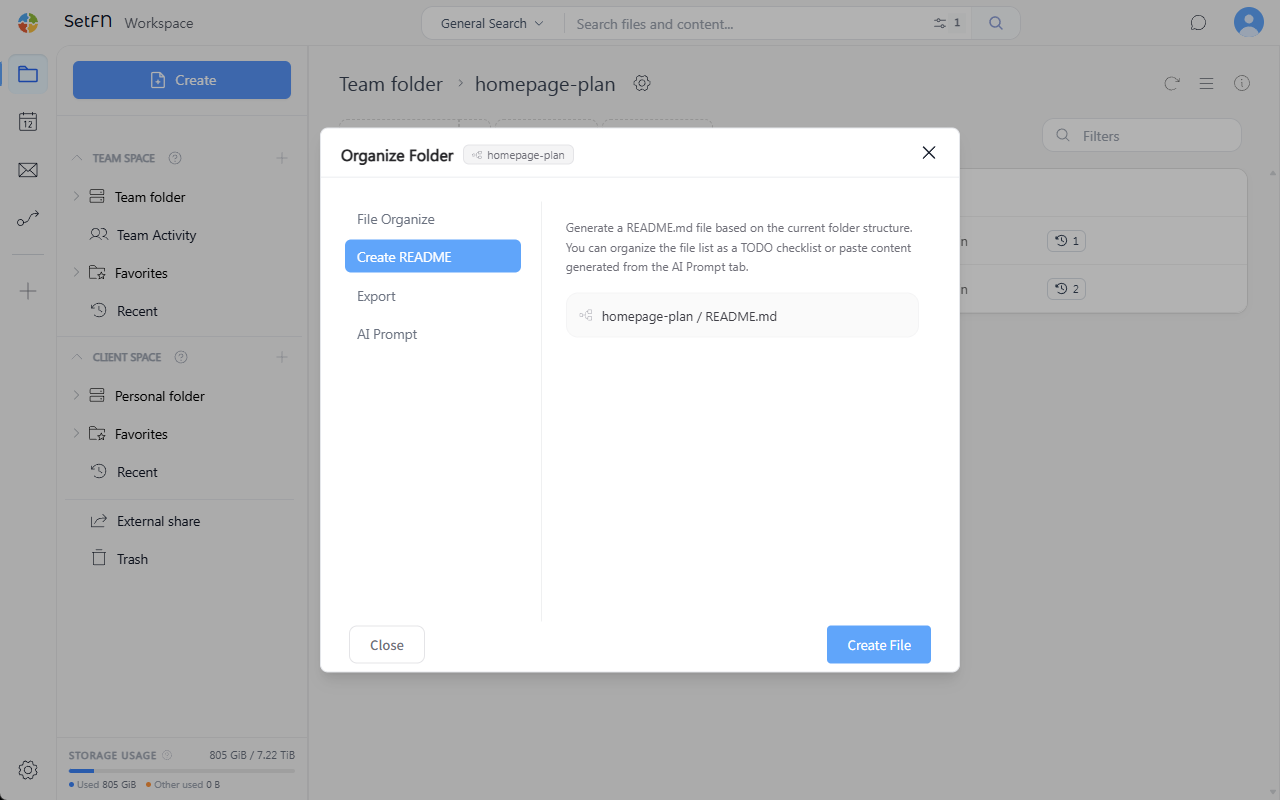
Click the Organize Folder button at the top of the folder, then click the Create File button in the Create README tab.
The current folder's structure and file list are output in Markdown. You can use this content as a README draft.
Viewing the Content
When you open the folder, the content of README.md is automatically shown below the file list.
Good to Know
- Only one README per folder is recognized
- Both uppercase and lowercase are recognized.