'/%3e%3cpath%20id='cross_2'%20data-name='cross%202'%20class='cls-2'%20d='M20.612,30.43h0a5.361,5.361,0,1,0-10.723,0H0A33.709,33.709,0,0,1,30.569,0V9.75a5.361,5.361,0,1,1,0,10.723V30.43Z'%20transform='translate(67.193%200.007)%20rotate(90)'/%3e%3cpath%20id='cross_3'%20data-name='cross%203'%20class='cls-3'%20d='M20.612,30.43h0a5.361,5.361,0,1,0-10.723,0H0A33.709,33.709,0,0,1,30.569,0V9.75a5.361,5.361,0,1,1,0,10.723V30.43Z'%20transform='translate(67.186%2067.041)%20rotate(180)'/%3e%3cpath%20id='cross_4'%20data-name='cross%204'%20class='cls-4'%20d='M20.6,30.5h0a5.361,5.361,0,1,0-10.723,0H0A33.71,33.71,0,0,1,30.56,0V9.818a5.361,5.361,0,1,1,0,10.723V30.5Z'%20transform='translate(0%2067.041)%20rotate(-90)'/%3e%3c/svg%3e)
Setting File Rules
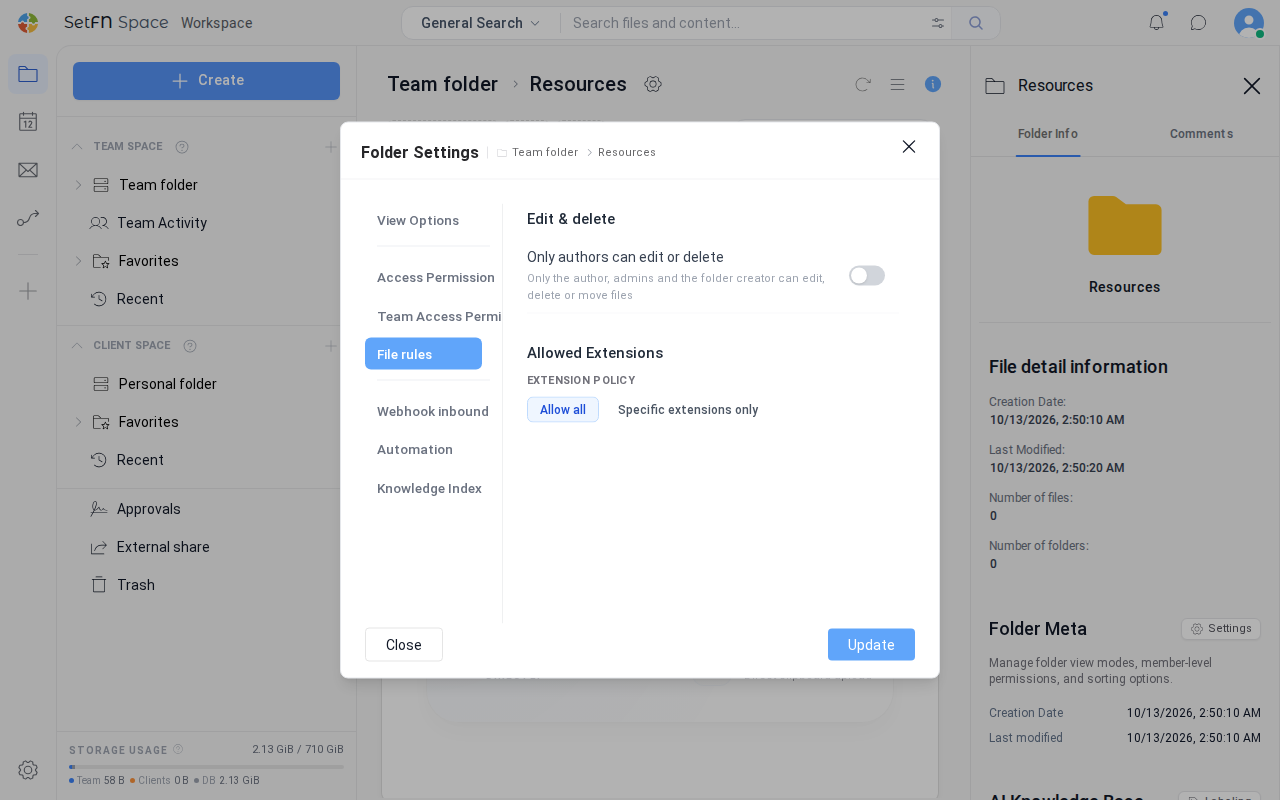
On the File rules tab of Folder Settings, you set two rules that apply to the files in a folder: Only authors can edit or delete, which prevents people from editing or deleting files uploaded by others, and Allowed Extensions, which restricts the types of files that can be uploaded. Use them for folders where several people upload files, such as a board or a submission box.
Before you begin
- Only an administrator or the person who created the folder can change file rules.
- The
File rulestab is not available in the top-level (root) folder of the team folder. Only authors can edit or deleteworks only in team folders and does not apply to personal folders.
Open the File rules tab
- Select the gear icon (
File view options) next to the folder name. - In the
Folder Settingswindow, select theFile rulestab.
Let only authors edit or delete
When you turn on Only authors can edit or delete, files in that folder and its subfolders can be edited, renamed, moved, or deleted only by the person who uploaded them. Administrators and the person who created the folder are exceptions and can manage all files. Here, the person who created the folder means the person who created the outermost folder where the rule is turned on. A person who creates a subfolder inside a board cannot manage other people's posts in it.
| Folder state | Default |
|---|---|
| A folder whose view mode was changed to a board | On |
| A folder that inherits a rule turned on in a parent folder | On (Follows the parent folder (path) is shown) |
| Other folders | Off |
When you select another person's file in a folder where the rule is on, the following happens.
- The
Rename,Move, andDeletebuttons in the top action bar become disabled, and the reason is shown when you hover over them. - The same items in the right-click menu are also shown as disabled, together with the reason.
- If you try from a shortcut key (
F2,Delete), the viewer, or the board post details, the messageIn this space, only the author can edit, rename, move, or delete their own files.appears instead of a confirmation window. - On the board post details, the
EditandDeleteicons are not shown on other people's posts.
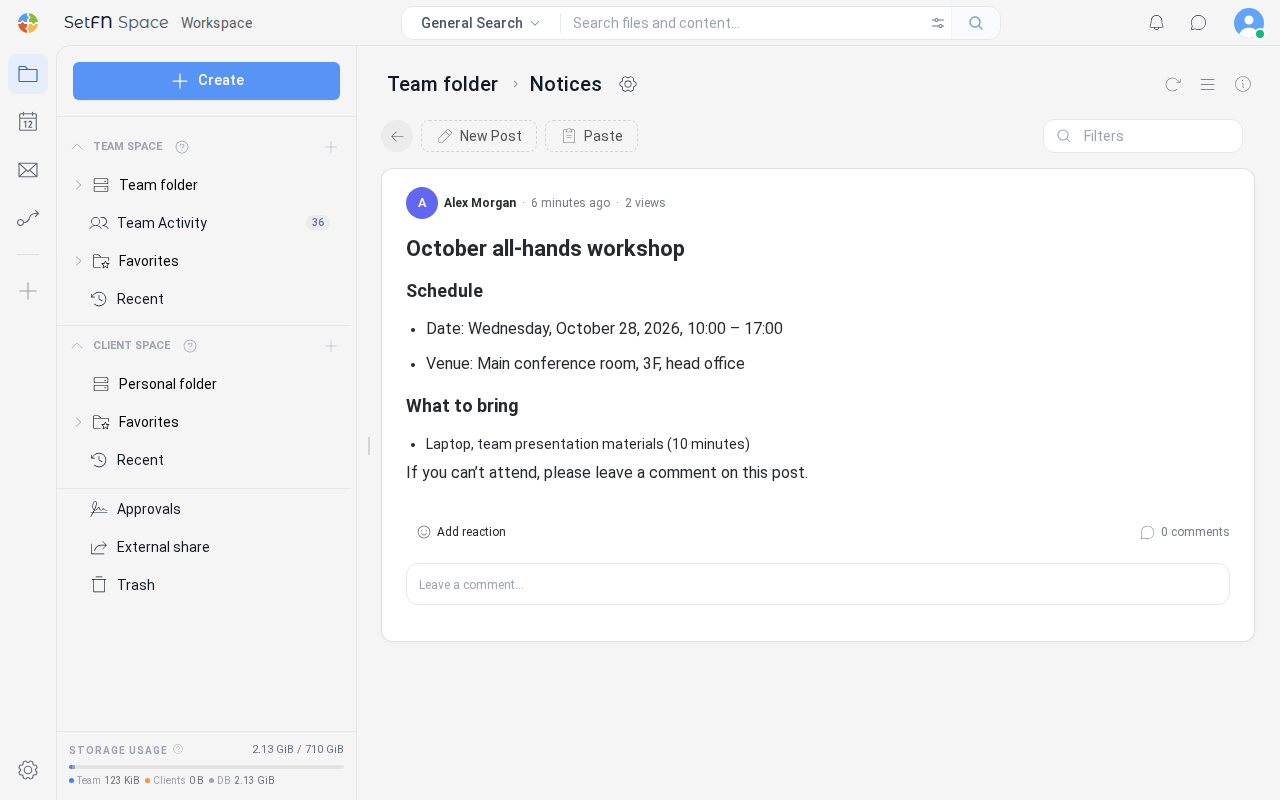
- The rule carries over to subfolders as it is. If you turn the rule off in a subfolder, it does not apply below that folder. Only an administrator or the person who created the parent folder with the rule can turn it off.
- A folder that contains even one file belonging to another person cannot be deleted or moved as a whole.
- If you select 20 or fewer files, the button state shows the result as soon as you select them. If you select more than that, the check is made when you select a button.
Set allowed extensions
Under Extension policy, select Allow all or Specific extensions only. The default is Allow all.
If you select Specific extensions only, add the extensions to allow to the list.
- Select
Images,Videos,Documents,Audio, orCodeunderQuick selectionto add or remove all the extensions in that set at once. - Enter an extension such as
.pdfin the input field and pressEnteror selectAddto add extensions one at a time. If you leave out the dot, it is added automatically, and uppercase letters are changed to lowercase. - You can enter only extensions made up of letters and numbers. If you enter the same extension again,
This extension already existsappears. - You must leave at least one extension to apply the setting.
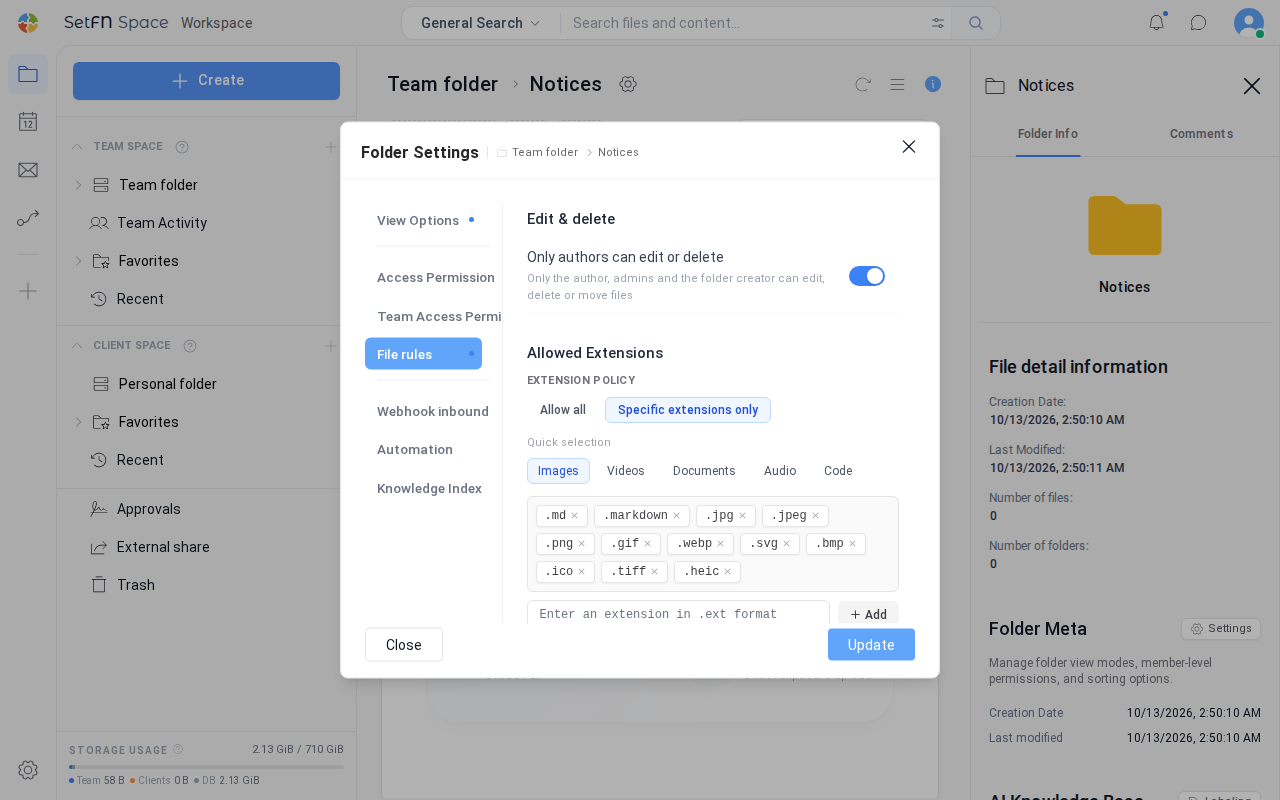
Allowed extensions apply not only to uploads but to every case in which a file is written to the folder, such as creating a new file, saving edits, moving, copying, renaming, saving conversion results, restoring from history, and receiving webhooks. Renaming a file to change its extension to one that is not on the list is also restricted, and files without an extension cannot be added. Allowed extension rules set on parent folders also apply.
Good to Know
- A blue dot next to the
File rulestab name indicates that a rule is in effect for this folder. It is shown whenOnly authors can edit or deleteis on (including the board default and inheritance from a parent folder) or when there is at least one allowed extension. - The allowed extensions of a work automation folder are also set on this tab. The
Automationtab has no allowed extensions item.