'/%3e%3cpath%20id='cross_2'%20data-name='cross%202'%20class='cls-2'%20d='M20.612,30.43h0a5.361,5.361,0,1,0-10.723,0H0A33.709,33.709,0,0,1,30.569,0V9.75a5.361,5.361,0,1,1,0,10.723V30.43Z'%20transform='translate(67.193%200.007)%20rotate(90)'/%3e%3cpath%20id='cross_3'%20data-name='cross%203'%20class='cls-3'%20d='M20.612,30.43h0a5.361,5.361,0,1,0-10.723,0H0A33.709,33.709,0,0,1,30.569,0V9.75a5.361,5.361,0,1,1,0,10.723V30.43Z'%20transform='translate(67.186%2067.041)%20rotate(180)'/%3e%3cpath%20id='cross_4'%20data-name='cross%204'%20class='cls-4'%20d='M20.6,30.5h0a5.361,5.361,0,1,0-10.723,0H0A33.71,33.71,0,0,1,30.56,0V9.818a5.361,5.361,0,1,1,0,10.723V30.5Z'%20transform='translate(0%2067.041)%20rotate(-90)'/%3e%3c/svg%3e)
Work Automation Folder
Once you configure the automation feature, various work automations — such as file conversion and auto-summarization — can run automatically every time a new file is uploaded to this folder.
Configuring Automation on a Folder
1. Selecting an Automation Task
Click the settings icon (⚙️) next to the name of the folder to automate, and select one of the automation tasks below in the Automation tab.
- General-purpose file conversion: Automatically converts uploaded files into a different file format.
- OCR document collection: Extracts text from image or PDF documents and automatically generates a
.txtfile. - OCR+AI analysis: AI refines the content extracted by OCR to generate both a Markdown output and a knowledge index.
- AI auto-summary (.md): AI summarizes uploaded documents and automatically generates a Markdown (
.md) file. You can choose the AI model (including VL models) used for summarization.
Clicking the Apply Automation Settings button creates configuration folders/files inside the folder (a .transform folder and a .setfn-transform.yaml file).
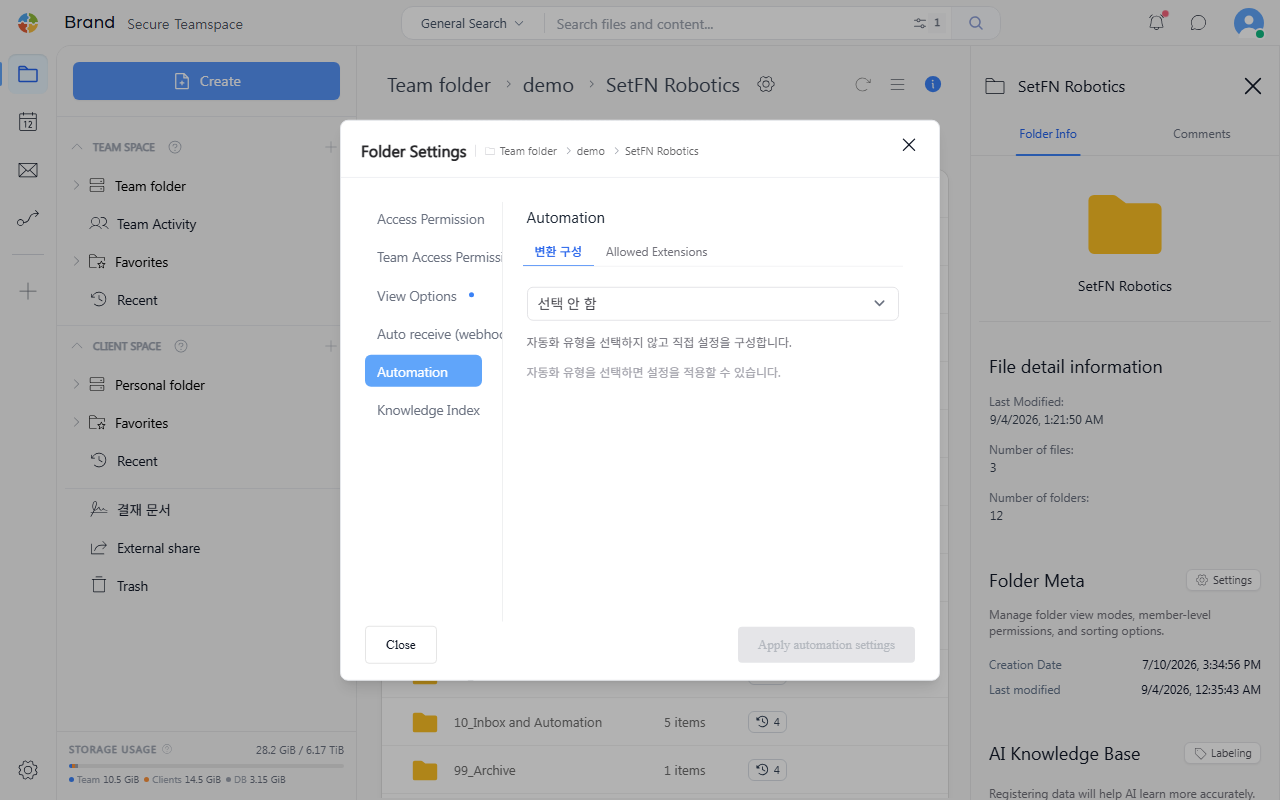
- If you modify or delete the configuration folder and files, automation will stop working.
2. Input Format
The input file formats (extensions) each automation task processes are automatically detected and recommended based on the files currently in the folder. For example, an OCR task automatically recognizes and recommends image files such as .jpg, .jpeg, and .png in the folder. If there's an extension you want to process in addition to the recommended ones, you can add it manually.
3. Allowed Extensions
You can restrict which file extensions are subject to automation.
- Allow all: Automation is applied to all files uploaded to the folder, regardless of extension.
- Allow specific extensions only: Select or manually enter the extensions to which automation should apply. Automation runs only when a file with a specified extension is uploaded, and other files are excluded from automation.
Using It
Once automation is configured, simply uploading a file to that folder runs the automation — no separate execution step is needed.
- Example 1) Uploading an image file (.png) to the folder recognizes the text and automatically generates a .txt file
- Example 2) Uploading a Markdown file (.md) to the folder has AI summarize it and automatically generate a file (.md)
- Folders with automation configured show the icon.
Turning Off Automation
- Click the settings icon (⚙️) next to the name of the folder to modify.
- In the
Automationtab, click theTurn Off Automationbutton.
Suggesting Automation Ideas
- If there's a feature you'd like automated, submit it on the Suggest an Idea page!
Converting KIPO Patent XML to Markdown
Upload a patent XML file downloaded from the Korean Intellectual Property Office (formerly the Korean Patent Office) to this folder, and automation will convert the content into a Markdown (.md) document. In this way, even specialized formats used in your work can be handled by combining automation tasks.