'/%3e%3cpath%20id='cross_2'%20data-name='cross%202'%20class='cls-2'%20d='M20.612,30.43h0a5.361,5.361,0,1,0-10.723,0H0A33.709,33.709,0,0,1,30.569,0V9.75a5.361,5.361,0,1,1,0,10.723V30.43Z'%20transform='translate(67.193%200.007)%20rotate(90)'/%3e%3cpath%20id='cross_3'%20data-name='cross%203'%20class='cls-3'%20d='M20.612,30.43h0a5.361,5.361,0,1,0-10.723,0H0A33.709,33.709,0,0,1,30.569,0V9.75a5.361,5.361,0,1,1,0,10.723V30.43Z'%20transform='translate(67.186%2067.041)%20rotate(180)'/%3e%3cpath%20id='cross_4'%20data-name='cross%204'%20class='cls-4'%20d='M20.6,30.5h0a5.361,5.361,0,1,0-10.723,0H0A33.71,33.71,0,0,1,30.56,0V9.818a5.361,5.361,0,1,1,0,10.723V30.5Z'%20transform='translate(0%2067.041)%20rotate(-90)'/%3e%3c/svg%3e)
Configuring Folder View Options
You can configure how files are displayed and sorted for each folder to suit your needs. Choose the view mode that best fits the folder's purpose — List, Tile, or Gallery — and apply various sort options.
Accessing Folder Settings
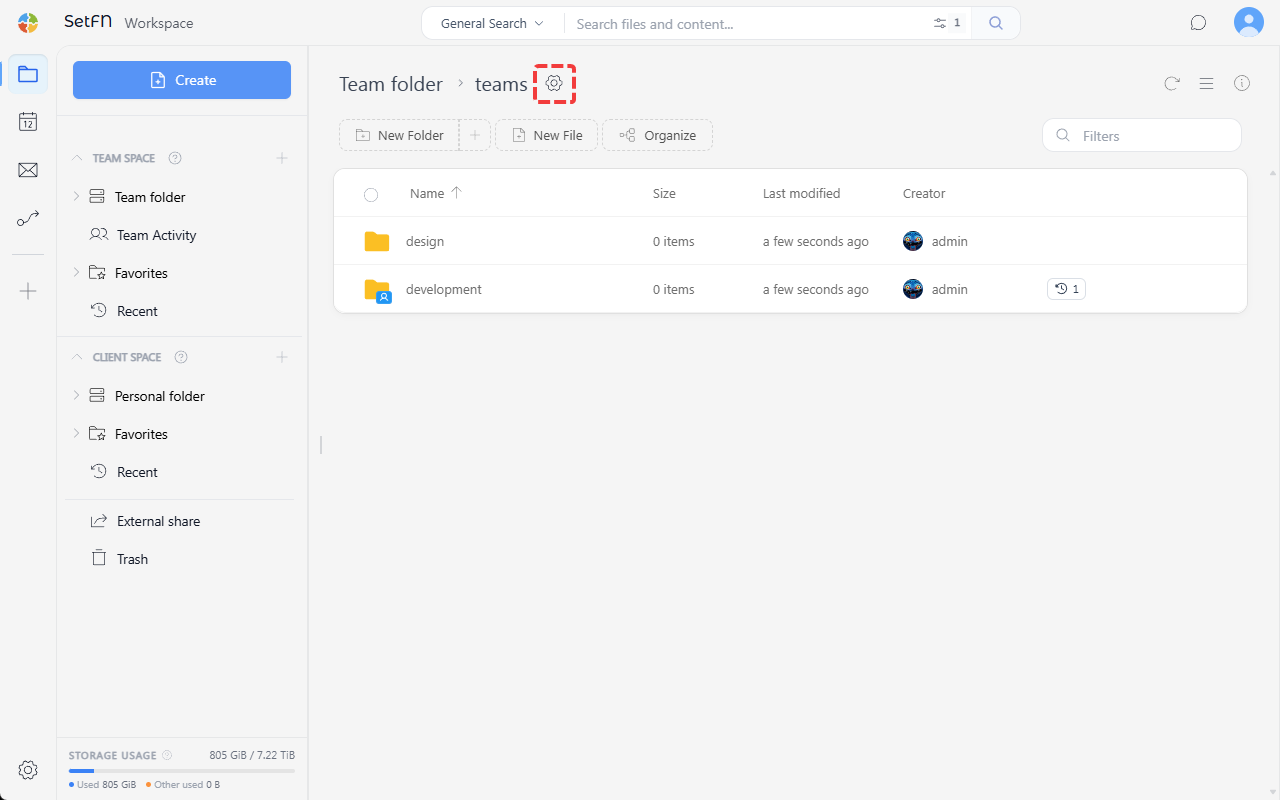
Click the settings icon next to the folder name.
Selecting a View Mode
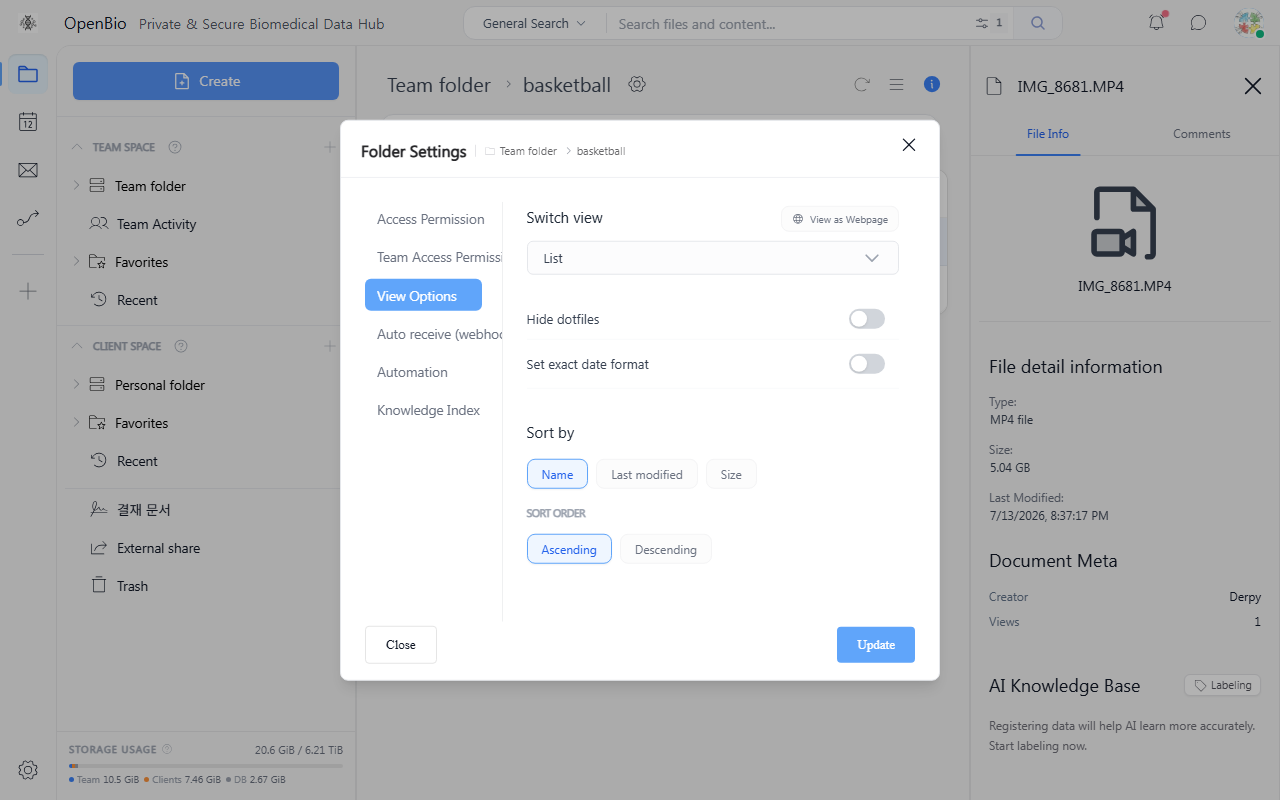
In the folder view options tab, select the view mode you want.
- List: Displays file names, sizes, modification dates, and more in list form. Suited to folders with many document files.
- Tile: Displays small previews of images and videos. Suited to folders with a mix of images and documents.
- Gallery: Displays large previews. Suited to design files or photo folders.
- Web View: If the folder contains an
index.htmlfile, its content is shown like a web page. See Folder Web View for details.
Configuring Sort Options
Choose the sort criterion and order.
- Sort by: Name, modified time, created time, size
- Sort order: Ascending, descending
Good to Know
- Settings must be configured individually for each folder.
- Folder settings apply identically to all users who access that folder.