'/%3e%3cpath%20id='cross_2'%20data-name='cross%202'%20class='cls-2'%20d='M20.612,30.43h0a5.361,5.361,0,1,0-10.723,0H0A33.709,33.709,0,0,1,30.569,0V9.75a5.361,5.361,0,1,1,0,10.723V30.43Z'%20transform='translate(67.193%200.007)%20rotate(90)'/%3e%3cpath%20id='cross_3'%20data-name='cross%203'%20class='cls-3'%20d='M20.612,30.43h0a5.361,5.361,0,1,0-10.723,0H0A33.709,33.709,0,0,1,30.569,0V9.75a5.361,5.361,0,1,1,0,10.723V30.43Z'%20transform='translate(67.186%2067.041)%20rotate(180)'/%3e%3cpath%20id='cross_4'%20data-name='cross%204'%20class='cls-4'%20d='M20.6,30.5h0a5.361,5.361,0,1,0-10.723,0H0A33.71,33.71,0,0,1,30.56,0V9.818a5.361,5.361,0,1,1,0,10.723V30.5Z'%20transform='translate(0%2067.041)%20rotate(-90)'/%3e%3c/svg%3e)
Exporting Folder/File Lists
You can extract the list of files and folders inside a folder all at once, without manually typing it out.
You can include subfolders or choose only the properties you want, and export as CSV, TSV, JSON, or HTML.
Exporting
Click the Organize Folder button at the top of the folder, then select the Export tab.
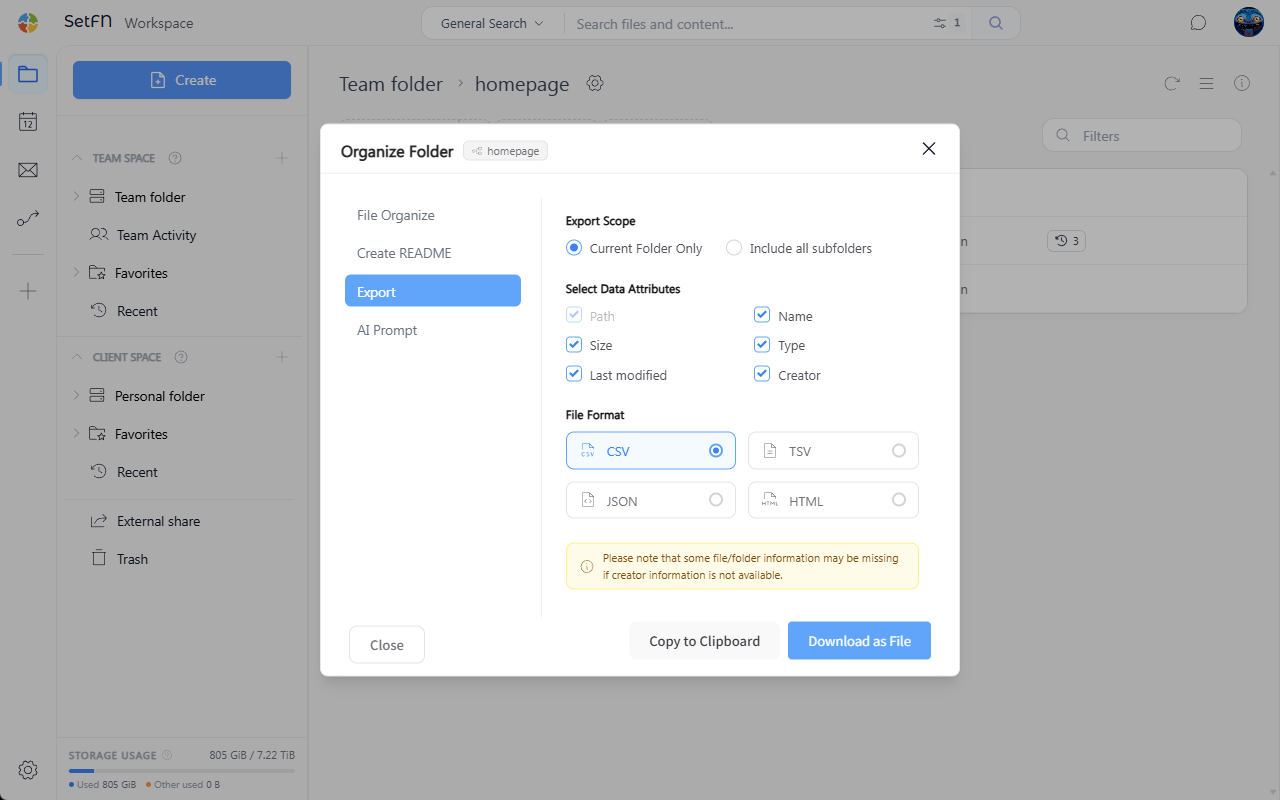
Selecting the Extraction Scope
Choose the scope to extract.
Current folder only: Extracts only the files and folders in the current folder.Include all subfolders: Extracts items in subfolders as well. You can limit the scope withMaximum subfolder depthandMaximum item count.
Selecting Data Properties
Choose which properties to include in the list. Path is included by default; select the remaining properties.
Path,Name,Size,Type,Last modified,Author
Selecting the File Format
Choose the file format to export.
CSV: A format that opens directly in a spreadsheetTSV: A tab-separated formatJSON: A format well-suited for programmatic processingHTML: A table-style web document
Copy or Download
Copy to clipboard: Available only whenCurrent folder onlyis selected. Paste the copied content wherever you need with Ctrl + V.Download as file: Downloads a file in the selected format.
Options and Settings
| Item | Description | Default |
|---|---|---|
| Extraction scope | Current folder only or Include all subfolders | Current folder only |
| Maximum subfolder depth | How many levels of subfolders to include | 100 |
| Maximum item count | Maximum number of items to extract at once | 10000 |
| Data properties | Path, name, size, type, last modified, author | All |
| File format | CSV, TSV, JSON, HTML | CSV |
Great Use Cases
- Handover/delivery: When a project ends, create and deliver a list of "what files are in this folder." Including
AuthorandLast modifiedprovides supporting evidence. - Records/audits: Periodically extract a list of stored documents to record document status or submit as audit evidence.
Good to Know
- Exporting with
Include all subfolderscan result in a very large number of items. UseMaximum subfolder depthandMaximum item countto control the scope. Copy to clipboardcan only be used with theCurrent folder onlyscope.