'/%3e%3cpath%20id='cross_2'%20data-name='cross%202'%20class='cls-2'%20d='M20.612,30.43h0a5.361,5.361,0,1,0-10.723,0H0A33.709,33.709,0,0,1,30.569,0V9.75a5.361,5.361,0,1,1,0,10.723V30.43Z'%20transform='translate(67.193%200.007)%20rotate(90)'/%3e%3cpath%20id='cross_3'%20data-name='cross%203'%20class='cls-3'%20d='M20.612,30.43h0a5.361,5.361,0,1,0-10.723,0H0A33.709,33.709,0,0,1,30.569,0V9.75a5.361,5.361,0,1,1,0,10.723V30.43Z'%20transform='translate(67.186%2067.041)%20rotate(180)'/%3e%3cpath%20id='cross_4'%20data-name='cross%204'%20class='cls-4'%20d='M20.6,30.5h0a5.361,5.361,0,1,0-10.723,0H0A33.71,33.71,0,0,1,30.56,0V9.818a5.361,5.361,0,1,1,0,10.723V30.5Z'%20transform='translate(0%2067.041)%20rotate(-90)'/%3e%3c/svg%3e)
Folder Webhooks
Receive files from external systems automatically in a specified folder. Each folder gets a unique receiving URL, and data sent to that URL is saved in the folder.
Before you begin
- An administrator must enable Workspace webhooks under Configure Webhook Policies.
Create a webhook in a folder
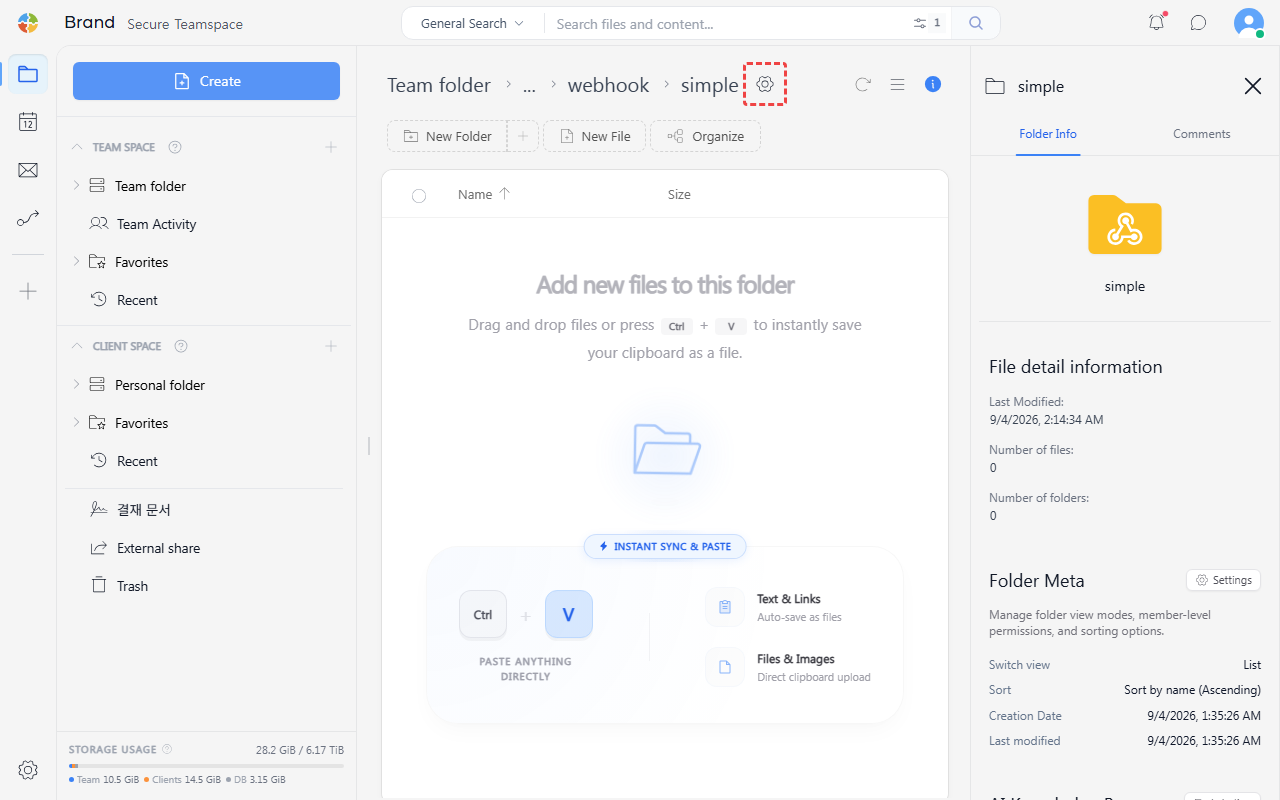
- Select the settings (⚙️) icon next to the folder that will receive the webhook.
- On the
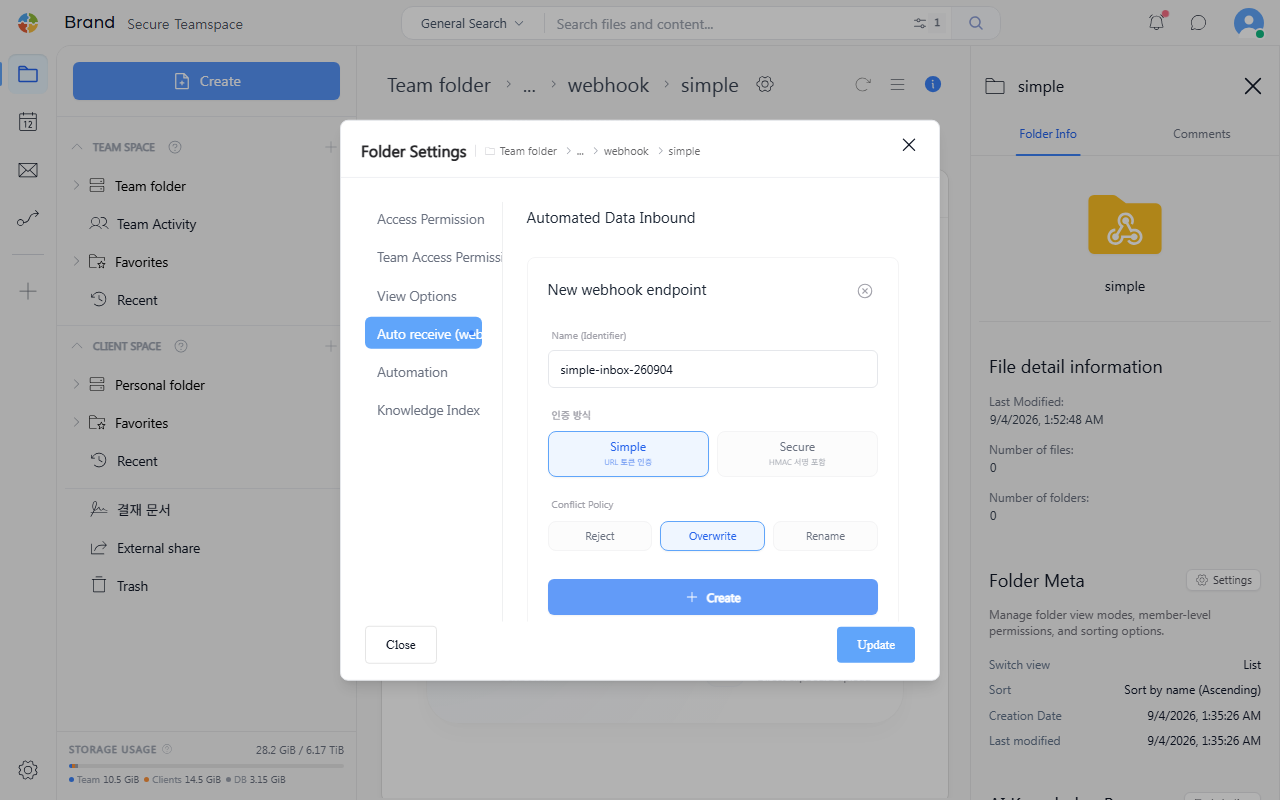
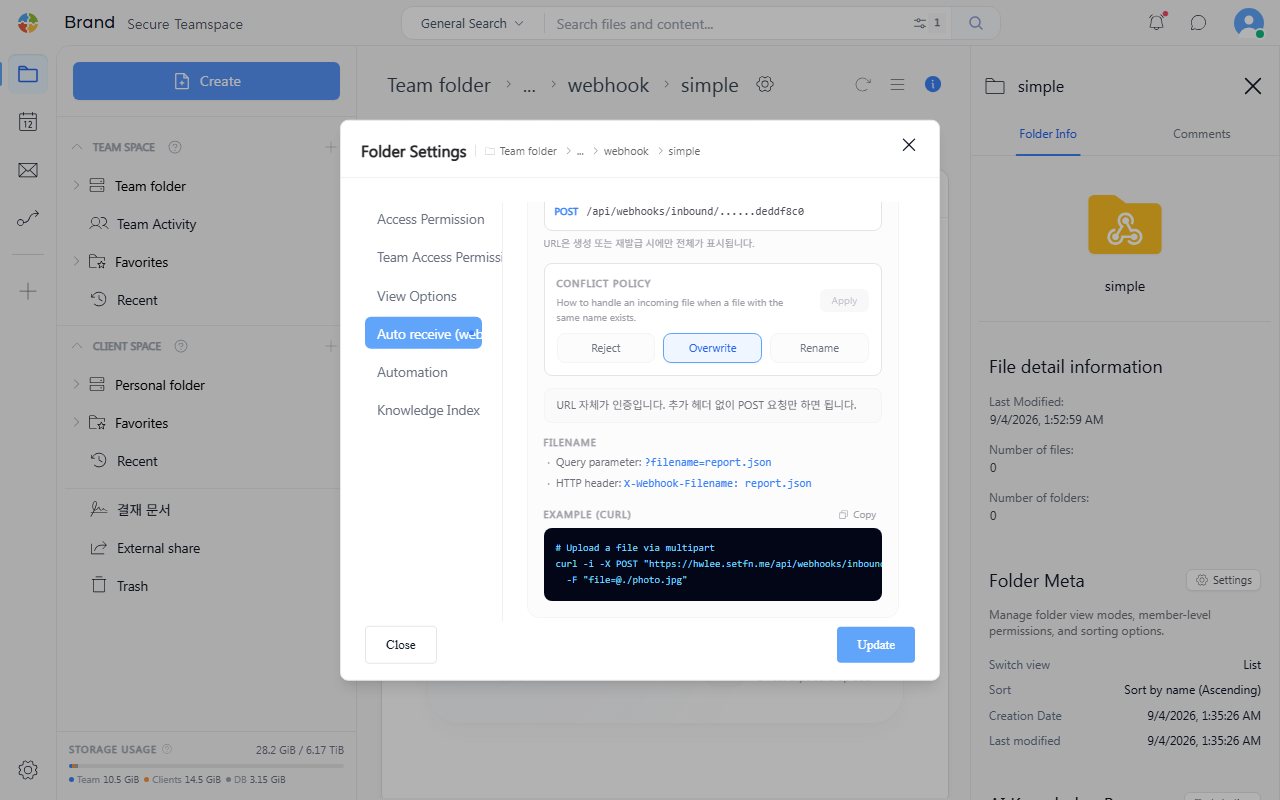
Automatic Receiving (Webhook)tab, selectAdd. - Select an authentication method and conflict policy. Both options are described below.
- Select
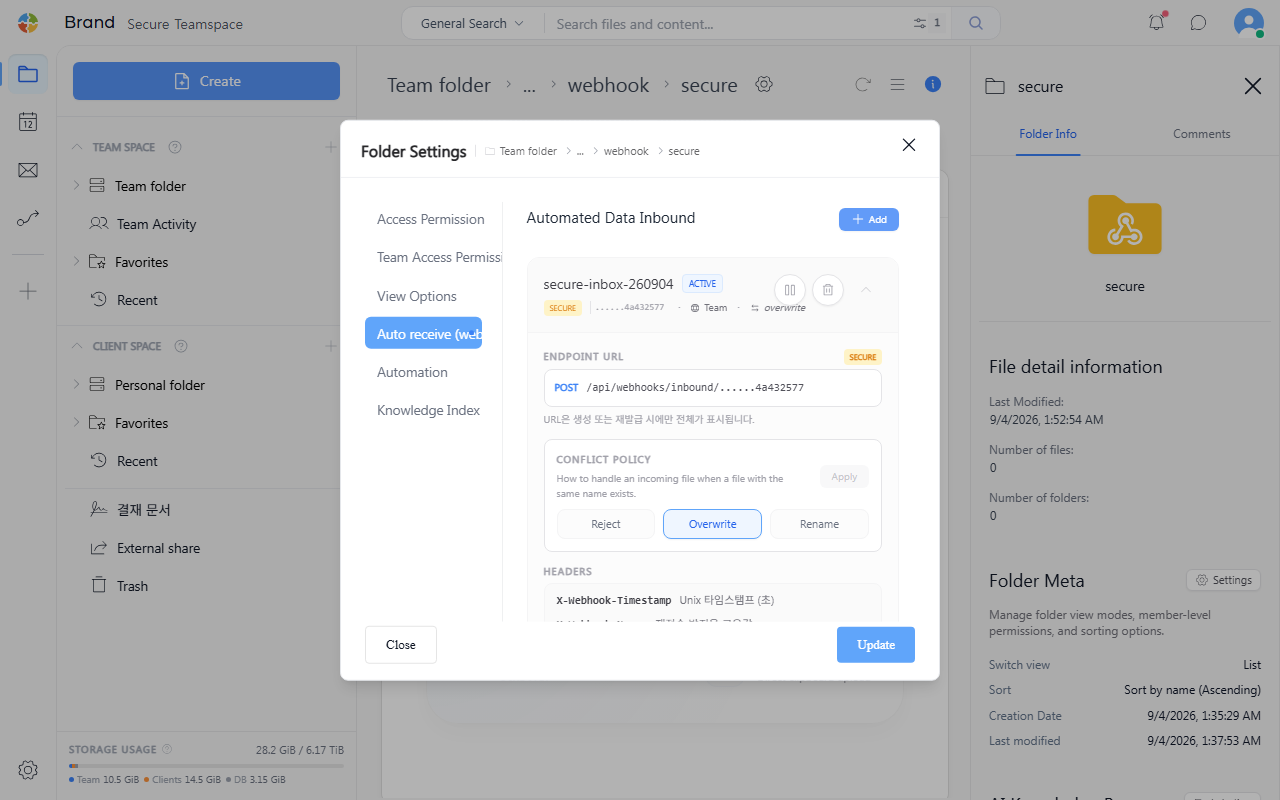
Createto generate the folder's unique receiving URL. If you selectedSecure, a signing secret is also generated. These values are shown only once, so copy them to a secure location now.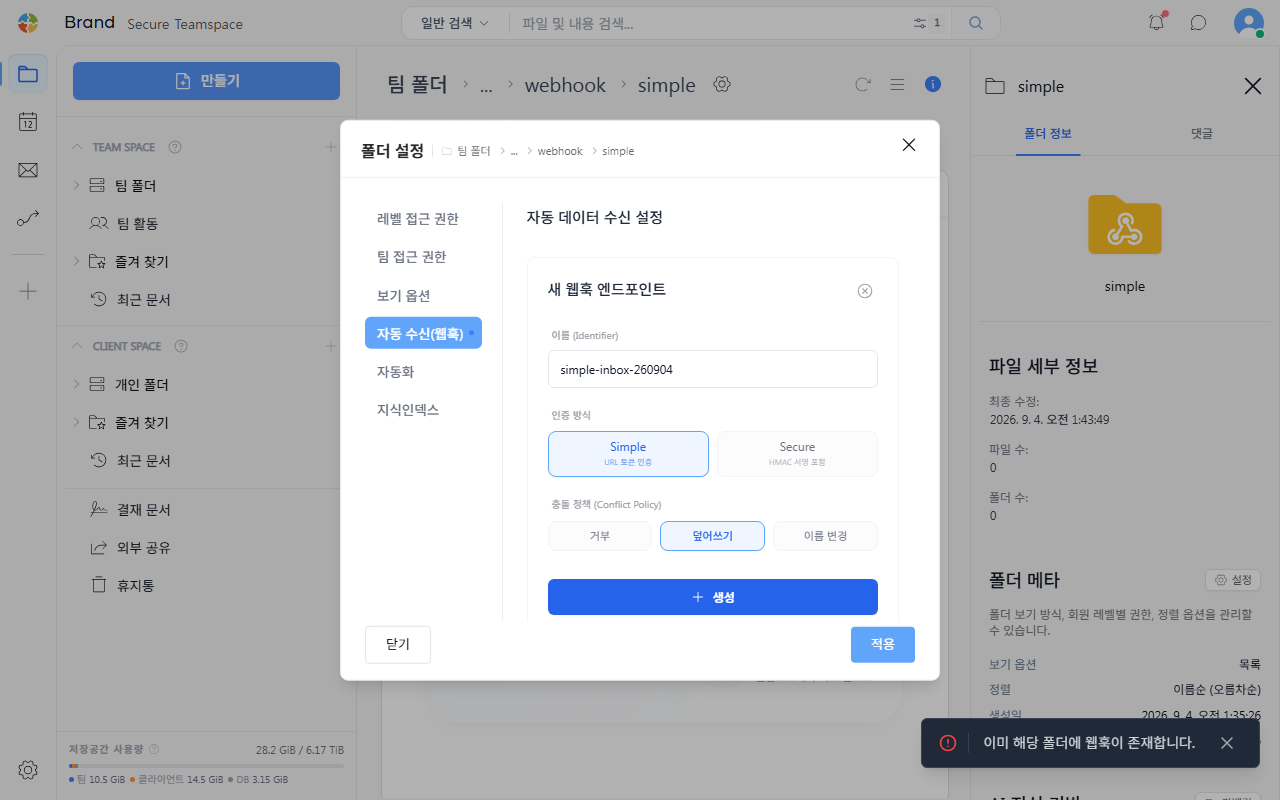
- Configure the external system using the receiving URL and example shown on screen. See "Select an authentication method" below for request examples.
- A folder with a webhook displays the icon.
Select an authentication method
Select either Simple or Secure when creating a webhook.
| Authentication | Behavior |
|---|---|
Simple | The receiving URL itself is the credential. Send a POST request to the issued URL without a separate signature. |
Secure | Every request must include an HMAC signature in the X-Webhook-Timestamp, X-Webhook-Nonce, and X-Webhook-Signature headers. Unsigned requests are rejected even if the receiving URL is exposed. |
A Simple webhook accepts requests using only its URL.
# Upload a file via multipart
curl -i -X POST "https://<receiving-url>?filename=photo.jpg" \
  -F "file=@./photo.jpg"
A Secure webhook signs a SHA-256 hash of the entire multipart request body, including boundaries and part headers.
# Upload a file via multipart (with HMAC signature)
TS=$(date +%s)
NONCE=$(cat /proc/sys/kernel/random/uuid)
BOUNDARY="------------------------$(cat /proc/sys/kernel/random/uuid)"
TMP=$(mktemp /tmp/multipart.XXXXXX)

# Build the raw multipart body first, then hash that body.
printf -- --%s$'\r\n' "$BOUNDARY" > "$TMP"
printf 'Content-Disposition: form-data; name="file"; filename="photo.jpg"' >> "$TMP"
printf $'\r\n' >> "$TMP"
printf 'Content-Type: application/octet-stream' >> "$TMP"
printf $'\r\n\r\n' >> "$TMP"
cat ./photo.jpg >> "$TMP"
printf $'\r\n' >> "$TMP"
printf -- --%s--$'\r\n' "$BOUNDARY" >> "$TMP"

BODY_SHA=$(sha256sum "$TMP" | awk '{print $1}')
SIG=$(printf 'POST\n<receiving-path>\n%s\n%s\n%s' "$TS" "$NONCE" "$BODY_SHA" \
  | openssl dgst -sha256 -hmac "$SECRET" -binary | xxd -p -c 256)

curl -i -X POST "https://<receiving-url>?filename=photo.jpg" \
  -H "Content-Type: multipart/form-data; boundary=$BOUNDARY" \
  -H "X-Webhook-Timestamp: $TS" \
  -H "X-Webhook-Nonce: $NONCE" \
  -H "X-Webhook-Signature: sha256=$SIG" \
  --data-binary @"$TMP"

rm -f "$TMP"
Select a conflict policy
Choose how to handle a newly received file when another file has the same name. You can change the policy later on the same screen by selecting Apply.
| Policy | Behavior |
|---|---|
Reject | Does not save the newly received file when the name already exists. |
Overwrite | Replaces the existing file with the newly received file. |
Rename | Keeps the existing file and saves the new file under a different name. |
Specify a filename
Specify the uploaded filename in either of these ways:
- Query parameter:
?filename=report.json - HTTP header:
X-Webhook-Filename: report.json
Review received data
Data sent from external systems accumulates as files in the folder. Open the folder to review received items.
Pause or delete a webhook
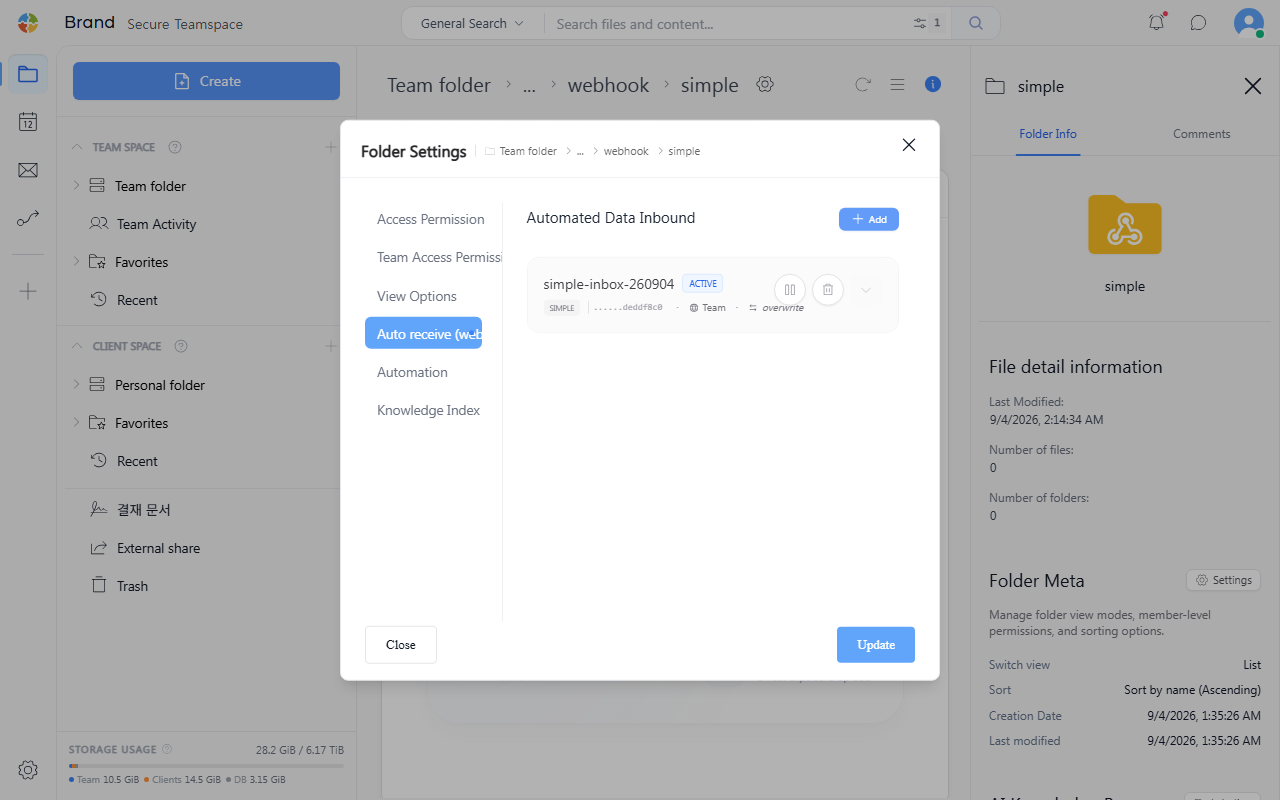
- In the folder, hover over a webhook in the list to display the pause and delete buttons.
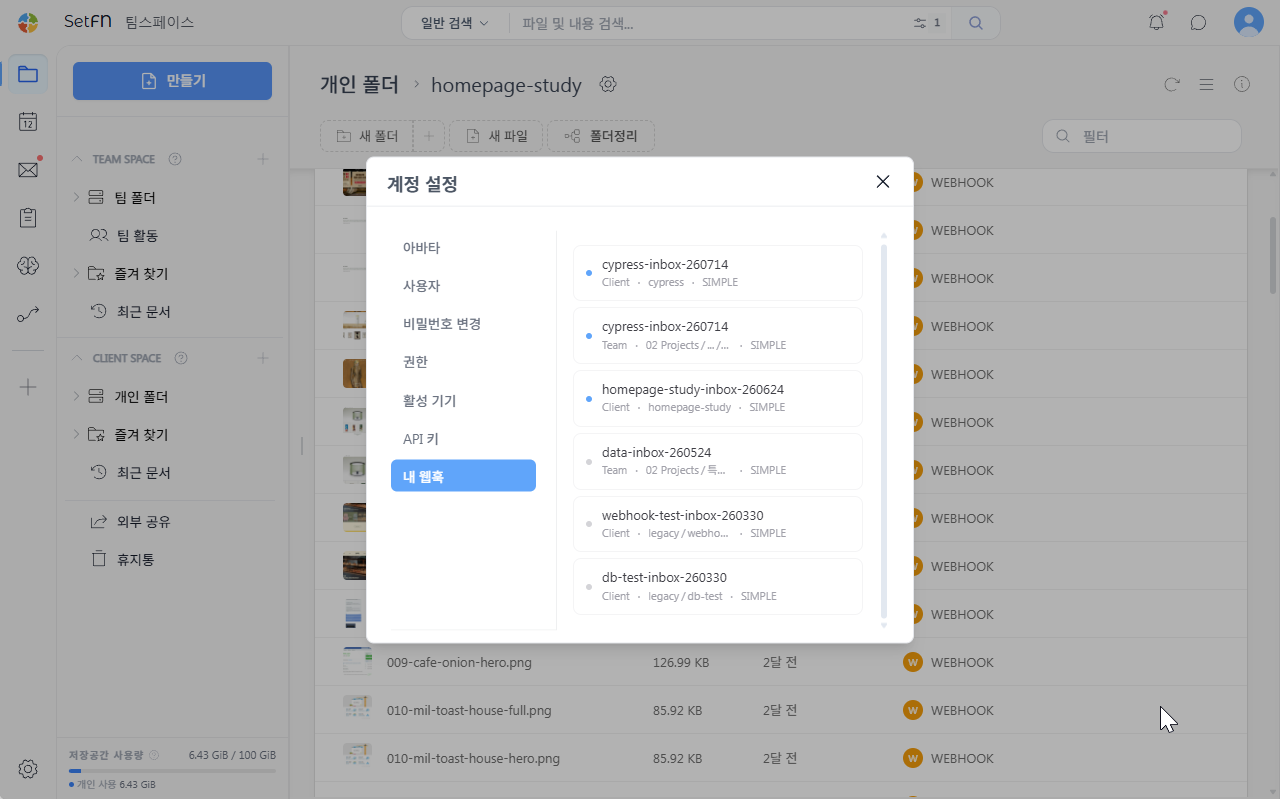
- Open
My WebhooksunderAccount Settingsto see every folder where you configured a webhook. You can also pause or delete webhooks from this list.
Use cases
- Website and screen monitoring: Automatically collect periodic screenshots from Zapier, n8n, Make, or similar tools to track changes.
- Automation output storage: Save reports, invoices, PDFs, and other output from RPA or automation tools without manual intervention.
- Form attachment collection: Collect files submitted through Google Forms, Typeform, and similar services in one folder.
- Build and deployment artifacts: Receive build artifacts and test reports generated by a CI/CD pipeline.