'/%3e%3cpath%20id='cross_2'%20data-name='cross%202'%20class='cls-2'%20d='M20.612,30.43h0a5.361,5.361,0,1,0-10.723,0H0A33.709,33.709,0,0,1,30.569,0V9.75a5.361,5.361,0,1,1,0,10.723V30.43Z'%20transform='translate(67.193%200.007)%20rotate(90)'/%3e%3cpath%20id='cross_3'%20data-name='cross%203'%20class='cls-3'%20d='M20.612,30.43h0a5.361,5.361,0,1,0-10.723,0H0A33.709,33.709,0,0,1,30.569,0V9.75a5.361,5.361,0,1,1,0,10.723V30.43Z'%20transform='translate(67.186%2067.041)%20rotate(180)'/%3e%3cpath%20id='cross_4'%20data-name='cross%204'%20class='cls-4'%20d='M20.6,30.5h0a5.361,5.361,0,1,0-10.723,0H0A33.71,33.71,0,0,1,30.56,0V9.818a5.361,5.361,0,1,1,0,10.723V30.5Z'%20transform='translate(0%2067.041)%20rotate(-90)'/%3e%3c/svg%3e)
Webhook Settings
A webhook is a dedicated intake address used when another program automatically sends files to a designated folder in SpaceBuilder. For example, files generated by a scanner, a business system, or an automation program can be saved to a folder without any human intervention.
On this page, admins configure the server-wide scope and limits for webhook usage. For how to create a webhook on an actual folder and use its intake address, see Using Folder Webhooks.
Before You Configure
- To call a webhook from outside, you need an address that can reach SpaceBuilder.
- The webhook address includes a secret value used for authentication. Share the full address only with the admin and the person responsible for the connecting program.
- Using HTTPS is recommended when exposing it to the internet.
- The larger the files received, the more the server's memory and storage usage will increase.
Webhook Policy Settings
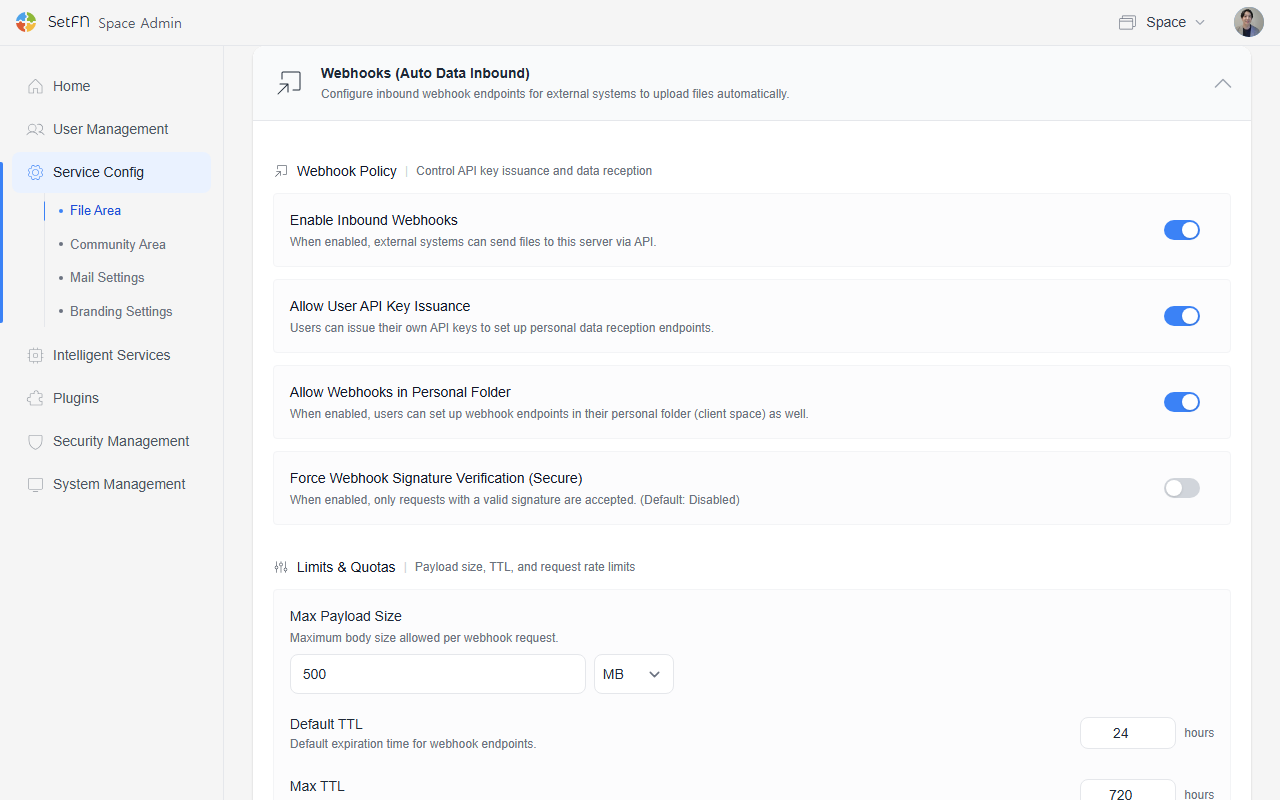
In the admin settings, choose who can use the webhook feature and at what security level.
| Item | Description |
|---|---|
| Enable inbound webhook feature | Turns on the server's webhook receiving feature. If turned off, files cannot be received even at existing webhook addresses. |
| Allow users to issue API keys | Lets regular users create and manage webhook intake addresses on folders themselves. |
| Allow webhooks on personal folders | Allows webhooks to be created not only on team folders but also on users' personal folders. Enable this when files need to be received into personal folders. |
| Enforce webhook signature verification | Applies additional signature verification to webhooks that are newly created or have their secret rotated. This is a security feature used when the calling program supports HMAC signatures, and it is off by default. |
Capacity and Request Limit Settings
Configure the size and request rate a webhook can receive at one time. In most environments, the default values are sufficient.
| Item | Default | Description |
|---|---|---|
| Maximum payload size | 8 MB | The total combined size of the file and request information a webhook can receive at once. This is the server default and can be increased when larger files need to be received. |
| Request rate limit | 5 per second | Limits requests from arriving too frequently in a short period. Adjust this value only when legitimate requests are being throttled. |
Payload refers to the entire content delivered via the webhook, combining the file and the request information. Because it includes information beyond just the file, the displayed size may be slightly larger than the actual file.
If the configured size is exceeded, the file is not saved and a 413 Request Entity Too Large response is returned. For environments that frequently transfer large files, the standard file upload method is more suitable.
Increasing the Size Receivable at Once
To receive files larger than 8 MB via webhook, make the following changes.
- In the admin screen, open
Service Configurationand go to the Webhook section. - Enter the required size in the Maximum Payload Size field.
- Select the
MBorGBunit to the right of the input field. - Save the settings.
- Verify the transfer with a small file first before sending the actual file.
For example, to receive files up to 20 MB, enter 20 and select MB as the unit. The range the server supports is 1 KB–1 GB.
If you're exposing the webhook to the internet, also configuring request limits in Cloudflare or Nginx can help filter out abnormally high volumes of requests before they reach the server.
Recommended Setup Order
- Turn on Enable Inbound Webhook Feature.
- Turn on Allow Users to Issue API Keys only if users need to create webhooks themselves.
- Turn on Allow Webhooks on Personal Folders only if you need to receive files into personal folders.
- Use the default values for capacity and request limits.
- Save the settings, then create a webhook on the folder you intend to use.
- Send a small test file first to verify the storage location and permissions.
Troubleshooting
| Symptom | What to Check |
|---|---|
| Cannot receive files | Check whether the inbound webhook feature and user-issue permission are enabled. |
401 response | Check whether the webhook address's secret or signature headers are correct. |
403 response | Check whether personal folder access is allowed and whether the target folder permissions are correct. |
409 response | Check whether the webhook is paused or conflicts with a same-name file handling policy. |
413 response | Check whether the total request size exceeds the maximum payload size. |
| Server slows down after receiving files | Lower the payload size and request rate, and check whether OCR/document conversion tasks are piling up. |