'/%3e%3cpath%20id='cross_2'%20data-name='cross%202'%20class='cls-2'%20d='M20.612,30.43h0a5.361,5.361,0,1,0-10.723,0H0A33.709,33.709,0,0,1,30.569,0V9.75a5.361,5.361,0,1,1,0,10.723V30.43Z'%20transform='translate(67.193%200.007)%20rotate(90)'/%3e%3cpath%20id='cross_3'%20data-name='cross%203'%20class='cls-3'%20d='M20.612,30.43h0a5.361,5.361,0,1,0-10.723,0H0A33.709,33.709,0,0,1,30.569,0V9.75a5.361,5.361,0,1,1,0,10.723V30.43Z'%20transform='translate(67.186%2067.041)%20rotate(180)'/%3e%3cpath%20id='cross_4'%20data-name='cross%204'%20class='cls-4'%20d='M20.6,30.5h0a5.361,5.361,0,1,0-10.723,0H0A33.71,33.71,0,0,1,30.56,0V9.818a5.361,5.361,0,1,1,0,10.723V30.5Z'%20transform='translate(0%2067.041)%20rotate(-90)'/%3e%3c/svg%3e)
Branding Settings
You can change the space's name, subtitle, and color theme. Once configured, these settings apply identically to all users.
Branding Settings Screen
Go to Service Configuration > Branding Settings.
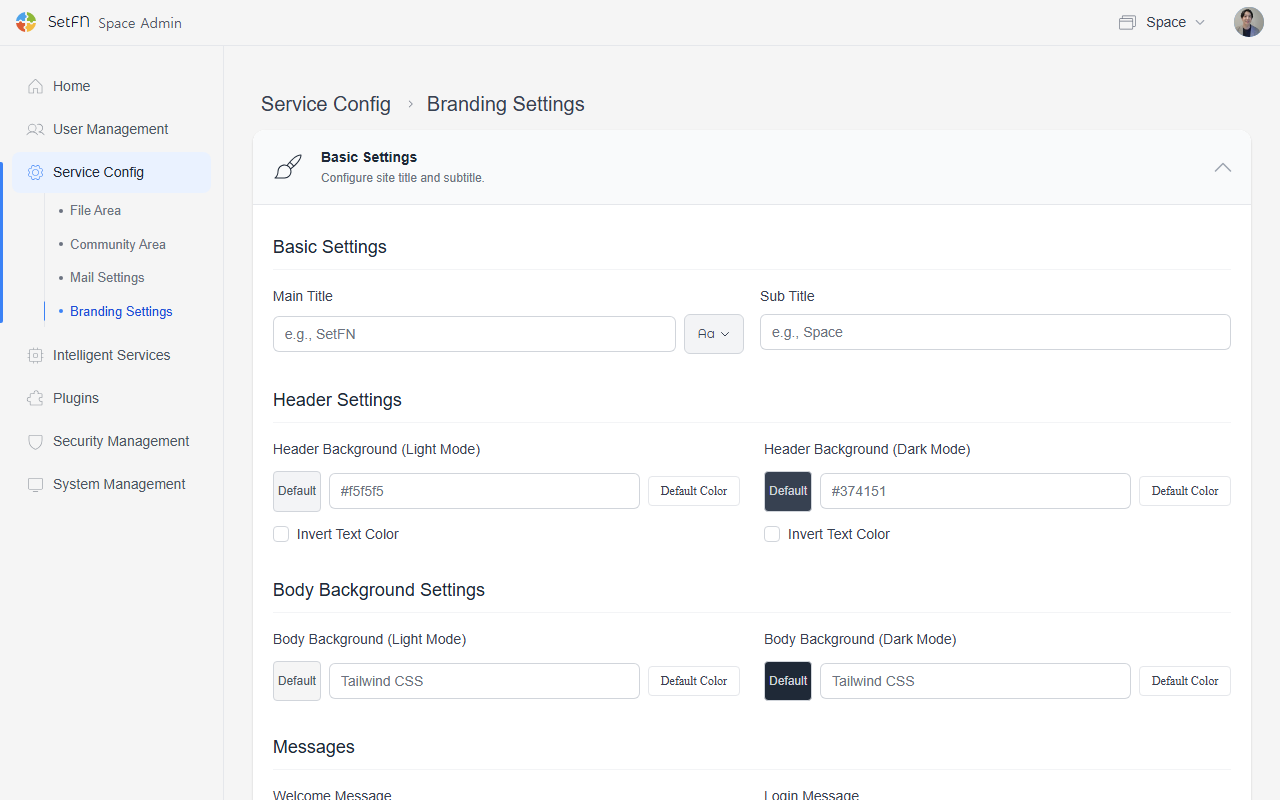
Space Name Settings
| Item | Description | Limit |
|---|---|---|
| Name (Main Title) | The space's primary name | Up to 50 characters |
| Subtitle (Sub Title) | A subtitle describing the space | Up to 50 characters |
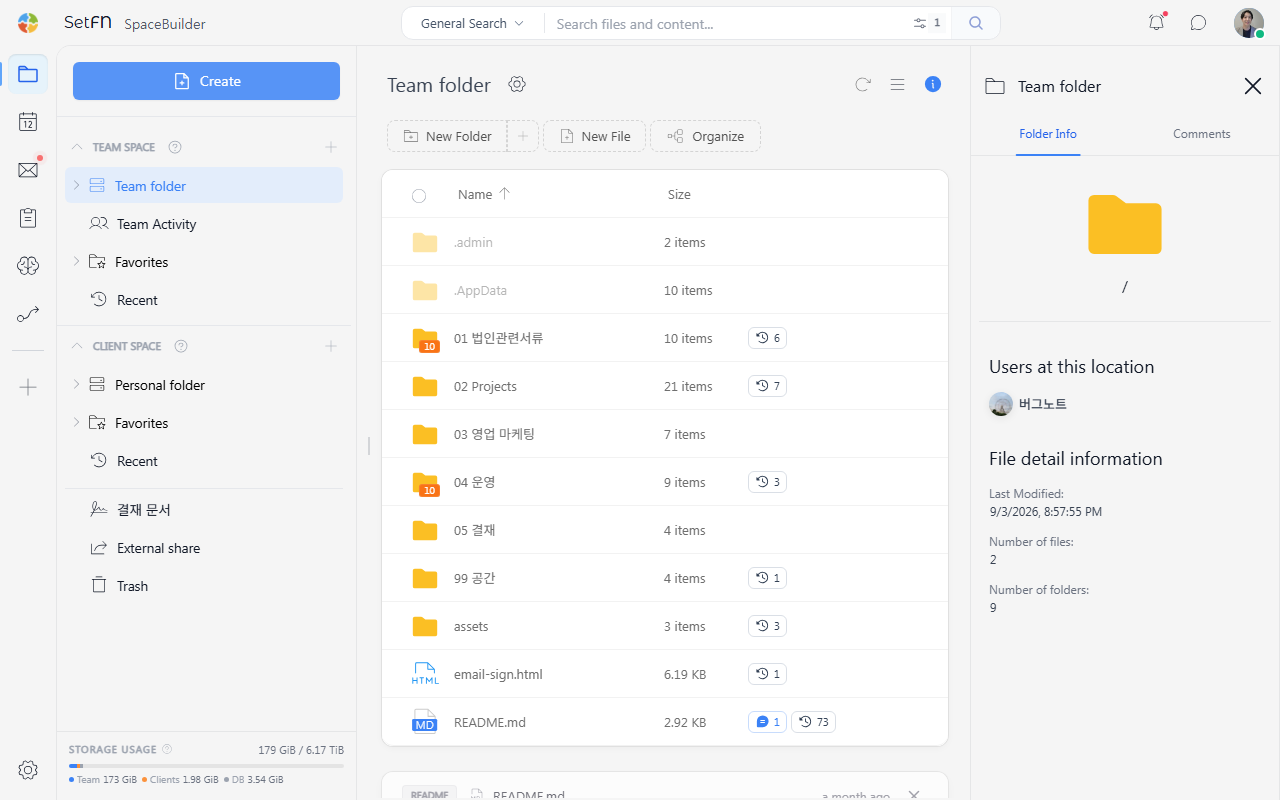
- Once applied, the name/subtitle at the top left of the space is updated.
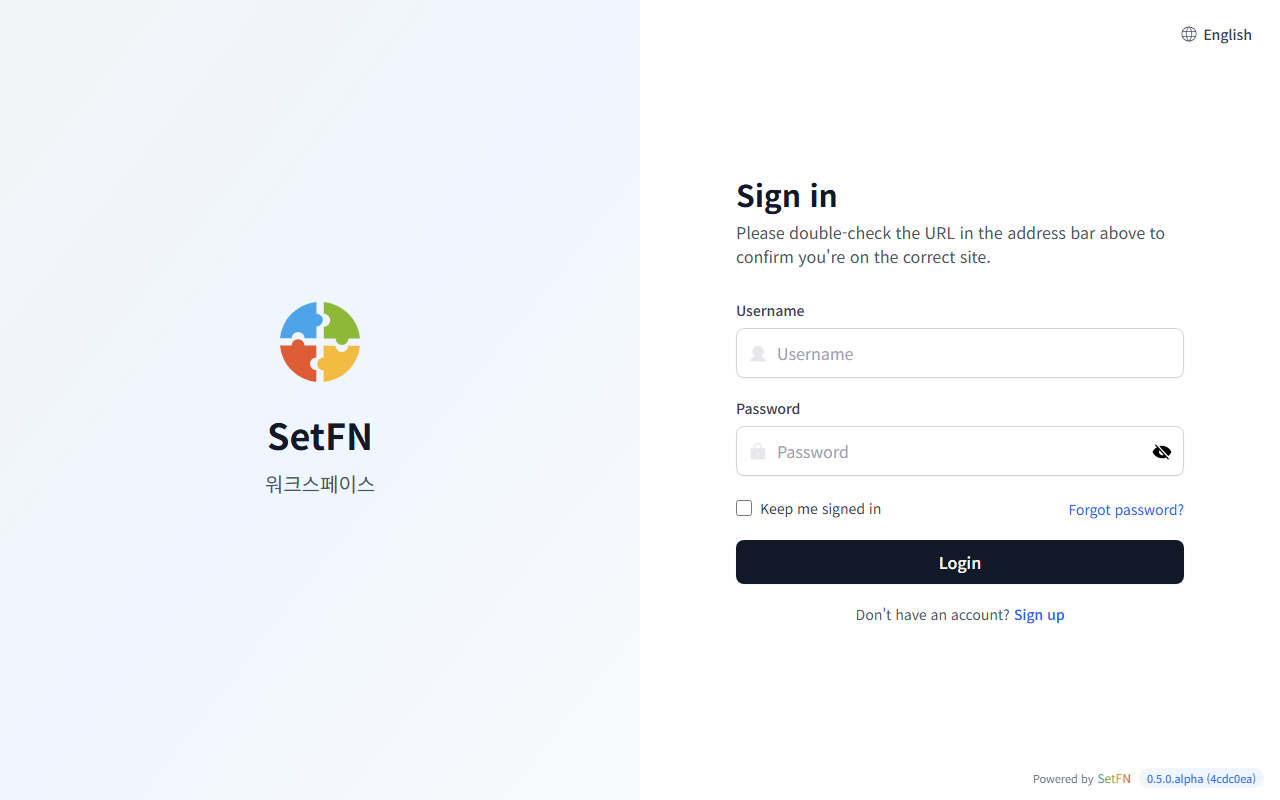
- The text on the login screen is also updated.
Design Settings
You can configure the color of the top area and the body area. Light mode and dark mode are supported.
- Top area color: choose between light/dark themes
- Body background color: set a color directly, or use a Tailwind CSS color code
For color names and palettes, see Tailwind CSS Colors. For example, you can base your theme on color families such as slate, zinc, blue, or emerald.
Messages
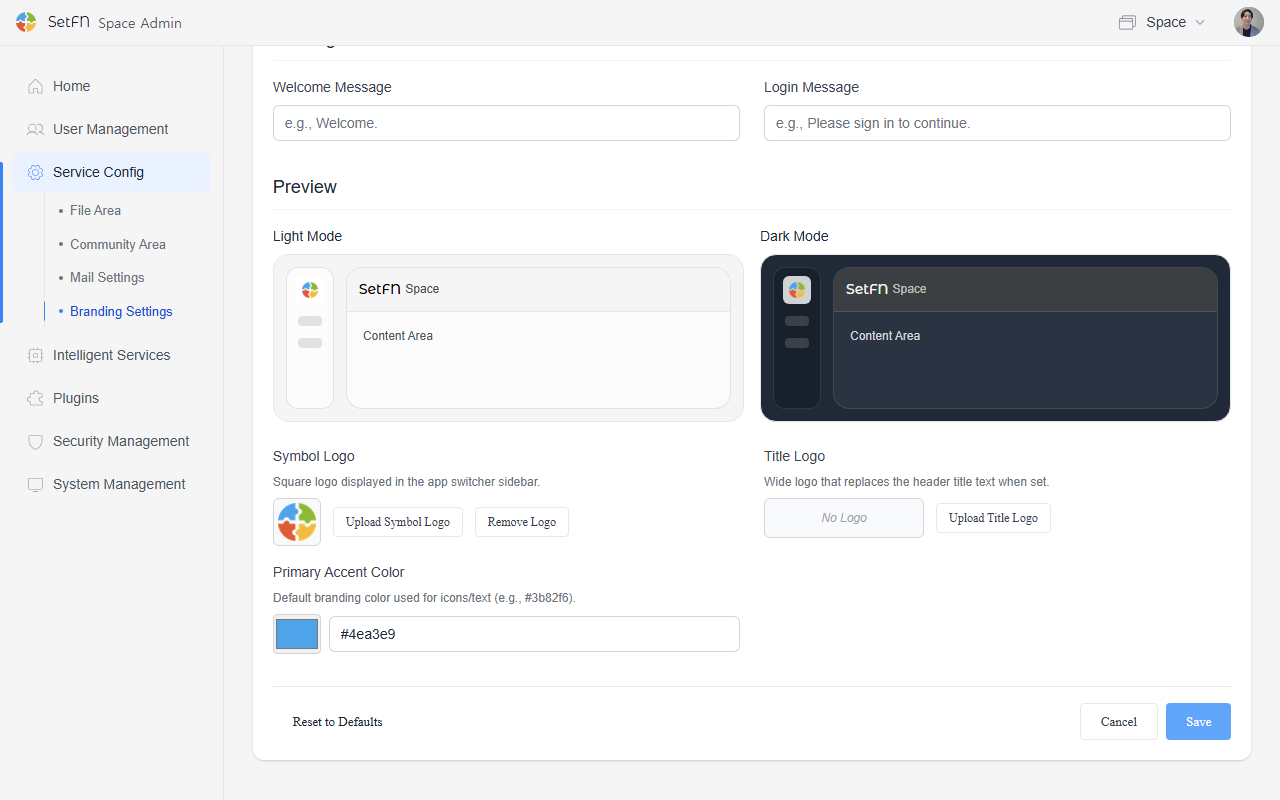
You can configure the message displayed on the login screen and the initial entry screen.
| Item | Description |
|---|---|
| Welcome message | The default guidance text displayed when a user enters the space. |
| Login message | The message shown on the login screen. You can enter security notices, usage purposes, welcome text, and more. |
Logo Settings
Symbol Logo
You can change the logo in the top-left corner of the space. Use a square image.
Title Logo
You can use an image instead of the main title text. Use a wide, horizontal image.
- When you upload a logo file, you can adjust the height of the title logo.
Preview
Before saving your branding settings, you can preview how the space name, subtitle, logo, colors, and messages will look on screen.
Restoring Defaults
- Click Restore Defaults at the bottom left to return to the original state.
Save
Once all settings are complete, click the Save button. Changes are applied immediately.
Good to Know
- Branding settings apply identically to all users.