'/%3e%3cpath%20id='cross_2'%20data-name='cross%202'%20class='cls-2'%20d='M20.612,30.43h0a5.361,5.361,0,1,0-10.723,0H0A33.709,33.709,0,0,1,30.569,0V9.75a5.361,5.361,0,1,1,0,10.723V30.43Z'%20transform='translate(67.193%200.007)%20rotate(90)'/%3e%3cpath%20id='cross_3'%20data-name='cross%203'%20class='cls-3'%20d='M20.612,30.43h0a5.361,5.361,0,1,0-10.723,0H0A33.709,33.709,0,0,1,30.569,0V9.75a5.361,5.361,0,1,1,0,10.723V30.43Z'%20transform='translate(67.186%2067.041)%20rotate(180)'/%3e%3cpath%20id='cross_4'%20data-name='cross%204'%20class='cls-4'%20d='M20.6,30.5h0a5.361,5.361,0,1,0-10.723,0H0A33.71,33.71,0,0,1,30.56,0V9.818a5.361,5.361,0,1,1,0,10.723V30.5Z'%20transform='translate(0%2067.041)%20rotate(-90)'/%3e%3c/svg%3e)
Community Settings
Manage communication features such as chat, comments, and activity notifications.
How to use chat: For how users actually open the chat window and send messages, see the Chat document. To learn how to display file activity in chat, see Viewing Team Activity.
Level-related settings: To set the minimum read/write level for team chat, first check user levels in Level Management. If you're operating this alongside folder access levels, also see Level-Based Access Permission Settings.
Communication
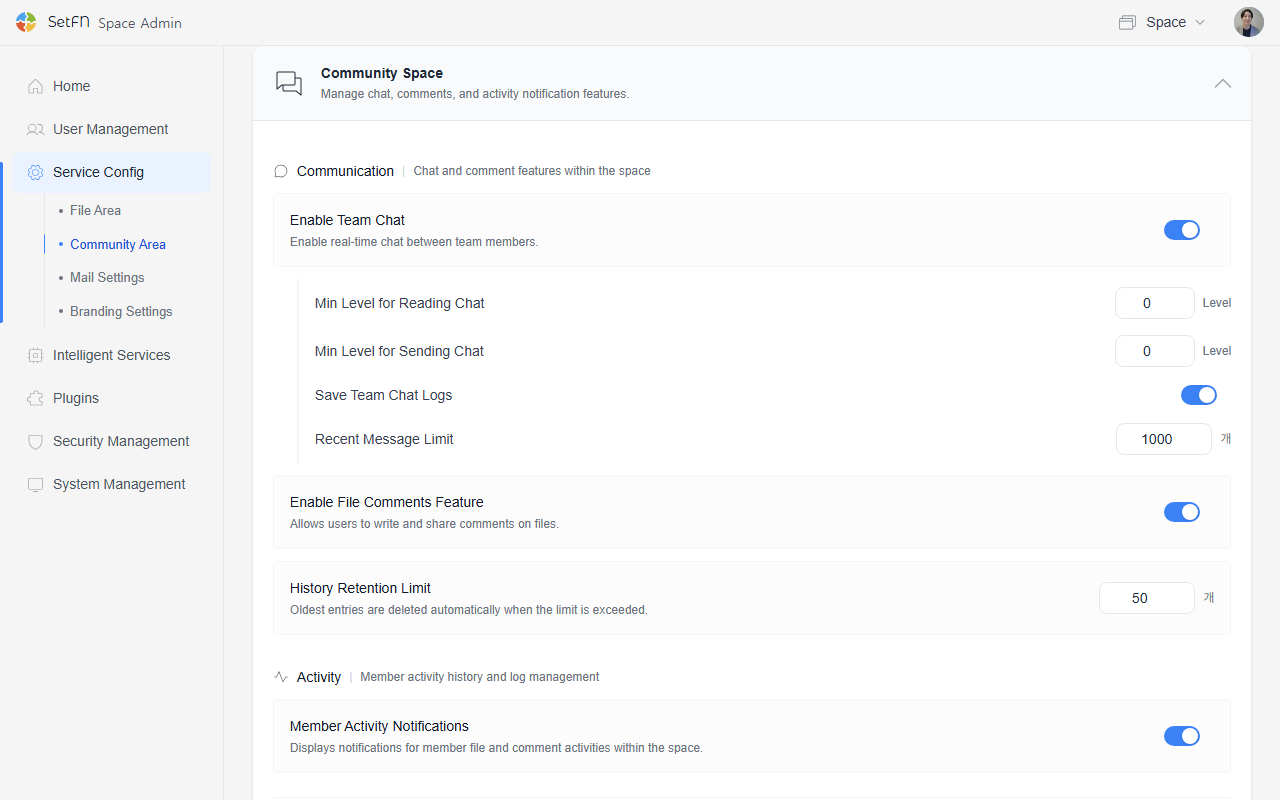
Configure conversation and comment features within the space.
Team Chat Settings
| Item | Description | Default |
|---|---|---|
| Enable team chat | Enables real-time chat among team members. | Enabled |
| Team chat minimum read level | Sets the minimum level required to read chat. | 0 |
| Team chat minimum write level | Sets the minimum level required to send chat messages. | 0 |
| Save team chat logs | Saves chat history. | Enabled |
| Number of recent messages retained | The number of recent messages retained even after a server restart. Can be set up to 1,000. | 1,000 |
File Comment Settings
| Item | Description | Default |
|---|---|---|
| Enable file comments | Allows comments to be written and shared on files. | Enabled |
| Number of change records retained | Older records are automatically deleted once this number is exceeded. | 50 |
Member Activity Notification Settings
- Displays a top notification banner for members' file and comment activity within the space.