'/%3e%3cpath%20id='cross_2'%20data-name='cross%202'%20class='cls-2'%20d='M20.612,30.43h0a5.361,5.361,0,1,0-10.723,0H0A33.709,33.709,0,0,1,30.569,0V9.75a5.361,5.361,0,1,1,0,10.723V30.43Z'%20transform='translate(67.193%200.007)%20rotate(90)'/%3e%3cpath%20id='cross_3'%20data-name='cross%203'%20class='cls-3'%20d='M20.612,30.43h0a5.361,5.361,0,1,0-10.723,0H0A33.709,33.709,0,0,1,30.569,0V9.75a5.361,5.361,0,1,1,0,10.723V30.43Z'%20transform='translate(67.186%2067.041)%20rotate(180)'/%3e%3cpath%20id='cross_4'%20data-name='cross%204'%20class='cls-4'%20d='M20.6,30.5h0a5.361,5.361,0,1,0-10.723,0H0A33.71,33.71,0,0,1,30.56,0V9.818a5.361,5.361,0,1,1,0,10.723V30.5Z'%20transform='translate(0%2067.041)%20rotate(-90)'/%3e%3c/svg%3e)
Checking Team Activity
You can see at a glance when team members created or modified which files, and where they left comments. You can follow the flow of the team's activity without having to ask separately.
How to Access
Click Team Activity in the left sidebar menu.
Choose the File or Comment tab in the top right to pick which activity to view.
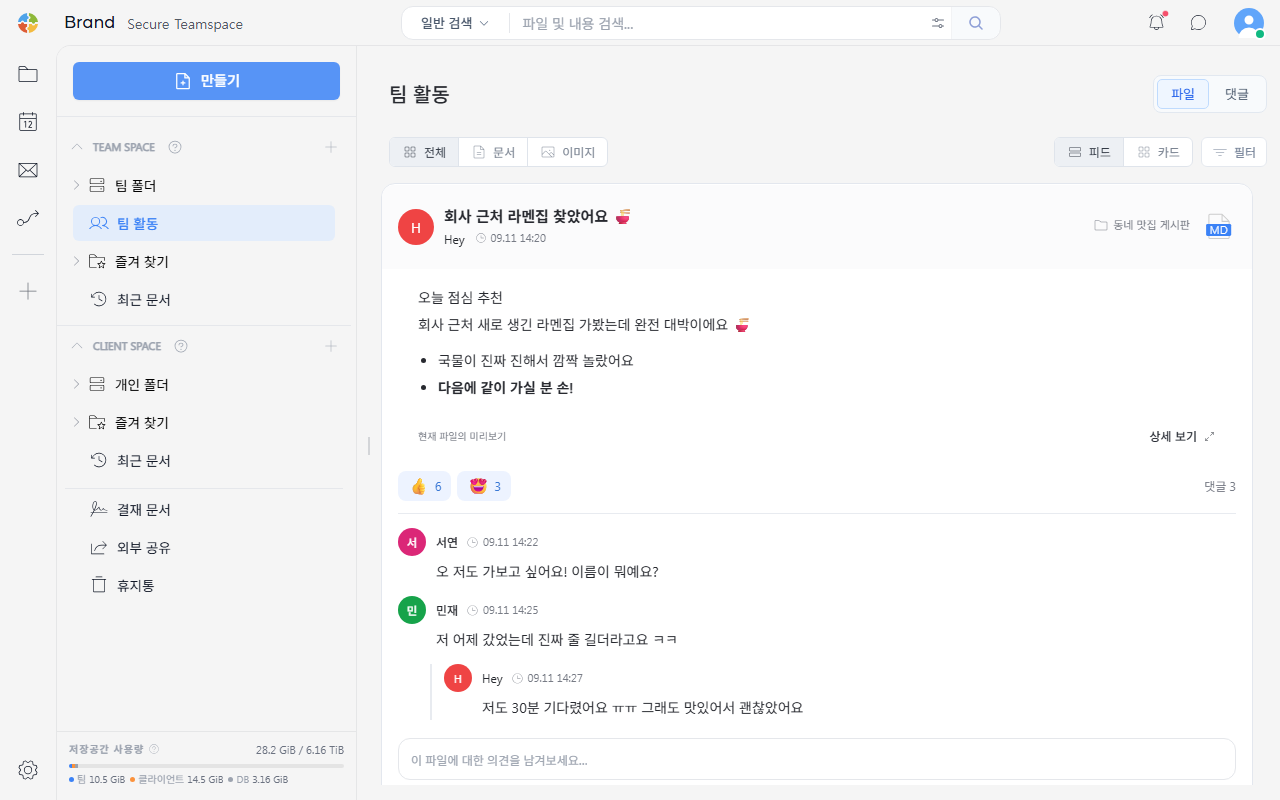
- Use the
All,Documents, andImagestabs to narrow the item type. - Use the
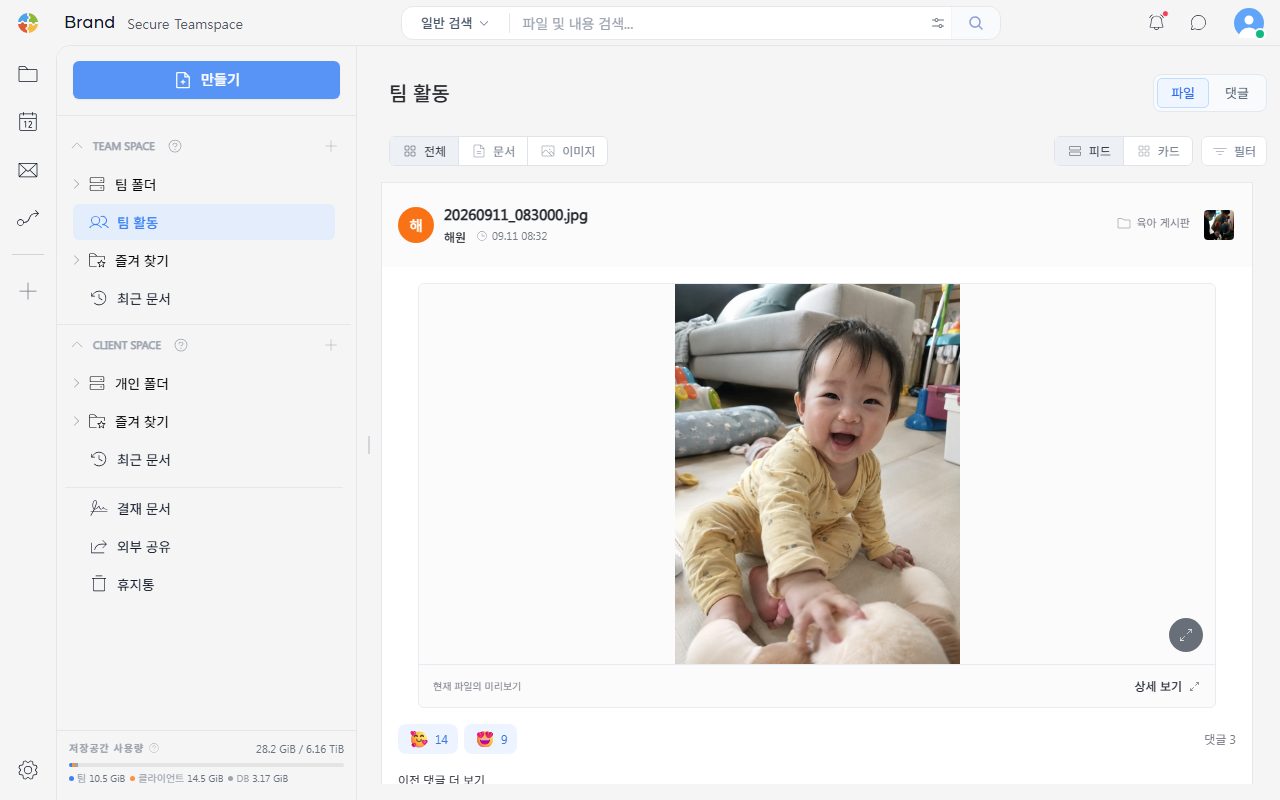
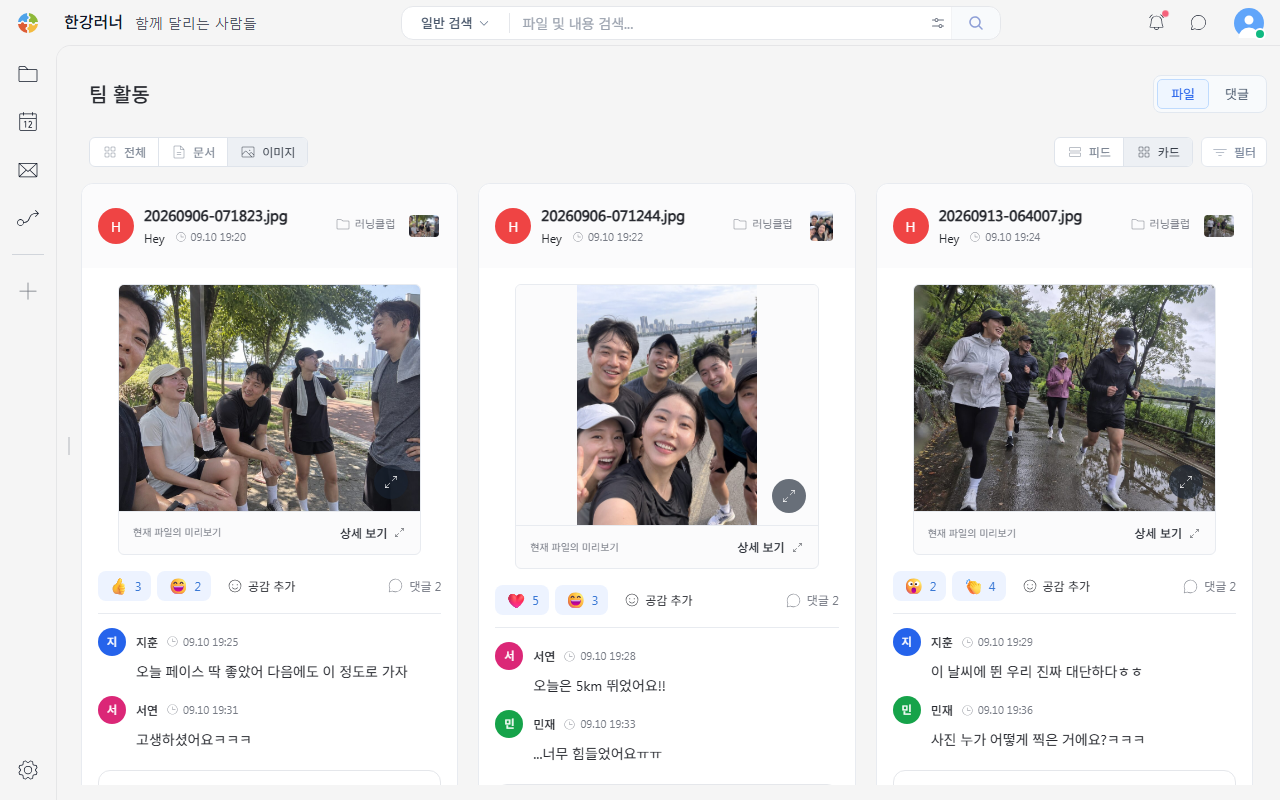
FeedandCardbuttons in the top right to switch the view style.
Feed View
See one post at a time at full width.
Card View
See multiple posts laid out in a grid at once.
File Activity
Check team members' actions on files and folders. Use the Documents and Images tabs at the top to narrow the list by item type.
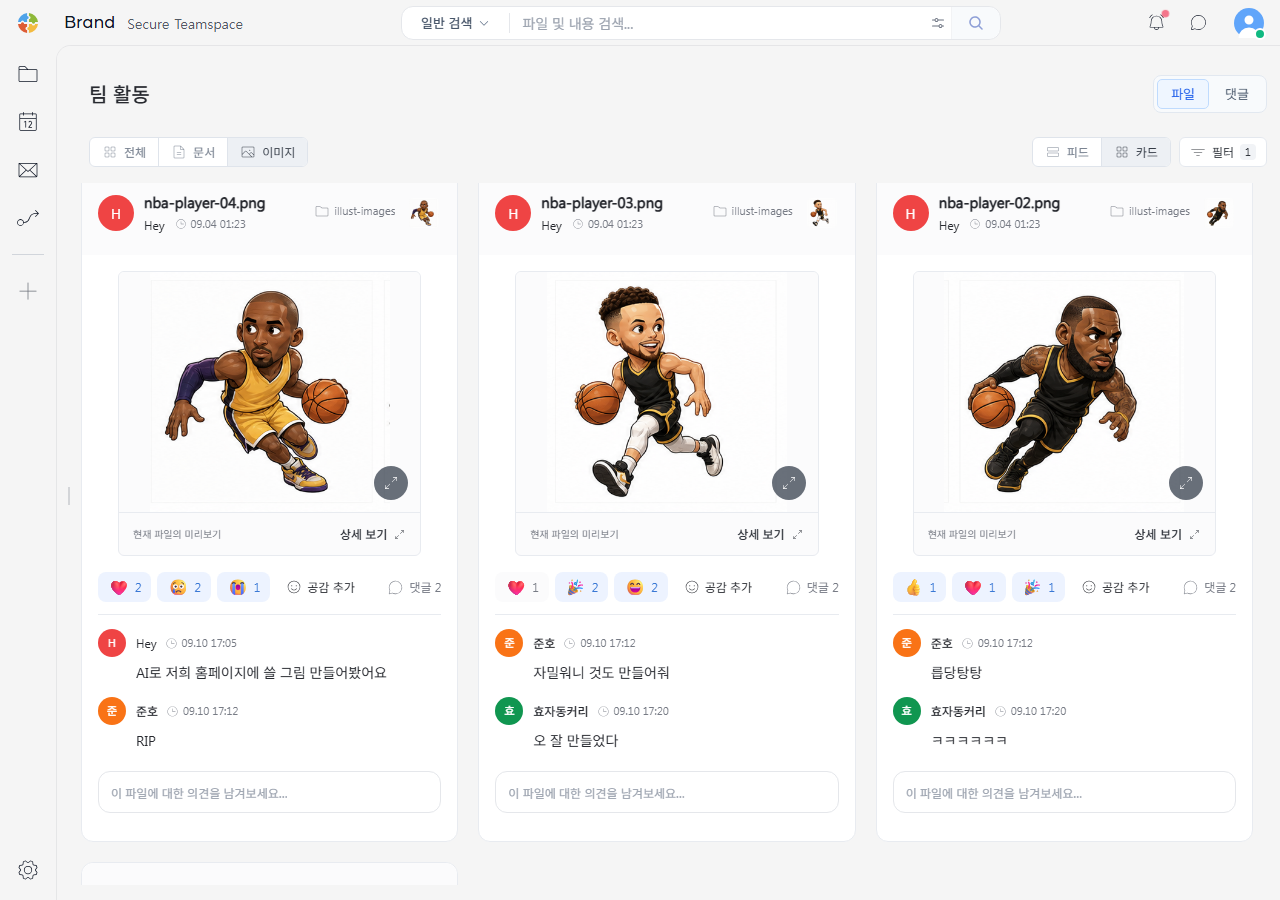
- See who created, modified, deleted, or moved which file, and when.
- In
Cardview, you can see file previews and reactions together. - Useful for picking up where you left off on yesterday's work, or quickly finding a file that was accidentally deleted.
Comment Activity
View comments scattered across files and folders in one place.
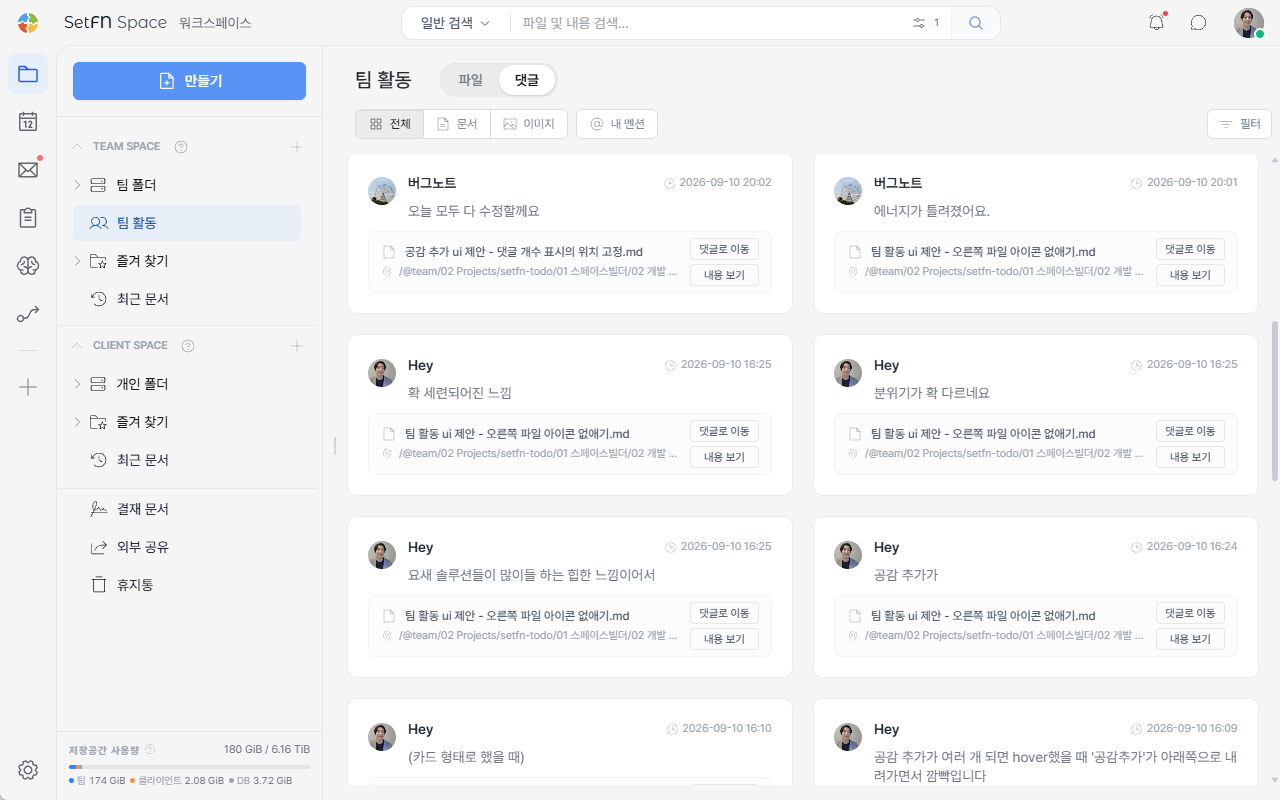
- Check who left a comment, when, and where.
- Click
Go to commentto jump to the file where the comment was left. - Click
View contentto preview the file in place, without leaving the list.
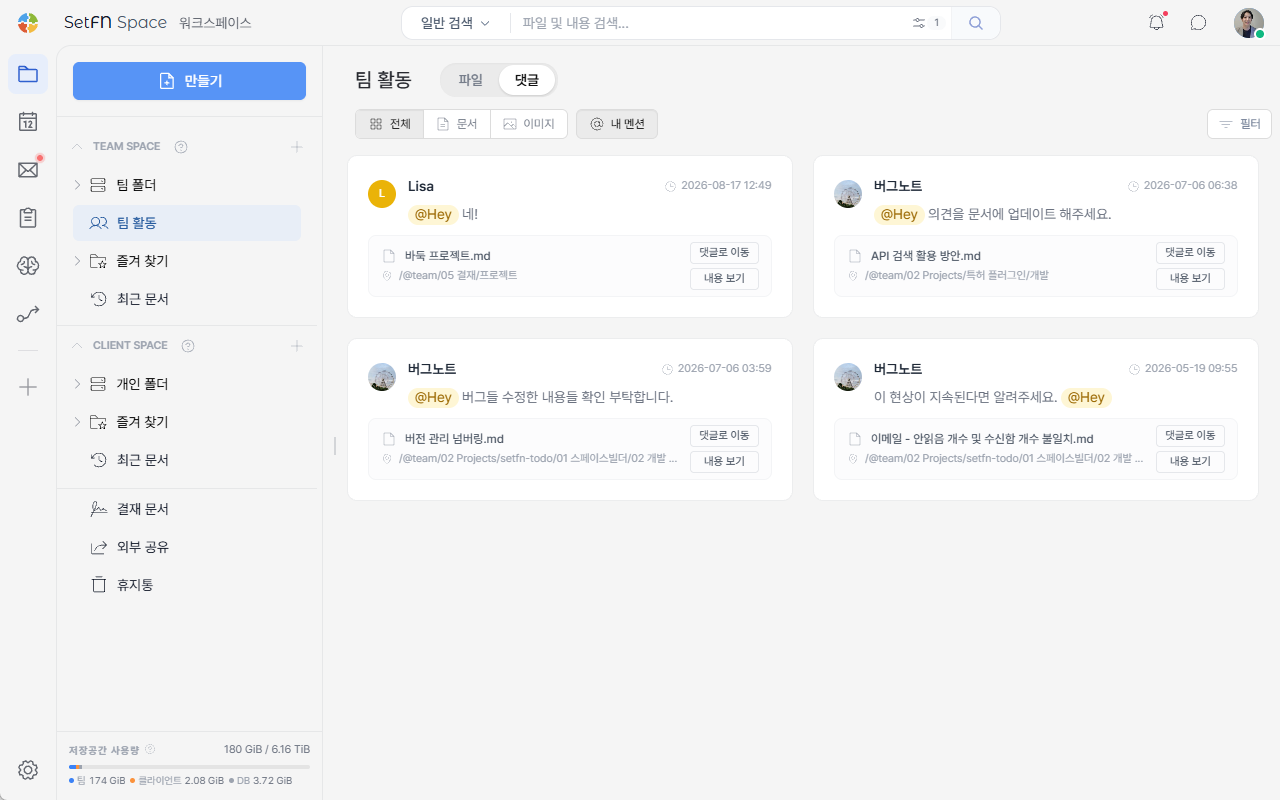
Checking Your Mentions
Click the @ Mentions tab to see only comments that mention (@) you.
Finding a Specific Comment with Filters
When there are too many comments to scan, use Filter in the top right to narrow the list by nickname, content, or date. For details, see Comment Search.
Checking File Activity from Chat
When a file is uploaded to or modified in a team folder, a notification automatically appears in the chat window as well. You can communicate in real time while managing files in the folder, without having to separately attach files in the chat window.

Clicking "View Details" jumps directly to that file.
"Show file activity notifications" must be turned on in
Chat Settings>Notification Settings. If you don't need the notifications, you can turn this off there.
Great Use Cases
- Understanding progress as a team lead/manager: You can see at a glance what files team members worked on today without a separate status report, which can reduce the need for regular check-ins.
- Catching up after vacation or absence: When you return after being away for a few days, you can quickly skim through what file changes and comments happened on the team in the meantime.