'/%3e%3cpath%20id='cross_2'%20data-name='cross%202'%20class='cls-2'%20d='M20.612,30.43h0a5.361,5.361,0,1,0-10.723,0H0A33.709,33.709,0,0,1,30.569,0V9.75a5.361,5.361,0,1,1,0,10.723V30.43Z'%20transform='translate(67.193%200.007)%20rotate(90)'/%3e%3cpath%20id='cross_3'%20data-name='cross%203'%20class='cls-3'%20d='M20.612,30.43h0a5.361,5.361,0,1,0-10.723,0H0A33.709,33.709,0,0,1,30.569,0V9.75a5.361,5.361,0,1,1,0,10.723V30.43Z'%20transform='translate(67.186%2067.041)%20rotate(180)'/%3e%3cpath%20id='cross_4'%20data-name='cross%204'%20class='cls-4'%20d='M20.6,30.5h0a5.361,5.361,0,1,0-10.723,0H0A33.71,33.71,0,0,1,30.56,0V9.818a5.361,5.361,0,1,1,0,10.723V30.5Z'%20transform='translate(0%2067.041)%20rotate(-90)'/%3e%3c/svg%3e)
Direct Messages
You can use the /dm command in the chat window to send a 1:1 message to a specific team member.
Sending a Direct Message
In the chat input box, type the following.
/dm @nickname message content
Checking Direct Messages
1. Real-Time Notification (While Connected)
If the team member who received the direct message is currently connected, a notification popup appears immediately in the top right.
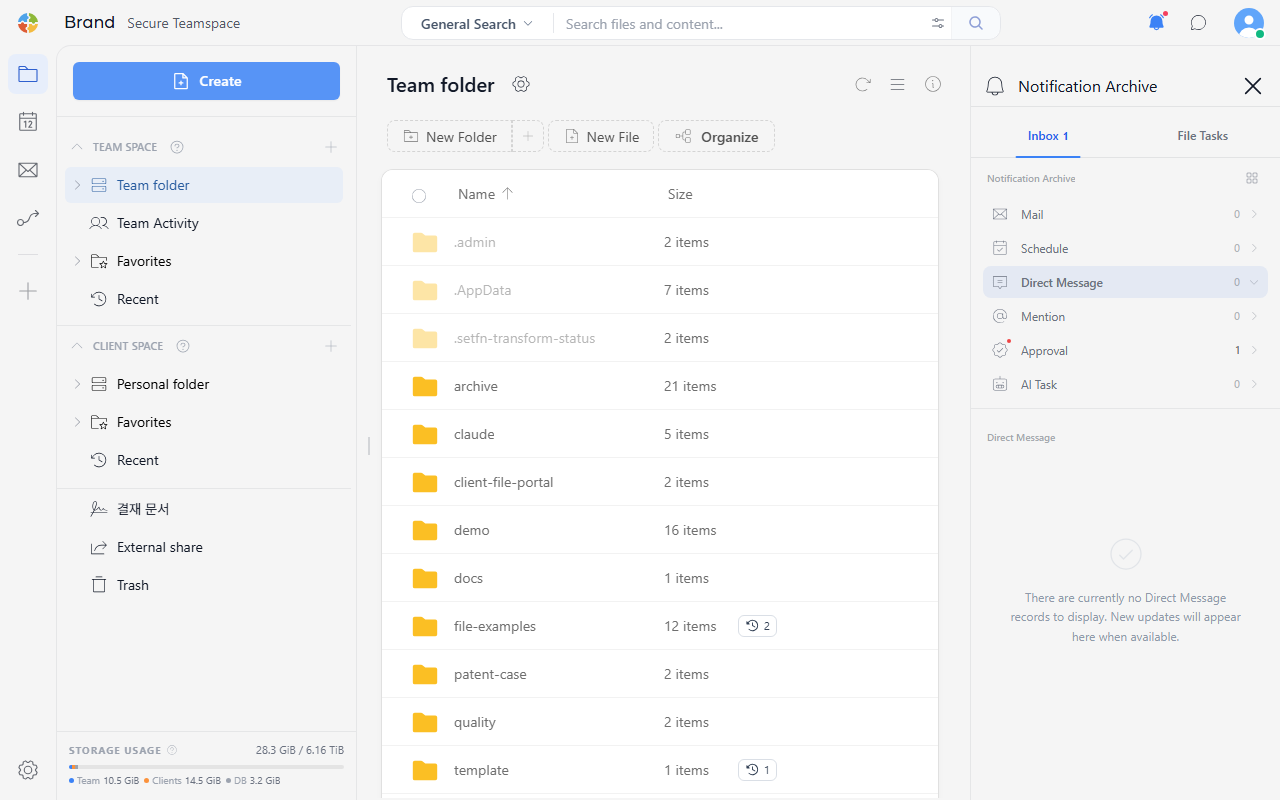
2. Checking Later (Notification Inbox)
Even if you weren't connected or missed the popup, you can check it in the Direct Messages item of the notification inbox via the notification icon (🔔) in the top right.
See Notification Inbox for details.
Good to Know
- File attachments are not supported.
- Direct messages are not kept in the overall chat history.