'/%3e%3cpath%20id='cross_2'%20data-name='cross%202'%20class='cls-2'%20d='M20.612,30.43h0a5.361,5.361,0,1,0-10.723,0H0A33.709,33.709,0,0,1,30.569,0V9.75a5.361,5.361,0,1,1,0,10.723V30.43Z'%20transform='translate(67.193%200.007)%20rotate(90)'/%3e%3cpath%20id='cross_3'%20data-name='cross%203'%20class='cls-3'%20d='M20.612,30.43h0a5.361,5.361,0,1,0-10.723,0H0A33.709,33.709,0,0,1,30.569,0V9.75a5.361,5.361,0,1,1,0,10.723V30.43Z'%20transform='translate(67.186%2067.041)%20rotate(180)'/%3e%3cpath%20id='cross_4'%20data-name='cross%204'%20class='cls-4'%20d='M20.6,30.5h0a5.361,5.361,0,1,0-10.723,0H0A33.71,33.71,0,0,1,30.56,0V9.818a5.361,5.361,0,1,1,0,10.723V30.5Z'%20transform='translate(0%2067.041)%20rotate(-90)'/%3e%3c/svg%3e)
File/Folder Comments
You can leave comments on individual files and folders. Discussing a file over a messenger can easily bury that discussion, but using comments preserves the context and makes it easy to find later. You can also continue a conversation through replies.
Before You Start
- Required permission: File write permission
- Administrator setting: Enable file comments must be turned on in Community Space Settings.
File Comments
After selecting a file, click the ⓘ button at the top of the main screen to open the comment panel on the right. Type your comment in the input box and send it.
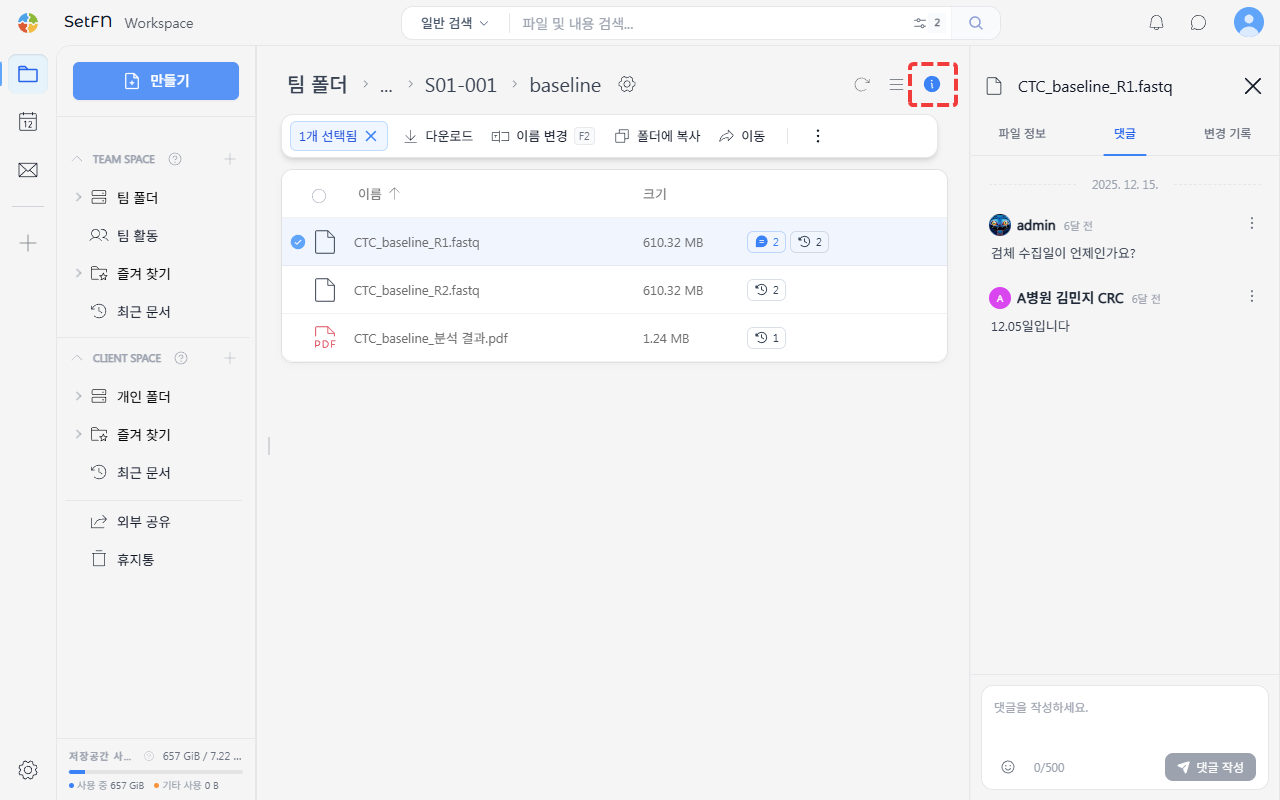
- Reply: Click the
⋮button to the right of a comment to reply to it.
Folder Comments
After selecting a folder, click the ⓘ button the same way to open the comment panel.
Use this to leave notices, work guidelines, deadline reminders, and similar information for the entire folder. A team member who just joined can see it immediately when opening the folder.
Deleting Comments
- Click the
⋮button to the right of a comment, then click 'Delete' to remove it. - You can only delete comments you wrote yourself.
- Administrators can delete any comment.
Good to Know
- Comments are visible to everyone who has access to that file or folder.
- We recommend using comments for discussion about the file, and chat for discussion about people.