'/%3e%3cpath%20id='cross_2'%20data-name='cross%202'%20class='cls-2'%20d='M20.612,30.43h0a5.361,5.361,0,1,0-10.723,0H0A33.709,33.709,0,0,1,30.569,0V9.75a5.361,5.361,0,1,1,0,10.723V30.43Z'%20transform='translate(67.193%200.007)%20rotate(90)'/%3e%3cpath%20id='cross_3'%20data-name='cross%203'%20class='cls-3'%20d='M20.612,30.43h0a5.361,5.361,0,1,0-10.723,0H0A33.709,33.709,0,0,1,30.569,0V9.75a5.361,5.361,0,1,1,0,10.723V30.43Z'%20transform='translate(67.186%2067.041)%20rotate(180)'/%3e%3cpath%20id='cross_4'%20data-name='cross%204'%20class='cls-4'%20d='M20.6,30.5h0a5.361,5.361,0,1,0-10.723,0H0A33.71,33.71,0,0,1,30.56,0V9.818a5.361,5.361,0,1,1,0,10.723V30.5Z'%20transform='translate(0%2067.041)%20rotate(-90)'/%3e%3c/svg%3e)
Notification Inbox
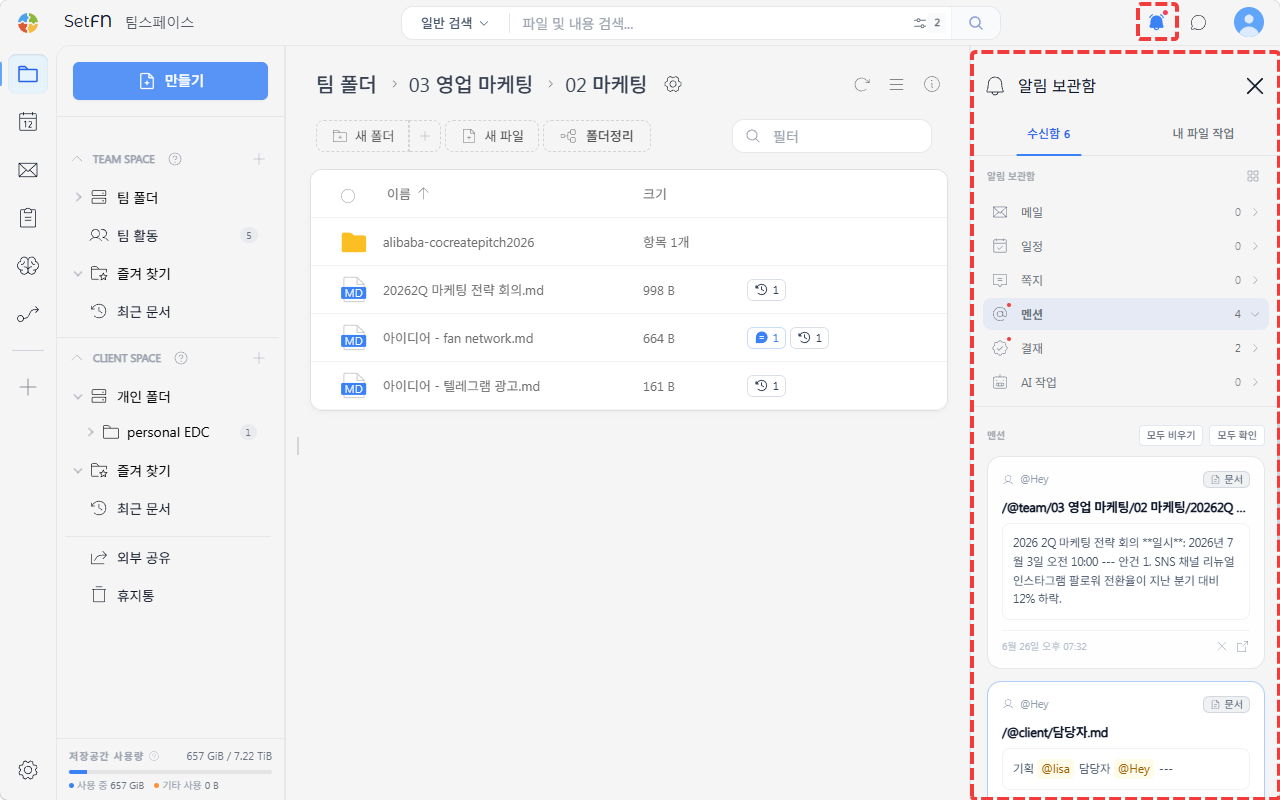
Clicking the notification icon (🔔) in the top right opens the notification inbox. It consists of two tabs: Inbox and My File Activity.
Inbox
Check notifications by category. Clicking each item expands its list.
| Category | Content |
|---|---|
| Received email notifications | |
| Schedule | Notifications when a schedule item is created |
| Direct Messages | Received 1:1 direct messages |
| Mentions | Content where you were @mentioned in comments, chat, or a Markdown document |
| Approvals | All: Overall approval status / Awaiting Signature: Documents waiting for your signature / My Documents: Approval documents you created |
| AI Tasks | Completion notifications for tasks you scheduled or requested from AI |
Clicking the ↗ icon on each notification item jumps directly to that file. You can use the Clear All / Mark All as Read buttons to process a category in bulk.
My File Activity
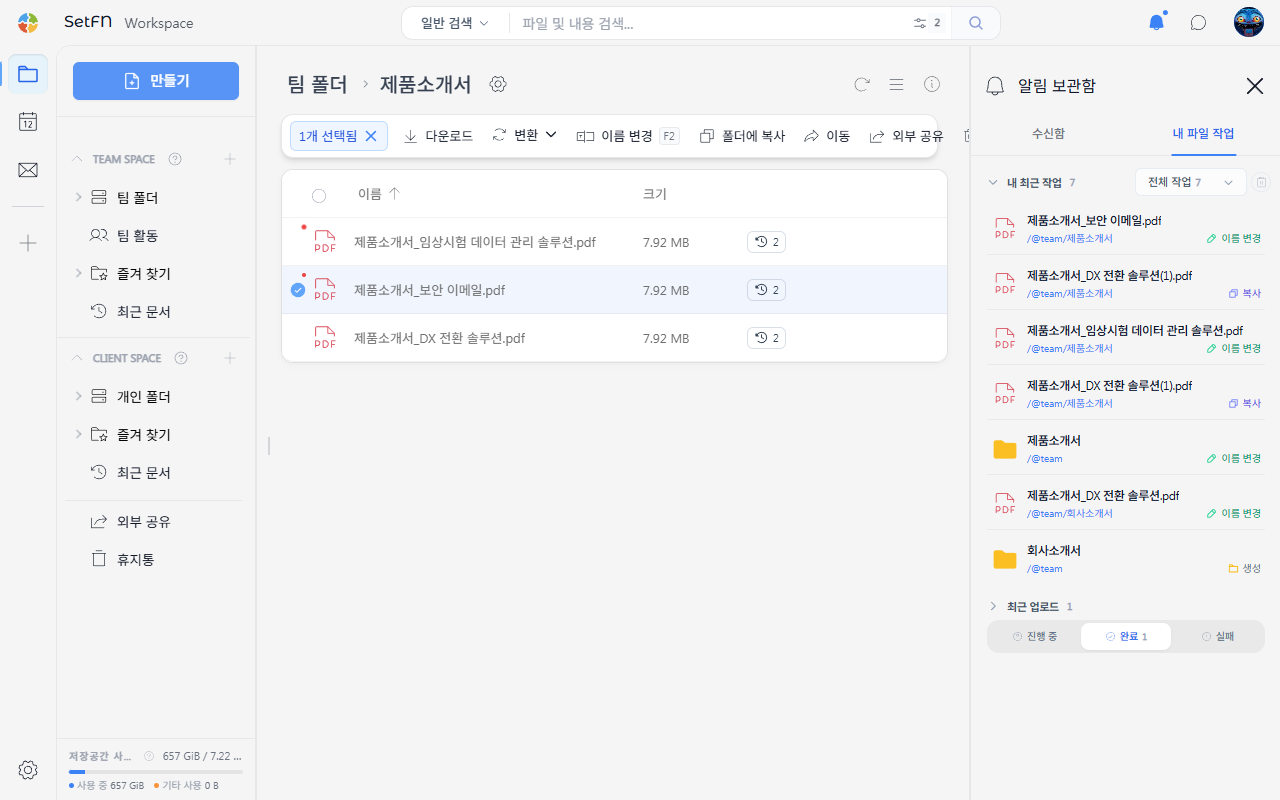
My Recent Activity
Check a history of file actions you've performed. Use the dropdown on the right to filter by action type.
| Type | Content |
|---|---|
| All activity | All activity history |
| Move/rename | File/folder moves and renames |
| Delete | Deleted files/folders |
| Other | Other actions |
Recent Uploads
Check the progress status of uploaded files.
- In Progress: Files currently being uploaded
- Completed: Files whose upload has finished
- Failed: Files that failed to upload