'/%3e%3cpath%20id='cross_2'%20data-name='cross%202'%20class='cls-2'%20d='M20.612,30.43h0a5.361,5.361,0,1,0-10.723,0H0A33.709,33.709,0,0,1,30.569,0V9.75a5.361,5.361,0,1,1,0,10.723V30.43Z'%20transform='translate(67.193%200.007)%20rotate(90)'/%3e%3cpath%20id='cross_3'%20data-name='cross%203'%20class='cls-3'%20d='M20.612,30.43h0a5.361,5.361,0,1,0-10.723,0H0A33.709,33.709,0,0,1,30.569,0V9.75a5.361,5.361,0,1,1,0,10.723V30.43Z'%20transform='translate(67.186%2067.041)%20rotate(180)'/%3e%3cpath%20id='cross_4'%20data-name='cross%204'%20class='cls-4'%20d='M20.6,30.5h0a5.361,5.361,0,1,0-10.723,0H0A33.71,33.71,0,0,1,30.56,0V9.818a5.361,5.361,0,1,1,0,10.723V30.5Z'%20transform='translate(0%2067.041)%20rotate(-90)'/%3e%3c/svg%3e)
Mentions
Typing @nickname in a comment or chat window sends a notification to that team member. You can also use this inside Markdown documents.
Sending a Mention
1. In Chat/Comments
Typing @ in the chat input box or comment input box brings up the team member list. Select or type a nickname to specify the recipient, then write your message.
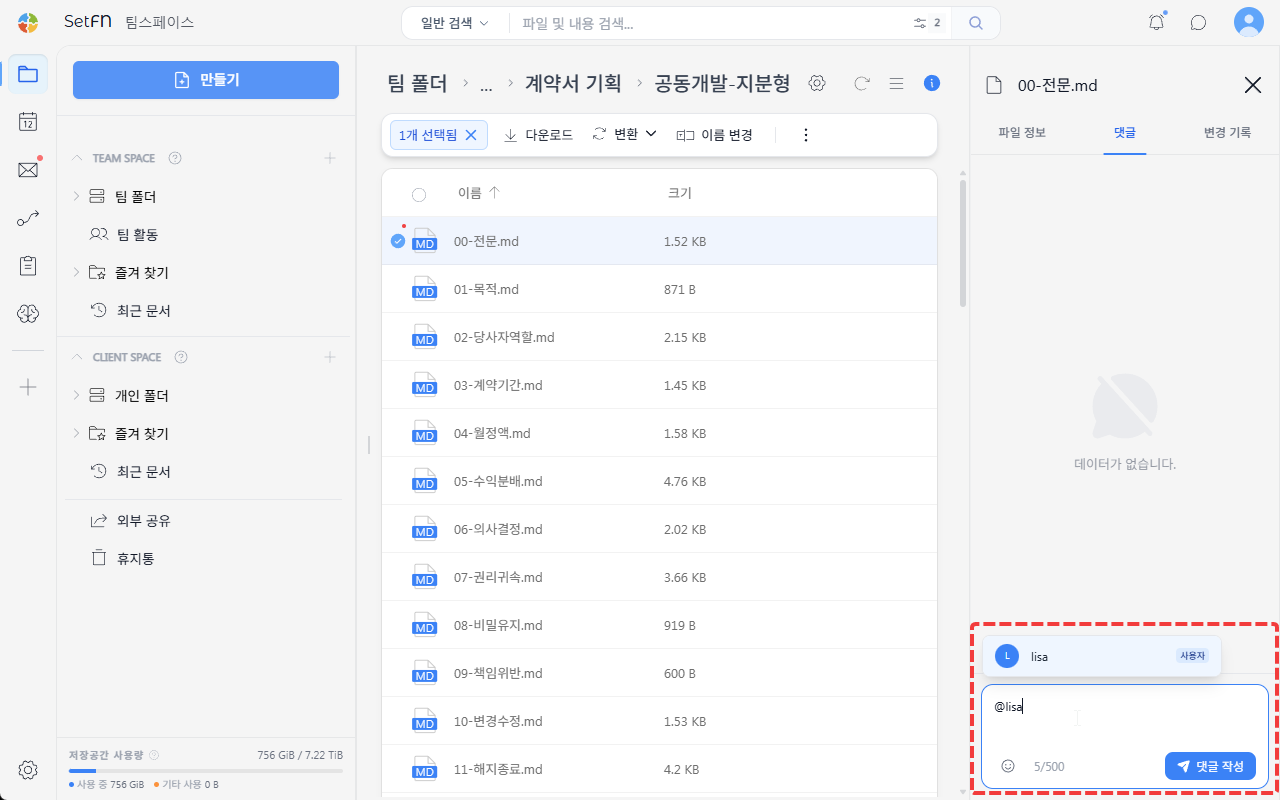
Saving a comment that contains a mention displays it in the file's comments.
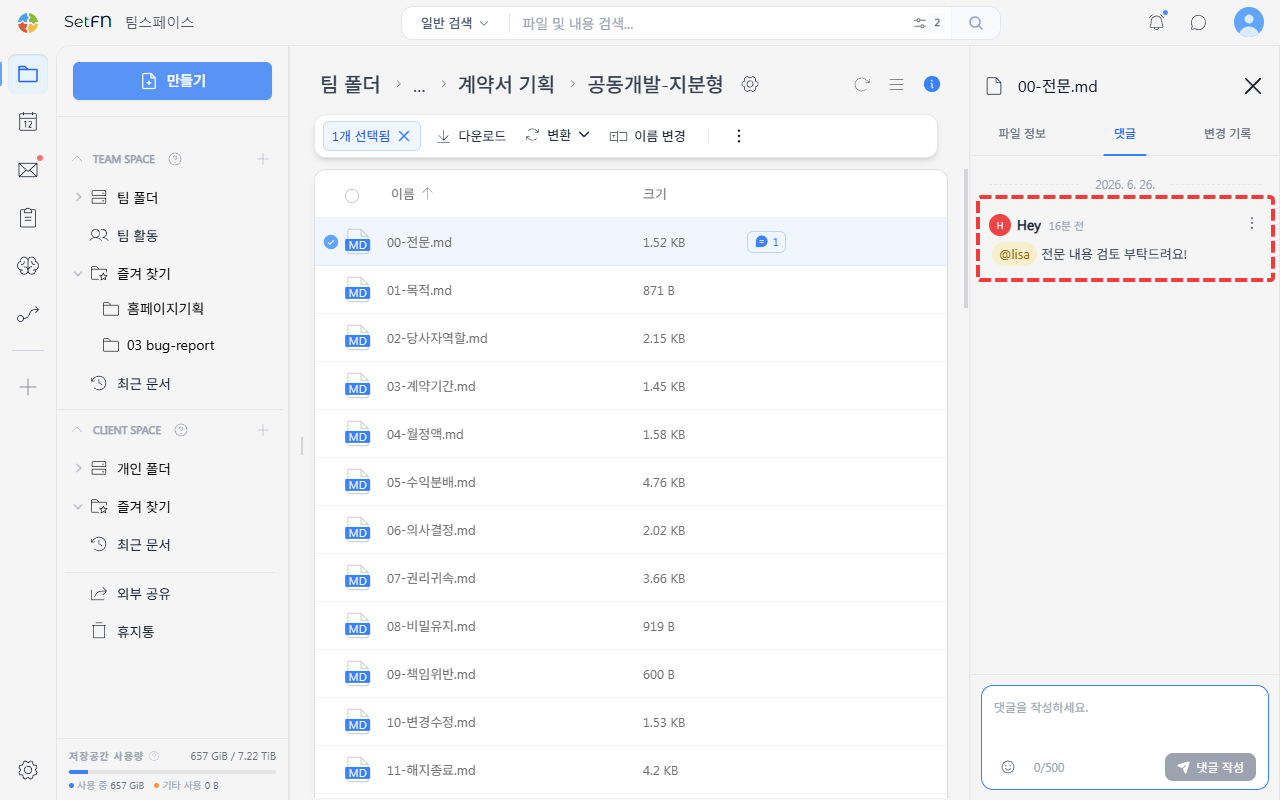
2. In a Markdown Document
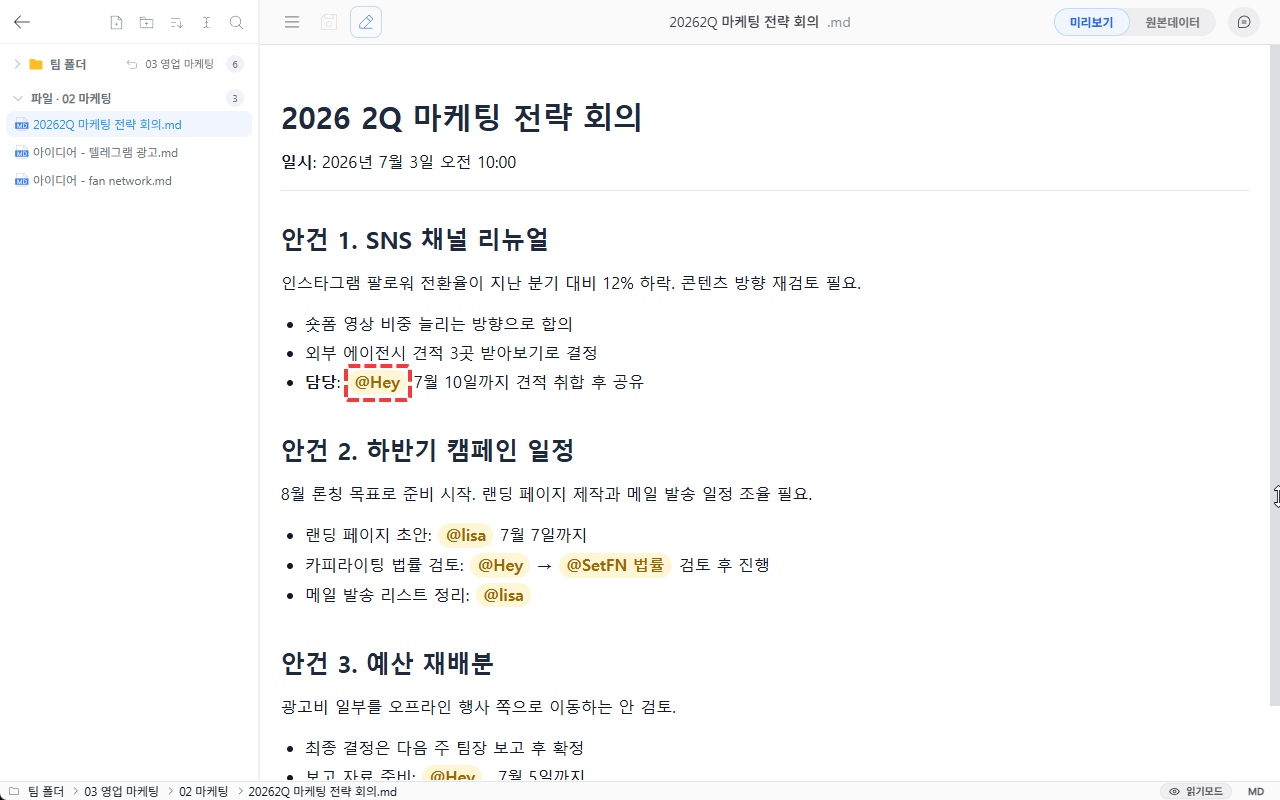
You can mention a team member the same way in the Markdown editor by typing @. Saving the document sends a notification to the mentioned team member.
Usage Examples
- Tagging the person responsible next to an item in a task assignment document
- Assigning an owner to an action item in meeting minutes — recorded and notified at the same time
- Requesting a review on a specific section of a proposal or document — delivered together with the context
Checking Mentions
1. Real-Time Notification (While Connected)
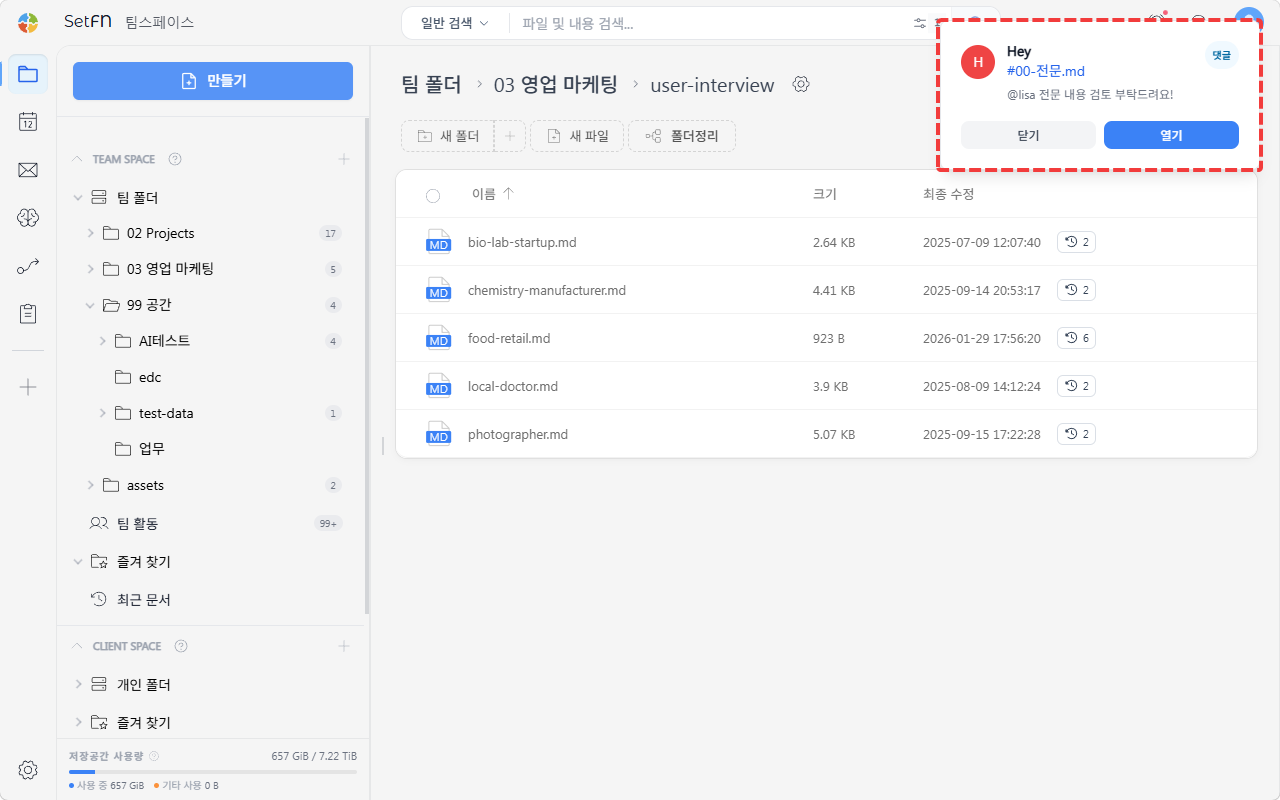
If the mentioned team member is currently connected, a notification popup appears immediately in the top right. Clicking Open in the popup jumps directly to that file.
2. Checking Later (Notification Inbox)
Even if you weren't connected or missed the popup, you can check it again in the notification inbox via the notification icon (🔔) in the top right. Clicking the icon to the right of a notification item takes you to that file.
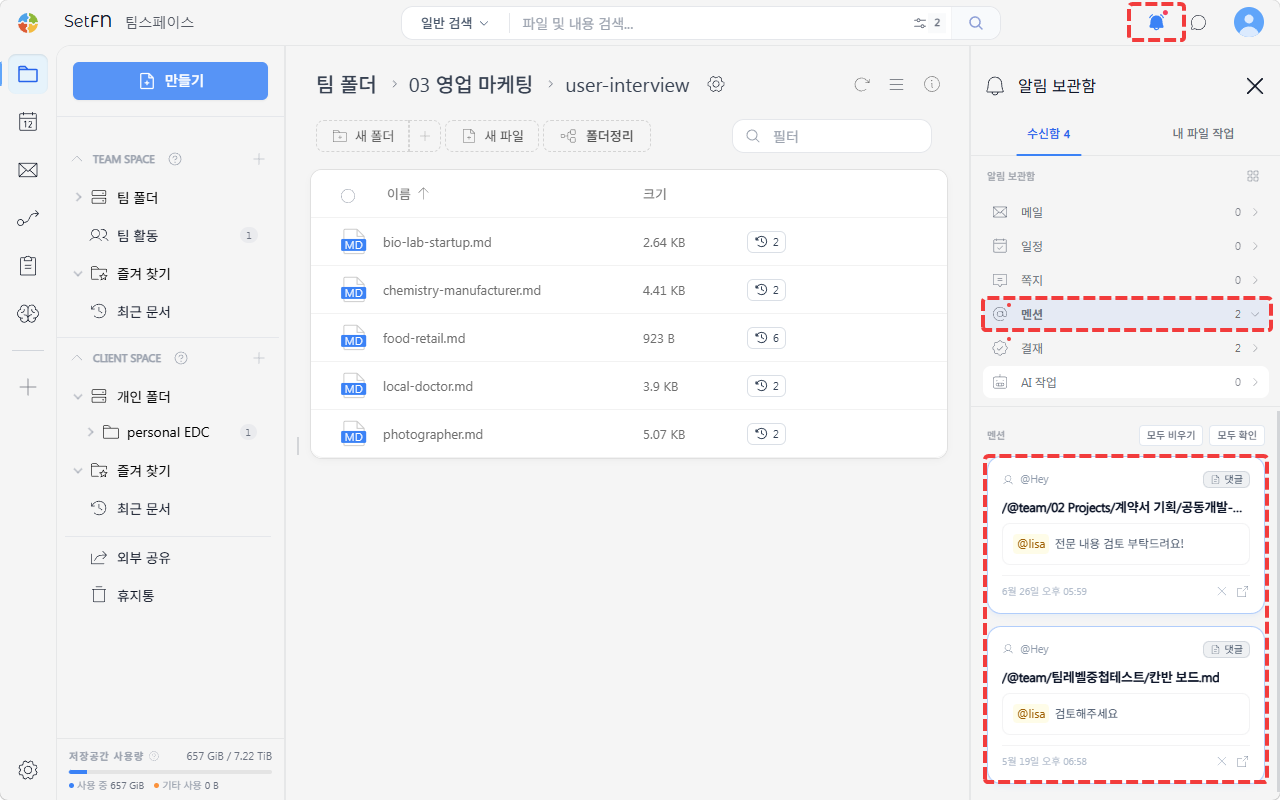
See Notification Inbox for details.