'/%3e%3cpath%20id='cross_2'%20data-name='cross%202'%20class='cls-2'%20d='M20.612,30.43h0a5.361,5.361,0,1,0-10.723,0H0A33.709,33.709,0,0,1,30.569,0V9.75a5.361,5.361,0,1,1,0,10.723V30.43Z'%20transform='translate(67.193%200.007)%20rotate(90)'/%3e%3cpath%20id='cross_3'%20data-name='cross%203'%20class='cls-3'%20d='M20.612,30.43h0a5.361,5.361,0,1,0-10.723,0H0A33.709,33.709,0,0,1,30.569,0V9.75a5.361,5.361,0,1,1,0,10.723V30.43Z'%20transform='translate(67.186%2067.041)%20rotate(180)'/%3e%3cpath%20id='cross_4'%20data-name='cross%204'%20class='cls-4'%20d='M20.6,30.5h0a5.361,5.361,0,1,0-10.723,0H0A33.71,33.71,0,0,1,30.56,0V9.818a5.361,5.361,0,1,1,0,10.723V30.5Z'%20transform='translate(0%2067.041)%20rotate(-90)'/%3e%3c/svg%3e)
Sending an External Share Link by Email
You can send a file from SetFN Workspace directly by email.
Before You Start
- Prerequisite: The email plugin must be configured.
Selecting a File and Composing an Email
Select the file or folder to share, right-click, then click External Share > Compose Email. You can also select multiple files by dragging.
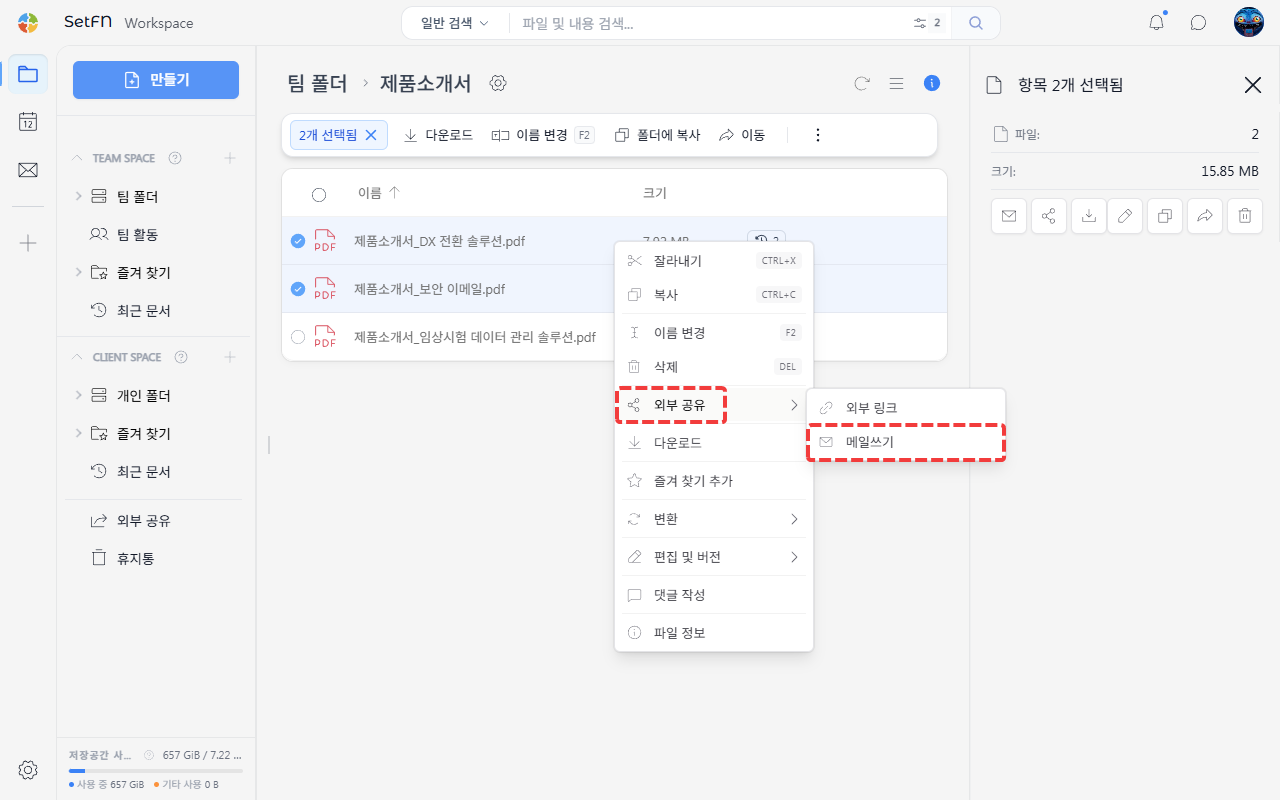
Attaching a File
A new email composition window appears, with the selected file automatically attached. You can leave the email window open, navigate to a different folder, and drag and drop to add more files. This makes it convenient to gather files from multiple locations into a single email.
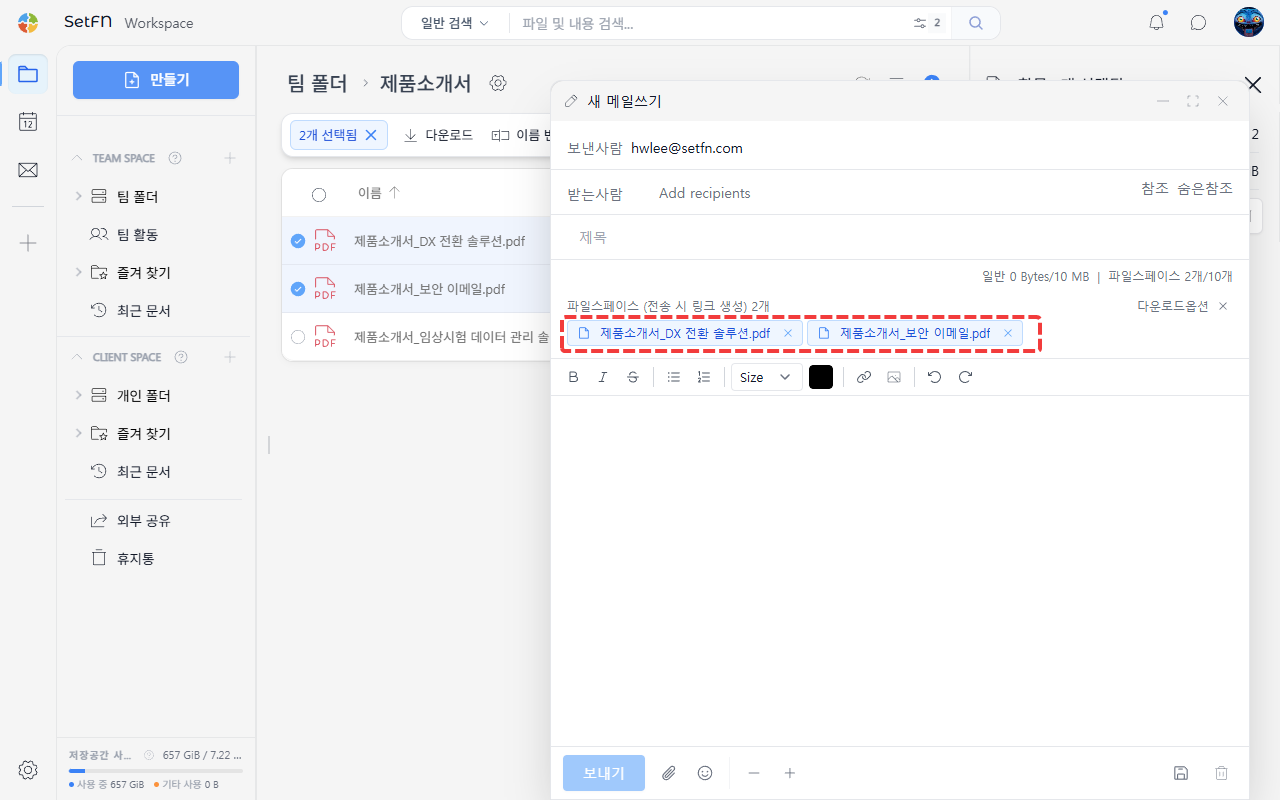
Security Settings
You can configure security from the "Download Options" button in the email composition window.
- Retention period: How long the link remains valid
- Maximum download count: Limit on the number of downloads (0 means unlimited)
- Password: Password required to download
Good to Know
- Rather than attaching the actual file, a download link is included in the email. Even large files can be delivered without email size limits.
- To send a file as an actual attachment, first download it to your PC, then drag and drop it into your email app as an attachment.
- Selecting a folder compresses it automatically.
- Sent files can also be managed from the "External Share" menu.