'/%3e%3cpath%20id='cross_2'%20data-name='cross%202'%20class='cls-2'%20d='M20.612,30.43h0a5.361,5.361,0,1,0-10.723,0H0A33.709,33.709,0,0,1,30.569,0V9.75a5.361,5.361,0,1,1,0,10.723V30.43Z'%20transform='translate(67.193%200.007)%20rotate(90)'/%3e%3cpath%20id='cross_3'%20data-name='cross%203'%20class='cls-3'%20d='M20.612,30.43h0a5.361,5.361,0,1,0-10.723,0H0A33.709,33.709,0,0,1,30.569,0V9.75a5.361,5.361,0,1,1,0,10.723V30.43Z'%20transform='translate(67.186%2067.041)%20rotate(180)'/%3e%3cpath%20id='cross_4'%20data-name='cross%204'%20class='cls-4'%20d='M20.6,30.5h0a5.361,5.361,0,1,0-10.723,0H0A33.71,33.71,0,0,1,30.56,0V9.818a5.361,5.361,0,1,1,0,10.723V30.5Z'%20transform='translate(0%2067.041)%20rotate(-90)'/%3e%3c/svg%3e)
Attaching Files
When composing an email, you can attach a file from your computer, or attach a file from your workspace as a share link.
Uploading Directly from Your Computer
Click the attachment icon (paperclip) at the bottom of the email composition screen to open a menu. Choosing Direct upload (10M) lets you upload a file from your computer directly as a regular attachment, up to 10 MB.
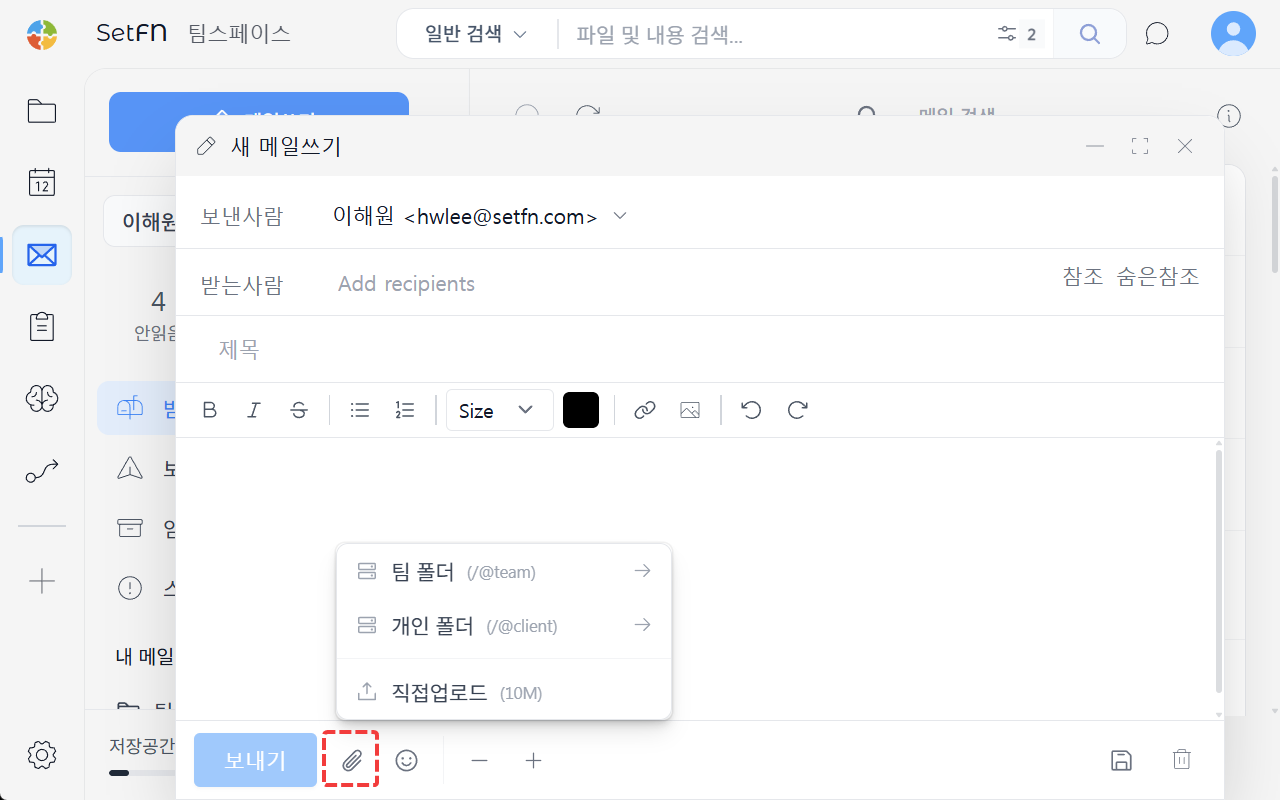
Files uploaded directly from your computer cannot be attached if they exceed 10 MB. In that case, upload the file to your workspace first and attach it as a share link instead.
Sharing a File from Your Workspace
Files that aren't uploaded directly from your computer are attached as a workspace share link. There is no size limit when sharing this way.
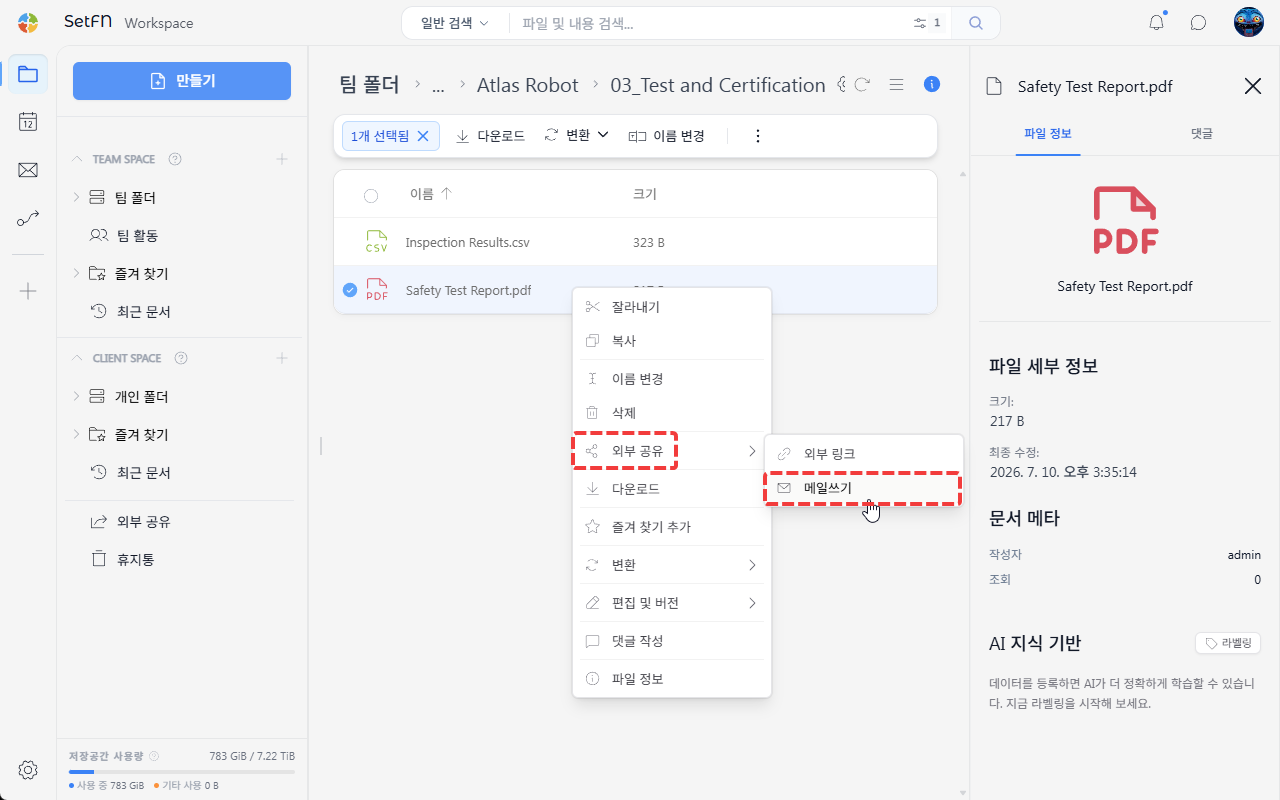
- From the attachment icon menu on the email composition screen, choose
Team Folder (/@team)orPersonal Folder (/@client)to browse your workspace files and attach one. - In your workspace, select a file or folder, right-click, then click
External Share→Compose Emailto instantly open a new compose window with the selected file already attached.
Instead of the file itself being attached, a download link is included.
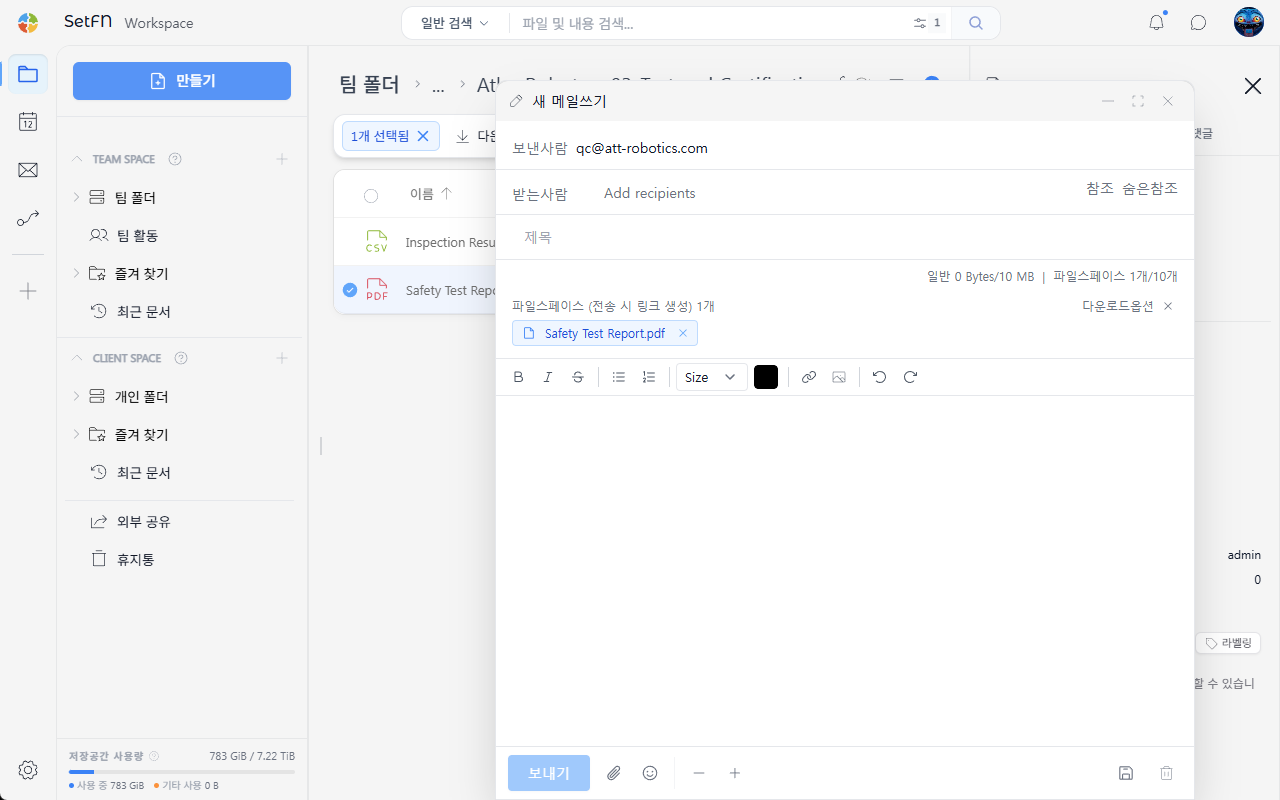
Tip: With the email compose window open, you can move between different folders in your workspace and keep attaching files via drag and drop. This is handy when attaching files scattered across multiple locations.
For more details, see Sending an External Share Email.
Managing Attachments
You can attach multiple files at once. Hold Ctrl and select multiple files, or drag multiple files to attach them all at once. Remove a mistakenly attached file with the X button next to it.