'/%3e%3cpath%20id='cross_2'%20data-name='cross%202'%20class='cls-2'%20d='M20.612,30.43h0a5.361,5.361,0,1,0-10.723,0H0A33.709,33.709,0,0,1,30.569,0V9.75a5.361,5.361,0,1,1,0,10.723V30.43Z'%20transform='translate(67.193%200.007)%20rotate(90)'/%3e%3cpath%20id='cross_3'%20data-name='cross%203'%20class='cls-3'%20d='M20.612,30.43h0a5.361,5.361,0,1,0-10.723,0H0A33.709,33.709,0,0,1,30.569,0V9.75a5.361,5.361,0,1,1,0,10.723V30.43Z'%20transform='translate(67.186%2067.041)%20rotate(180)'/%3e%3cpath%20id='cross_4'%20data-name='cross%204'%20class='cls-4'%20d='M20.6,30.5h0a5.361,5.361,0,1,0-10.723,0H0A33.71,33.71,0,0,1,30.56,0V9.818a5.361,5.361,0,1,1,0,10.723V30.5Z'%20transform='translate(0%2067.041)%20rotate(-90)'/%3e%3c/svg%3e)
Automatic Email Classification
You can create mail folders and set up inbound rules that automatically move emails to a specific folder based on the sender or body content.
Creating a Mail Folder
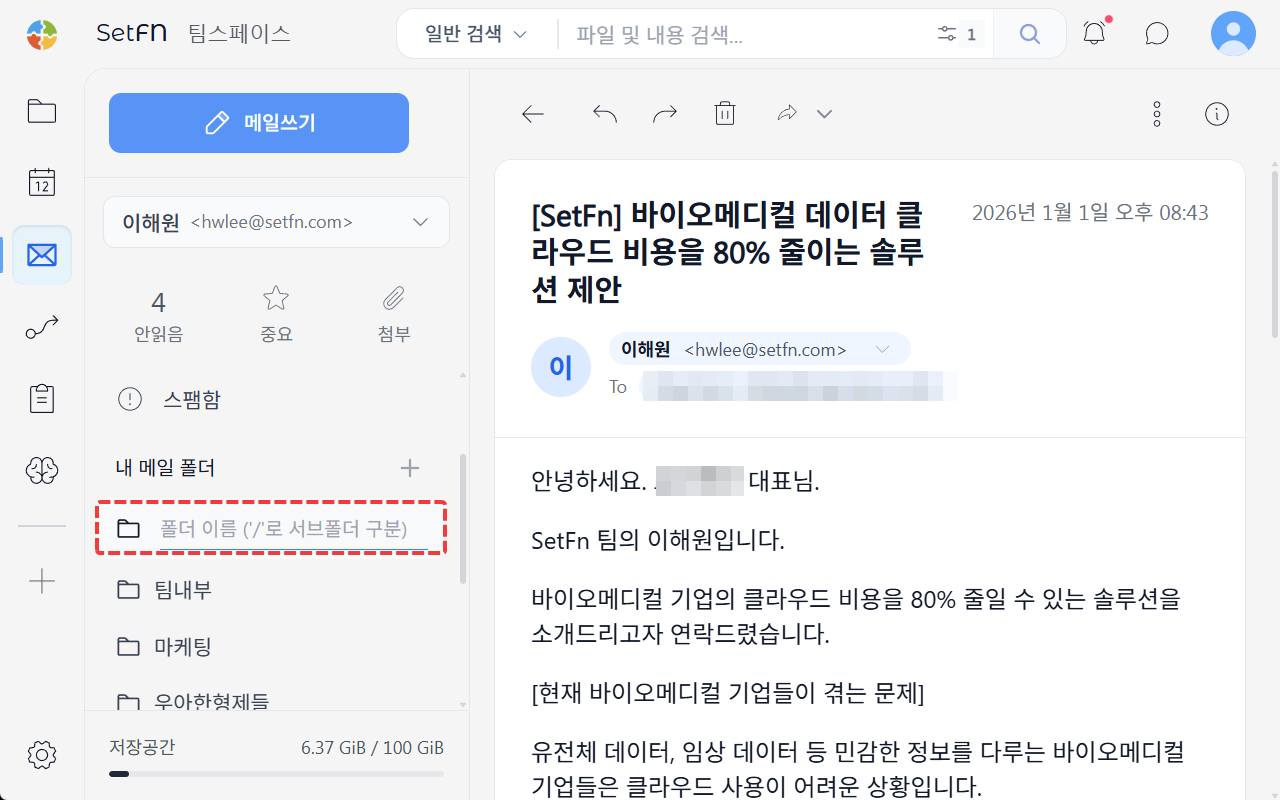
Click the + button next to My Mail Folders in the left menu and enter a folder name. Use / as a separator to create subfolders.
Creating an Inbound Rule
1. Open Inbound Rule Settings
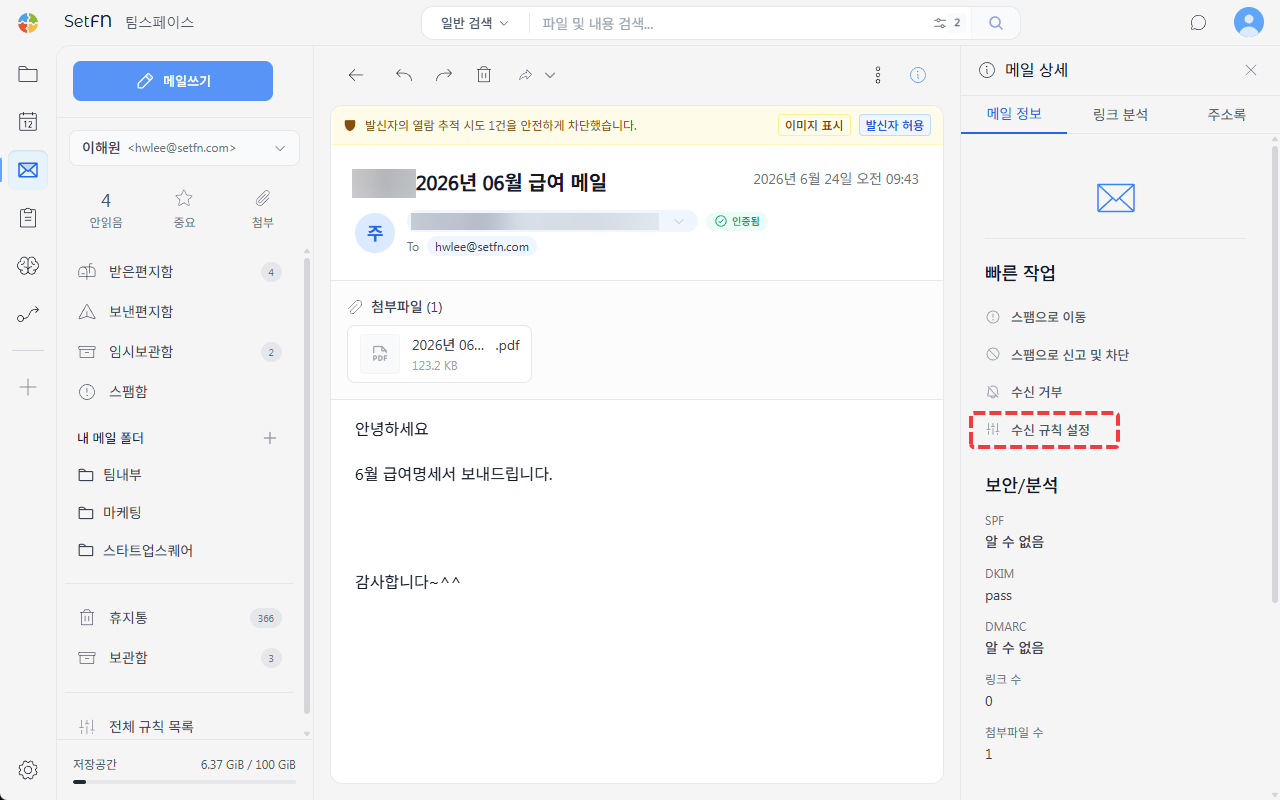
Open an email, then click Set Up Inbound Rule under "Quick Actions" in the Mail Info panel on the right.
2. Set Conditions
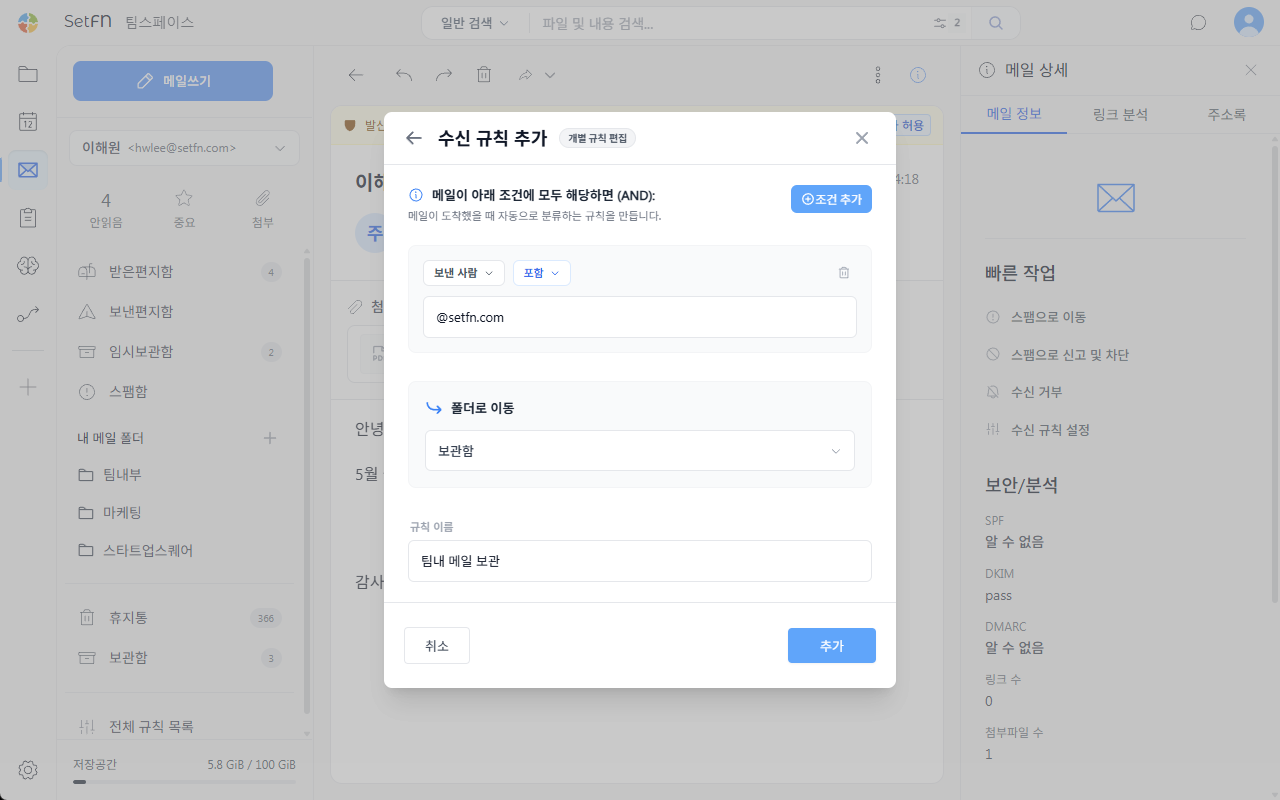
In the Add Inbound Rule modal, set conditions such as the sender or a specific phrase contained in the body. Use the Add Condition button to add multiple conditions; the rule only applies to emails that satisfy all conditions (AND).
3. Specify the Destination Folder and Rule Name
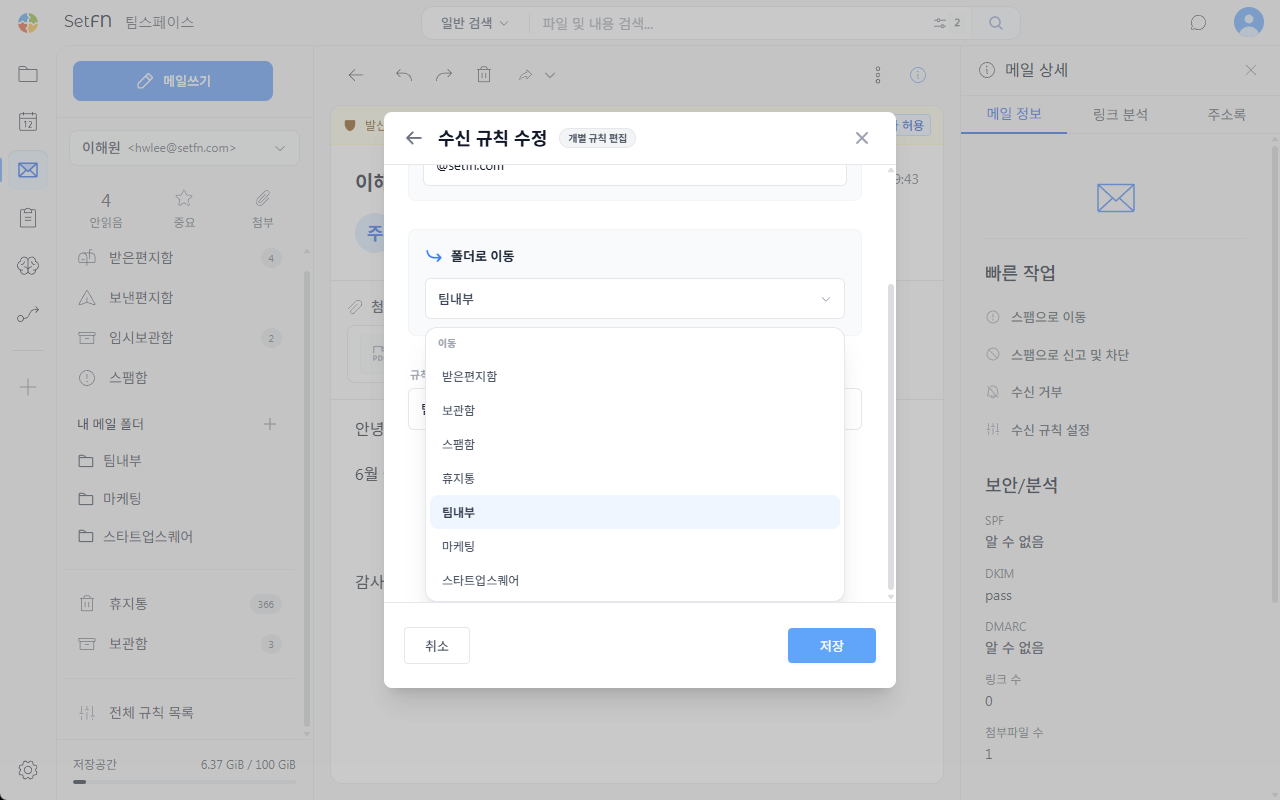
Select the folder that matching emails should be moved to, enter a rule name, and click Add.
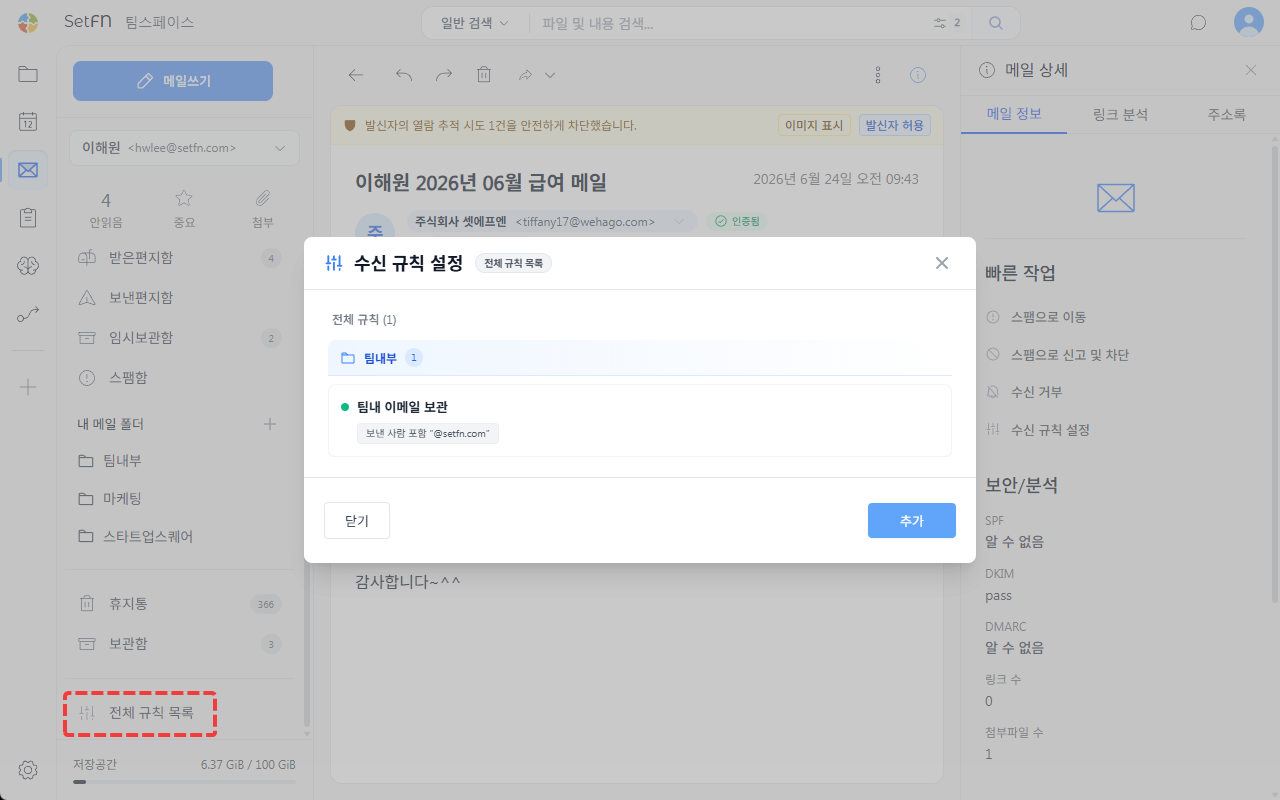
Viewing All Rules
Click All Rules at the bottom of the left menu to view and edit every inbound rule configured across all folders.
Folder Management
Click the ... button to the right of an email folder's name to perform the following actions.
- Set up rule: Configure an inbound rule that moves emails into this folder.
- Rename: Change the folder's name.
- Move path: Change the folder's storage path in File Space.
- Delete: Delete the folder.
Good to Know
- Deleting a folder moves all the emails inside it to Trash as well.