'/%3e%3cpath%20id='cross_2'%20data-name='cross%202'%20class='cls-2'%20d='M20.612,30.43h0a5.361,5.361,0,1,0-10.723,0H0A33.709,33.709,0,0,1,30.569,0V9.75a5.361,5.361,0,1,1,0,10.723V30.43Z'%20transform='translate(67.193%200.007)%20rotate(90)'/%3e%3cpath%20id='cross_3'%20data-name='cross%203'%20class='cls-3'%20d='M20.612,30.43h0a5.361,5.361,0,1,0-10.723,0H0A33.709,33.709,0,0,1,30.569,0V9.75a5.361,5.361,0,1,1,0,10.723V30.43Z'%20transform='translate(67.186%2067.041)%20rotate(180)'/%3e%3cpath%20id='cross_4'%20data-name='cross%204'%20class='cls-4'%20d='M20.6,30.5h0a5.361,5.361,0,1,0-10.723,0H0A33.71,33.71,0,0,1,30.56,0V9.818a5.361,5.361,0,1,1,0,10.723V30.5Z'%20transform='translate(0%2067.041)%20rotate(-90)'/%3e%3c/svg%3e)
Email File Archiving and Sharing
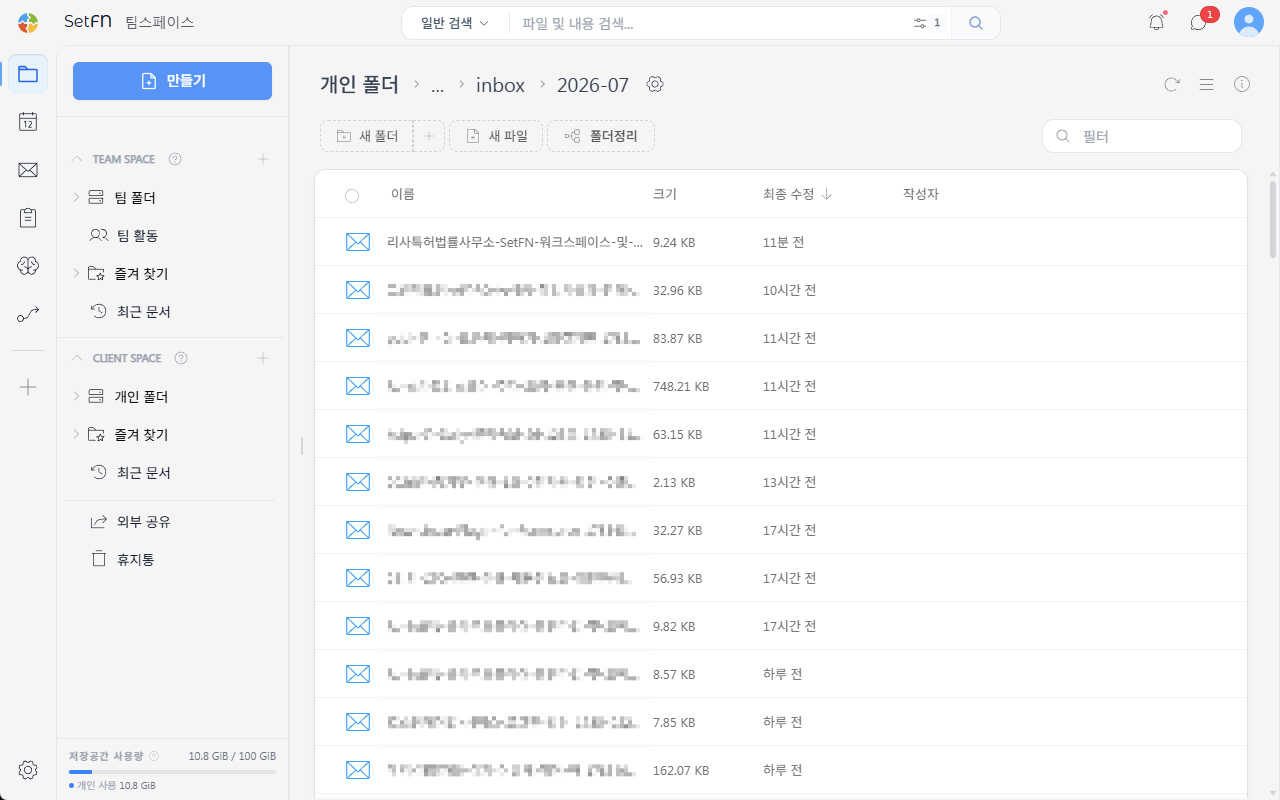
Received emails are automatically saved as .eml files in your personal folder in the workspace. You can share the contents with your team by putting the file in a team folder, without having to forward the email.
Going to the Saved Location
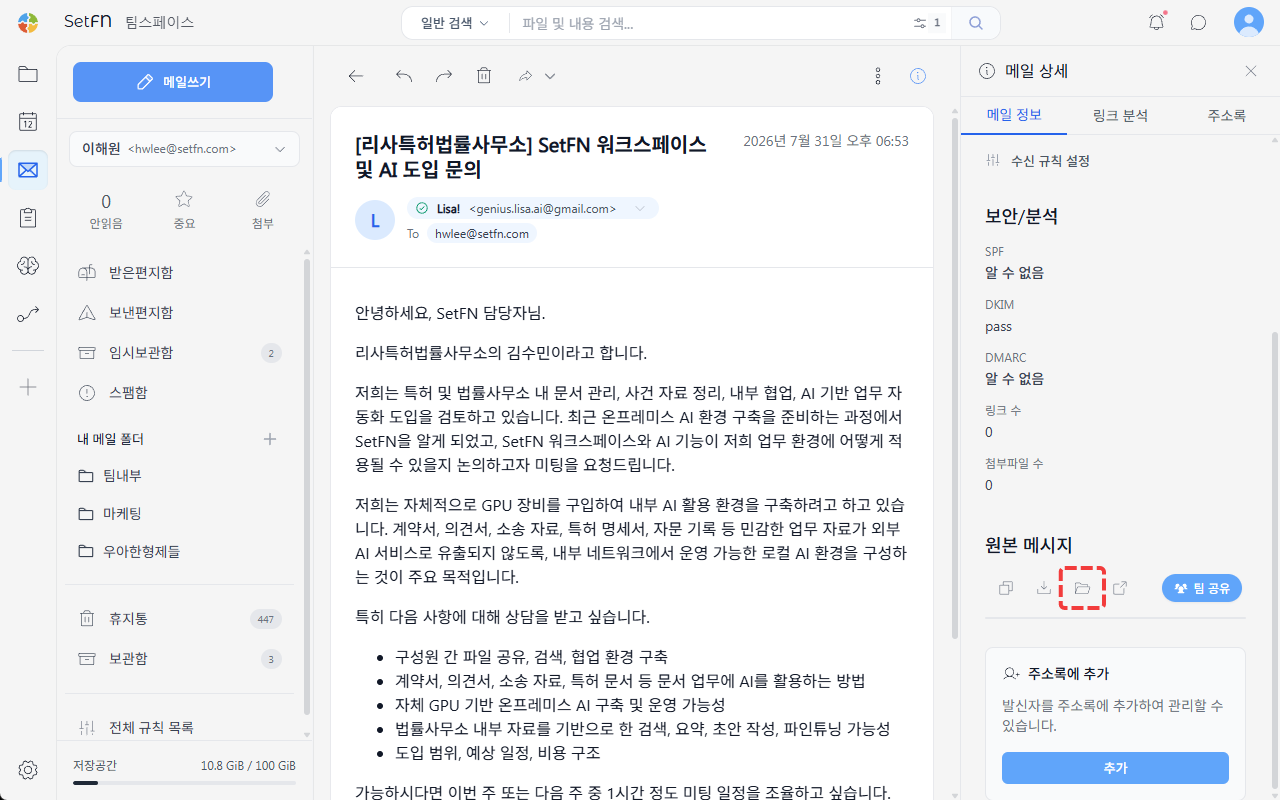
In the "Original Message" area of the right panel on the email detail screen, click the Open in Team Space button to jump to the folder where that email is saved.
You'll see that emails are automatically saved by month inside the email inbox folder within your personal folder.
Sharing an Email File
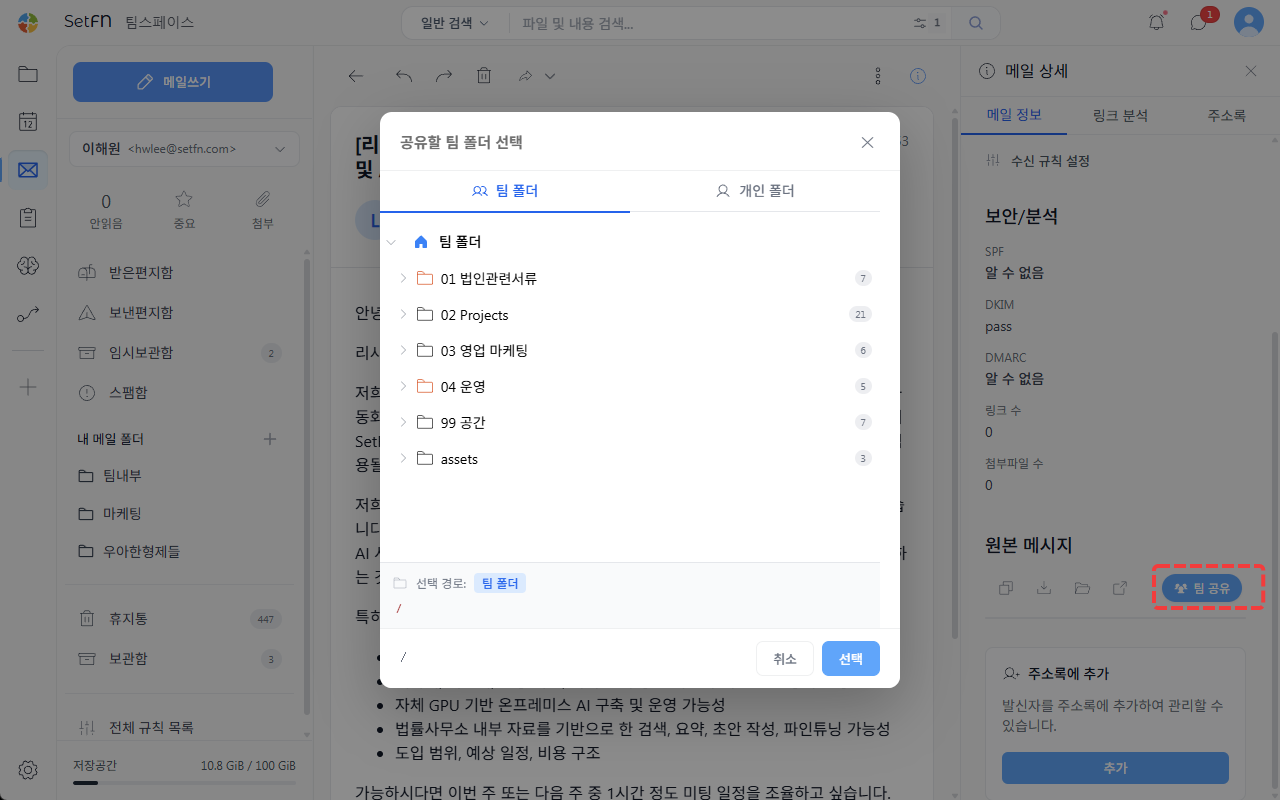
You can share a received email with your team directly. At the bottom of Mail Info, click the Share with Team button and choose the folder to share it to.
This is useful for tracking a history of sales- or marketing-related emails as a group.
Viewing Email Files in the Workspace
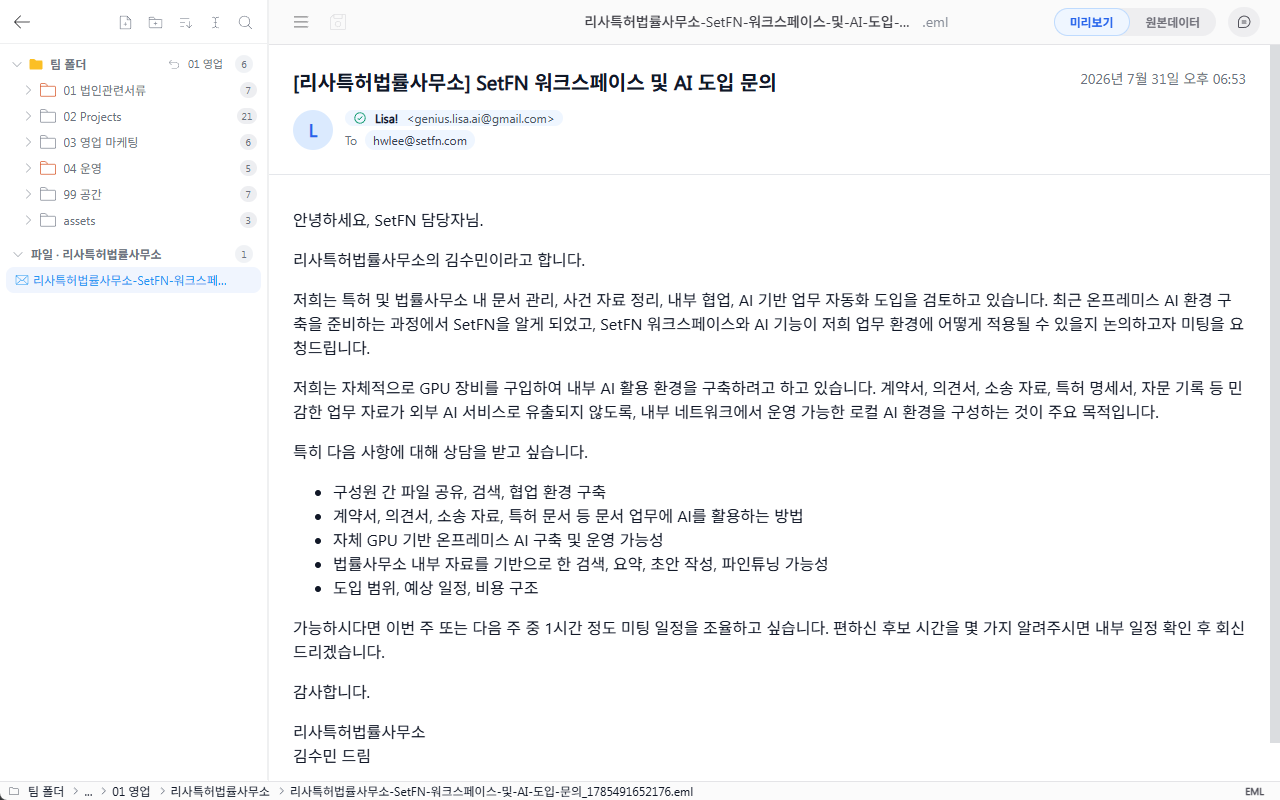
Email files can be opened directly within the workspace.
This can be used like this
You can easily move and check files you've exchanged with customers — like email files and meeting minutes files — all in one folder.