'/%3e%3cpath%20id='cross_2'%20data-name='cross%202'%20class='cls-2'%20d='M20.612,30.43h0a5.361,5.361,0,1,0-10.723,0H0A33.709,33.709,0,0,1,30.569,0V9.75a5.361,5.361,0,1,1,0,10.723V30.43Z'%20transform='translate(67.193%200.007)%20rotate(90)'/%3e%3cpath%20id='cross_3'%20data-name='cross%203'%20class='cls-3'%20d='M20.612,30.43h0a5.361,5.361,0,1,0-10.723,0H0A33.709,33.709,0,0,1,30.569,0V9.75a5.361,5.361,0,1,1,0,10.723V30.43Z'%20transform='translate(67.186%2067.041)%20rotate(180)'/%3e%3cpath%20id='cross_4'%20data-name='cross%204'%20class='cls-4'%20d='M20.6,30.5h0a5.361,5.361,0,1,0-10.723,0H0A33.71,33.71,0,0,1,30.56,0V9.818a5.361,5.361,0,1,1,0,10.723V30.5Z'%20transform='translate(0%2067.041)%20rotate(-90)'/%3e%3c/svg%3e)
Connect an External Email Account
Connect an existing personal or business account, such as Gmail or NAVER Mail, to review your email in SetFN Workspace.
Choose how to use the account
Connecting external accounts lets you review email from different services in one place. The connection method depends on what you want to do.
To review email in SetFN Workspace
Connect only POP3. Review new messages in SetFN, then sign in to the original service to reply or compose a new message.
To send email from SetFN Workspace
Connect SMTP as well. You can review, reply to, and compose messages in SetFN. SMTP handles sending only, so enable POP3 too if you also want to receive messages in SetFN.
Before you begin
- Enable POP3 and SMTP in the external provider's settings.
- To import existing messages, select the range of messages the external provider should make available.
- Issue an app password from the external provider for account authentication.
Open the external email connection page
- Select
Emailin the left sidebar of Workspace. - Select
Settingsat the bottom left of the Email page. - Open the external email connection page on the
Mailbox Managementtab.
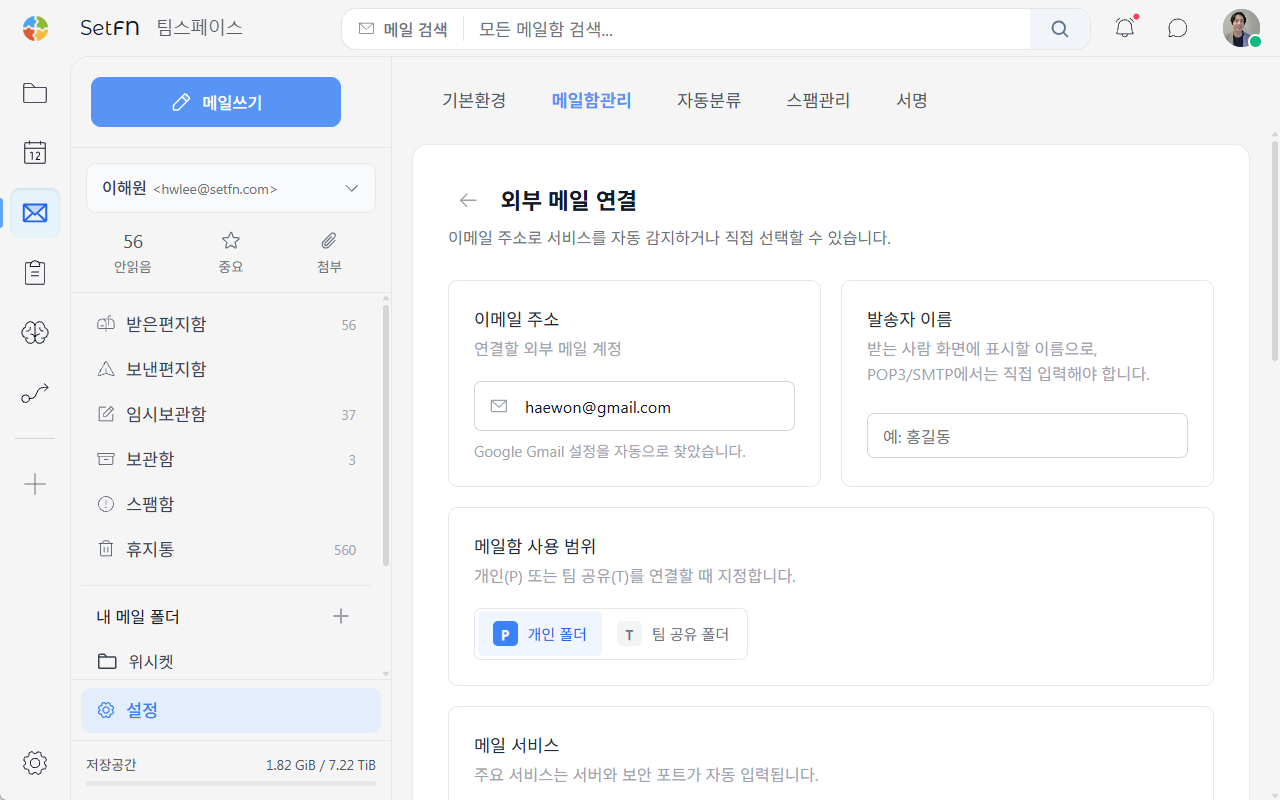
Enter basic information
Email address
Under Email address, enter the full address of the external account, such as name@example.com.
SetFN detects the email provider from the address. If it is not detected or you need different settings, select the provider manually.
Sender name
Under Sender name, enter the name shown to recipients. You must enter a sender name when connecting through POP3 and SMTP.
Mailbox scope
Select who can use the connected mailbox.
| Option | Description |
|---|---|
P Personal folder | Connects a mailbox for individual use. |
T Shared team folder | Connects a mailbox shared by multiple users. |
Select an email provider
Select your provider under Email service. For major providers, the receiving server, sending server, and secure ports are filled in automatically.
- Gmail
- NAVER
- Daum
- Yahoo!
- iCloud
- Zoho
If the provider is not listed or you need different values, check the provider's server settings and enter them manually.
Configure receiving
Select POP3 to retrieve messages to the SetFN server and store them separately. POP3 is useful when you want to reduce storage usage at the external provider.
POP3 does not notify SetFN of new messages in real time. SetFN checks the external server at five-minute intervals, so messages arrive at the next check rather than immediately.
Before connecting, verify the following with the external provider:
- POP3 and SMTP are enabled.
- The range of existing messages to retrieve is selected.
Send through the external account
Enable Send email from this address to send from the external address. SMTP sending is configured separately from receiving.
If you do not need sending, connect only external email receiving. This prevents sending from the external address, but you can still send from an assigned SetFN business email account.
Switch safely
To keep using the existing provider while moving to SetFN, enable receiving and sending in stages.
- Connect POP3 receiving first. Keep
Delete remote POP3 emaildisabled so the originals remain at the external provider and SetFN retrieves copies. You can continue using your existing app or webmail. - After confirming that messages arrive in SetFN, enable
Send email from this addressto add SMTP sending.
After sending is enabled, messages sent from the address also begin appearing in SetFN records. Confirm receiving first and enable sending afterward.
Review server settings
Under Server settings, review the receiving server and selected sending server. For example, Gmail's POP3 server appears as pop.gmail.com · 995.
To override the automatically entered values, select Review server settings manually and enter the server address and port provided by your email service.
Authenticate the account
Login ID
Under Login ID, enter the ID used to sign in to the external service.
NAVER uses the part before @ in the email address as the default login ID. Change it if your account uses a different setting.
App password
Enter the app password issued by the external provider. It is entered only when connecting the account.
After entering all information, connect the account and verify that the external mailbox was added.
Good to know
- An external provider may require an app password instead of the regular login password.
- The range of existing messages available through POP3 depends on the provider's settings.
- Receiving and SMTP sending are configured separately. To send email, verify both the sending option and server.
- When connecting a shared team mailbox, also review its users and sending permissions.