'/%3e%3cpath%20id='cross_2'%20data-name='cross%202'%20class='cls-2'%20d='M20.612,30.43h0a5.361,5.361,0,1,0-10.723,0H0A33.709,33.709,0,0,1,30.569,0V9.75a5.361,5.361,0,1,1,0,10.723V30.43Z'%20transform='translate(67.193%200.007)%20rotate(90)'/%3e%3cpath%20id='cross_3'%20data-name='cross%203'%20class='cls-3'%20d='M20.612,30.43h0a5.361,5.361,0,1,0-10.723,0H0A33.709,33.709,0,0,1,30.569,0V9.75a5.361,5.361,0,1,1,0,10.723V30.43Z'%20transform='translate(67.186%2067.041)%20rotate(180)'/%3e%3cpath%20id='cross_4'%20data-name='cross%204'%20class='cls-4'%20d='M20.6,30.5h0a5.361,5.361,0,1,0-10.723,0H0A33.71,33.71,0,0,1,30.56,0V9.818a5.361,5.361,0,1,1,0,10.723V30.5Z'%20transform='translate(0%2067.041)%20rotate(-90)'/%3e%3c/svg%3e)
Following a Team Member's Location
The chat window lets you see in real time which folder or file each team member is currently viewing. Clicking a team member's location jumps you directly to that same file or folder.
Checking and Jumping to a Team Member's Location
- In the chat window's participant list, each user's current folder or file location is shown.
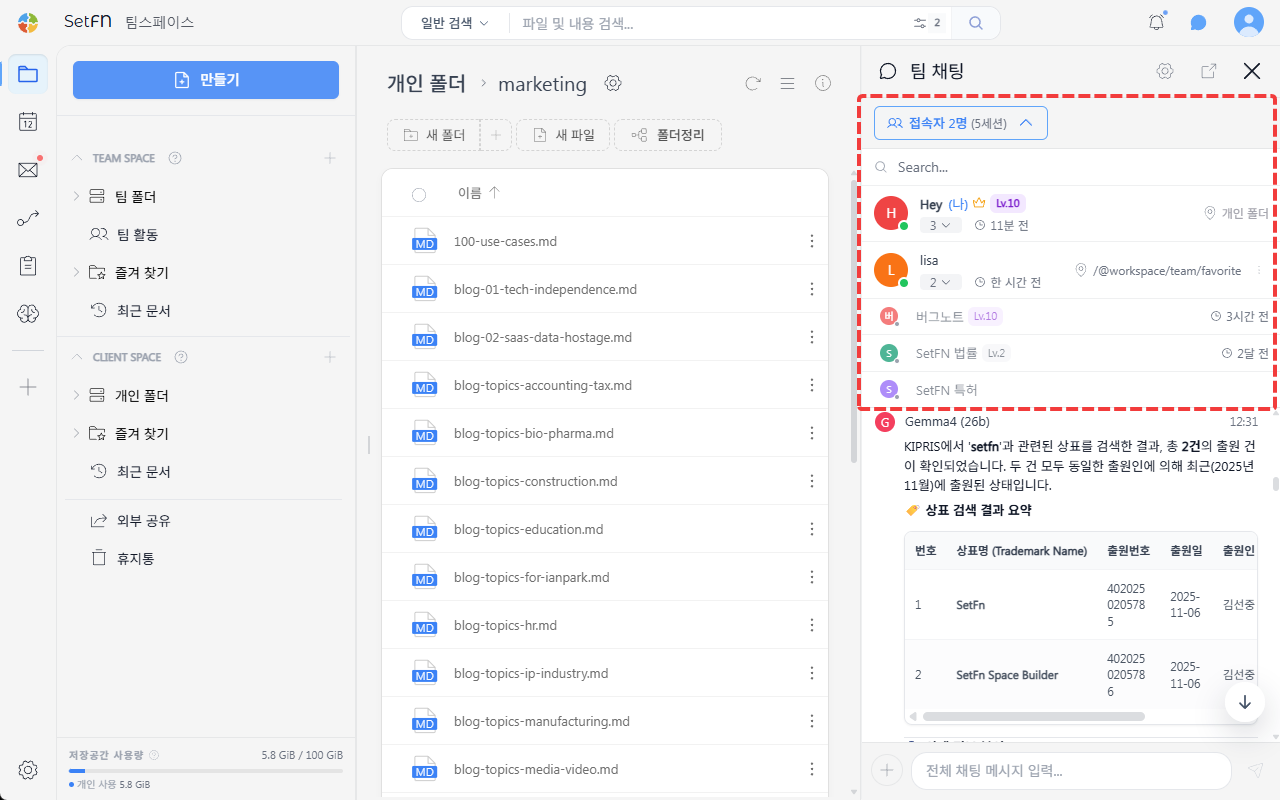
- Clicking another user's folder/file location jumps you directly there.
Use Cases
- When a path is hard to describe — When the folder structure is deep or names are similar, a team member can click your location and follow you there directly instead of you having to describe it verbally.
- When copying a link is inconvenient — No need to separately copy a file link and paste it into chat.
- When discussing while looking at the same screen — Instead of saying "it's this file I'm looking at now" and explaining further, a team member can jump right to it.
- Onboarding new team members — Having them follow you while you first walk through the folder structure helps them get oriented quickly.
Good to Know
- A team member's location is only shown while they are connected
- You can only jump to folders/files you have access permission for