'/%3e%3cpath%20id='cross_2'%20data-name='cross%202'%20class='cls-2'%20d='M20.612,30.43h0a5.361,5.361,0,1,0-10.723,0H0A33.709,33.709,0,0,1,30.569,0V9.75a5.361,5.361,0,1,1,0,10.723V30.43Z'%20transform='translate(67.193%200.007)%20rotate(90)'/%3e%3cpath%20id='cross_3'%20data-name='cross%203'%20class='cls-3'%20d='M20.612,30.43h0a5.361,5.361,0,1,0-10.723,0H0A33.709,33.709,0,0,1,30.569,0V9.75a5.361,5.361,0,1,1,0,10.723V30.43Z'%20transform='translate(67.186%2067.041)%20rotate(180)'/%3e%3cpath%20id='cross_4'%20data-name='cross%204'%20class='cls-4'%20d='M20.6,30.5h0a5.361,5.361,0,1,0-10.723,0H0A33.71,33.71,0,0,1,30.56,0V9.818a5.361,5.361,0,1,1,0,10.723V30.5Z'%20transform='translate(0%2067.041)%20rotate(-90)'/%3e%3c/svg%3e)
Account Settings
Account Settings let you manage your profile, security, permissions, and connections in one place. This covers everything from your profile — avatar and nickname — to your password, active devices, API keys, and webhooks.
Opening Account Settings
Click the avatar (profile image) in the top-right corner of the workspace and select Account Settings.
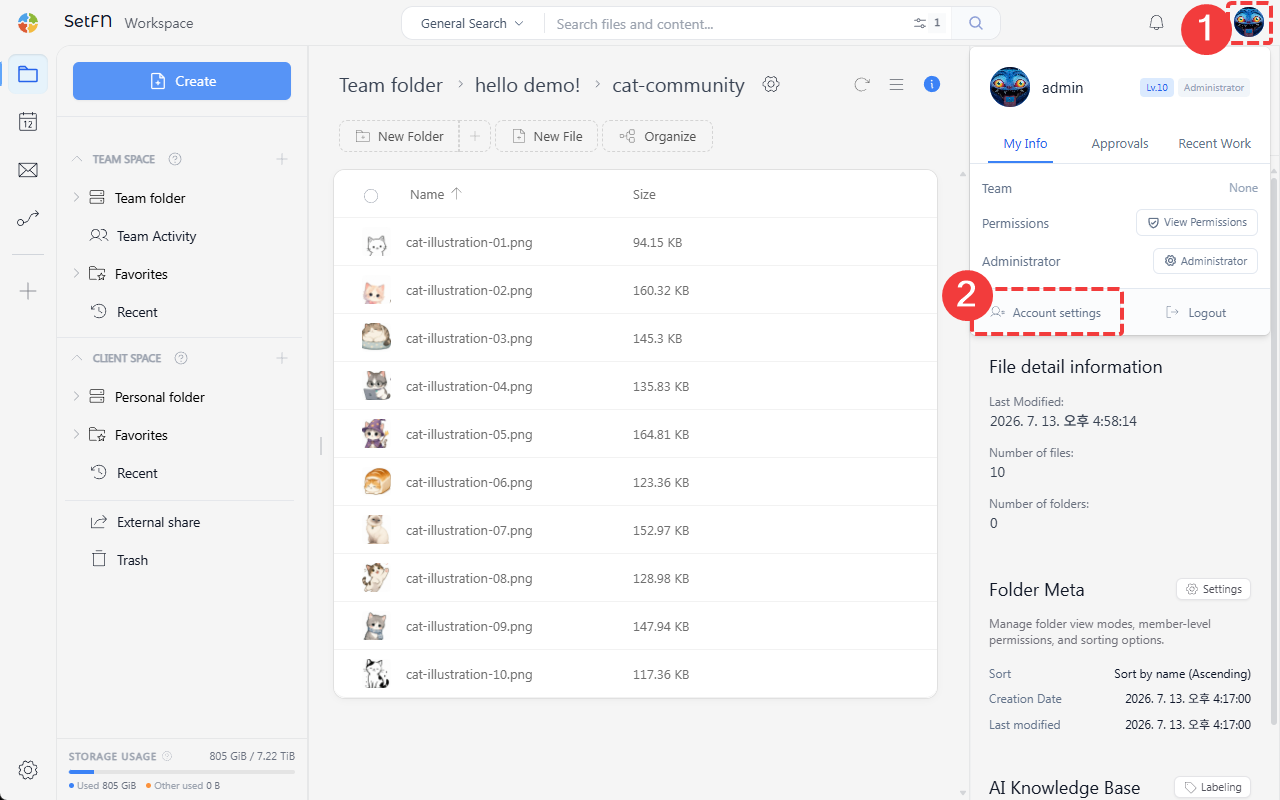
Avatar
Upload a profile image. Click the Upload Avatar button to select a file.
- Supported formats:
JPG,JPEG,PNG,GIF - File size:
5MBor less
User
Check your basic profile information.
- Nickname: The name displayed in the workspace
- Email: Your account email address
- Language: The interface display language
Check My Teams: View the list of teams you belong to
After making changes, click Apply to save.
Changing Your Password
Enter your current password and change it to a new one. If you've forgotten your password, reset it from the login screen instead.
Permissions
Check your current file permissions, level, and whether you have administrator privileges.
- File permissions: Create, delete, edit, view, download, share, execute, etc.
- My level: The folders and files you can access vary depending on your level.
- Administrator privileges: When set to
ON, all permissions are enabled.
Active Devices
Check all devices and sessions currently logged in.
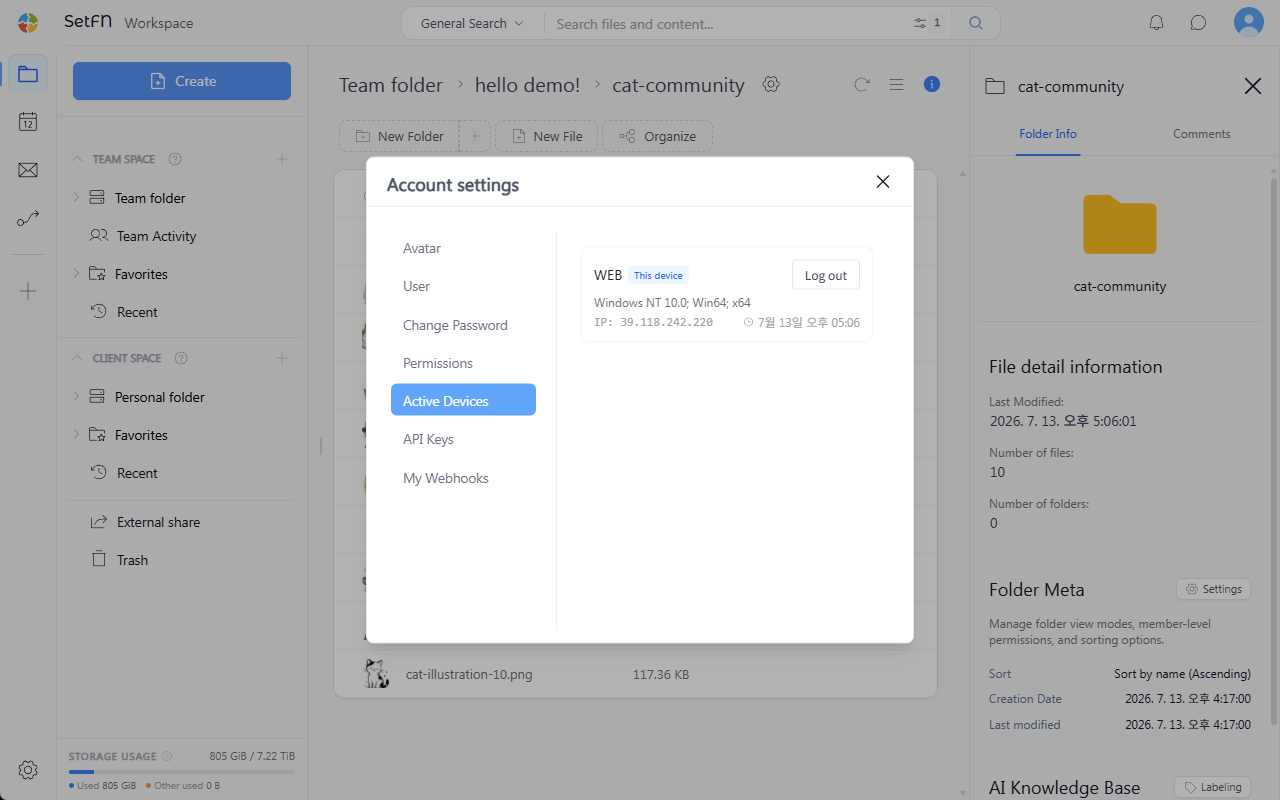
- Shows the connection method, operating system, IP address, and last activity time.
- If you notice a suspicious connection, you can end that session with the
Log Outbutton.
API Key
Issue your own API key for calling the SetFN API from external scripts or servers.
My Webhooks
Check which folders you've set webhooks on.
- View your webhook settings across folders at a glance
- You can
ResumeorDeleteeach webhook
For instructions on creating a new webhook, see the Folder Webhooks documentation.
Notes
- Level and team can only be changed by an administrator.
- Administrator privileges are granted by a super administrator.
- If you see an unfamiliar device in the active devices list, we recommend immediately logging out that session and changing your password.