'/%3e%3cpath%20id='cross_2'%20data-name='cross%202'%20class='cls-2'%20d='M20.612,30.43h0a5.361,5.361,0,1,0-10.723,0H0A33.709,33.709,0,0,1,30.569,0V9.75a5.361,5.361,0,1,1,0,10.723V30.43Z'%20transform='translate(67.193%200.007)%20rotate(90)'/%3e%3cpath%20id='cross_3'%20data-name='cross%203'%20class='cls-3'%20d='M20.612,30.43h0a5.361,5.361,0,1,0-10.723,0H0A33.709,33.709,0,0,1,30.569,0V9.75a5.361,5.361,0,1,1,0,10.723V30.43Z'%20transform='translate(67.186%2067.041)%20rotate(180)'/%3e%3cpath%20id='cross_4'%20data-name='cross%204'%20class='cls-4'%20d='M20.6,30.5h0a5.361,5.361,0,1,0-10.723,0H0A33.71,33.71,0,0,1,30.56,0V9.818a5.361,5.361,0,1,1,0,10.723V30.5Z'%20transform='translate(0%2067.041)%20rotate(-90)'/%3e%3c/svg%3e)
Using External AI
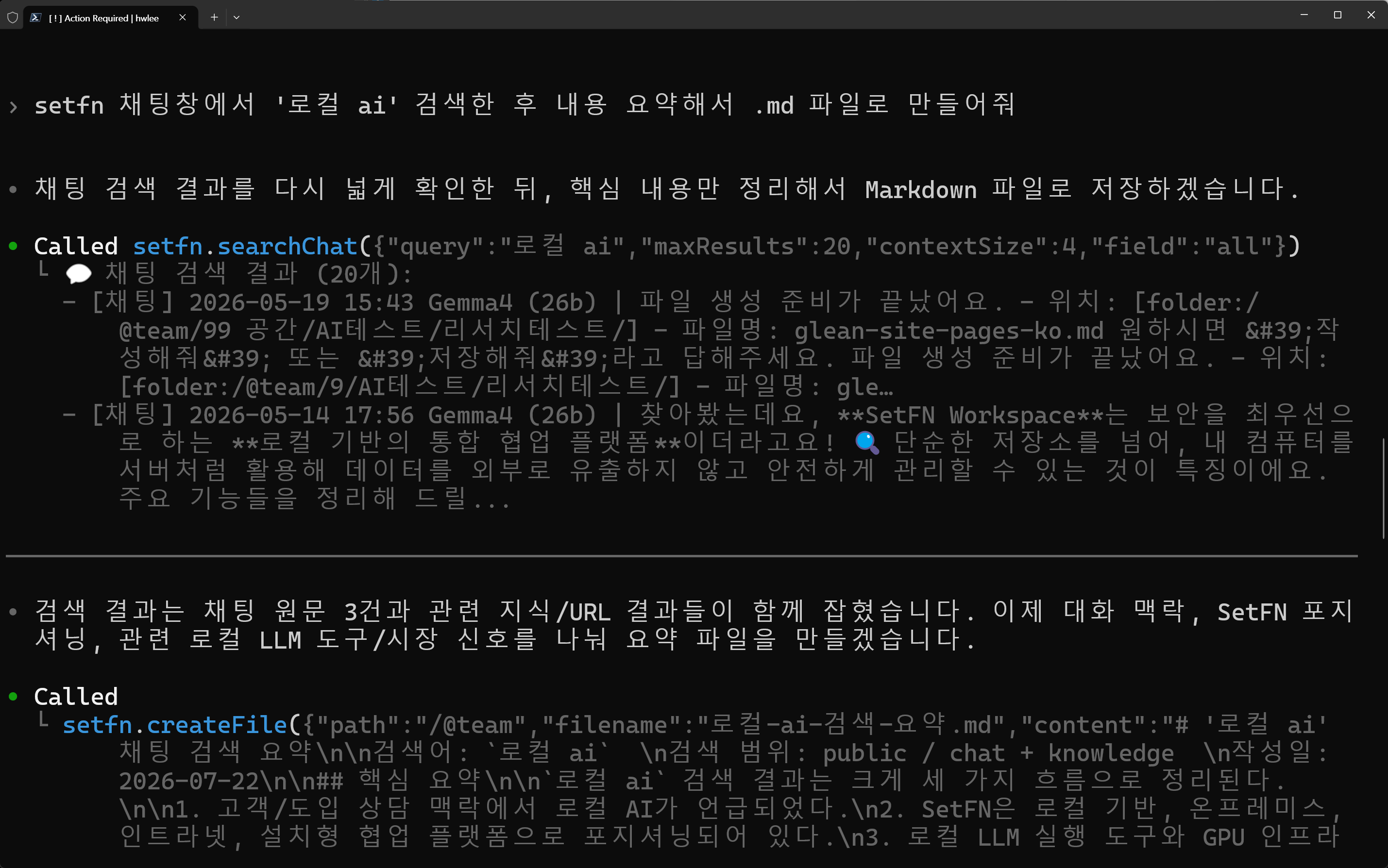
You can connect the workspace to an external AI. Unlike the local AI, which runs inside the workspace, external AI clients such as Codex and Claude Code directly call workspace functions.
Before You Start
- Administrator setting: The organization-wide allowed scope must first be turned on in MCP Server Management.
- User: You must register your issued connection key in a client such as Codex or Claude Code.
What You Can Do with MCP
Depending on the scope allowed for your issued key, you can have it do the following.
| Category | Examples |
|---|---|
| Find and check | View folder/file lists, read file content, search by name or content |
| Create and fix | Create new files/folders, edit existing file content, move files/folders |
| Check team activity | Search team conversations, check the team activity log (audit log) |
| Clean up | Move files to Trash after approval |
Working Seamlessly Across the Workspace and Your Local Machine
Local development tools like Claude Code and Codex can normally only work with files on your own computer, but connecting them via MCP lets them read and write documents and files in the workspace just like local files.
For example, while working locally you can open and reference a planning document that's on the workspace drive, or save your work results directly to a folder on the drive to share with your team. Instead of downloading and uploading files back and forth, you can move between the two spaces through conversation alone.
Just as you might use a tool like Obsidian for a personal wiki, you can ask Claude Code or Codex to keep writing Markdown documents, and that content accumulates on the workspace drive, functioning like a personal wiki.