'/%3e%3cpath%20id='cross_2'%20data-name='cross%202'%20class='cls-2'%20d='M20.612,30.43h0a5.361,5.361,0,1,0-10.723,0H0A33.709,33.709,0,0,1,30.569,0V9.75a5.361,5.361,0,1,1,0,10.723V30.43Z'%20transform='translate(67.193%200.007)%20rotate(90)'/%3e%3cpath%20id='cross_3'%20data-name='cross%203'%20class='cls-3'%20d='M20.612,30.43h0a5.361,5.361,0,1,0-10.723,0H0A33.709,33.709,0,0,1,30.569,0V9.75a5.361,5.361,0,1,1,0,10.723V30.43Z'%20transform='translate(67.186%2067.041)%20rotate(180)'/%3e%3cpath%20id='cross_4'%20data-name='cross%204'%20class='cls-4'%20d='M20.6,30.5h0a5.361,5.361,0,1,0-10.723,0H0A33.71,33.71,0,0,1,30.56,0V9.818a5.361,5.361,0,1,1,0,10.723V30.5Z'%20transform='translate(0%2067.041)%20rotate(-90)'/%3e%3c/svg%3e)
Resetting Your Password
You can reset your workspace password in three ways.
1. Reset from the Login Page (If You Forgot Your Password)
On the login page, click the Forgot your password? link.
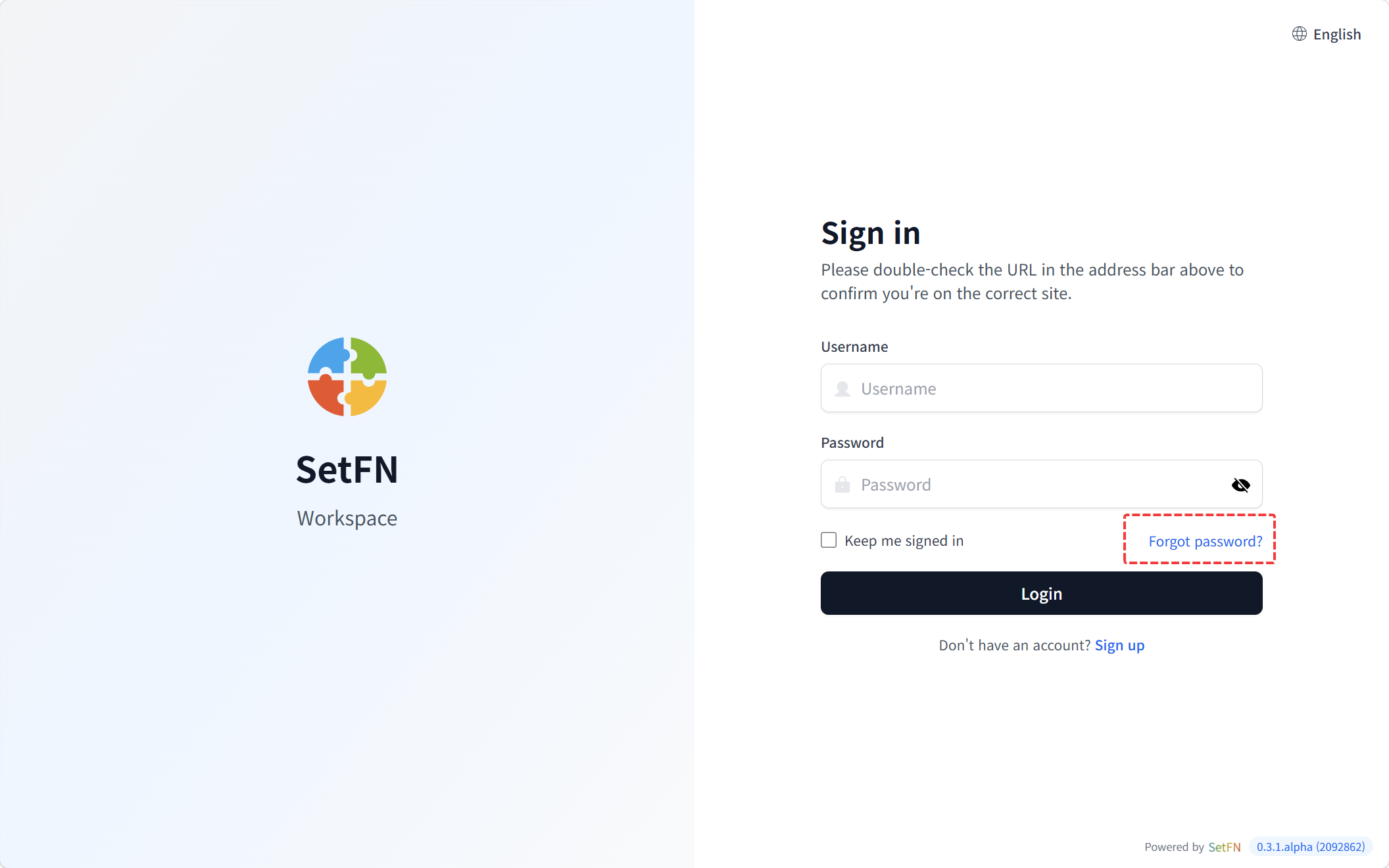
- Enter your registered email address
- Click the reset link sent to your email
- Enter and confirm your new password
- Log in with your new password
2. Change from Your Profile (If You Can Log In)
Use this when you know your current password and want to change it to a new one.
- Click the avatar in the top-right corner of the workspace, then select
Account Settings - Select the
Change Passwordtab - Enter your current password and the new password
- Click the
Applybutton
3. Request a Reset from Your Administrator
Use this when the email reset doesn't work.
- Ask your administrator to reset your password
- Have the administrator deliver the temporary password they've set through a secure method (in person, by phone, etc.)
- Log in with the temporary password
- Change to a new password immediately after logging in
Good to Know
- If you don't receive the reset email, check your spam folder.
- Passwords are stored encrypted, so even administrators cannot view them. Administrators can only change the password.