'/%3e%3cpath%20id='cross_2'%20data-name='cross%202'%20class='cls-2'%20d='M20.612,30.43h0a5.361,5.361,0,1,0-10.723,0H0A33.709,33.709,0,0,1,30.569,0V9.75a5.361,5.361,0,1,1,0,10.723V30.43Z'%20transform='translate(67.193%200.007)%20rotate(90)'/%3e%3cpath%20id='cross_3'%20data-name='cross%203'%20class='cls-3'%20d='M20.612,30.43h0a5.361,5.361,0,1,0-10.723,0H0A33.709,33.709,0,0,1,30.569,0V9.75a5.361,5.361,0,1,1,0,10.723V30.43Z'%20transform='translate(67.186%2067.041)%20rotate(180)'/%3e%3cpath%20id='cross_4'%20data-name='cross%204'%20class='cls-4'%20d='M20.6,30.5h0a5.361,5.361,0,1,0-10.723,0H0A33.71,33.71,0,0,1,30.56,0V9.818a5.361,5.361,0,1,1,0,10.723V30.5Z'%20transform='translate(0%2067.041)%20rotate(-90)'/%3e%3c/svg%3e)
Manage Active Devices
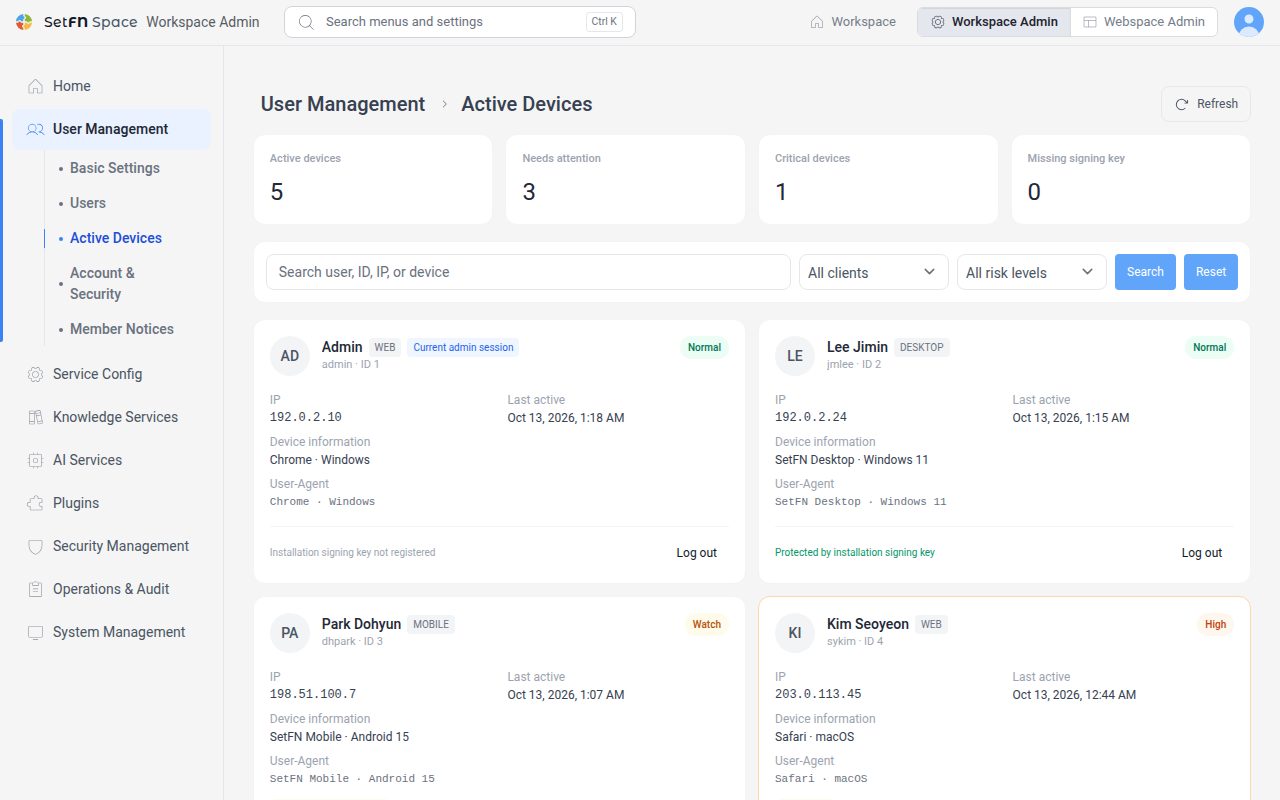
In Active Devices, you review the devices of all users who are currently logged in and log out devices when needed. You can find login sessions with risk signals first and act on them.
Before you begin
- Required permission: an administrator with the device management permission
- Required license: Enterprise or higher
Open Active Devices
- Open the administrator page.
- Select
User Managementin the left menu. - Select
Active Devices.
Review logged-in devices
A summary of the current login sessions appears at the top of the screen.
| Item | Description |
|---|---|
Active devices | The number of devices that are currently logged in. |
Needs attention | The number of devices that have risk signals. |
Critical devices | The number of devices whose risk level is Critical. |
Missing signing key | The number of devices that have no registered installation signing key. |
For each device, the list shows the user, the IP, the last activity, the device information, and the risk level. The risk level is one of Normal, Watch, High, and Critical, and the following reasons are shown with it.
Blocked IP,Blocked userRecent login failuresMissing device ID,Device ID shared by multiple accountsMissing native signing key
Find a device
- Enter a user, ID, IP, or device in the search box and select
Search. - In
All clients, select one ofWeb,Mobile, orDesktop. - In
All risk levels, select a risk level, or select theNeeds attentionfilter to show only devices that have risk signals. - Select
Resetto clear the search conditions.
Force a device to log out
- Select
Log outfor the device you want to log out. - In
Action reason, select one ofAdministrator action,Lost device,Security policy violation,Suspected compromise, orUser request. - When you confirm, the login session of the selected device ends.
Good to Know
- A forced logout ends only the one login session you selected. The other devices of the same user stay logged in.
- To log out all users at once, use
admin logout-allin Managing the Server with Commands. - Actions that end all of a user's sessions, such as a password reset, account deactivation or deletion, or a two-factor authentication reset, also disconnect the AI tools that user connected through the sign-in and consent screen (MCP OAuth connections).
MCP connectionkeys the user created in their settings are kept.