'/%3e%3cpath%20id='cross_2'%20data-name='cross%202'%20class='cls-2'%20d='M20.612,30.43h0a5.361,5.361,0,1,0-10.723,0H0A33.709,33.709,0,0,1,30.569,0V9.75a5.361,5.361,0,1,1,0,10.723V30.43Z'%20transform='translate(67.193%200.007)%20rotate(90)'/%3e%3cpath%20id='cross_3'%20data-name='cross%203'%20class='cls-3'%20d='M20.612,30.43h0a5.361,5.361,0,1,0-10.723,0H0A33.709,33.709,0,0,1,30.569,0V9.75a5.361,5.361,0,1,1,0,10.723V30.43Z'%20transform='translate(67.186%2067.041)%20rotate(180)'/%3e%3cpath%20id='cross_4'%20data-name='cross%204'%20class='cls-4'%20d='M20.6,30.5h0a5.361,5.361,0,1,0-10.723,0H0A33.71,33.71,0,0,1,30.56,0V9.818a5.361,5.361,0,1,1,0,10.723V30.5Z'%20transform='translate(0%2067.041)%20rotate(-90)'/%3e%3c/svg%3e)
Register signup terms
Registered Terms of Service and Privacy Policy documents appear on the signup screen. People signing up must agree to the registered documents.
Before you begin
- Required permission: administrator
- Prepare the complete documents as plain text.
Open Signup Terms
- In the administrator page, select
User Management>Basic Settings. - Expand
Sign-up terms.
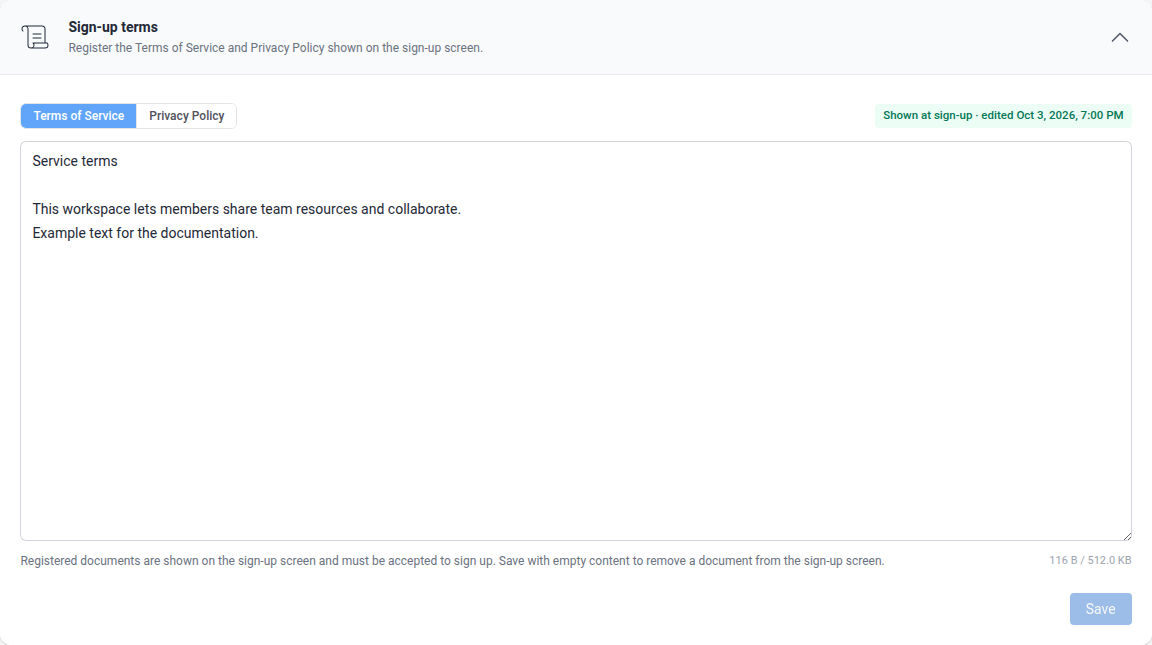
Register a document
- Select
Terms of ServiceorPrivacy Policy. - Enter the complete text of the selected document.
- Check the size indicator below the text. Documents above the displayed limit cannot be saved.
- Select
Save. - Check that the status shows the document is displayed on signup, with an updated timestamp.
- Open the signup screen and check the document.
Switching tabs preserves drafts. Saving applies only to the selected document, so save each tab separately after editing both documents. A dot marks tabs with unsaved changes; changes in the other tab are also reported.
Remove a document from signup
- Select the document tab.
- Clear the entire text.
- Select
Save. - Check that the status changes to unregistered.
Saving empty text removes that document from the signup screen. Other registered documents remain visible.
Good to know
- Size is measured in bytes, rather than characters. Use the limit shown on screen.
- After changing a document, check its full text and agreement item on the signup screen.
- The entered text is the document shown during signup. Changing the administrator interface language does not translate it.