'/%3e%3cpath%20id='cross_2'%20data-name='cross%202'%20class='cls-2'%20d='M20.612,30.43h0a5.361,5.361,0,1,0-10.723,0H0A33.709,33.709,0,0,1,30.569,0V9.75a5.361,5.361,0,1,1,0,10.723V30.43Z'%20transform='translate(67.193%200.007)%20rotate(90)'/%3e%3cpath%20id='cross_3'%20data-name='cross%203'%20class='cls-3'%20d='M20.612,30.43h0a5.361,5.361,0,1,0-10.723,0H0A33.709,33.709,0,0,1,30.569,0V9.75a5.361,5.361,0,1,1,0,10.723V30.43Z'%20transform='translate(67.186%2067.041)%20rotate(180)'/%3e%3cpath%20id='cross_4'%20data-name='cross%204'%20class='cls-4'%20d='M20.6,30.5h0a5.361,5.361,0,1,0-10.723,0H0A33.71,33.71,0,0,1,30.56,0V9.818a5.361,5.361,0,1,1,0,10.723V30.5Z'%20transform='translate(0%2067.041)%20rotate(-90)'/%3e%3c/svg%3e)
Creating a User Account
This page guides you through creating a new user account.
How to Access
- From the
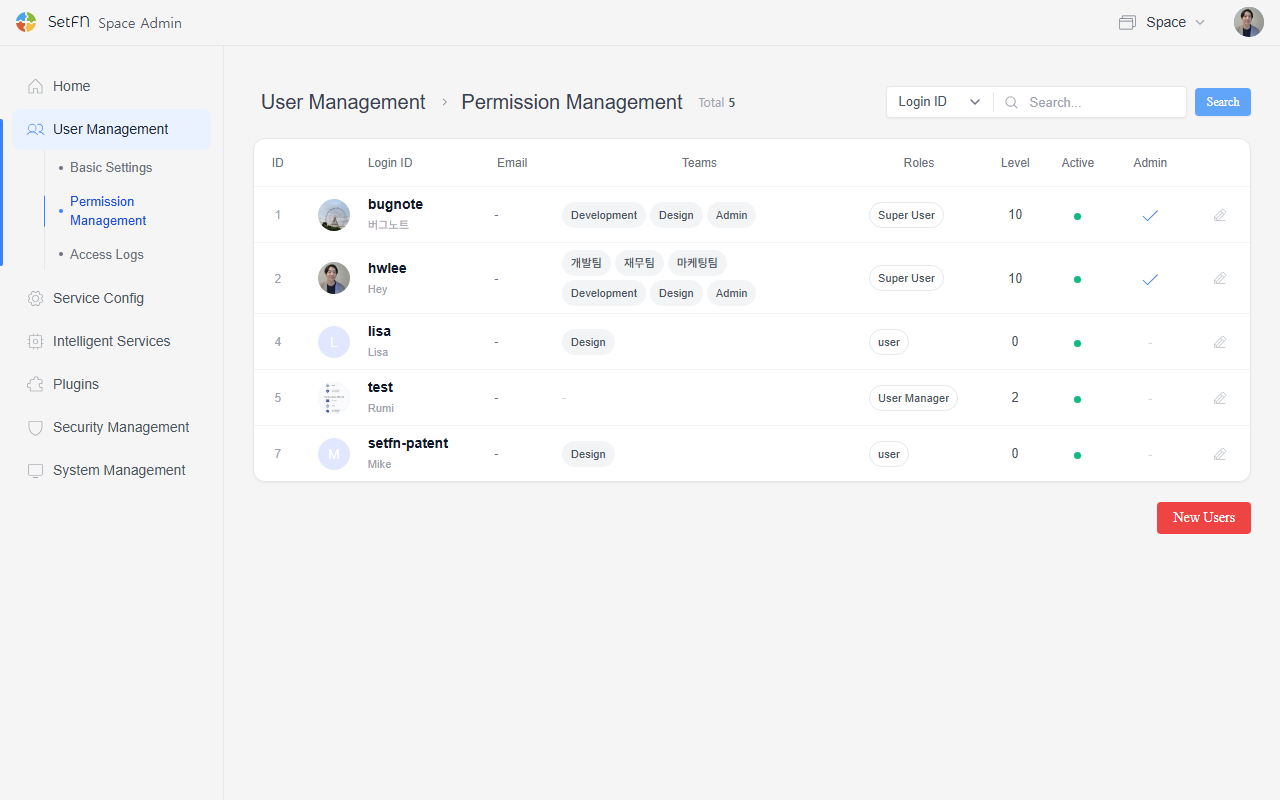
User Management>User Listpage, click theNew Userbutton at the bottom right.
Configuring the User Account
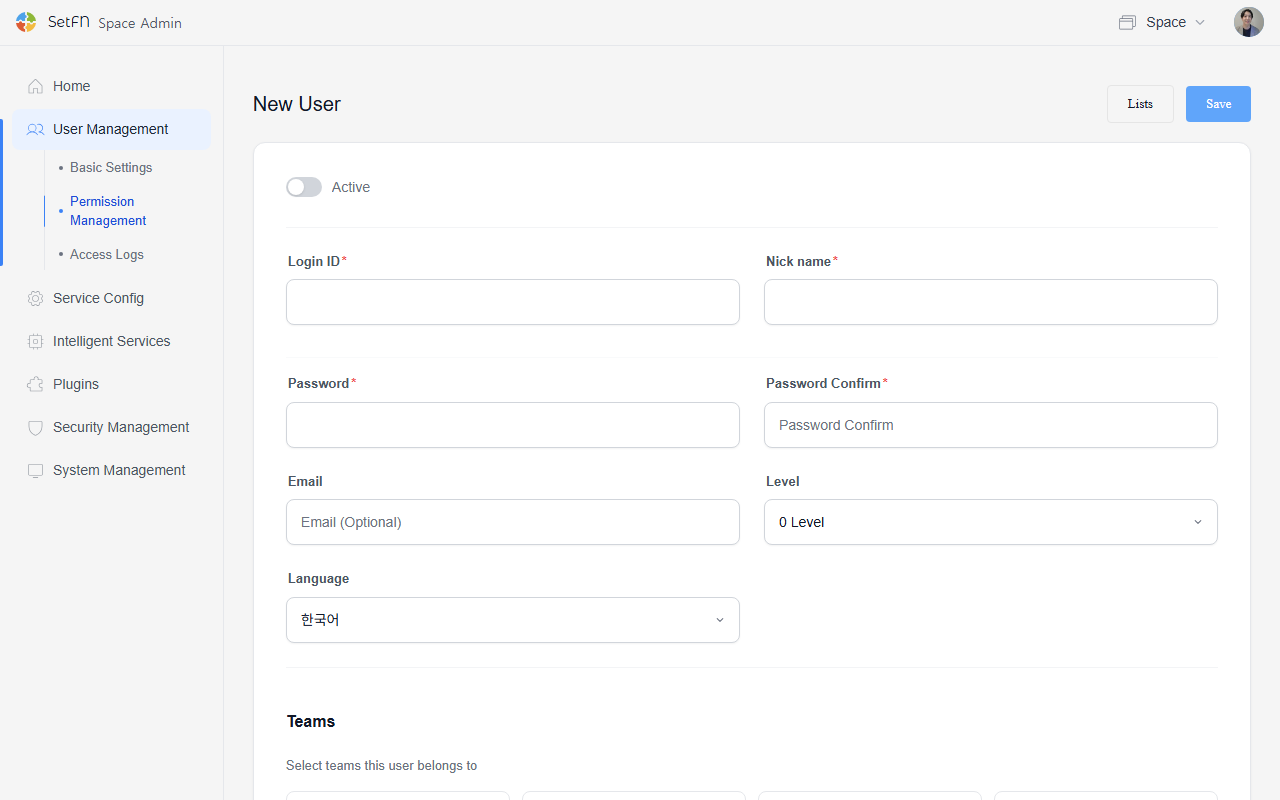
Activation
- Users can only log in to the space once the Activate button has been toggled on.
- While deactivated, the user cannot log in.
Entering User Information
| Item | Description |
|---|---|
| Login ID | The ID used to log in - must be entered in English. |
| Nickname | The nickname displayed in the space |
| Initial password | The password used for the first login |
| Permission level | The level granted to the user |
| The user's email address (optional) | |
| Language | Choose from Korean, English, or Japanese |
Team Settings
- If team access is configured, you can choose which team the user belongs to.
- A single user can belong to multiple teams.
File Permission Settings
Separately from the default settings applied at signup, you can configure file permissions individually for each user.
| Permission | Description |
|---|---|
| Create | Create new files, create folders, upload files |
| View | View file contents and browse folder structure |
| Edit | Edit the contents of existing files |
| Share | Create external sharing links |
| Delete | Delete files and folders |
| Rename | Rename files or folders |
| Download | Download files and folders |
| Execute | Run scripts and perform automated tasks |
Good to Know
- It's a good idea to instruct users to change their password immediately after their first login.
- If a user forgets their password, an admin can reset it.