'/%3e%3cpath%20id='cross_2'%20data-name='cross%202'%20class='cls-2'%20d='M20.612,30.43h0a5.361,5.361,0,1,0-10.723,0H0A33.709,33.709,0,0,1,30.569,0V9.75a5.361,5.361,0,1,1,0,10.723V30.43Z'%20transform='translate(67.193%200.007)%20rotate(90)'/%3e%3cpath%20id='cross_3'%20data-name='cross%203'%20class='cls-3'%20d='M20.612,30.43h0a5.361,5.361,0,1,0-10.723,0H0A33.709,33.709,0,0,1,30.569,0V9.75a5.361,5.361,0,1,1,0,10.723V30.43Z'%20transform='translate(67.186%2067.041)%20rotate(180)'/%3e%3cpath%20id='cross_4'%20data-name='cross%204'%20class='cls-4'%20d='M20.6,30.5h0a5.361,5.361,0,1,0-10.723,0H0A33.71,33.71,0,0,1,30.56,0V9.818a5.361,5.361,0,1,1,0,10.723V30.5Z'%20transform='translate(0%2067.041)%20rotate(-90)'/%3e%3c/svg%3e)
Configure notice delivery
Use notice delivery to choose the address that sends signup verification, password recovery and bulk notices to members.
Before you begin
- Only full administrators can change the sender mailbox, password recovery mail and delivery limits.
- Prepare a send-capable internal mailbox or external mail connection. The mail service must be running.
- Internal mailboxes require a message server connection. External connections need SMTP settings and a stored password.
Choose the sender mailbox
- Select
User Management>Member Notices. - Expand
Sender mailbox. - Search by address, name or username and select a mailbox.
- Check its type, owner and sending status.
- Enable password recovery verification mail if needed.
- Select
Update.
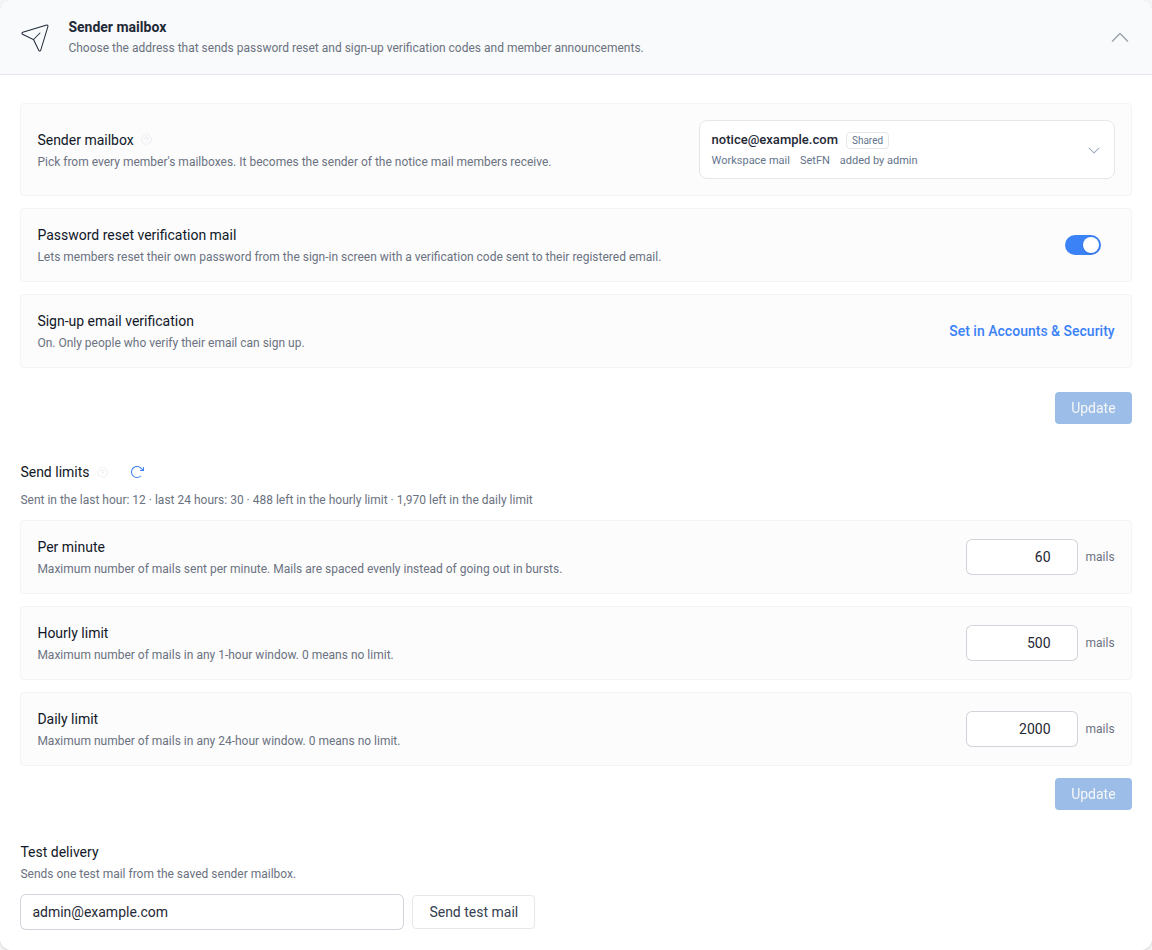
The selection includes mailboxes belonging to all members. Prefer an administrator-only, dedicated notice or shared mailbox over a member's personal mailbox.
| Mailbox type | Copies of notice messages |
|---|---|
| Internal mailbox | No copy is left in Sent. |
| External connection | Copies remain in Sent and at the provider, where the mailbox owner can see them. |
Send a test message
- Save the sender mailbox first.
- Enter the test recipient address.
- Select the test send button.
- Check the recipient's inbox.
Selecting a mailbox without saving it does not enable test delivery with that mailbox.
Configure delivery limits
Enter values in the delivery limits section of the sender card and select its Update button. Changes apply to subsequent deliveries.
| Setting | Range and time window |
|---|---|
| Messages per minute | 1–600, distributed at even intervals. |
| Hourly limit | 0 for unlimited, or 2–100,000 in the preceding hour. |
| Daily limit | 0 for unlimited, or 2–1,000,000 in the preceding 24 hours. |
Verification and test messages take priority over bulk messages. Ten percent of each hourly or daily limit, with a minimum of one message, is reserved for them. Bulk delivery waits at the limit and resumes automatically; verification mail reports a delivery failure.
These limits operate independently of external provider limits. Set them below the volume allowed by your provider. Check the preceding hour and 24-hour usage alongside queued messages.
Connect signup email verification
Configure signup verification in the login ID format card under Account & Security. It is available when email addresses are required as login IDs and needs a saved sender mailbox.
While signup email verification is enabled, the sender cannot be cleared. Disable signup verification in Account & Security before removing it.
If mail cannot be sent
- Replace and save a sender mailbox that was deleted or disabled.
- For external authentication failures, missing passwords or disabled SMTP, ask the mailbox owner to check the connection and credentials.
- Check the mail plugin, running service and internal mailbox's message server connection.
- If a quota error specifies a retry time, retry after that time.