'/%3e%3cpath%20id='cross_2'%20data-name='cross%202'%20class='cls-2'%20d='M20.612,30.43h0a5.361,5.361,0,1,0-10.723,0H0A33.709,33.709,0,0,1,30.569,0V9.75a5.361,5.361,0,1,1,0,10.723V30.43Z'%20transform='translate(67.193%200.007)%20rotate(90)'/%3e%3cpath%20id='cross_3'%20data-name='cross%203'%20class='cls-3'%20d='M20.612,30.43h0a5.361,5.361,0,1,0-10.723,0H0A33.709,33.709,0,0,1,30.569,0V9.75a5.361,5.361,0,1,1,0,10.723V30.43Z'%20transform='translate(67.186%2067.041)%20rotate(180)'/%3e%3cpath%20id='cross_4'%20data-name='cross%204'%20class='cls-4'%20d='M20.6,30.5h0a5.361,5.361,0,1,0-10.723,0H0A33.71,33.71,0,0,1,30.56,0V9.818a5.361,5.361,0,1,1,0,10.723V30.5Z'%20transform='translate(0%2067.041)%20rotate(-90)'/%3e%3c/svg%3e)
Send bulk notices to members
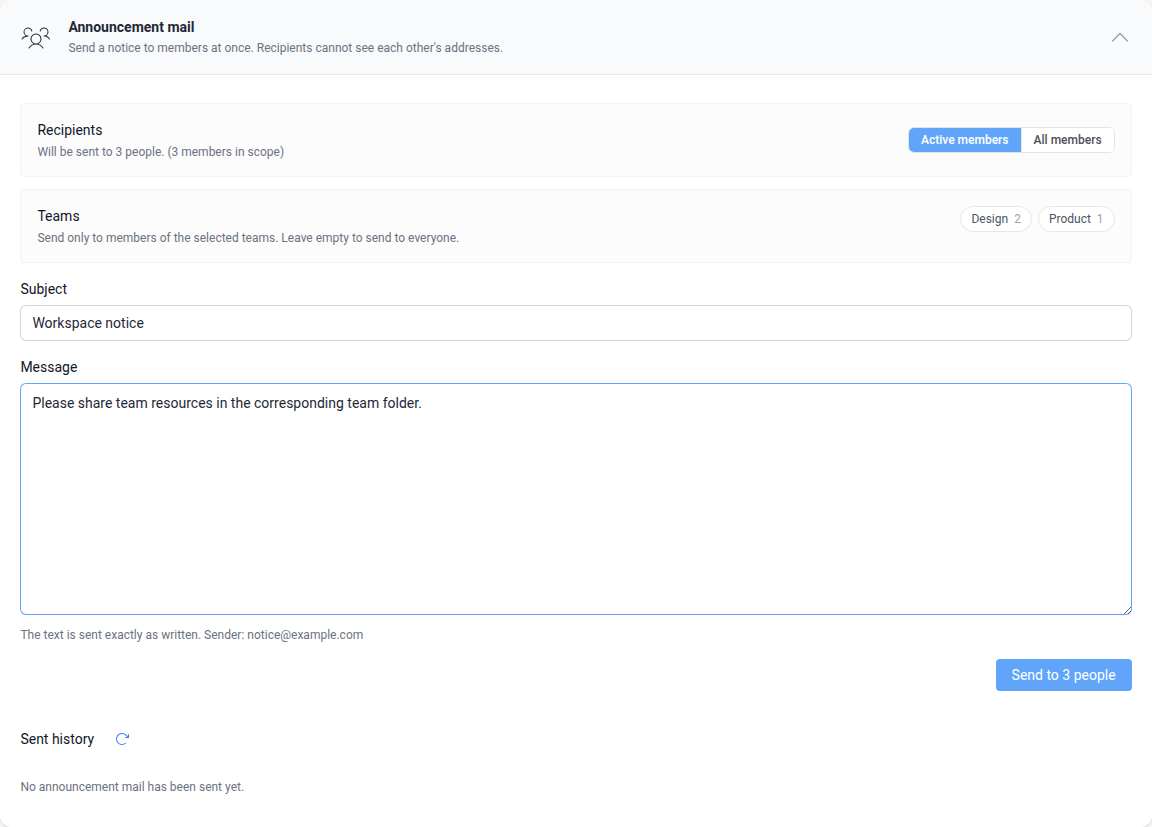
Send notice emails to active members or all members. Narrow the audience to selected teams. Recipients cannot see each other's email addresses.
Before you begin
- Only full administrators can send and resume bulk notices.
- Save a sender mailbox and verify test delivery in notice settings.
- Only members with email addresses receive mail. Duplicate addresses receive one message.
Select an audience and send
- Open
Announcement mailunderUser Management>Member Notices. - Select active members or all members.
- Select teams to limit delivery to their members. Without a team selection, the entire selected member scope is used.
- Check the actual recipient count and members excluded because they lack an email address.
- Enter the subject and content. Text is sent as entered; content above the permitted size cannot be sent.
- Select the send button showing the recipient count.
- Check the recipients and sender in the confirmation dialog, then confirm sending.
Check progress and history
Progress shows sent messages, failures and total recipients. At a delivery limit, a waiting message displays when sending will resume automatically.
Delivery history shows the subject, time, requesting administrator, sender, audience and delivery counts, including messages not sent. Check the sender's connection and authentication when failures occur.
Stop a running delivery
- Select
Stopfor the running delivery. - Confirm in the dialog.
- Check the result and sent count.
The message currently being sent may still be delivered. Previously sent messages are not recalled, and remaining recipients do not receive mail.
Handle automatically stopped or interrupted delivery
Repeated sender-side failures automatically stop delivery. Restarting the server can interrupt a delivery.
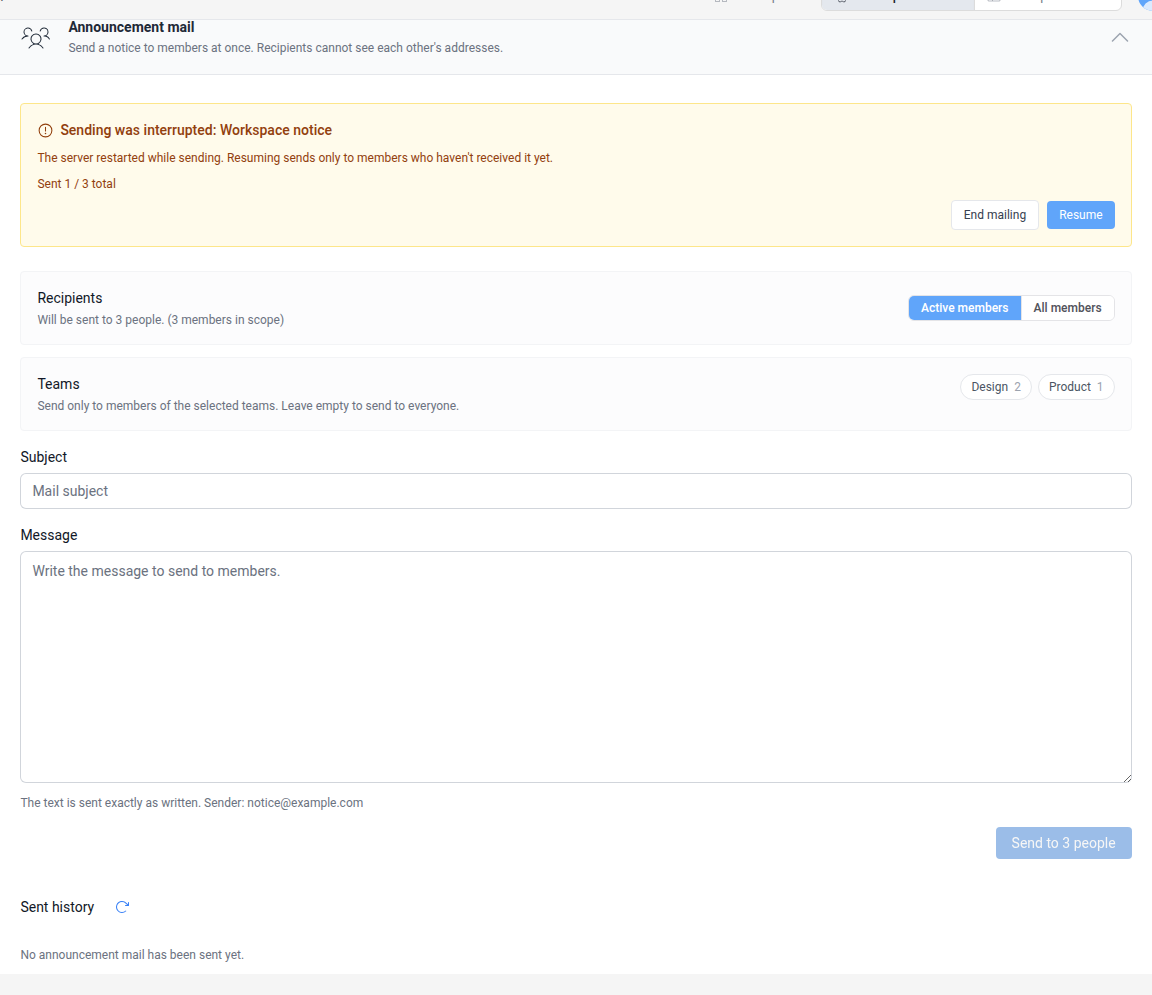
- Check the reported cause and remaining recipients.
- Resolve mail service or external authentication problems.
- To send to remaining recipients, select
Resumeand confirm. Recipients who already received mail are not sent another copy. - To end the delivery, select
End mailingand confirm. Remaining recipients are skipped and the result is saved in history.
Delivery cannot resume after the sender mailbox changes. Restore the original sender or close the delivery. Starting a new delivery while one is paused warns that the remaining recipients of the old delivery will not receive it.
If another administrator changes the delivery state while you confirm, the action is rejected with an explanation. Check the current state and try again.