'/%3e%3cpath%20id='cross_2'%20data-name='cross%202'%20class='cls-2'%20d='M20.612,30.43h0a5.361,5.361,0,1,0-10.723,0H0A33.709,33.709,0,0,1,30.569,0V9.75a5.361,5.361,0,1,1,0,10.723V30.43Z'%20transform='translate(67.193%200.007)%20rotate(90)'/%3e%3cpath%20id='cross_3'%20data-name='cross%203'%20class='cls-3'%20d='M20.612,30.43h0a5.361,5.361,0,1,0-10.723,0H0A33.709,33.709,0,0,1,30.569,0V9.75a5.361,5.361,0,1,1,0,10.723V30.43Z'%20transform='translate(67.186%2067.041)%20rotate(180)'/%3e%3cpath%20id='cross_4'%20data-name='cross%204'%20class='cls-4'%20d='M20.6,30.5h0a5.361,5.361,0,1,0-10.723,0H0A33.71,33.71,0,0,1,30.56,0V9.818a5.361,5.361,0,1,1,0,10.723V30.5Z'%20transform='translate(0%2067.041)%20rotate(-90)'/%3e%3c/svg%3e)
Explore the Administrator Menus
The administrator page contains the settings needed to operate a Space, from users and services to knowledge search, AI connections, security, and system status. This page explains the nine main menus currently available.
Before you begin
- Required permission: administrator
- Some submenu items may be hidden depending on your account permissions and license.
Open the administrator page
- Sign in to the Workspace.
- Select the avatar in the top-right corner.
- Select
Admin.
You can also go directly to [Space address]/manages/home.
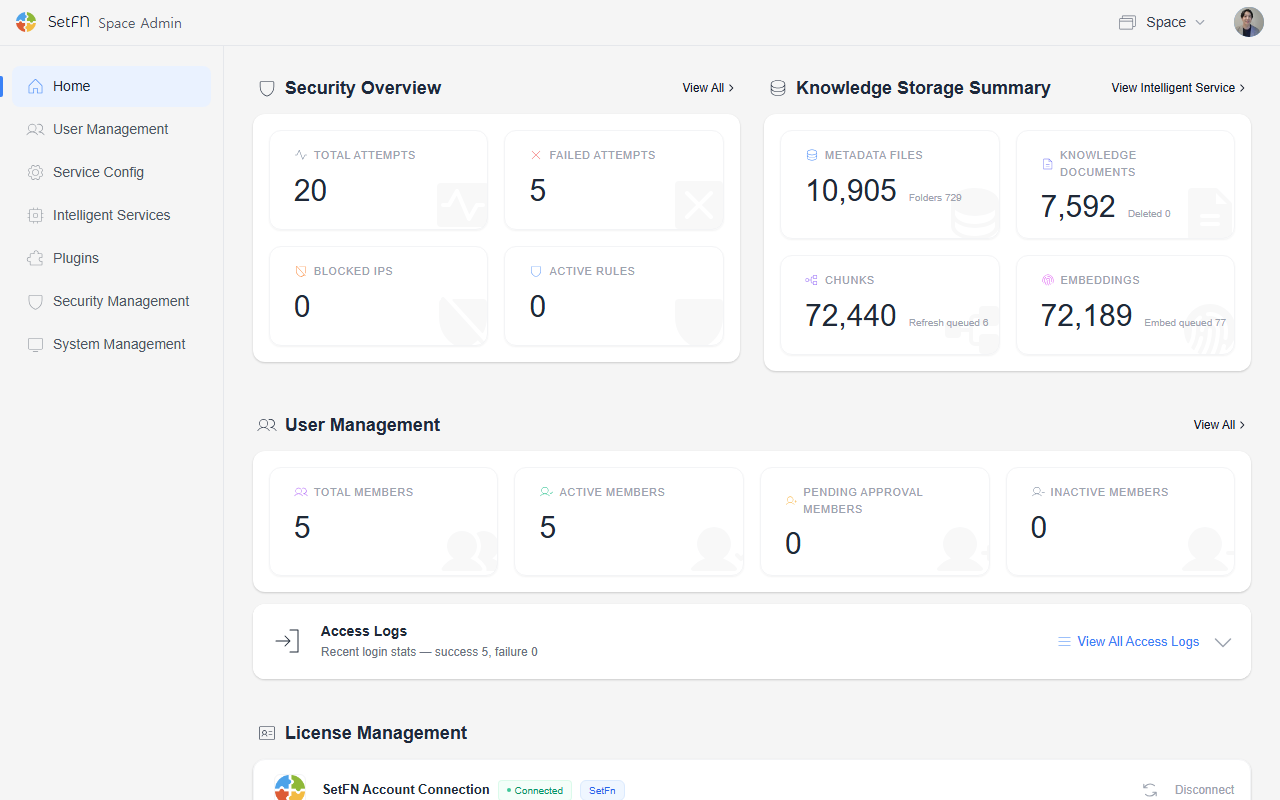
Review each menu
| Menu | What you manage |
|---|---|
Home | Items that need attention, security, file, and user summaries, and license status |
User Management | Default policies, signup terms, users, account security, CAPTCHA and member notices |
Service Config | Workspace services such as file and community areas, mail, and branding |
Knowledge Services | Ingestion and indexing, search management, embeddings, and vector storage |
AI Services | AI models and runtimes, external tool API keys, and MCP integrations and policies |
Plugins | Installed plugins, external library status, and related settings |
Security Management | Security status, blocks, policies, device approvals, and administrator IP restrictions |
Operations & Audit | Access logs, team and personal-space activity logs, and mail audit |
System Management | Server and device information, restart controls, and background service status |
Distinguish Knowledge Services from AI Services
Use Knowledge Services to prepare and store documents as searchable knowledge. Use AI Services to manage the models, runtimes, and tool connections that use that knowledge or perform other AI tasks.
For example, choose the folders to index and the vector store under Knowledge Services, and prepare the embedding model connection under AI Services.