'/%3e%3cpath%20id='cross_2'%20data-name='cross%202'%20class='cls-2'%20d='M20.612,30.43h0a5.361,5.361,0,1,0-10.723,0H0A33.709,33.709,0,0,1,30.569,0V9.75a5.361,5.361,0,1,1,0,10.723V30.43Z'%20transform='translate(67.193%200.007)%20rotate(90)'/%3e%3cpath%20id='cross_3'%20data-name='cross%203'%20class='cls-3'%20d='M20.612,30.43h0a5.361,5.361,0,1,0-10.723,0H0A33.709,33.709,0,0,1,30.569,0V9.75a5.361,5.361,0,1,1,0,10.723V30.43Z'%20transform='translate(67.186%2067.041)%20rotate(180)'/%3e%3cpath%20id='cross_4'%20data-name='cross%204'%20class='cls-4'%20d='M20.6,30.5h0a5.361,5.361,0,1,0-10.723,0H0A33.71,33.71,0,0,1,30.56,0V9.818a5.361,5.361,0,1,1,0,10.723V30.5Z'%20transform='translate(0%2067.041)%20rotate(-90)'/%3e%3c/svg%3e)
Editing a User Account
This page guides you through editing the status, basic information, team, and file permissions of an existing user account.
Selecting a Target User
In User Management > User List, find the user whose settings you want to change and click the edit icon (✏️️).
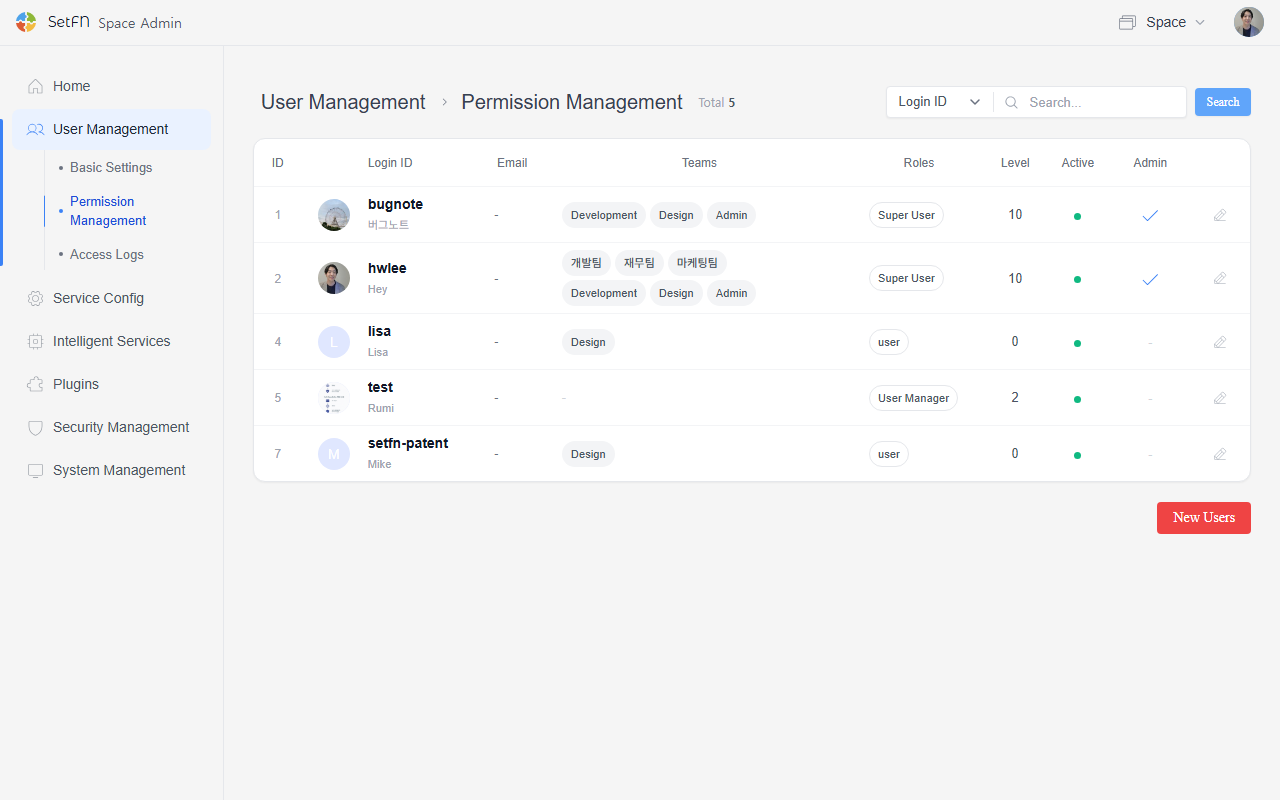
Editing the User Account
On the user edit screen, you can change the account status and user information.
Activation
- The user can only log in to the space while their account is active.
- If you switch the account to deactivated, that user can no longer log in.
Editing User Information
| Item | Description |
|---|---|
| Login ID | The user's login ID |
| Nickname | The nickname displayed in the space |
| Password | Reset to a new password if needed |
| Permission level | The level granted to the user |
| The user's email address (optional) | |
| Language | Choose from Korean, English, or Japanese |
Team Settings
- If team access is configured, you can change which team the user belongs to.
- A single user can belong to multiple teams.
File Permission Settings
You can adjust file permissions individually for each user.
| Permission | Description |
|---|---|
| Create | Create new files, create folders, upload files |
| View | View file contents and browse folder structure |
| Edit | Edit the contents of existing files |
| Share | Create external sharing links |
| Delete | Delete files and folders |
| Rename | Rename files or folders |
| Download | Download files and folders |
| Execute | Run scripts and perform automated tasks |
Good to Know
- If a user forgets their password, an admin can reset it.
- After changing permissions or teams, it's a good idea to verify that the user's access scope is applied as intended.
- After a permission change, the user must log out and log back in for the updated permissions to take effect.
- Admins can perform any action regardless of permission settings.