'/%3e%3cpath%20id='cross_2'%20data-name='cross%202'%20class='cls-2'%20d='M20.612,30.43h0a5.361,5.361,0,1,0-10.723,0H0A33.709,33.709,0,0,1,30.569,0V9.75a5.361,5.361,0,1,1,0,10.723V30.43Z'%20transform='translate(67.193%200.007)%20rotate(90)'/%3e%3cpath%20id='cross_3'%20data-name='cross%203'%20class='cls-3'%20d='M20.612,30.43h0a5.361,5.361,0,1,0-10.723,0H0A33.709,33.709,0,0,1,30.569,0V9.75a5.361,5.361,0,1,1,0,10.723V30.43Z'%20transform='translate(67.186%2067.041)%20rotate(180)'/%3e%3cpath%20id='cross_4'%20data-name='cross%204'%20class='cls-4'%20d='M20.6,30.5h0a5.361,5.361,0,1,0-10.723,0H0A33.71,33.71,0,0,1,30.56,0V9.818a5.361,5.361,0,1,1,0,10.723V30.5Z'%20transform='translate(0%2067.041)%20rotate(-90)'/%3e%3c/svg%3e)
Block Management
Suspicious access attempts are automatically blocked. In Block Management, you can register manual blocks based on IP, IP range, or User-Agent, or check currently blocked IPs, users, and devices and unblock ones that were blocked incorrectly.
Opening the Block Management Screen
In the admin screen's Security Management, go to the Block Management menu.
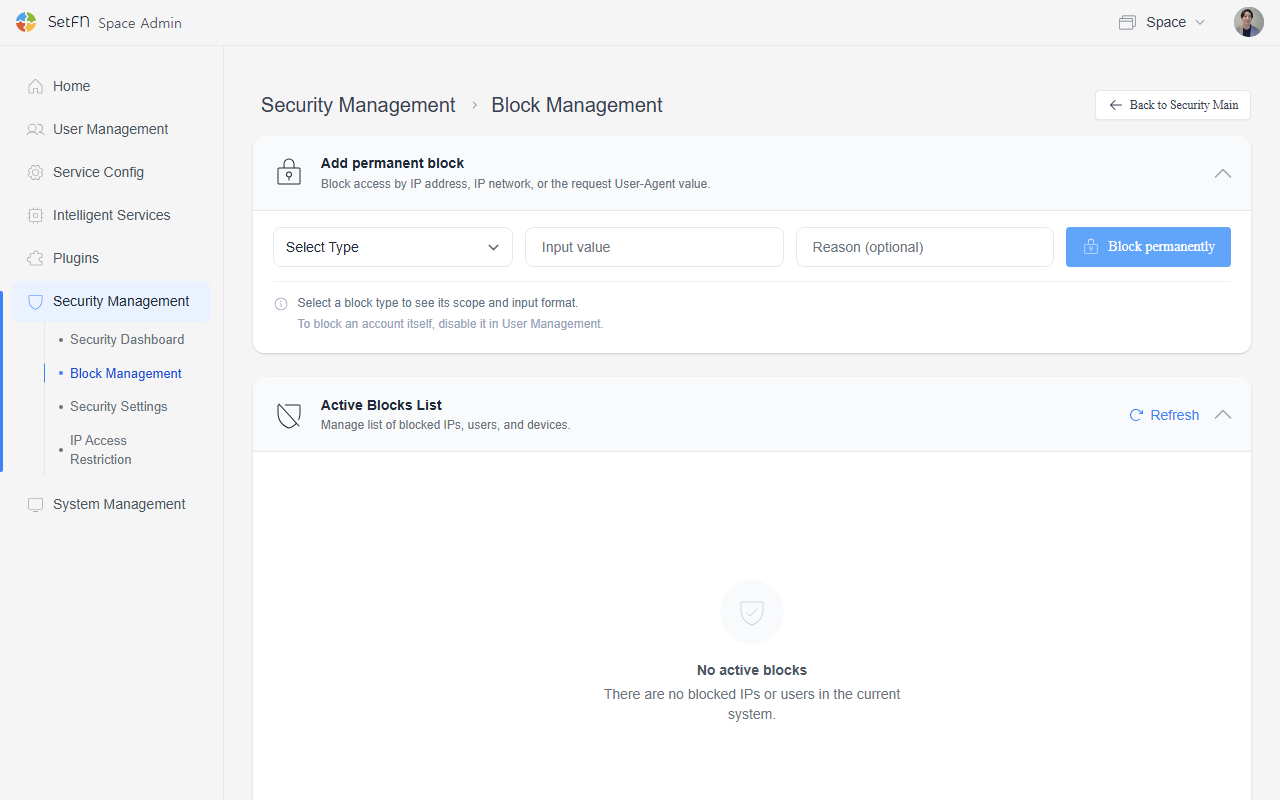
Registering a Permanent Block
Block access based on an IP address, IP range, or the User-Agent value of a request.
- Select block type: Choose the criterion — IP, IP range, or User-Agent.
- Enter value: Enter the IP address to block, the IP range (in CIDR notation), or the User-Agent string.
- Block reason: Select a reason from the list (optional).
After entering the value, click the Permanent Block button to apply it immediately.
Using an IP range, you can even block access from an entire country. Look up the IP ranges assigned to the country you want to block, set Block Type to IP Range, and register those ranges.
Tip: You can find country-level IP ranges at sites like IPdeny, which compile country-level IP range lists based on Regional Internet Registry (RIR) data. A single country's IP ranges are often split across many blocks, so to block it completely, you need to check and register all of that country's ranges.
Besides country-level blocking, IP range blocking is also commonly used in the following cases.
- Cloud/hosting provider ranges: Traffic from cloud/data center providers like AWS, GCP, or Azure is often from automated bots or scrapers rather than real users, so their entire ranges are sometimes blocked outright.
- Known malicious IP ranges: Register ranges listed in threat intelligence feeds (Spamhaus, AbuseIPDB, etc.) to block them preemptively.
- Tor exit nodes: To block access via the Tor anonymization network, register the published Tor exit node ranges.
- Specific carrier/ISP ranges: If attacks repeatedly originate from a specific carrier's network, the entire range may be blocked.
- Networks you no longer trust: Also used to cut off a former partner's or branch's internal network range after the relationship has changed or ended.
Active Block List
Manage the list of IPs, users, and devices currently blocked in the system. Click Refresh to load the latest status.
If nothing is blocked, "No active blocks" is displayed.
| Item | Description |
|---|---|
| Type | The type of blocked target (IP+Login ID, User, IP, Device, etc.) |
| Blocked target | The identifying information, such as the blocked IP address or account |
| Block start | The date and time the block began |
| Expiration | The date and time the block will be lifted |
| Reason | The reason the block occurred. Example: Exceeded login failure limit (5 attempts) |
| Action | An Unblock button to immediately unblock the target |
Click the Unblock All button to unblock every item in the list at once.
Unblocking
In the active block list, find the target you want to unblock, then click the Unblock button in the Action column. To unblock everything at once, use the Unblock All button.
Access becomes possible immediately after unblocking.