'/%3e%3cpath%20id='cross_2'%20data-name='cross%202'%20class='cls-2'%20d='M20.612,30.43h0a5.361,5.361,0,1,0-10.723,0H0A33.709,33.709,0,0,1,30.569,0V9.75a5.361,5.361,0,1,1,0,10.723V30.43Z'%20transform='translate(67.193%200.007)%20rotate(90)'/%3e%3cpath%20id='cross_3'%20data-name='cross%203'%20class='cls-3'%20d='M20.612,30.43h0a5.361,5.361,0,1,0-10.723,0H0A33.709,33.709,0,0,1,30.569,0V9.75a5.361,5.361,0,1,1,0,10.723V30.43Z'%20transform='translate(67.186%2067.041)%20rotate(180)'/%3e%3cpath%20id='cross_4'%20data-name='cross%204'%20class='cls-4'%20d='M20.6,30.5h0a5.361,5.361,0,1,0-10.723,0H0A33.71,33.71,0,0,1,30.56,0V9.818a5.361,5.361,0,1,1,0,10.723V30.5Z'%20transform='translate(0%2067.041)%20rotate(-90)'/%3e%3c/svg%3e)
Security Overview
You can see at a glance how the login security policy is being applied, along with access attempts, failures, and blocking status.
Opening the Security Dashboard
In the admin screen's Security Management, click the Security Dashboard menu.
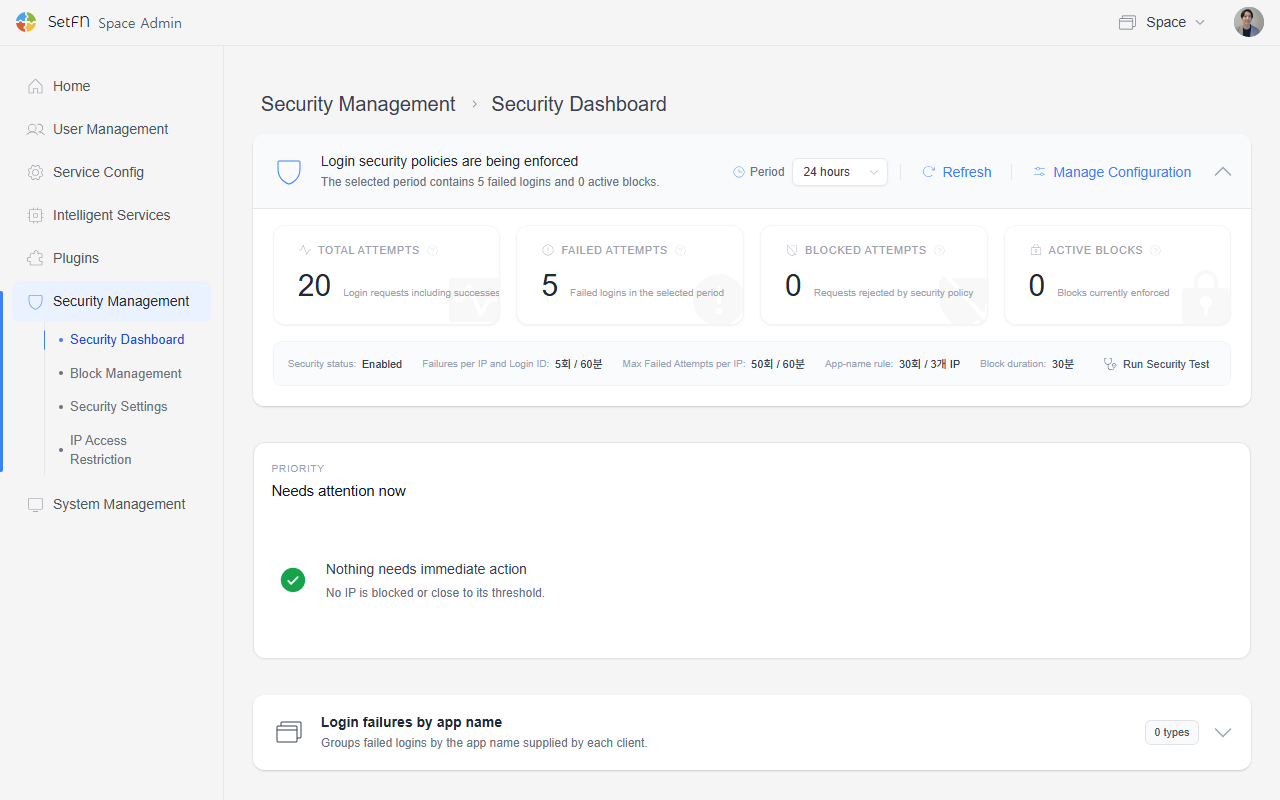
Checking Login Security Policy
The cards at the top show whether the login security policy is being applied, along with access attempts, failures, and active blocks for the selected period. Statistics are aggregated based on the lookup period at the top right (e.g., 24 hours); you can click Refresh to update to the latest status, or click Manage Settings to jump directly to Security Settings.
| Item | Description |
|---|---|
| Total access attempts | Total login requests, including both successful and failed attempts |
| Failed attempts | Number of login failures within the selected period |
| Blocked attempts | Number of requests rejected by the security policy |
| Active blocks | Number of blocks currently in effect |
Below the cards, a summary shows the currently applied policy thresholds (security status, failure threshold for IP + login ID combinations, maximum failures per IP, User-Agent blocking threshold, and block duration), and you can click Run Security Diagnostics to immediately diagnose the current access status.
Checking Blocked Items
Items to Review Now shows blocking cases that need immediate review. Targets are shown by type, such as IP + Login ID Blocked or Account Blocked, and you can click the Unblock button on each item to unblock it right away.
Only recent items requiring review are summarized here. For the full list of currently blocked items and to register blocks directly, see the Block Management document.
Login Failures by User-Agent
If login requests from the same program repeatedly fail across multiple IPs, they are automatically blocked. Here, program information (User-Agent) refers to an identifying value sent along with each request by the browser or app used to connect. However, since this value can be freely changed by an attacker, blocking decisions are not made based on this value alone; the system also considers how many failures occurred across how many different IPs.
Expanding the list shows the number of login failures and the access IPs grouped by the same program information.
Security Diagnostics
- Quickly tests security settings based on the currently active session.
Clicking the Run Security Diagnostics button runs the diagnostic, and once complete, a "Security test complete" message is displayed.
Good to Know
- Security diagnostics run based on the currently active session.