'/%3e%3cpath%20id='cross_2'%20data-name='cross%202'%20class='cls-2'%20d='M20.612,30.43h0a5.361,5.361,0,1,0-10.723,0H0A33.709,33.709,0,0,1,30.569,0V9.75a5.361,5.361,0,1,1,0,10.723V30.43Z'%20transform='translate(67.193%200.007)%20rotate(90)'/%3e%3cpath%20id='cross_3'%20data-name='cross%203'%20class='cls-3'%20d='M20.612,30.43h0a5.361,5.361,0,1,0-10.723,0H0A33.709,33.709,0,0,1,30.569,0V9.75a5.361,5.361,0,1,1,0,10.723V30.43Z'%20transform='translate(67.186%2067.041)%20rotate(180)'/%3e%3cpath%20id='cross_4'%20data-name='cross%204'%20class='cls-4'%20d='M20.6,30.5h0a5.361,5.361,0,1,0-10.723,0H0A33.71,33.71,0,0,1,30.56,0V9.818a5.361,5.361,0,1,1,0,10.723V30.5Z'%20transform='translate(0%2067.041)%20rotate(-90)'/%3e%3c/svg%3e)
Security Settings
Security Settings let you manage the policy for detecting abnormal login attempts and automatically blocking the associated IP, user, or device. You can configure login failure counts, time-based policies, pattern detection, and more to protect your Space from brute-force attacks.
Opening the Security Settings Screen
In the admin screen's Security Management, click the Security Settings tab.
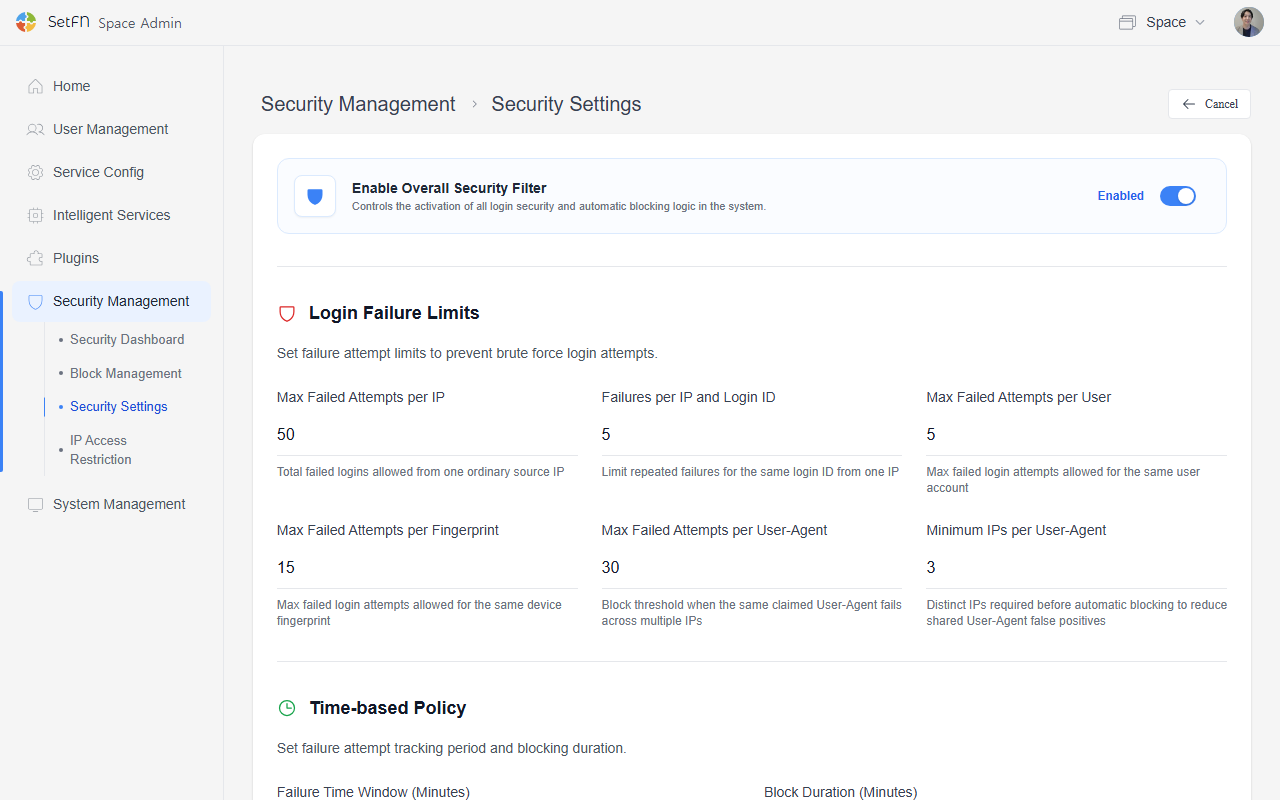
Enable Overall Security Filtering
- Determines whether all login security and automatic blocking logic in the system is enabled.
- If disabled, all the detailed settings below are also turned off together.
Login Failure Limits
Configure failure-count limits to prevent brute-force login attempts.
| Item | Description |
|---|---|
| Maximum failures per IP | The number of failures allowed from the same IP across the general network |
| IP + login ID combination failures | The threshold applied when the same login ID repeatedly fails from the same IP |
| Maximum failures per user | The maximum number of failed attempts for the same user account |
| Maximum failures per fingerprint | The maximum number of failed attempts for the same device fingerprint |
| Maximum failures per User-Agent | The threshold for blocking when the same User-Agent fails to log in from multiple IPs |
| Minimum IPs for User-Agent block | The number of distinct IPs required before blocking, to avoid incorrectly blocking cases where multiple users share the same app |
Time-Based Policy
Configure the tracking window for failed attempts and the block duration.
| Item | Description |
|---|---|
| Failure time window (minutes) | The time range over which failed login attempts are tracked |
| Block duration (minutes) | How long an attacker is blocked (up to 7 days) |
Advanced Blocking Settings
Configure advanced security features such as progressive blocking.
| Item | Description |
|---|---|
| Enable progressive blocking | Progressively increases the block duration for repeated attack attempts |
| Progressive blocking multiplier | The multiplier used to increase the block duration each time |
| Maximum block duration (hours) | The maximum duration for progressive blocking (up to 7 days) |
Pattern Detection
Automatically detects and blocks suspicious login patterns.
| Item | Description |
|---|---|
| Enable pattern detection | Detects abnormal login patterns and blocks them automatically |
| Suspicious pattern threshold | The score threshold used to consider a pattern suspicious |
Rate Limiting
Limits excessive login attempts within a short period.
| Item | Description |
|---|---|
| Enable rate limiting | Limits the number of login attempts within a specified time period |
| Rate limit window (seconds) | The time window over which the rate is measured |
| IP + login ID request limit | The number of requests allowed for the same IP and login ID combination |
| Overall IP request limit | The overall login request limit for IPs not registered as a shared network |
Whitelist
Certain IP addresses or users can be excluded from security restrictions.
- Whitelisted IPs: Register using the
+ Add IP Addressbutton. - Whitelisted users: Register using the
+ Add Userbutton. - Internal shared network: Relaxes only the overall IP limit. Account-level and distributed-attack detection still apply. Register using the
+ Add Shared Networkbutton.
Tip: If you only ever connect from your internal network, we recommend registering your internal network's IP (range) as an internal shared network. Since it doesn't also disable account blocking or distributed-attack detection, this is safer than adding it to the whitelisted IPs.
Security Notifications
Configure whether admins are notified when a security event occurs.
| Item | Description |
|---|---|
| Enable admin notifications | Sends real-time notifications to admins when a security event occurs |
| Notification threshold | Sends a notification once failed attempts reach this number |
Precautions
- Overly strict settings can block legitimate users too. Consider the case of a user who forgot their password and gets repeatedly blocked.
- Manage the whitelist carefully. Unnecessary exceptions can become a security vulnerability.
- After changing settings, test with a test account to confirm blocking works as expected.
- Setting the notification threshold too low can result in excessive notifications.