'/%3e%3cpath%20id='cross_2'%20data-name='cross%202'%20class='cls-2'%20d='M20.612,30.43h0a5.361,5.361,0,1,0-10.723,0H0A33.709,33.709,0,0,1,30.569,0V9.75a5.361,5.361,0,1,1,0,10.723V30.43Z'%20transform='translate(67.193%200.007)%20rotate(90)'/%3e%3cpath%20id='cross_3'%20data-name='cross%203'%20class='cls-3'%20d='M20.612,30.43h0a5.361,5.361,0,1,0-10.723,0H0A33.709,33.709,0,0,1,30.569,0V9.75a5.361,5.361,0,1,1,0,10.723V30.43Z'%20transform='translate(67.186%2067.041)%20rotate(180)'/%3e%3cpath%20id='cross_4'%20data-name='cross%204'%20class='cls-4'%20d='M20.6,30.5h0a5.361,5.361,0,1,0-10.723,0H0A33.71,33.71,0,0,1,30.56,0V9.818a5.361,5.361,0,1,1,0,10.723V30.5Z'%20transform='translate(0%2067.041)%20rotate(-90)'/%3e%3c/svg%3e)
Checking the Audit Log
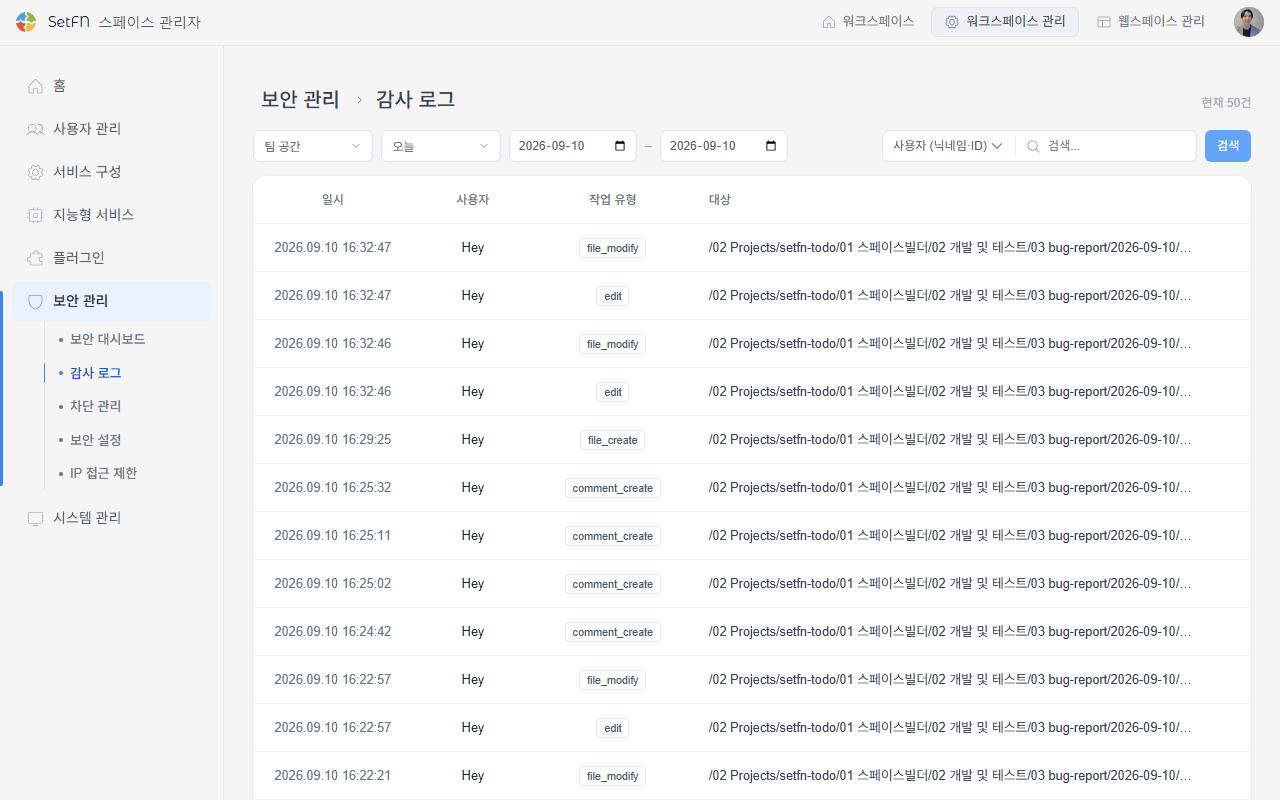
The audit log records user activity in the Team Space, Personal, Mail, and Auth areas in chronological order. This document explains how to search the log by condition and what each column in the list means.
Opening the Audit Log
In the admin screen's Security Management, click the Audit Log menu.
Setting Search Conditions
You can narrow the results by combining the conditions at the top of the screen.
- Select an area: Choose the area to view logs for —
Team Space,Personal,Mail, orAuth. - Select a period: Choose
Today,Yesterday,Last 7 days, orLast 30 days, or chooseCustomand enter a start and end date. - Search: Choose a search field —
User (Nickname/ID)orAction Type— enter a search term, and clickSearch.
Changing any condition reloads the list, and the total number of matching entries is shown at the top right as N results.
Reading the Log List
The list includes the following columns.
| Item | Description |
|---|---|
| Date/Time | When the action occurred |
| User | The nickname of the user who performed the action |
| Action Type | The type of action performed, e.g. file_create, file_modify, edit, comment_create |
| Target | The path of the file or folder the action was performed on |
| Area | The area where the action occurred (Team Space, Personal, Mail, Auth) |
Use the Previous and Next buttons at the bottom of the list to move between pages.
Good to Know
- Clicking a row does not open a detail view. The list shows all available information about each action.
- There is no option to export the log to a file.