'/%3e%3cpath%20id='cross_2'%20data-name='cross%202'%20class='cls-2'%20d='M20.612,30.43h0a5.361,5.361,0,1,0-10.723,0H0A33.709,33.709,0,0,1,30.569,0V9.75a5.361,5.361,0,1,1,0,10.723V30.43Z'%20transform='translate(67.193%200.007)%20rotate(90)'/%3e%3cpath%20id='cross_3'%20data-name='cross%203'%20class='cls-3'%20d='M20.612,30.43h0a5.361,5.361,0,1,0-10.723,0H0A33.709,33.709,0,0,1,30.569,0V9.75a5.361,5.361,0,1,1,0,10.723V30.43Z'%20transform='translate(67.186%2067.041)%20rotate(180)'/%3e%3cpath%20id='cross_4'%20data-name='cross%204'%20class='cls-4'%20d='M20.6,30.5h0a5.361,5.361,0,1,0-10.723,0H0A33.71,33.71,0,0,1,30.56,0V9.818a5.361,5.361,0,1,1,0,10.723V30.5Z'%20transform='translate(0%2067.041)%20rotate(-90)'/%3e%3c/svg%3e)
External Share
The External Share menu lets you view and manage, in one place, the external share links you've created.
Use this when, after delivering a file or folder to an external user, you need to check whether the link is still valid, whether it can still be downloaded, or whether it should be deleted.
Before You Start
- Administrator setting: You need to turn on the use of external share links in File Area Settings.
Opening the External Share Menu
Click External Share in the left sidebar.
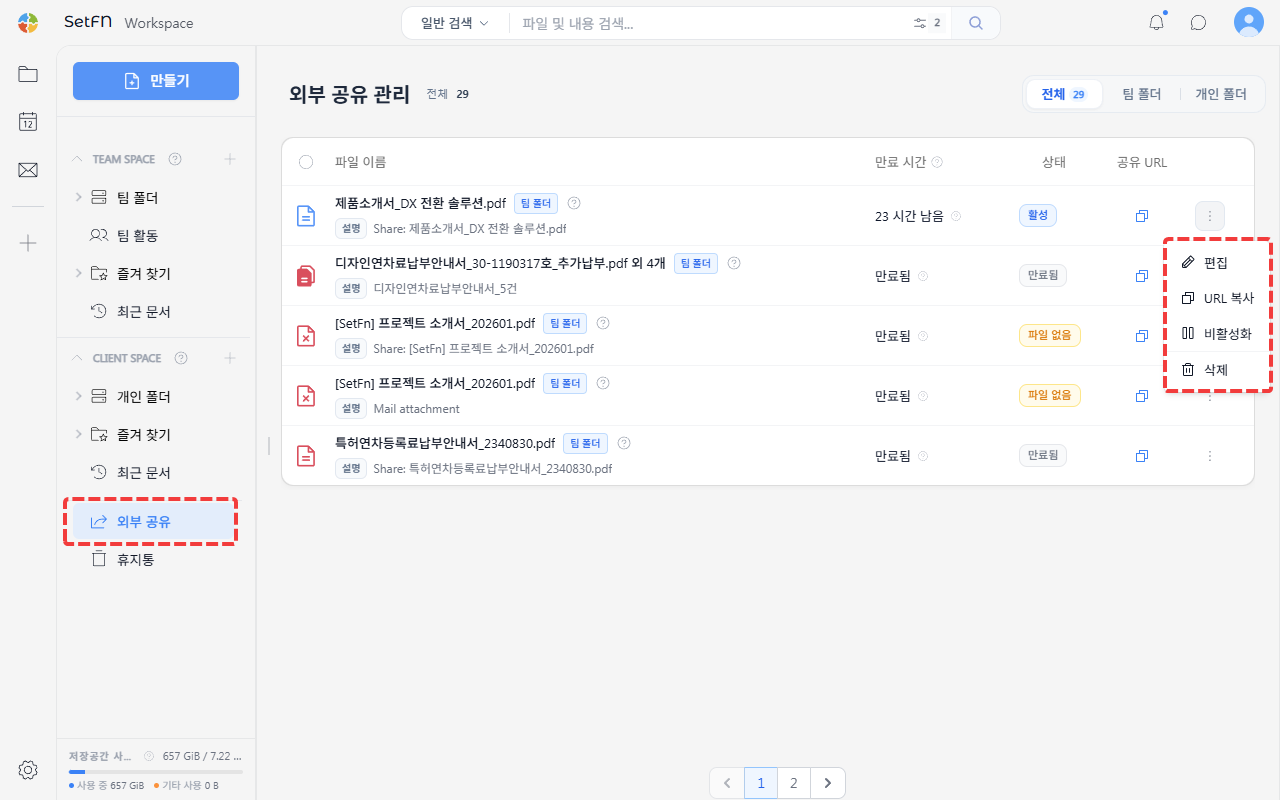
In the top-right corner, you can filter the list by All, Team Folder, or Personal Folder.
Information Available in the List
| Item | Description |
|---|---|
| File name | The name of the shared file or folder. If multiple items were shared, you can check the list of included files. |
| Description | The description entered when the link was created. |
| Expiration time | The time remaining before the link expires. |
| Status | Shows whether the link is currently available for download. |
| Share URL | You can copy the share link. |
Link Status
| Status | Meaning |
|---|---|
| Active | The link is valid and the recipient can download it. |
| Expired | The configured expiration date has passed and the link can no longer be used. |
| File missing | The original file has been deleted and cannot be downloaded. |
Managing Links
From the more-options menu of each link, you can perform the following actions.
| Action | Description |
|---|---|
| Edit | Reconfigure the description, password, expiration date, and download limit. |
| Copy URL | Copy the share link to the clipboard. |
| Deactivate / Activate | Temporarily block a link or make it usable again. |
| Delete | Delete a share link you no longer need. |
When to Use This
- To check whether a file link sent to an external vendor is still active
- To deactivate or delete a link that should no longer be open for security reasons
- To resend the share URL to a recipient
- To view share links created from the team folder and the personal folder separately