'/%3e%3cpath%20id='cross_2'%20data-name='cross%202'%20class='cls-2'%20d='M20.612,30.43h0a5.361,5.361,0,1,0-10.723,0H0A33.709,33.709,0,0,1,30.569,0V9.75a5.361,5.361,0,1,1,0,10.723V30.43Z'%20transform='translate(67.193%200.007)%20rotate(90)'/%3e%3cpath%20id='cross_3'%20data-name='cross%203'%20class='cls-3'%20d='M20.612,30.43h0a5.361,5.361,0,1,0-10.723,0H0A33.709,33.709,0,0,1,30.569,0V9.75a5.361,5.361,0,1,1,0,10.723V30.43Z'%20transform='translate(67.186%2067.041)%20rotate(180)'/%3e%3cpath%20id='cross_4'%20data-name='cross%204'%20class='cls-4'%20d='M20.6,30.5h0a5.361,5.361,0,1,0-10.723,0H0A33.71,33.71,0,0,1,30.56,0V9.818a5.361,5.361,0,1,1,0,10.723V30.5Z'%20transform='translate(0%2067.041)%20rotate(-90)'/%3e%3c/svg%3e)
Workspace Overview
When you install SpaceBuilder, a Workspace where you can collaborate with your team is created automatically.
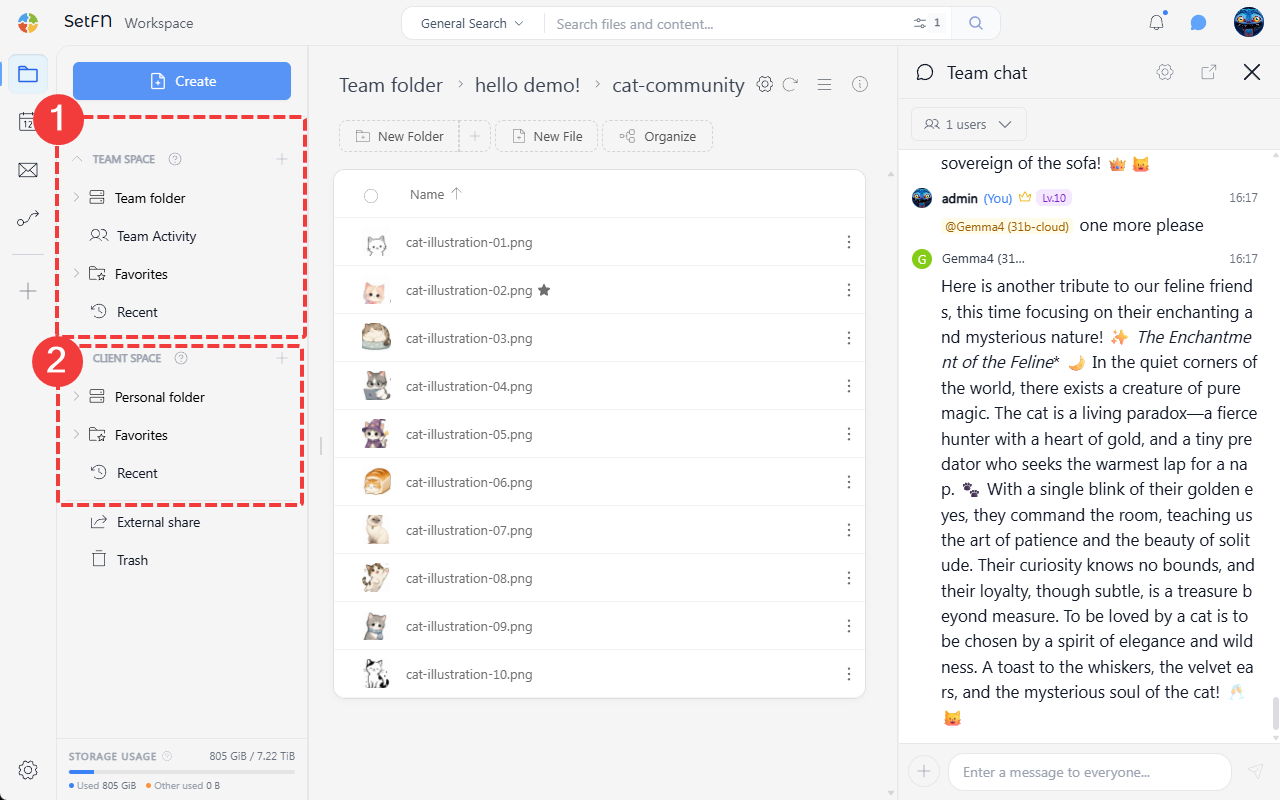
SetFN Workspace is divided into a space shared by the team and a space used by individuals.
From the left sidebar, you can navigate to key menus such as Folders, Favorites, Recent Documents, and Team Activity.
Workspace Structure
The workspace consists broadly of 1. Team Space and 2. Client Space.
| Space | Description |
|---|---|
| 1. Team Space | A shared space used by team members together. You can view and edit folders and files depending on your permissions. |
| 2. Client Space | A space used by an individual user. It's for managing personal files and work items. |
You can learn more about the purpose and usage of each space in the Team Space and Client Space documentation.
Team Space Menu
Team Space is a shared workspace used by multiple users together.
| Menu | Description |
|---|---|
Team Folder | Manage files and folders shared by the team. |
Team Activity | Check team members' file activity, comments, and activity history. |
| Favorites | View items you've favorited in team folders. |
| Recent Documents | Check recently created or modified documents. |
| External Share | View and manage created external share links. |
| Trash | Check deleted files and folders and restore or permanently delete them. |
Client Space Menu
Client Space is a personal space provided to each user.
| Menu | Description |
|---|---|
Personal Folder | Manage files and folders only you use. |
| Favorites | View items you've favorited in your personal folder. |
| Recent Documents | Check documents you've recently opened or modified. |
| External Share | View and manage external share links created from your personal folder. |
| Trash | Check files and folders deleted from your personal space. |
File and Folder URLs
Files and folders in the workspace can each be accessed directly via URL. Users can open a specific document, image, Markdown file, or work folder directly through the file or folder URL.
The beginning of the URL differs depending on which space the file belongs to.
| Type | URL prefix | Can it be shared? |
|---|---|---|
| Team Space | Starts with @team | Can be shared with team members. |
| Client Space | Starts with @client | Accessible only to you. |
External Share
When you need to deliver a file to an external user, create an external share link. In the External Share menu on the left sidebar, you can manage the status, expiration time, share URL, and deactivation of created links.
Trash
Deleted files and folders can be checked in the Trash. You can restore accidentally deleted items or permanently delete items you no longer need.