'/%3e%3cpath%20id='cross_2'%20data-name='cross%202'%20class='cls-2'%20d='M20.612,30.43h0a5.361,5.361,0,1,0-10.723,0H0A33.709,33.709,0,0,1,30.569,0V9.75a5.361,5.361,0,1,1,0,10.723V30.43Z'%20transform='translate(67.193%200.007)%20rotate(90)'/%3e%3cpath%20id='cross_3'%20data-name='cross%203'%20class='cls-3'%20d='M20.612,30.43h0a5.361,5.361,0,1,0-10.723,0H0A33.709,33.709,0,0,1,30.569,0V9.75a5.361,5.361,0,1,1,0,10.723V30.43Z'%20transform='translate(67.186%2067.041)%20rotate(180)'/%3e%3cpath%20id='cross_4'%20data-name='cross%204'%20class='cls-4'%20d='M20.6,30.5h0a5.361,5.361,0,1,0-10.723,0H0A33.71,33.71,0,0,1,30.56,0V9.818a5.361,5.361,0,1,1,0,10.723V30.5Z'%20transform='translate(0%2067.041)%20rotate(-90)'/%3e%3c/svg%3e)
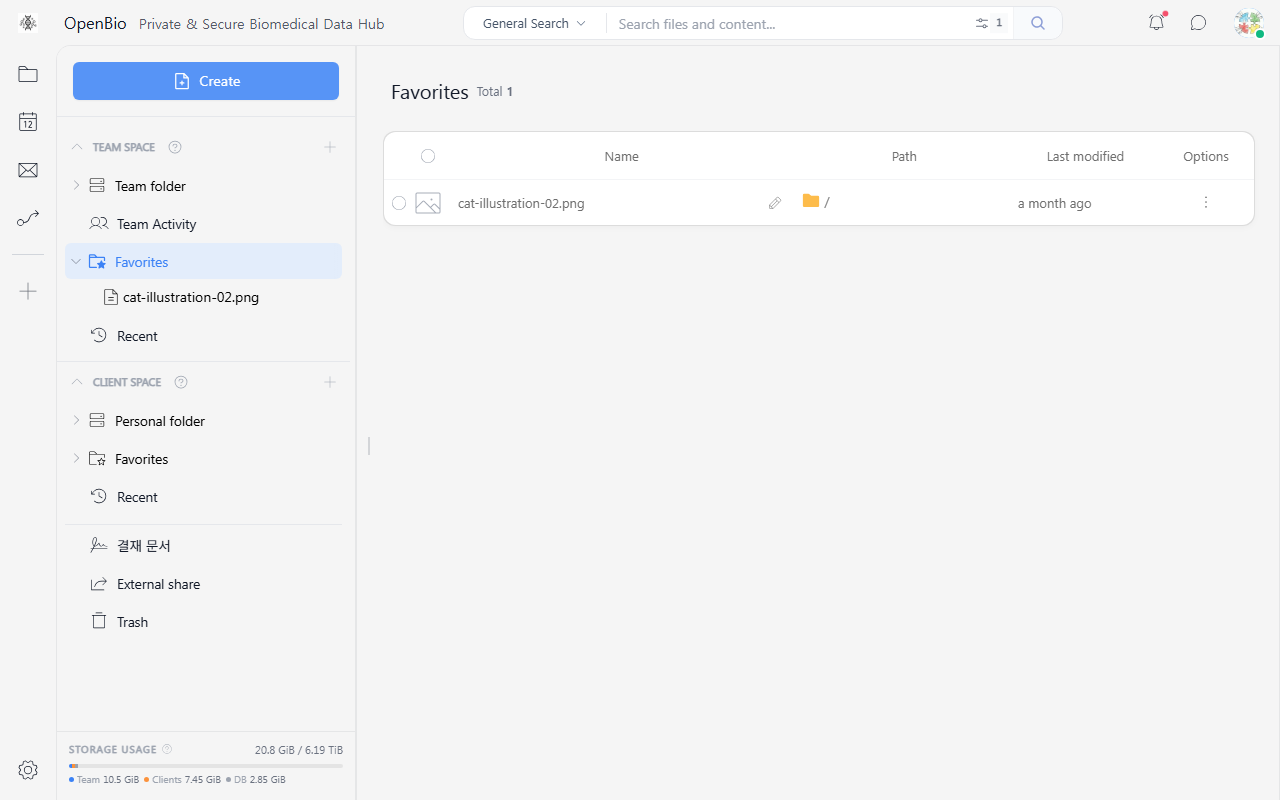
Favorites
Registering frequently used files or folders as favorites lets you access them directly from the left sidebar.
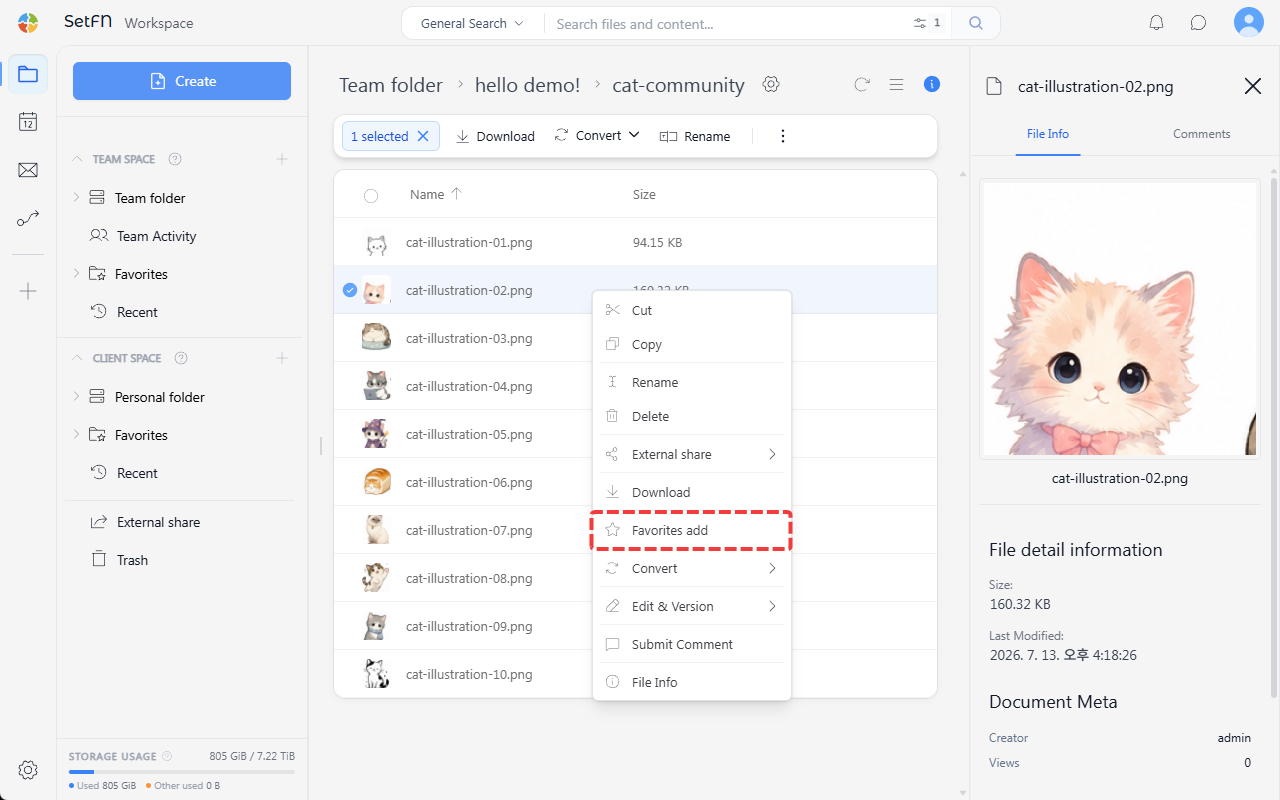
How to Register
Right-click a file or folder inside Team Folder or Personal Folder and select Add to Favorites. You can remove it from Favorites the same way.
Team Favorites vs. Personal Favorites
Favorites are managed separately for Team Space and Client Space.
| Category | Description |
|---|---|
| Team Space → Favorites | Files/folders within the team folder that you have favorited |
| Client Space → Favorites | Files/folders within your personal folder that you have favorited |
List Composition
In the Favorites list, you can check each item's name, path, and last modified date.
Clicking the ⋯ button to the right of an item lets you perform the following actions.
| Item | Description |
|---|---|
| Rename | Change the display name shown in the Favorites list. |
| Delete | Remove the item from Favorites. |
Renaming
You can change the display name of a favorited item to suit your needs. The actual file or folder name does not change — it is only displayed with a different name in the Favorites list.
- Shorten a long file name into something easier to recognize
- Set a label to distinguish files with the same name located in different folders
- Give a shared team file your own note-like name (has no effect on the original file name)