'/%3e%3cpath%20id='cross_2'%20data-name='cross%202'%20class='cls-2'%20d='M20.612,30.43h0a5.361,5.361,0,1,0-10.723,0H0A33.709,33.709,0,0,1,30.569,0V9.75a5.361,5.361,0,1,1,0,10.723V30.43Z'%20transform='translate(67.193%200.007)%20rotate(90)'/%3e%3cpath%20id='cross_3'%20data-name='cross%203'%20class='cls-3'%20d='M20.612,30.43h0a5.361,5.361,0,1,0-10.723,0H0A33.709,33.709,0,0,1,30.569,0V9.75a5.361,5.361,0,1,1,0,10.723V30.43Z'%20transform='translate(67.186%2067.041)%20rotate(180)'/%3e%3cpath%20id='cross_4'%20data-name='cross%204'%20class='cls-4'%20d='M20.6,30.5h0a5.361,5.361,0,1,0-10.723,0H0A33.71,33.71,0,0,1,30.56,0V9.818a5.361,5.361,0,1,1,0,10.723V30.5Z'%20transform='translate(0%2067.041)%20rotate(-90)'/%3e%3c/svg%3e)
Deploying a Website
With SetFN WebSpace, you can publish/deploy a website using a single ZIP file. Just upload it directly from the admin page — no separate server setup required.
Before you start
You first need a homepage file that includes index.html. If you already have a finished website, simply archive it as a ZIP and move on to the next step. If not, you can prepare one using the method below.
If you have no homepage development experience
Describe the page you want to an AI (ChatGPT, Claude, etc.) and ask it to produce a single index.html file with all CSS and JS included, or a ZIP file. You can then archive the file you receive as a ZIP and upload it right away.
Navigating to the WebSpace admin page
Click the button in the upper right of the admin page to go to the WebSpace Management page.
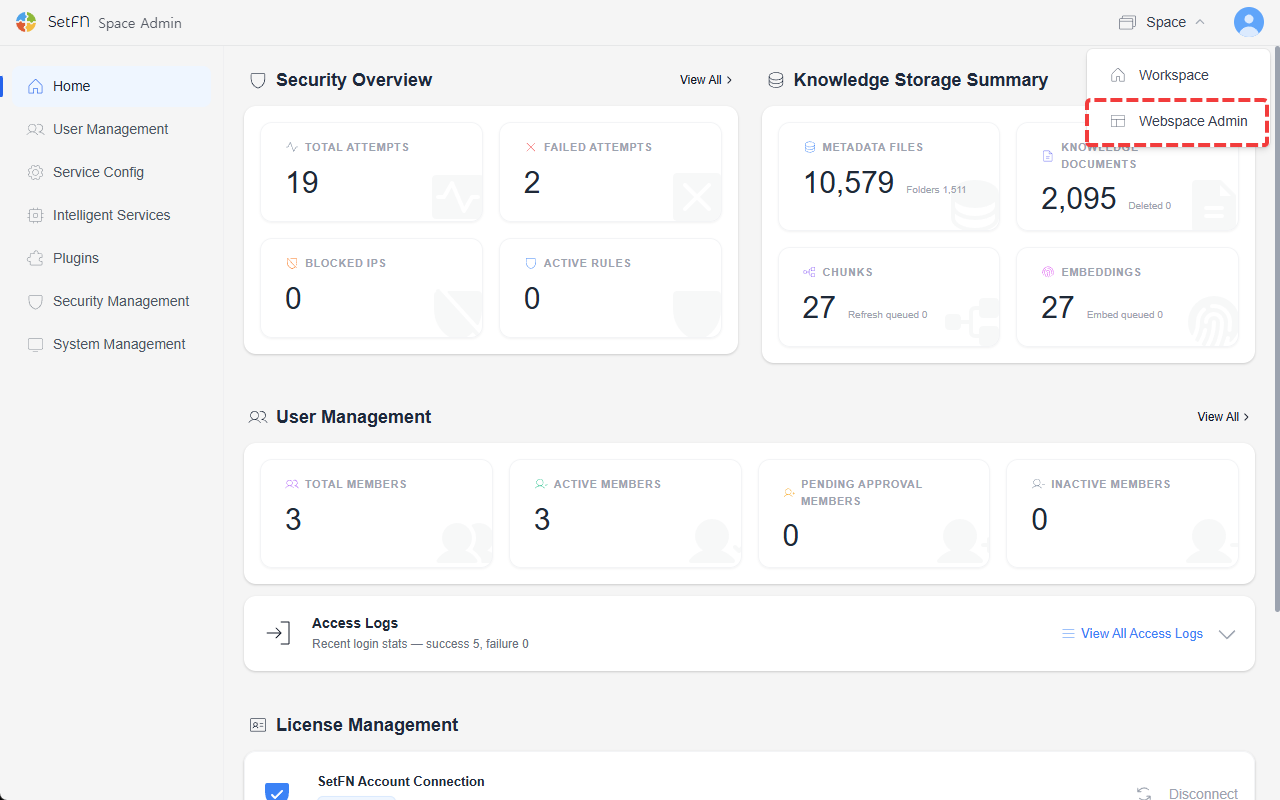
Deploying a website
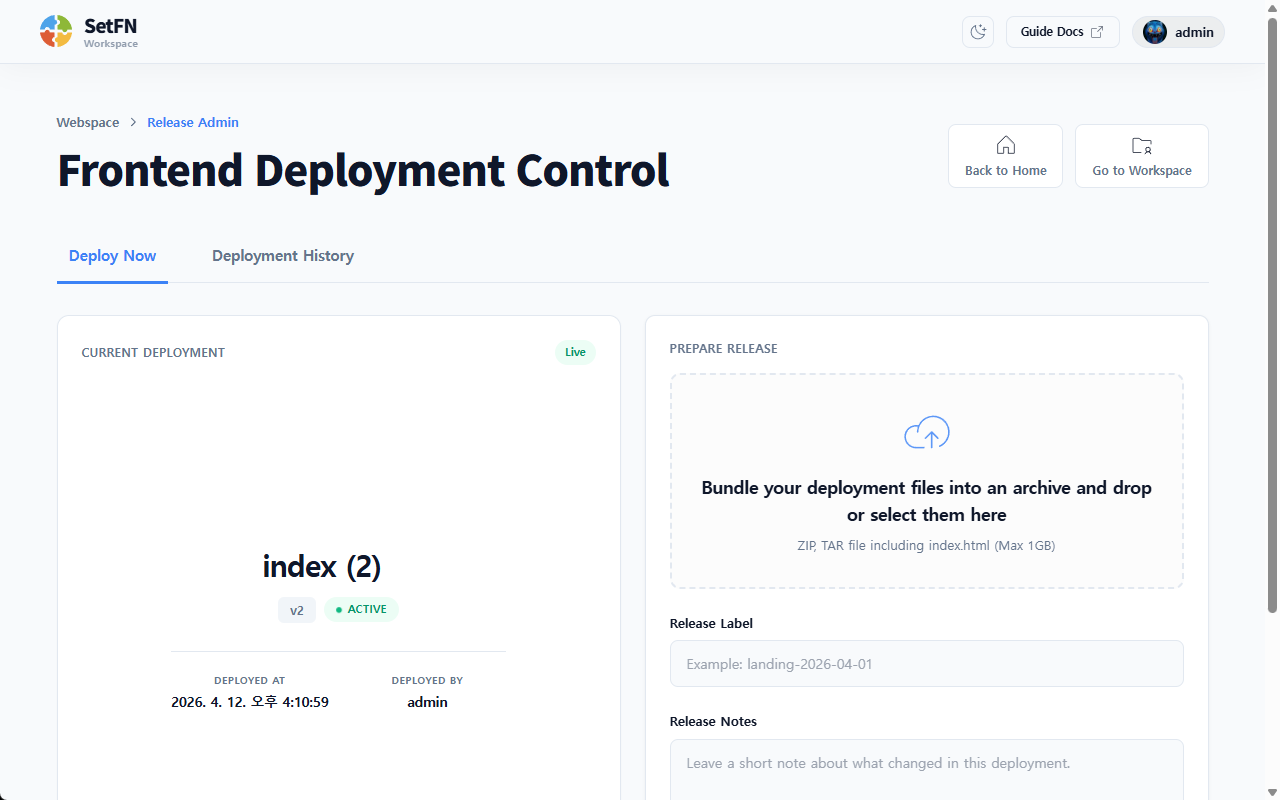
- Upload a compressed file (.zip, .tar.gz, etc.) that includes
index.html. - Enter a release name and a deployment note.
- Click the
Deploybutton and the website is published immediately.
The ZIP file must include
index.html. You can also include resource files such as CSS, JS, and images.
Deployment result
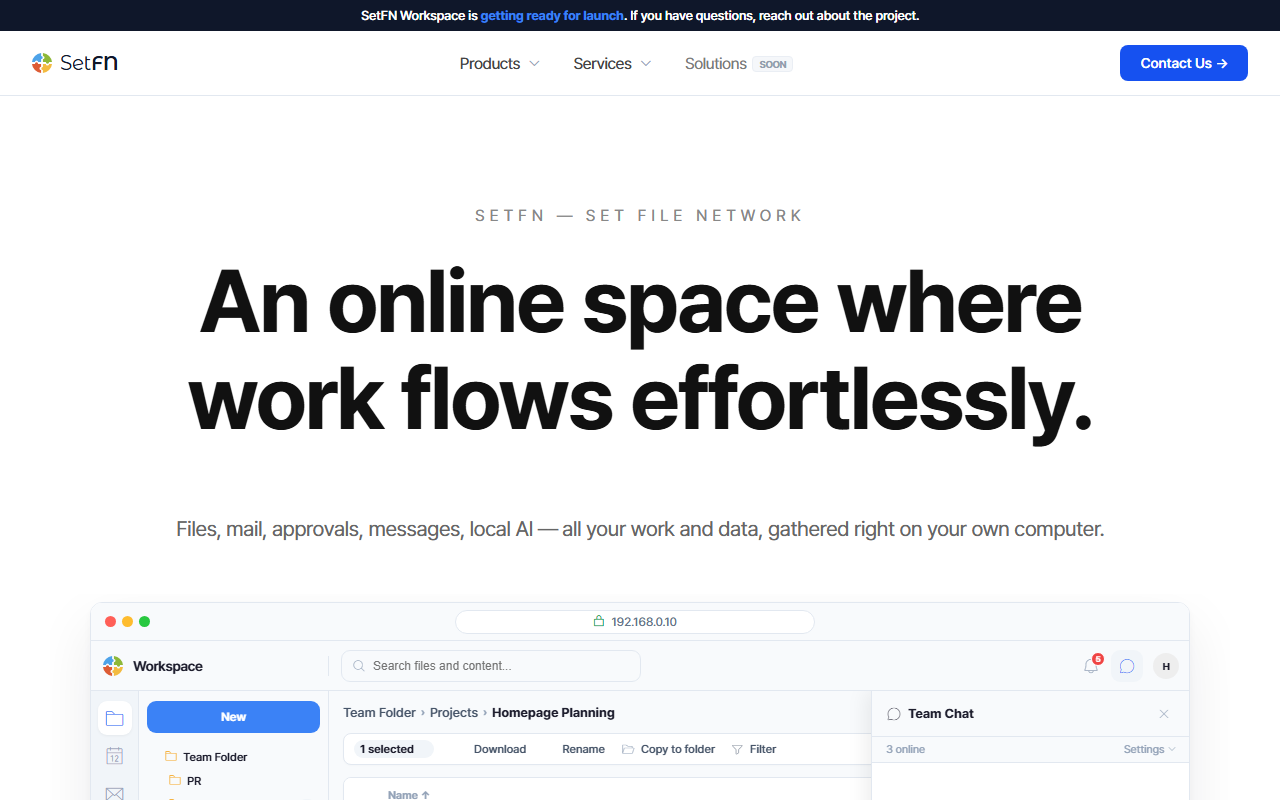
Once deployment is complete, you can view the website immediately at the configured address (https://my-company.setfn.me or a connected custom domain).
Accessing the same address with
/@teamtakes you to the workspace. (e.g.,https://my-company.setfn.me/@team)
Checking deployment history and rolling back
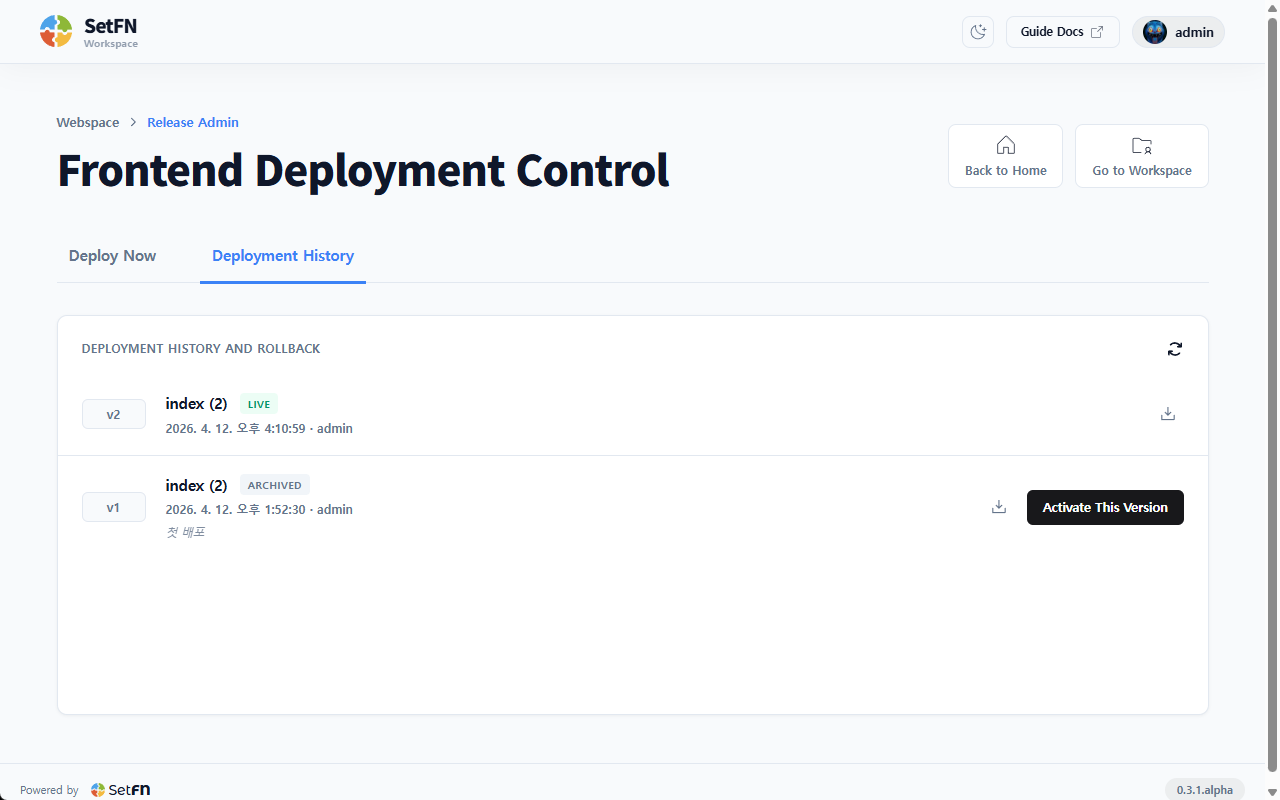
You can view a list of previously deployed versions in the deployment history. Clicking the Apply button on a specific version immediately rolls back to that version.
What makes SetFN WebSpace different
The experience is similar to services like Netlify, Vercel, and GitHub Pages, which let you easily deploy a static website just by uploading a ZIP or folder.
However, while those services host your site on an external vendor's cloud server, with SetFN WebSpace your own workspace becomes the server. When you connect a custom domain, the website is served directly from the server you operate yourself, without going through any external cloud. Since data and traffic never leave your premises, it can be used as-is even in in-house network environments or organizations where data sovereignty is important.