'/%3e%3cpath%20id='cross_2'%20data-name='cross%202'%20class='cls-2'%20d='M20.612,30.43h0a5.361,5.361,0,1,0-10.723,0H0A33.709,33.709,0,0,1,30.569,0V9.75a5.361,5.361,0,1,1,0,10.723V30.43Z'%20transform='translate(67.193%200.007)%20rotate(90)'/%3e%3cpath%20id='cross_3'%20data-name='cross%203'%20class='cls-3'%20d='M20.612,30.43h0a5.361,5.361,0,1,0-10.723,0H0A33.709,33.709,0,0,1,30.569,0V9.75a5.361,5.361,0,1,1,0,10.723V30.43Z'%20transform='translate(67.186%2067.041)%20rotate(180)'/%3e%3cpath%20id='cross_4'%20data-name='cross%204'%20class='cls-4'%20d='M20.6,30.5h0a5.361,5.361,0,1,0-10.723,0H0A33.71,33.71,0,0,1,30.56,0V9.818a5.361,5.361,0,1,1,0,10.723V30.5Z'%20transform='translate(0%2067.041)%20rotate(-90)'/%3e%3c/svg%3e)
Import and export SQL
If you already operate a SQL database, you do not need to rebuild its structure from scratch. Import its tables, columns, and indexes into a schema file (.sfn), or convert a schema file you created into SQL for an external database.
Open the SQL converter
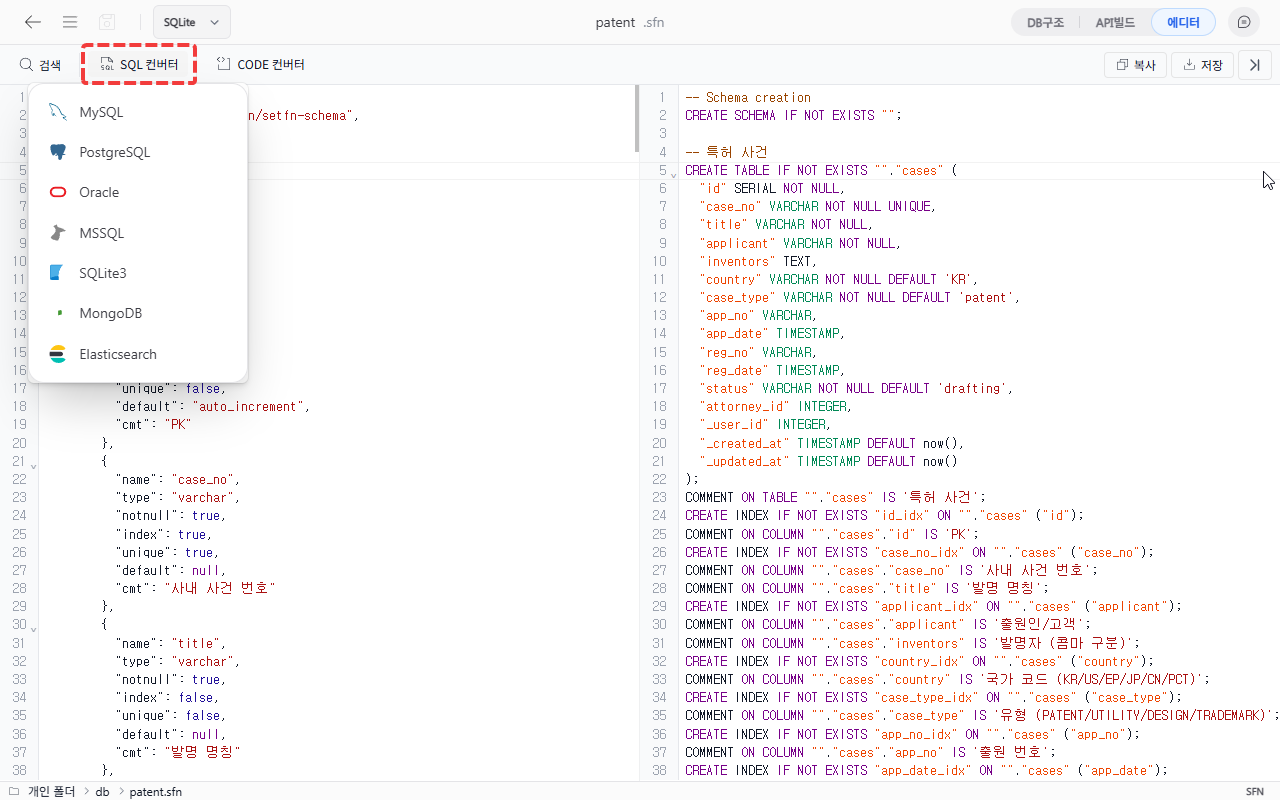
Select the Editor tab at the top of the schema screen, then select SQL Converter on the left.
Create a schema file from SQL
- On the schema screen, select
Import>SQL, then paste theCREATE TABLEstatements. - Open a
.sqlfile in the workspace, then runConvert to SetFN schema.
The converter interprets common SQLite, PostgreSQL, and MySQL/MariaDB column types, defaults, auto-increment fields, indexes, and table constraints. After conversion, check the number of tables and any warnings in the .sfn document before saving it.
Select a database
Select the target database, and SQL in the selected format appears on the right.
Review the SQL script
Review the converted SQL. The following example uses MySQL.
-- MYSQL Schema creation
CREATE DATABASE IF NOT EXISTS `public`;
USE `public`;

CREATE TABLE IF NOT EXISTS `public`.`user_profile` (
    `user_id` INT AUTO_INCREMENT NOT NULL UNIQUE,
    `email` VARCHAR(255) NOT NULL UNIQUE,
    `is_active` BOOL NOT NULL DEFAULT TRUE,
    `created_at` TIMESTAMPTZ NOT NULL DEFAULT now()
);
CREATE INDEX `user_id_idx` ON `public`.`user_profile` (`user_id`);
CREATE INDEX `email_idx` ON `public`.`user_profile` (`email`);
Save the SQL file
Use Copy at the upper right of the code area to copy the script, or use Save to save it as a .sql file.
Supported targets
You can currently generate SQL from a schema file for SQLite3, PostgreSQL, and MySQL. MariaDB deployments use a MySQL/InnoDB-compatible storage format.
Good to know
- Generated SQL reflects the schema file's current state. Convert it again after changing the schema.
- Some data types may not be supported by every database. Always review the conversion result.
- Triggers, views, partitions, and stored procedures may be outside the automatic conversion scope.