'/%3e%3cpath%20id='cross_2'%20data-name='cross%202'%20class='cls-2'%20d='M20.612,30.43h0a5.361,5.361,0,1,0-10.723,0H0A33.709,33.709,0,0,1,30.569,0V9.75a5.361,5.361,0,1,1,0,10.723V30.43Z'%20transform='translate(67.193%200.007)%20rotate(90)'/%3e%3cpath%20id='cross_3'%20data-name='cross%203'%20class='cls-3'%20d='M20.612,30.43h0a5.361,5.361,0,1,0-10.723,0H0A33.709,33.709,0,0,1,30.569,0V9.75a5.361,5.361,0,1,1,0,10.723V30.43Z'%20transform='translate(67.186%2067.041)%20rotate(180)'/%3e%3cpath%20id='cross_4'%20data-name='cross%204'%20class='cls-4'%20d='M20.6,30.5h0a5.361,5.361,0,1,0-10.723,0H0A33.71,33.71,0,0,1,30.56,0V9.818a5.361,5.361,0,1,1,0,10.723V30.5Z'%20transform='translate(0%2067.041)%20rotate(-90)'/%3e%3c/svg%3e)
AI Model Settings
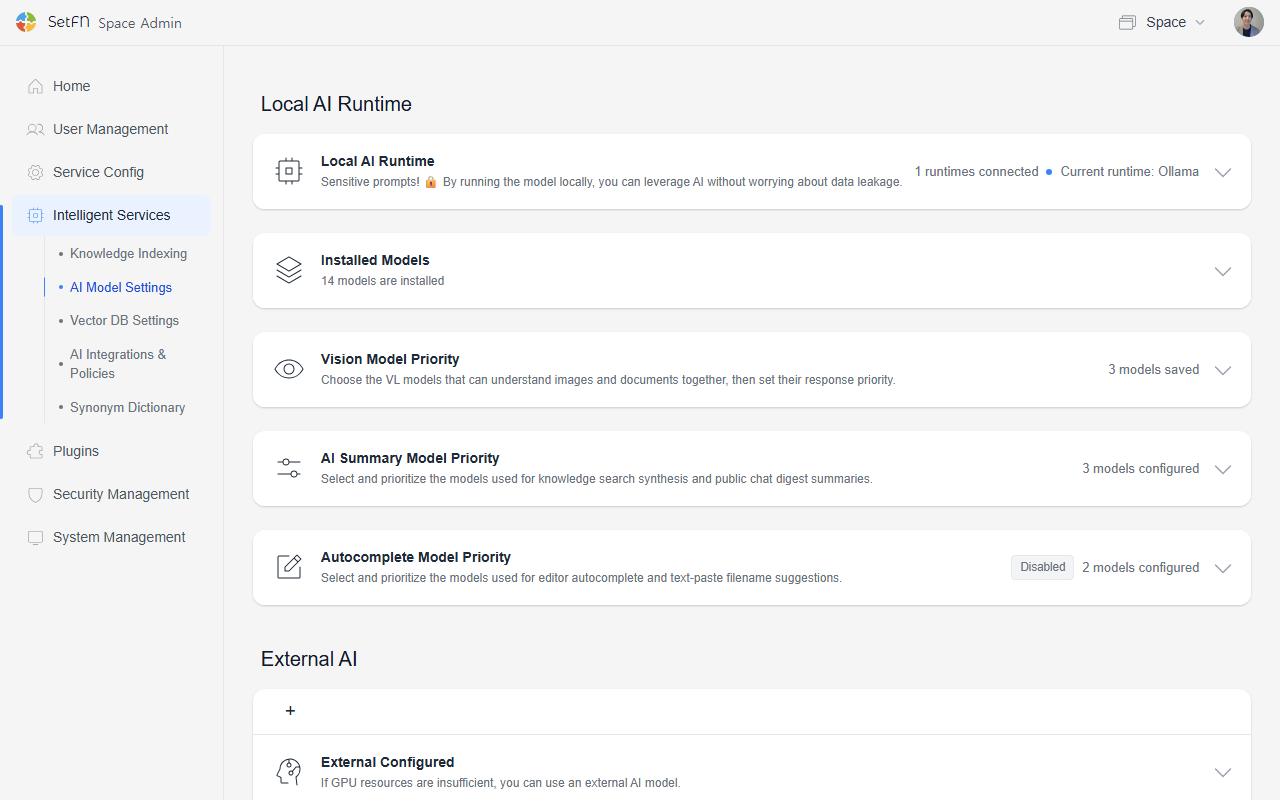
If you have a GPU, you can easily use on-premises (local) AI through the SetFN workspace. You can also use sLLM (small language model)-based AI without issue in air-gapped or network-isolated environments. This page guides you through selecting a local AI runtime and configuring the inference endpoint used by SetFN.
Local AI
You can connect the SetFN workspace to an inference runtime running in your local environment to enable AI features.
Runtime Settings
You can choose one of the following inference runtimes.
| Runtime | Description | Default Endpoint Example |
|---|---|---|
| Ollama | Uses Ollama models installed locally. | http://localhost:11434 |
| LM Studio | Uses models run via LM Studio's local server feature. | http://localhost:1234 |
| Docker Model Runner | Uses a model runtime running in a Docker environment. | http://localhost:12434 |
Endpoint Settings
Enter the server address of the selected runtime.
- If the runtime runs on the same machine, use a
localhostaddress. (e.g.,http://localhost:11434) - If the runtime runs on a different server, enter that server's IP or domain and port.
- The endpoint you enter must be reachable from the SetFN server.
API Token Settings
The API Token is optional.
Enter an API Token only if authentication is enabled on the selected runtime. If your local runtime doesn't use authentication, you can leave this blank and save.
Installing a New Model
Enter the name of the model you want to use and click Install. The selected AI runtime will pull the model. If you use Ollama, you can find available model names and tags in the official Ollama model library.
For example, entering the following model name automatically downloads and installs that model:
gemma4:31b
Model files can be large. Before installation, check the server's available storage, memory, and GPU specifications.
Understanding Model Capabilities
Local AI runtimes such as Ollama display capability tags for the features each model supports. Because models are designed for different tasks, check that a model has the capabilities required for your intended use.
| Capability | Meaning | Common Uses |
|---|---|---|
completion | A general text-generation model that continues from the provided context and answers questions. | Chat, document writing, summarization |
thinking | Supports reasoning through a problem in multiple steps before producing an answer. It can improve results on complex tasks, but may take longer to respond. | Complex questions, analysis, planning |
tool use | Can select external tools or functions and construct the arguments needed to call them. Whether a tool is actually executed depends on connected features and permissions. | Agent tasks, search, external function calls |
vision | A VL (Vision-Language) model that can understand image input together with text. | Image descriptions, scanned document and screen analysis |
embedding | An embedding-only model that converts text meaning into numeric vectors. It is not intended to generate regular chat responses. | Knowledge indexing, similar-document search, RAG |
cloud | Runs in Ollama Cloud instead of entirely on local hardware. It is available after signing up for Ollama Cloud and authenticating the runtime. | Environments with limited local resources, running larger models |
A model can support multiple capabilities. For example, a model with both vision and completion can understand an image and respond in text. Use an embedding model as the search model under AI DB Settings.
cloud models run remotely without downloading the entire model file to the local machine. They require an internet connection and Ollama Cloud authentication. Available models and usage limits may vary according to the subscribed service policy.
Installed Models
Check the list of models available on the selected local AI runtime.
The installed model list shows each model's name, parameter count, size, and installation date. Models you no longer use can be removed with the Delete button.
Vision Model Priority
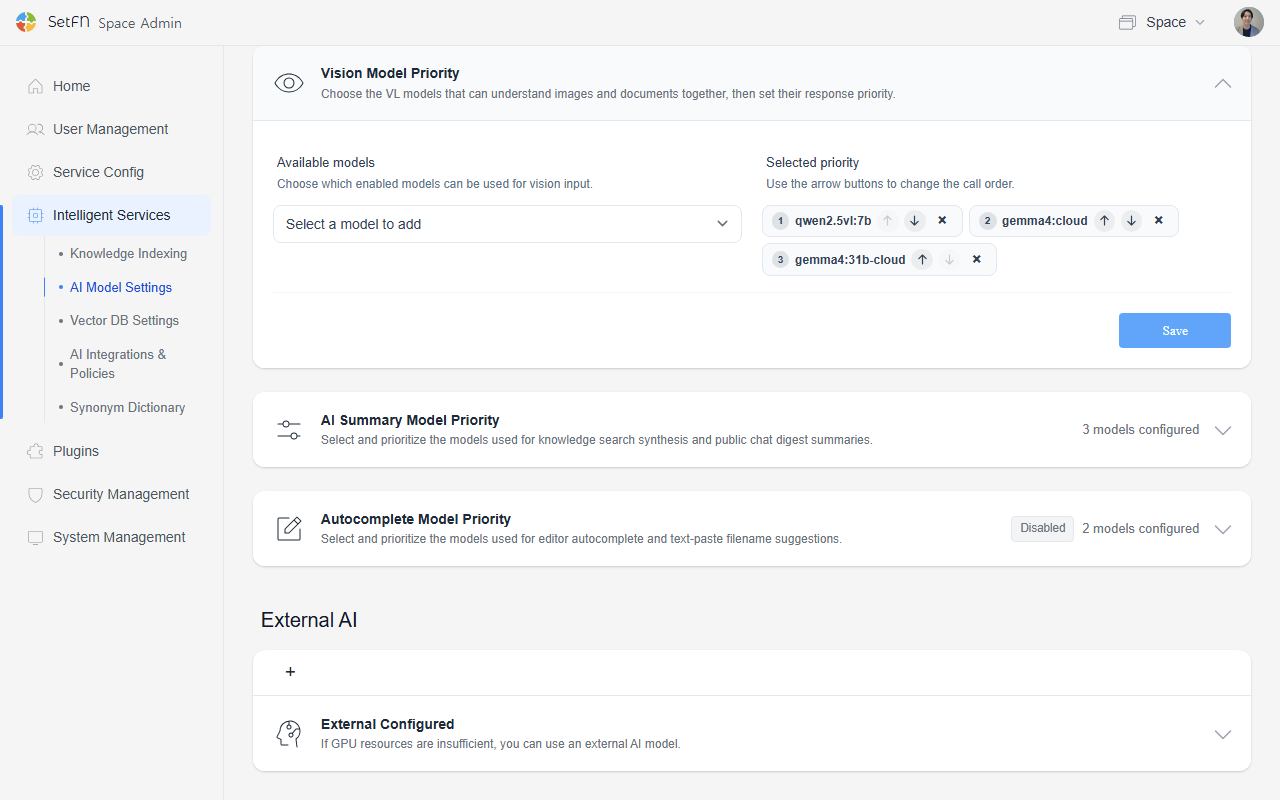
Select the VL (Vision-Language) models that can understand images and documents together, and set their response priority.
- Select which enabled models to use for vision input.
- Selected models are called in priority order.
- Use the up/down buttons to adjust the call order.
AI Summary Model Priority
Select the models used to synthesize knowledge search results and create summaries (digests) for public chats, then set their call order.
Available Models
Choose from enabled models and add the ones you want to use for knowledge search and summarization to the priority list. Vision-only VL models and embedding-only models are excluded.
Selected Priority
Use the up/down buttons to change the call order. If a higher-priority model becomes unavailable—for example, because the runtime changed or its connection failed—the next model in the list is used automatically.
Automatic Selection Policy
Choose how a model is selected when the priority list is empty or none of the listed models are available.
| Policy | Description |
|---|---|
| Response speed priority | Selects a model that can respond quickly. |
| Balanced | Considers both response speed and output quality. |
| Quality priority | Prioritizes models that produce higher-quality summaries. Recommended when summary quality is important. |
Editor AI Autocomplete
Configure AI to suggest the next sentence or continuation while you write in the Markdown editor.
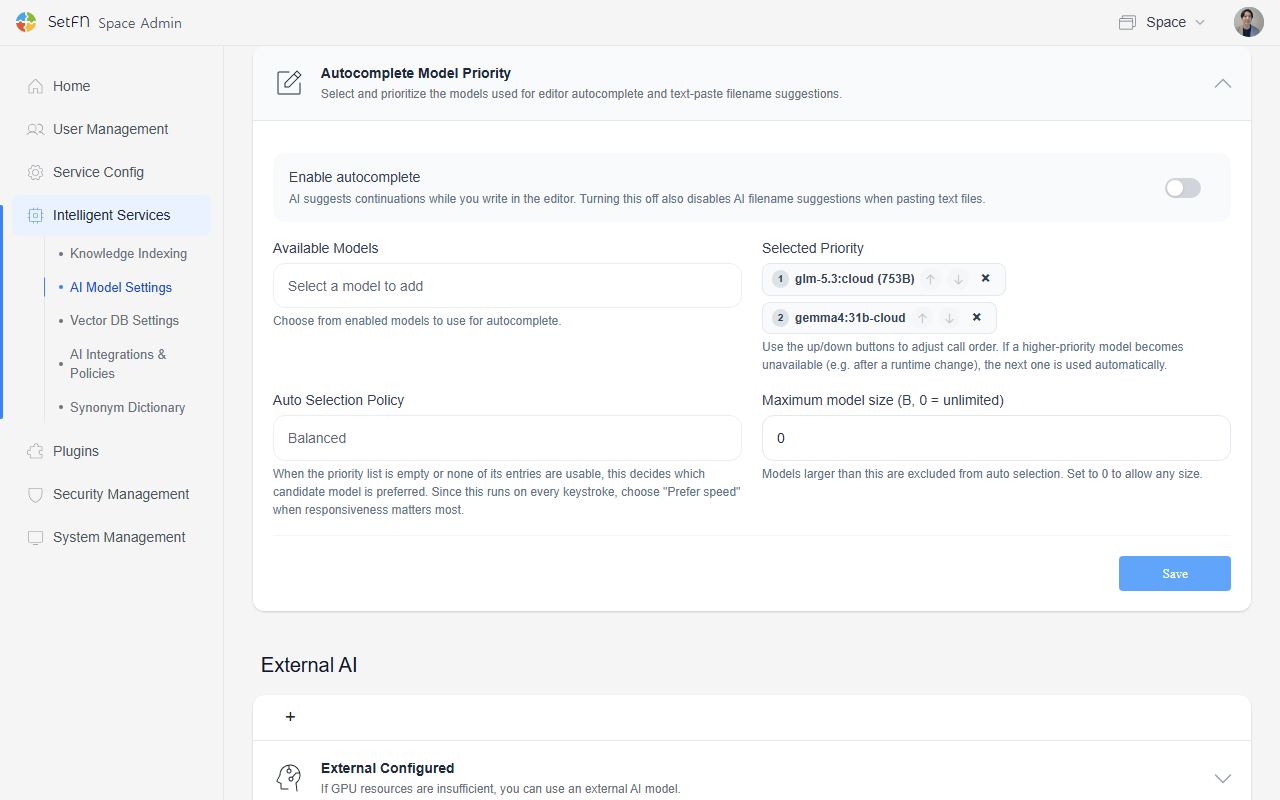
When enabled, AI suggests text based on the cursor position and surrounding context while you edit a .md document. This is useful when continuing meeting minutes, reports, memos, or technical documentation.
To see how autocomplete appears in the editor, refer to the AI Text Suggestions section in Viewing and Editing Text Files.
Model Selection Method
The model used for editor AI autocomplete can be selected in two ways.
| Selection Method | Description |
|---|---|
| Automatic selection | Automatically selects an available model that fits the policy. |
| Specific model | Uses the local AI model designated by the administrator. |
To use a specific model, first install or connect it under Installed Models on this page.
Automatic Selection Policy
When using automatic selection, choose a model-selection policy based on the following criteria.
| Policy | Description | Suitable Situations |
|---|---|---|
| Response speed priority | Prioritizes models that can respond quickly. | Short notes, real-time writing assistance |
| Balanced | Considers both speed and quality. | General document writing, common team defaults |
| Quality priority | Prioritizes models that produce higher-quality responses. | Reports, proposals, long-document drafts |
Saving Settings
After confirming the runtime, endpoint, API Token, and model settings, save the configuration. Once saved, AI features such as AI chat, document-based Q&A, and knowledge indexing can use the configured local runtime and model.
Good to Know
- The models used by the runtime must first be downloaded or loaded in Ollama, LM Studio, or Docker Model Runner.
- If the runtime is not running or the endpoint address is incorrect, SetFN cannot call the model.
- Check that port access isn't blocked by a firewall or network policy.