'/%3e%3cpath%20id='cross_2'%20data-name='cross%202'%20class='cls-2'%20d='M20.612,30.43h0a5.361,5.361,0,1,0-10.723,0H0A33.709,33.709,0,0,1,30.569,0V9.75a5.361,5.361,0,1,1,0,10.723V30.43Z'%20transform='translate(67.193%200.007)%20rotate(90)'/%3e%3cpath%20id='cross_3'%20data-name='cross%203'%20class='cls-3'%20d='M20.612,30.43h0a5.361,5.361,0,1,0-10.723,0H0A33.709,33.709,0,0,1,30.569,0V9.75a5.361,5.361,0,1,1,0,10.723V30.43Z'%20transform='translate(67.186%2067.041)%20rotate(180)'/%3e%3cpath%20id='cross_4'%20data-name='cross%204'%20class='cls-4'%20d='M20.6,30.5h0a5.361,5.361,0,1,0-10.723,0H0A33.71,33.71,0,0,1,30.56,0V9.818a5.361,5.361,0,1,1,0,10.723V30.5Z'%20transform='translate(0%2067.041)%20rotate(-90)'/%3e%3c/svg%3e)
Setting Up a Qdrant Server
To select Qdrant as the driver in AI DB Settings, you need a reachable Qdrant server first. SetFN doesn't install the Qdrant server for you, so this explains how to set one up yourself with Docker.
Before You Start
- You need a Linux (Ubuntu) environment to run the Qdrant server on, with administrator (
sudo) access. - Install Docker on that environment first if it isn't already installed.
- The SetFN server needs network access to this Qdrant server.
Installing Docker
The official Docker installation procedure for Ubuntu. Skip this step if Docker is already installed.
1. Update the Package Index and Install Required Packages
sudo apt update
sudo apt install ca-certificates curl
sudo install -m 0755 -d /etc/apt/keyrings
sudo curl -fsSL https://download.docker.com/linux/ubuntu/gpg -o /etc/apt/keyrings/docker.asc
sudo chmod a+r /etc/apt/keyrings/docker.asc
2. Add the Docker Repository to Apt Sources
sudo tee /etc/apt/sources.list.d/docker.sources <<EOF
Types: deb
URIs: https://download.docker.com/linux/ubuntu
Suites: $(. /etc/os-release && echo "${UBUNTU_CODENAME:-$VERSION_CODENAME}")
Components: stable
Architectures: $(dpkg --print-architecture)
Signed-By: /etc/apt/keyrings/docker.asc
EOF

sudo apt update
3. Install the Docker Packages
sudo apt install docker-ce docker-ce-cli containerd.io docker-buildx-plugin docker-compose-plugin
Running the Qdrant Container
1. Create the docker-compose.yml File
In the folder where you want to run Qdrant, create a docker-compose.yml file with the following content.
services:
  qdrant:
    image: qdrant/qdrant:latest
    container_name: qdrant
    restart: unless-stopped
    ports:
      - "6333:6333"
      - "6334:6334"
    volumes:
      - ./qdrant_storage:/qdrant/storage
2. Run the Container
Run the container from the same folder.
sudo docker compose up -d
image: the Qdrant image and version to use.latestchanges to whatever is newest each time you pull the image, so for production it's best to pin a specific version from the Qdrant releases (e.g.,qdrant/qdrant:v1.12.4). If you mirror images through an internal registry, point this at that path instead.container_name,./qdrant_storage: the container name and data storage path are just examples — change them to whatever you prefer.6333: the REST API (HTTP) port.6334: the gRPC port. It uses a binary protocol (protobuf), which is faster than the REST API for high-throughput work like bulk upserts or batch search. SetFN supports a gRPC connection inAI DB Settingsand recommends using gRPC first for search and vector storage.
Connecting to SetFN
In AI DB Settings's Local AI DB Setup, fill in the following fields and click the Save button.
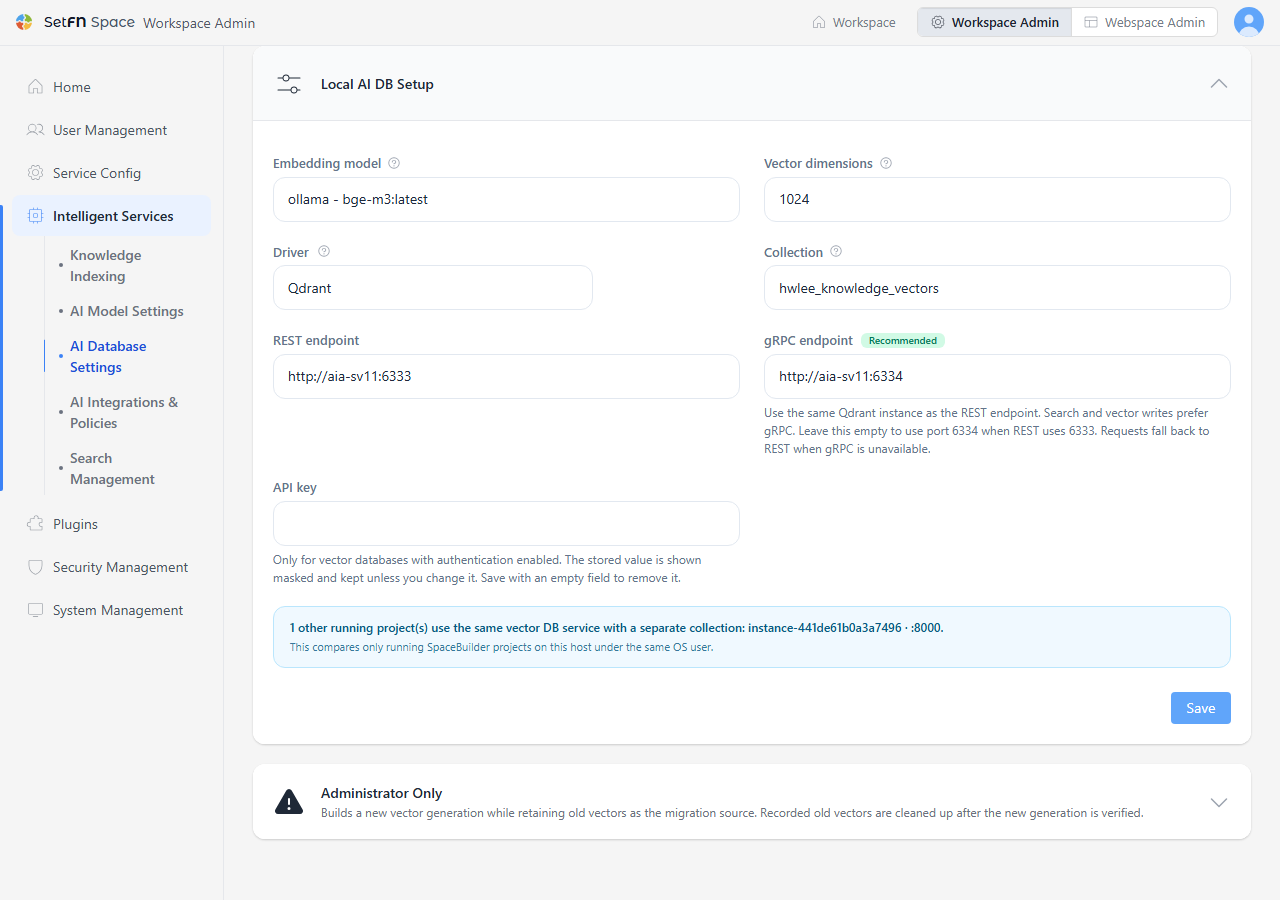
| Item | Value |
|---|---|
| Driver | Qdrant |
| Collection | The collection name to use, distinct per instance. You choose this yourself. |
| REST endpoint | The Qdrant server's REST API address (e.g., http://localhost:6333) |
| gRPC endpoint (recommended) | The gRPC address of the same Qdrant instance as REST (e.g., http://localhost:6334). Search and vector storage use gRPC first. If left blank, 6334 is used automatically when the REST address is on port 6333; it falls back to REST if it can't connect. |
| API key | Only fill this in if authentication is enabled on Qdrant. Leaving it blank connects without authentication; saving over a stored value with a blank one deletes it. |
After saving, the connection is working correctly once Local AI DB Operating Status shows connection status as Connected and the vector store as Qdrant.